

Steps to add NFC/ID
-
Launch the Oloid Connect app.
The Settings page is displayed.Note: For more information about how to log in to the Oloid Connect, refer to How to log in to the Admin mode in Oloid Connect App.
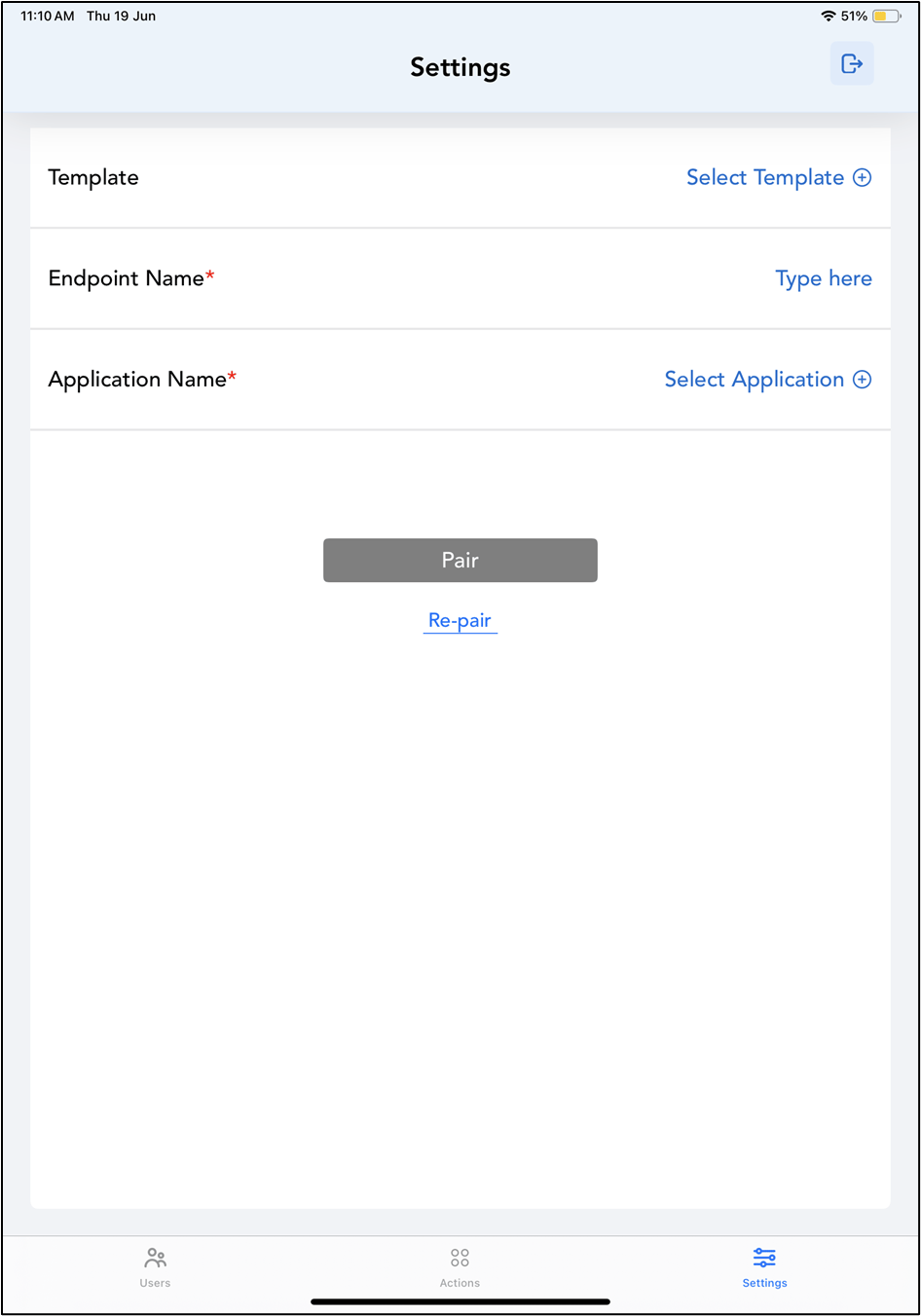
-
Tap Users on the menu at the bottom of the screen.

-
Tap on the selected user to view details.

-
Go to NFC/ID tab.
The Add NFC/ID screen is displayed.
 Note: The card reader must be connected to the iPad.
 - Scan the NFC token on the NFC reader. The NFC/ID is successfully assigned to the user.
