Introduction
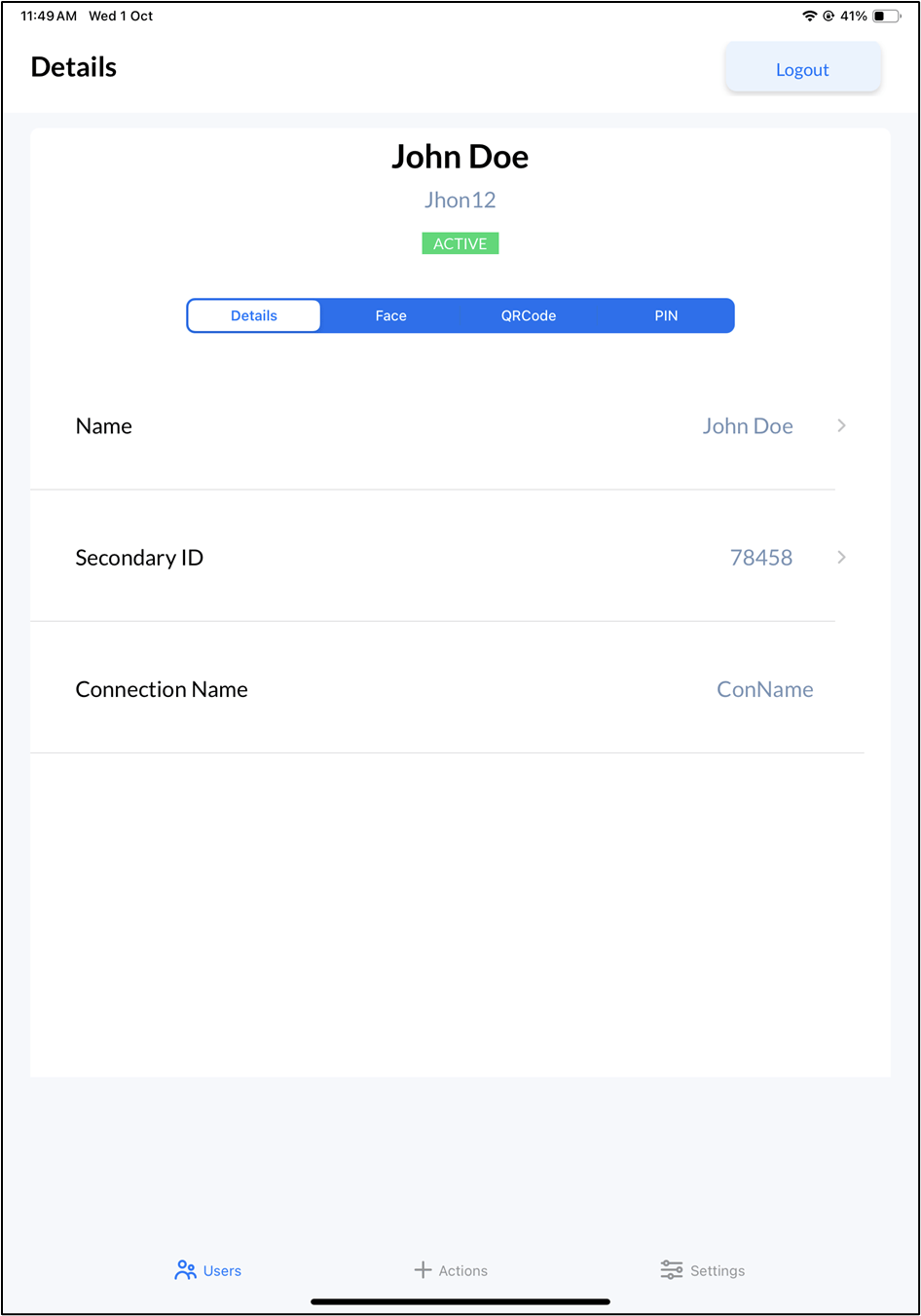
The Add User feature in the Oloid Verify app allows Admins and Supervisors to directly add user from the endpoint.Prerequisite
- You must complete the Admin Setup. To setup, refer Oloid Verify - Admin Setup.
- You must enable Supervisors privileges to allow the supervisor to add user. To enable, refer to How to enable Add or Delete Users in Tenant Admin Portal for Supervisors
- The Oloid Verify endpoint must be paired. To pair refer How to pair an Oloid Verify endpoint
Steps to Add user
-
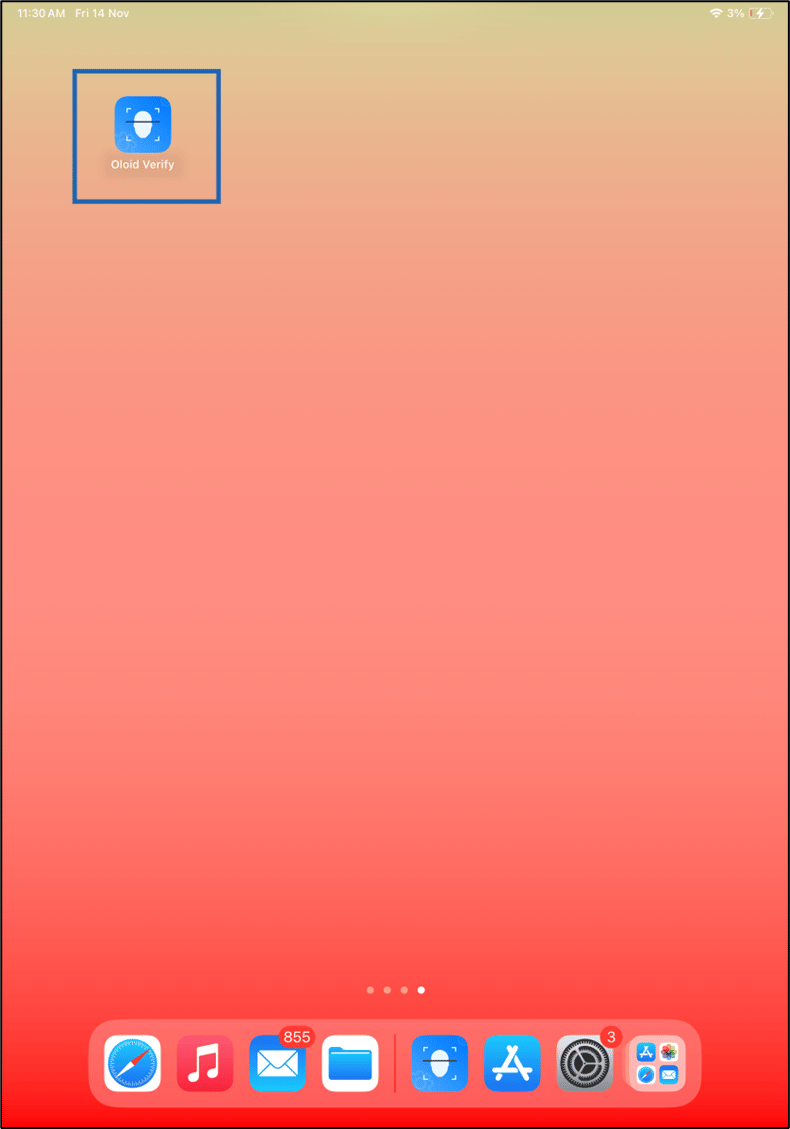
Launch the Oloid Verify app.
- Log in to Admin mode in Oloid Verify app. To login refer How to log in to the admin mode of Oloid Verify App as an Admin or Supervisor The Home screen is displayed.
-
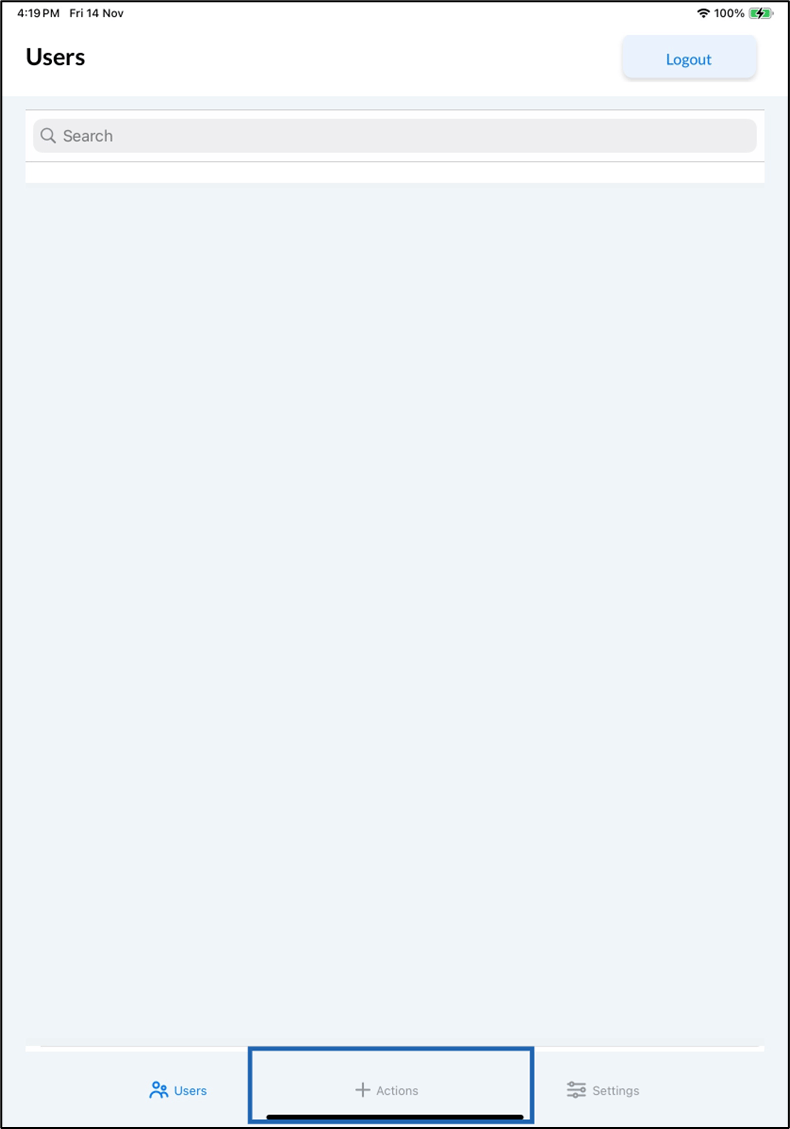
Tap +Actions on the menu at the bottom of the screen.
-
Tap Add User.

-
Enter Name.
Note: First name and Last name should be separated by a space.
- Enter Primary ID. Only alphabets, numbers, and hyphen are accepted.
- Enter Secondary ID (Optional). Only numerals are accepted.
- Select connection name from Connection Name list.
- Tap Add User.