

Introduction
Guided Access Mode keeps the iPad limited to one app or a few apps, so users are unable to access other features or apps. This setup is useful for check-ins, time tracking, or using the iPad as a display screen. For more, refer to Use Guided Access with iPhone and iPadThe following topics are covered in this document.
- How to set up Guided Access in iPad
- How to enable Guided Access Mode in iPad
- How to disable Guided Access Mode in iPad
Setting up Guided Access
- Open your iPad.
- Go to Settings > General > Accessibility
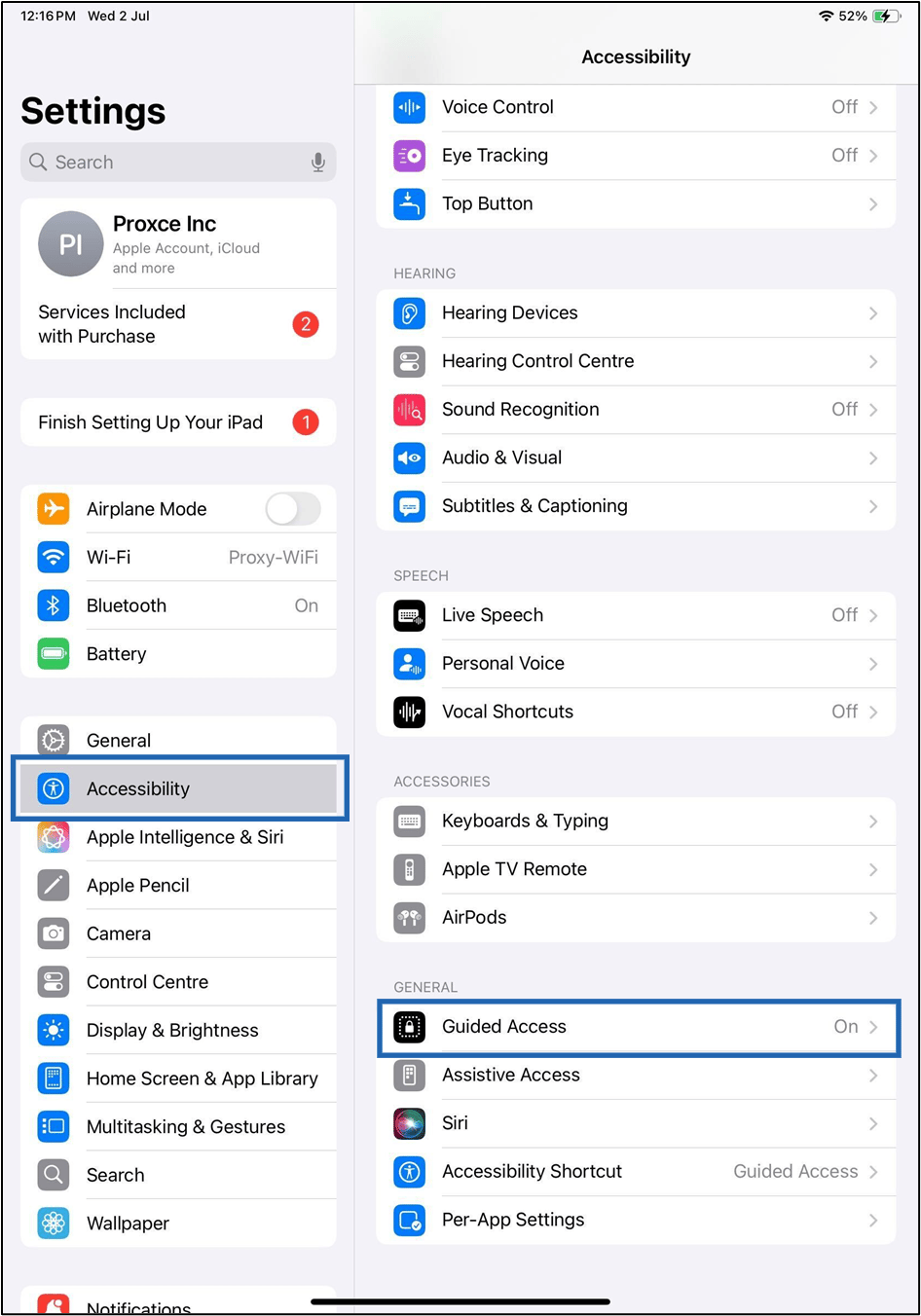
- Scroll down the list to the bottom and tap Guided Access.
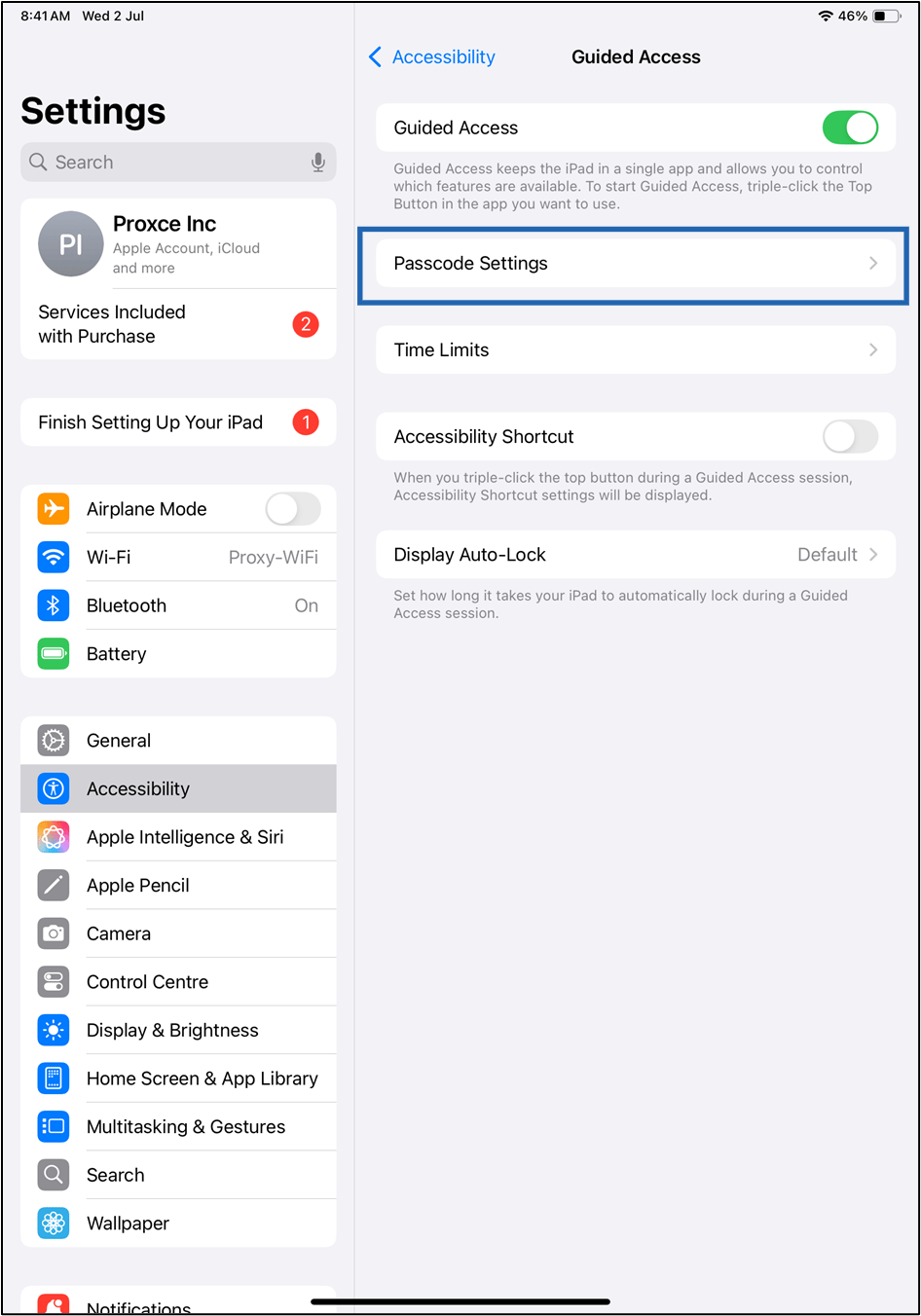
- Tap the toggle to switch on Guided Access.

- Tap Passcode Settings. Tap Set Guided Access Passcode.
- Tap Set Guided Access Passcode.
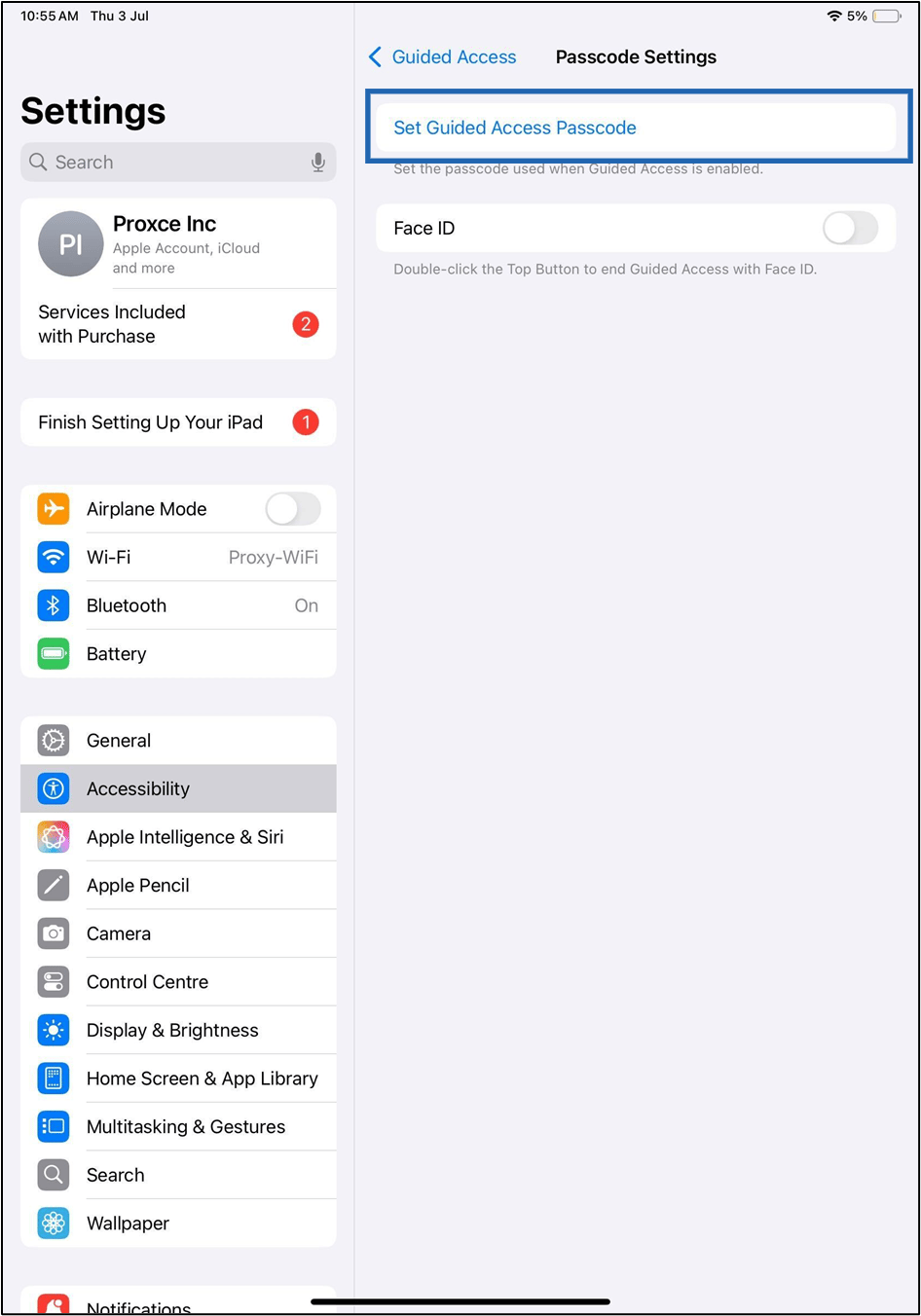
- Enter a passcode, then re-enter it to confirm.

Enable Guided Access Mode
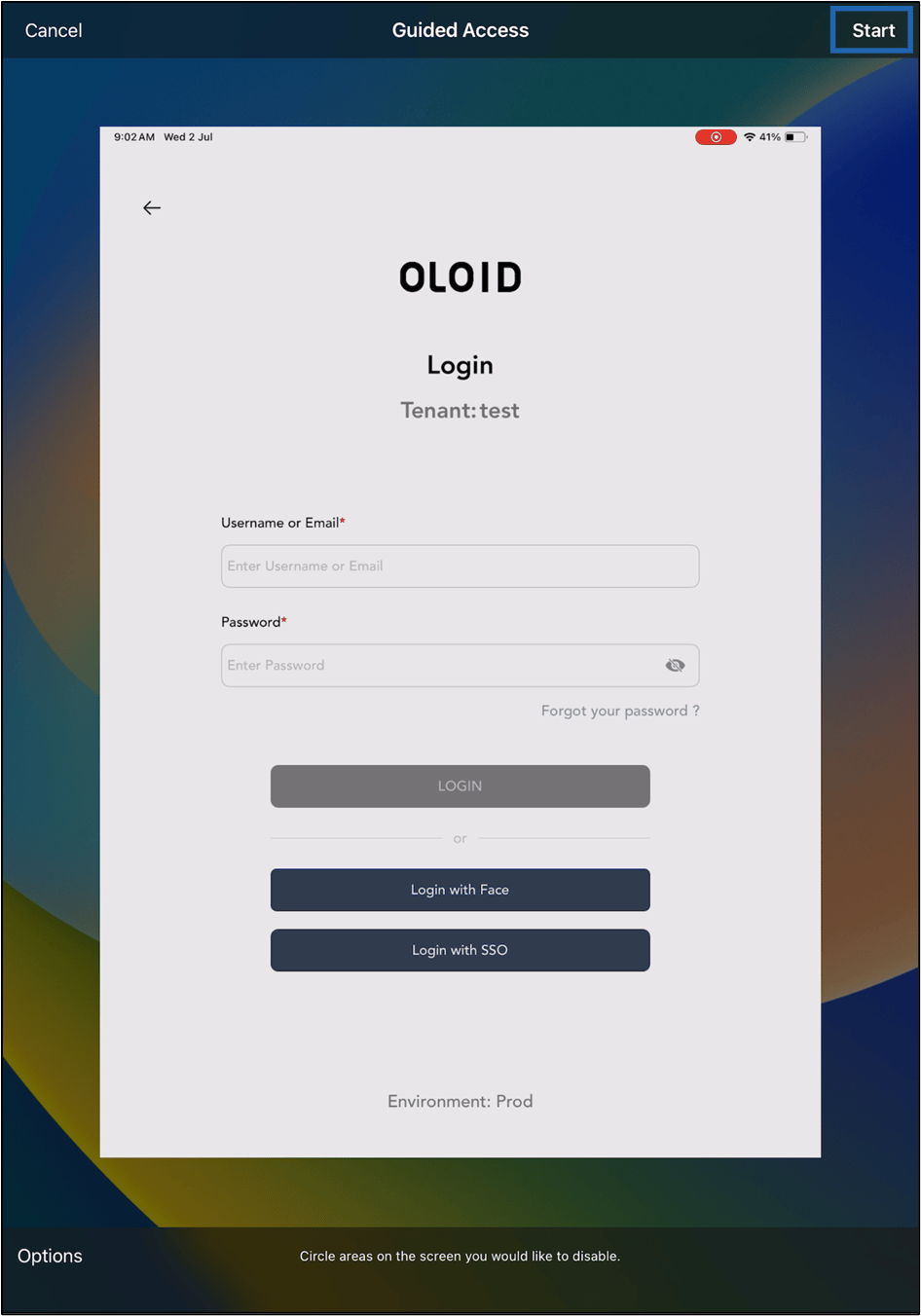
- Open the Oloid Connect application, then triple-press the Home/Power button.
- Click Start.
Disable Guided Access Mode
- To end a Guided Access session, triple-press the Home/Power button.
- Enter your passcode when prompted.
- Click End.
