Introduction
This feature of the Oloid Connect app allows Tenant Admins and Supervisors to pair an endpoint on iPhone. Pairing an endpoint enables the app to connect with the configured application and perform transactions.Prerequisite
- You must download and the install the Oloid Connect app. To download and install refer to How to Download and Install the Oloid Connect App on iPhone.
- You must complete the Admin setup before pairing an endpoint. To complete the Admin setup refer to Oloid Connect - Admin Setup on iPhone.
Steps to pair an endpoint
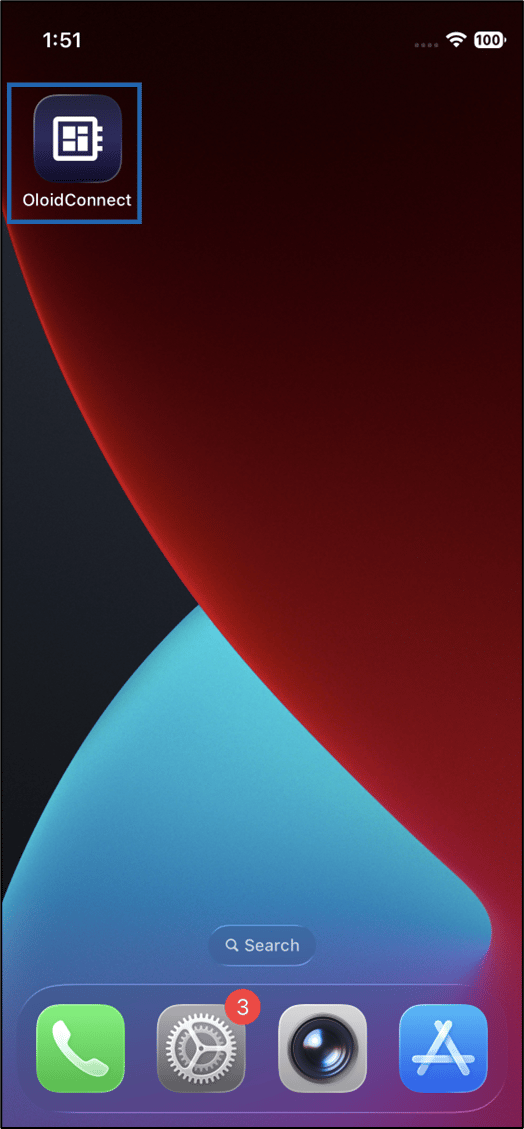
- Launch the Oloid Connect app.
- Log in to Oloid Connect app. The Settings page is displayed on a successful login.
- Do the following:
-
Add Template (optional).
Note: Templates allow Admins to configure Endpoints at scale. A template has to be created in Oloid Portal. See How to create and configure Oloid Connect endpoint template
- Enter Endpoint Name.
- Select Application Name from Application Name dropdown list.
-
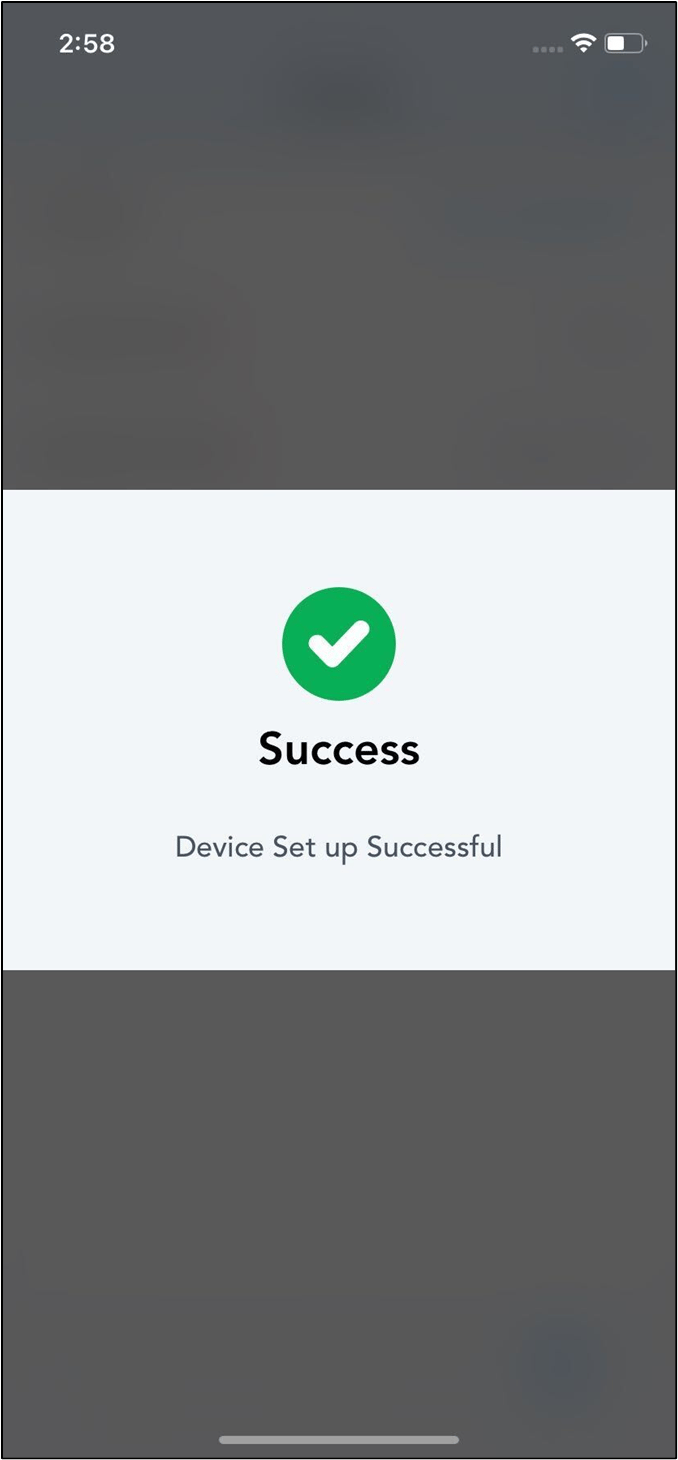
Click Pair.

-
Add Template (optional).
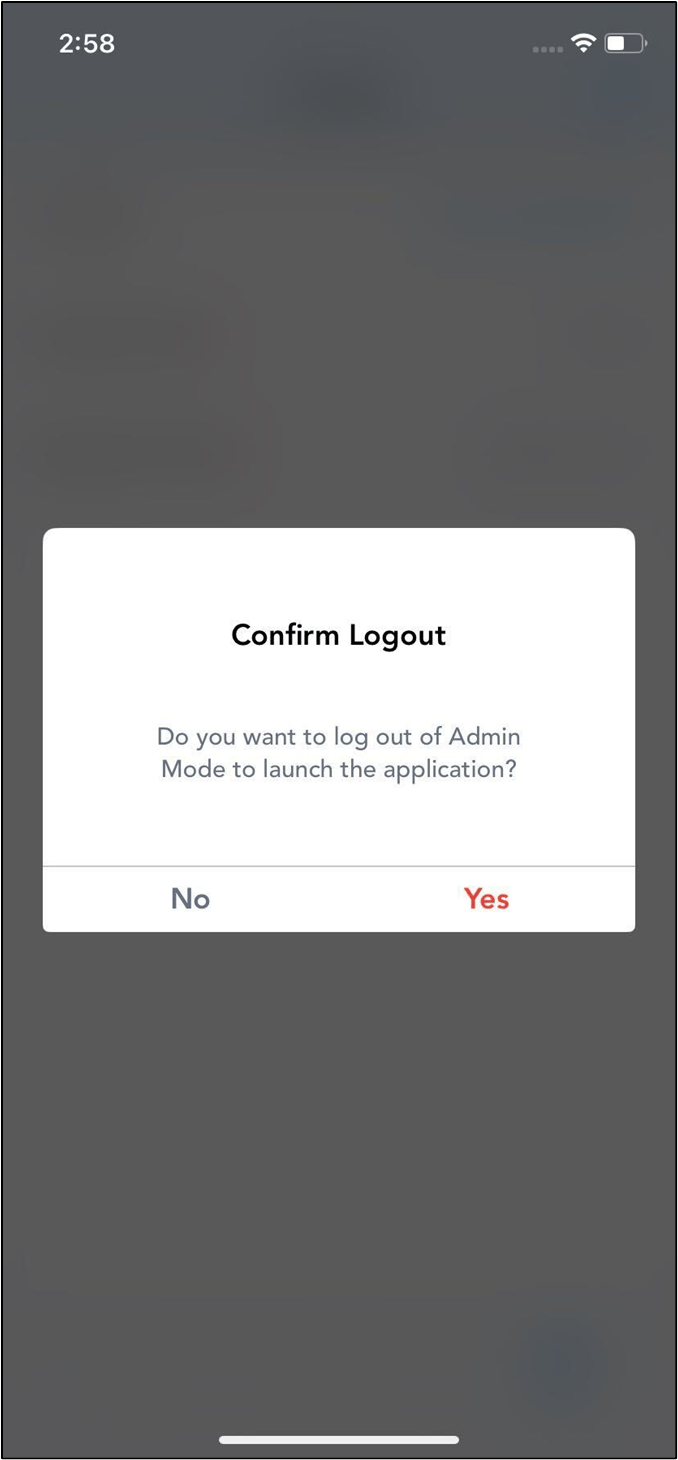
- Do one of the following:
- Click Yes to log out and launch the application (preview mode). The app displays preview mode and allows you to do the transactions.
- Click No to stay logged in to the admin mode.