Prerequisite

You must download the Oloid Connect from App Store. For more details, refer How to download Oloid Connect app.

Steps to log in with Google SSO

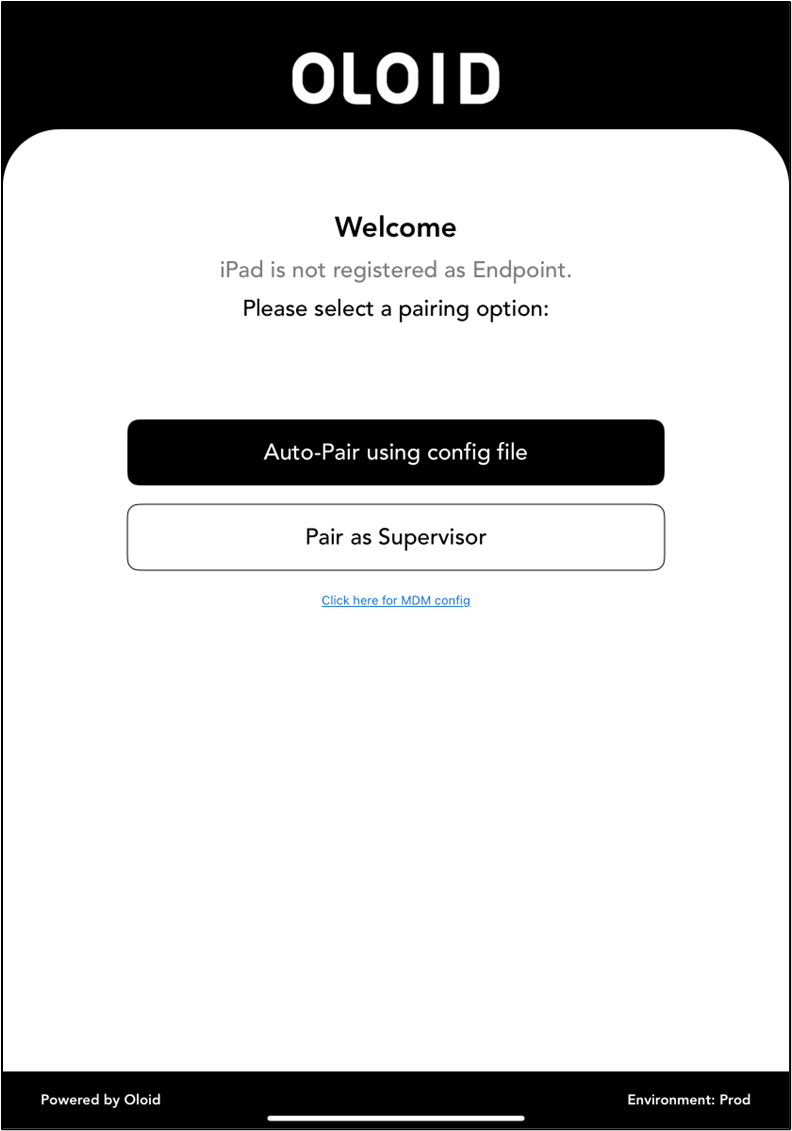
  1. Launch the Oloid Connect First Time Login Using Google SSO - screenshot 1 app. First Time Login Using Google SSO - screenshot 2
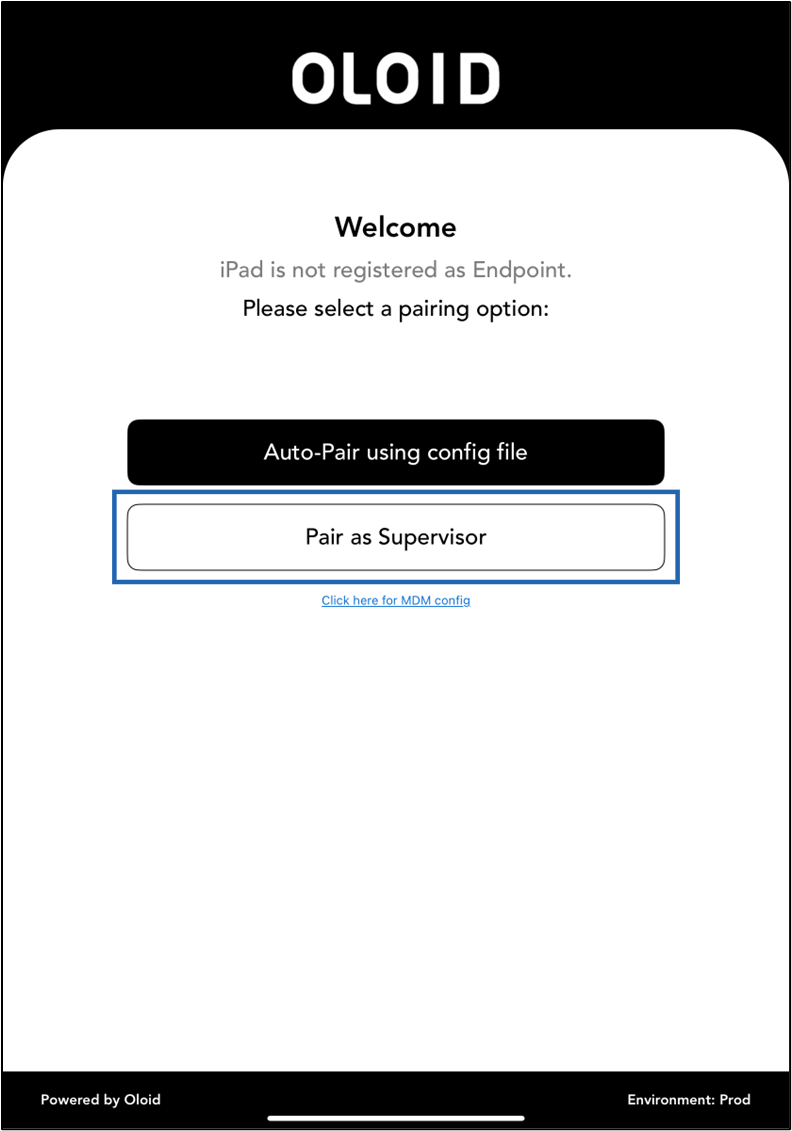
  2. Tap Pair as Supervisor. First Time Login Using Google SSO - screenshot 3 The Welcome screen is displayed.
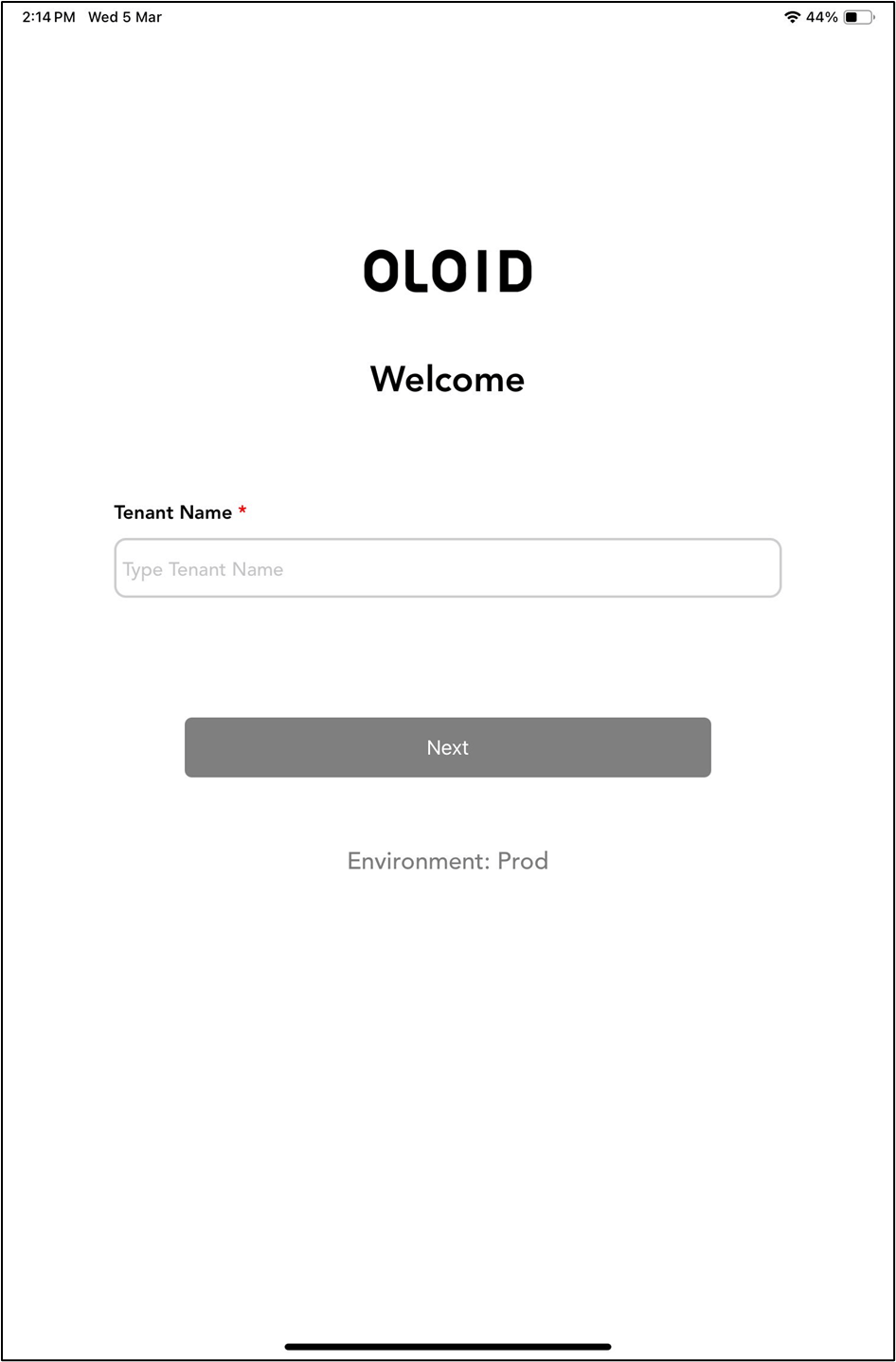
  3. Enter Tenant Name, then tap Next. First Time Login Using Google SSO - screenshot 4 TheLogin page is displayed.
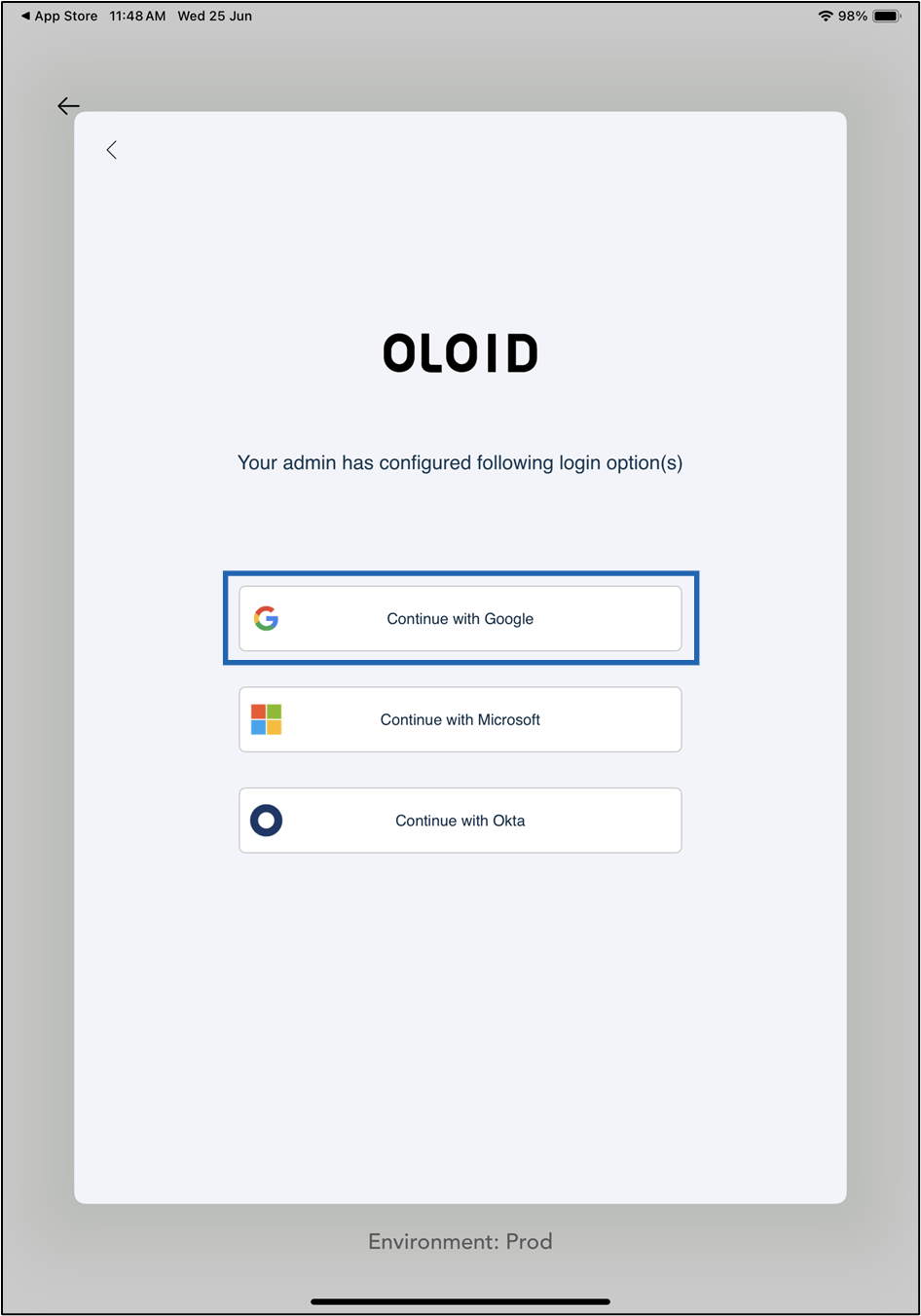
  4. Tap Login with SSO. First Time Login Using Google SSO - screenshot 5 The screen with SSO options is displayed.
  5. Select Continue with Google. First Time Login Using Google SSO - screenshot 6 The confirmation pop-up is displayed.
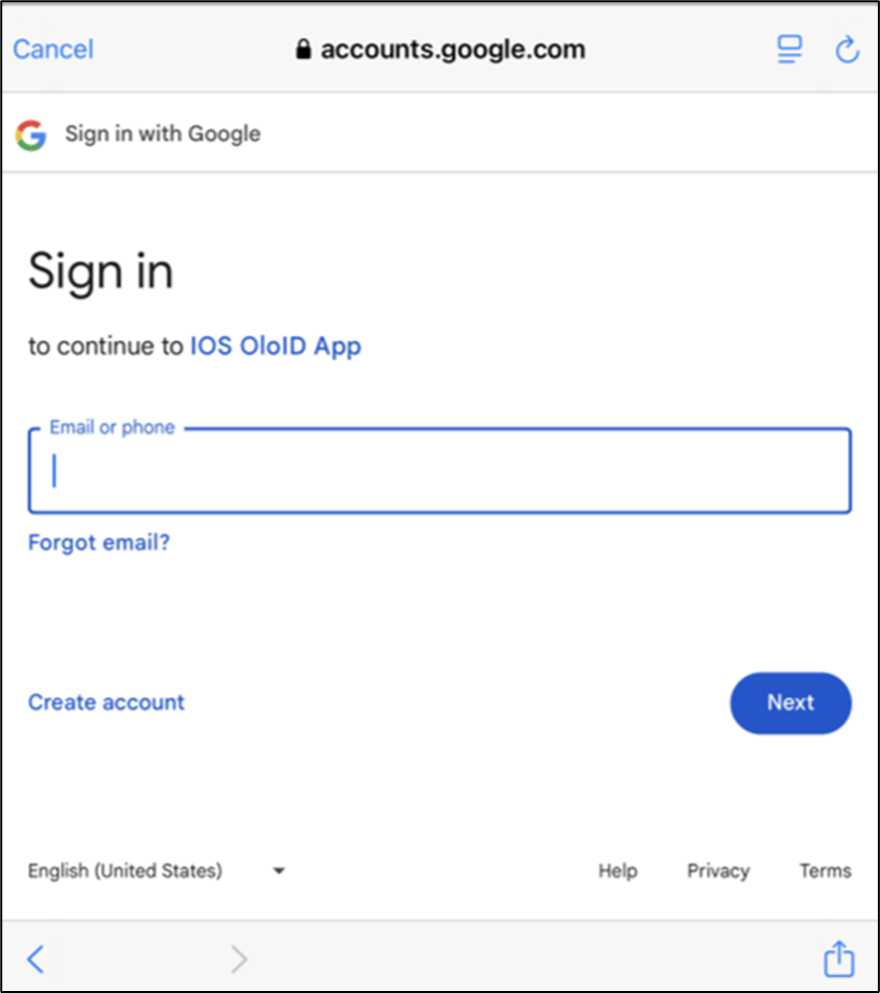
  6. Click Continue. First Time Login Using Google SSO - screenshot 7 The Sign in screen is displayed.
  7. Do the following:
    1. Enter Email ID.
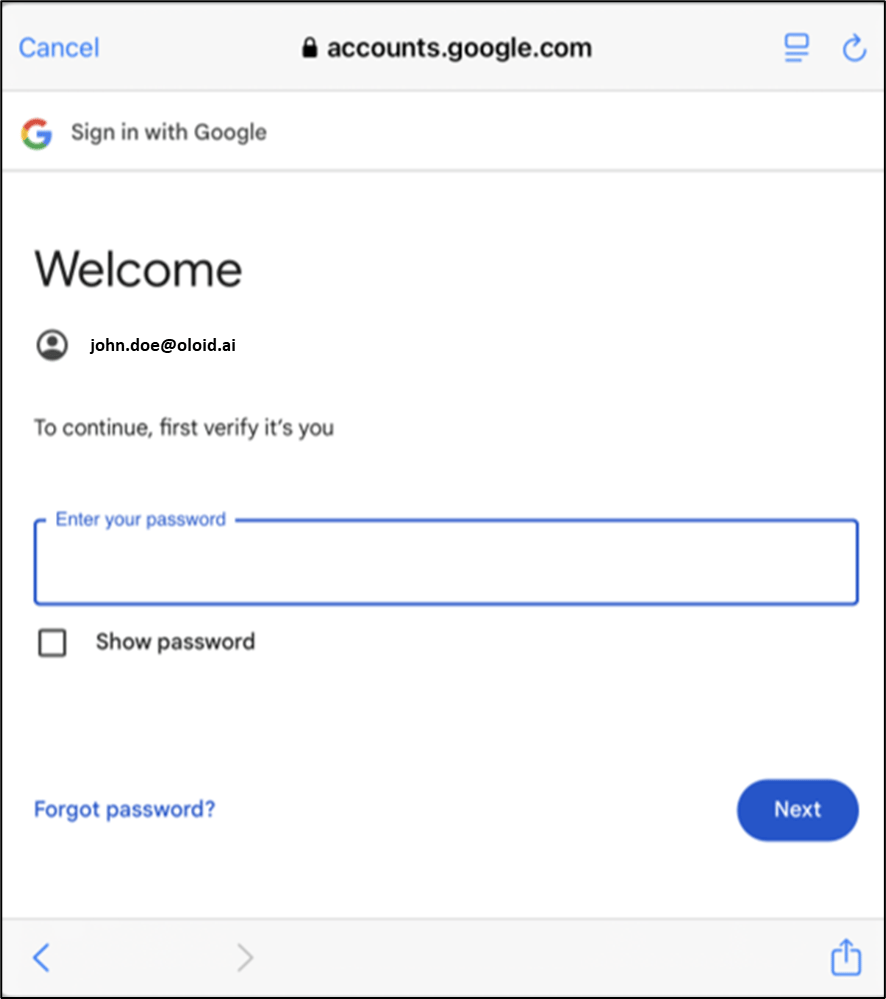
    2. Click Next. First Time Login Using Google SSO - screenshot 8 The Welcome screen is displayed.
  8. Do the following:
    1. Enter Password.
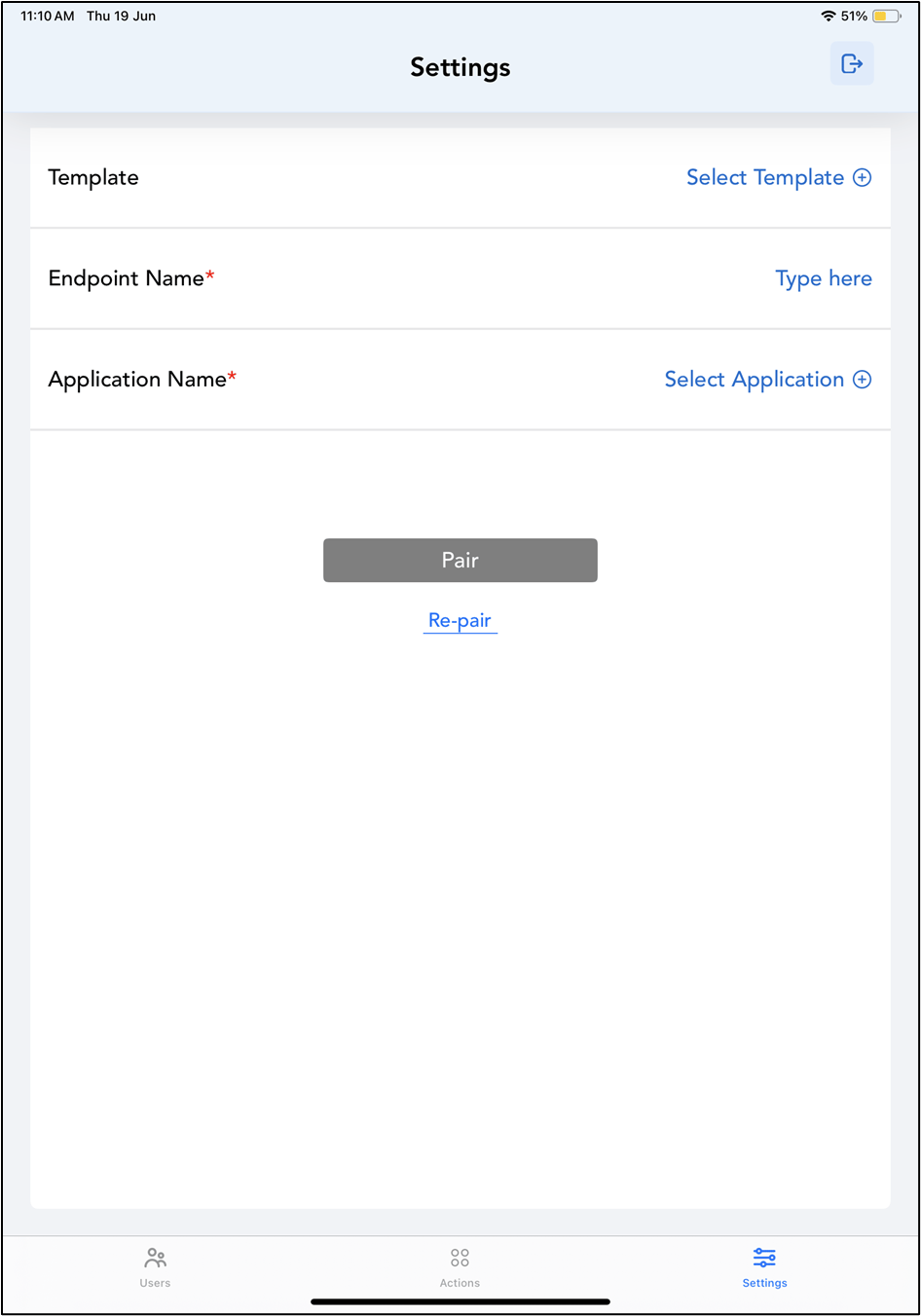
    2. Click Next. First Time Login Using Google SSO - screenshot 9 You are logged in to admin mode in Oloid Connect successfully. First Time Login Using Google SSO - screenshot 10