

Introduction
The Oloid Connect app allows Tenant Admins to assign a location to an endpoint during the setup process. Adding a location ensures accurate tracking and management of endpoints within your organization, enabling the system to associate activity and transactions with the correct physical site.Prerequisite
- You should be a Tenant Admin and Supervisor.
- You must download the Oloid Connect app. To download refer How to Download and Install the Oloid Connect App.
Steps to add location to an endpoint
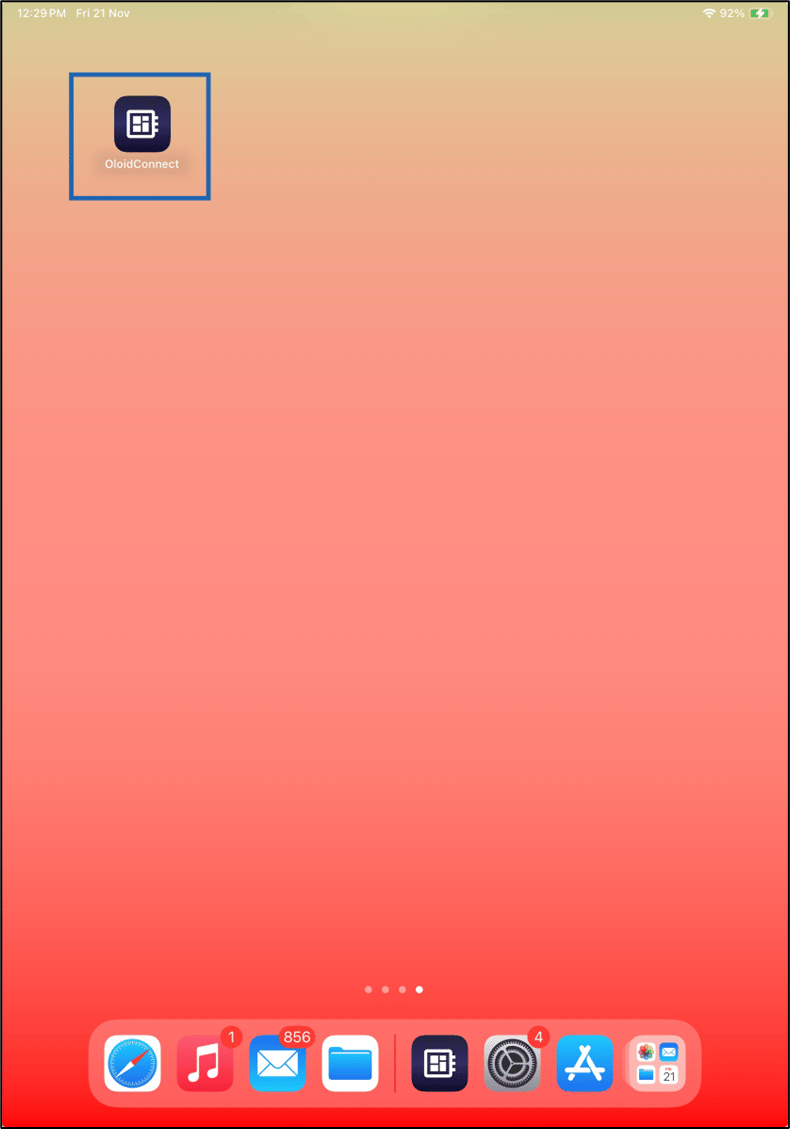
- Launch the Oloid Connect app.
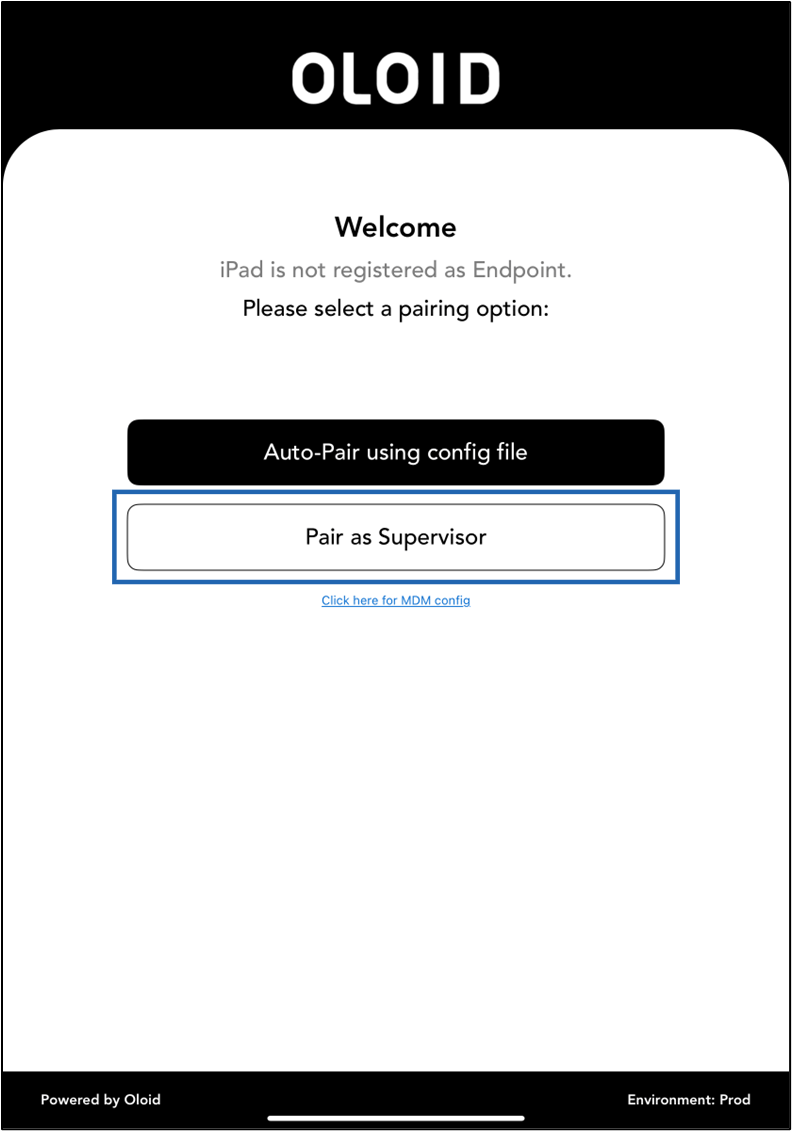
- Tap Pair as Supervisor.
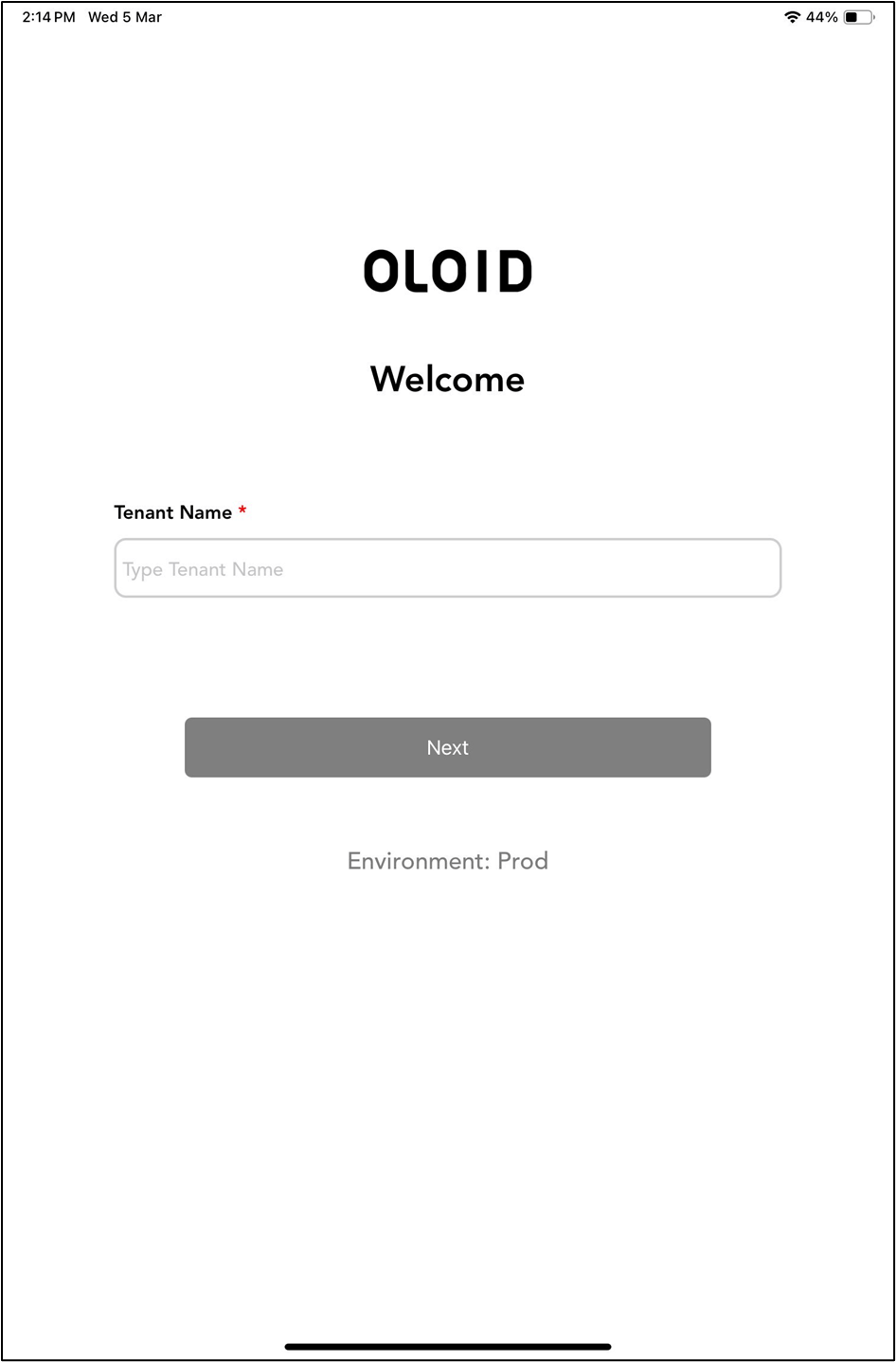
- Enter Tenant Name, then tap Next.
- Do the following:
- Enter your email ID in the Email text field.
- Enter your password in the Password text field.
-
Tap LOGIN.
 You can also use Log in using SSO to continue with Google, Microsoft, and Okta.Note: If your face is added to the Tenant Admin Portal as a Tenant Admin, you can tap on Log in with Face to log in using your face.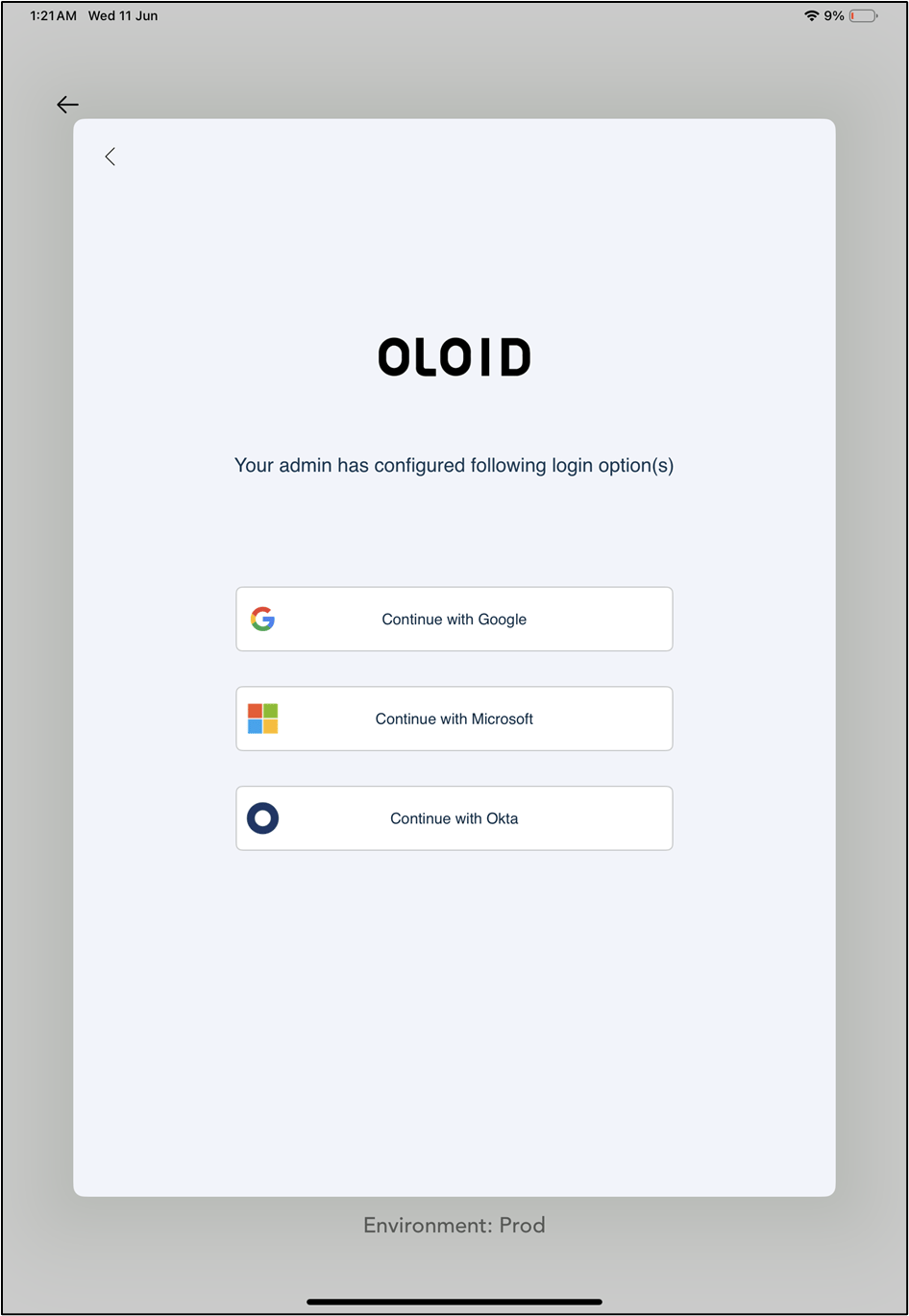
- On the pop-up box, select an option:
- Allow Once: Each time you open the app, it will request access your location.
- Allow While Using App: The app can access your location only when you are actively using it.
-
Don’t Allow: The app cannot access your location, even while you are using it.
Note: You can also update location from the device settings. To update refer How to update Location for Oloid Connect.
 Note: You can now log in to the Tenant Admin Portal to check the location added to the specific endpoint.