Introduction
This feature of the Oloid Connect app allow Tenant Admin and Supervisor to set up iPhone in Admin mode. Once set up, you can manage settings, pair endpoints, and use the app for authentication.Pre-requisite
- You should be a Tenant Admin or Supervisor.
- Application, Connections, and template (optional) must be configured in Tenant Admin Portal.
Device Compatibility
Ensure that your device is compatible with Oloid Connect App. See, Hardware requirement for Oloid Connect installationInternet Connection
Make sure your device is connected to the internet for the setup.Steps to setup the Admin Mode
-
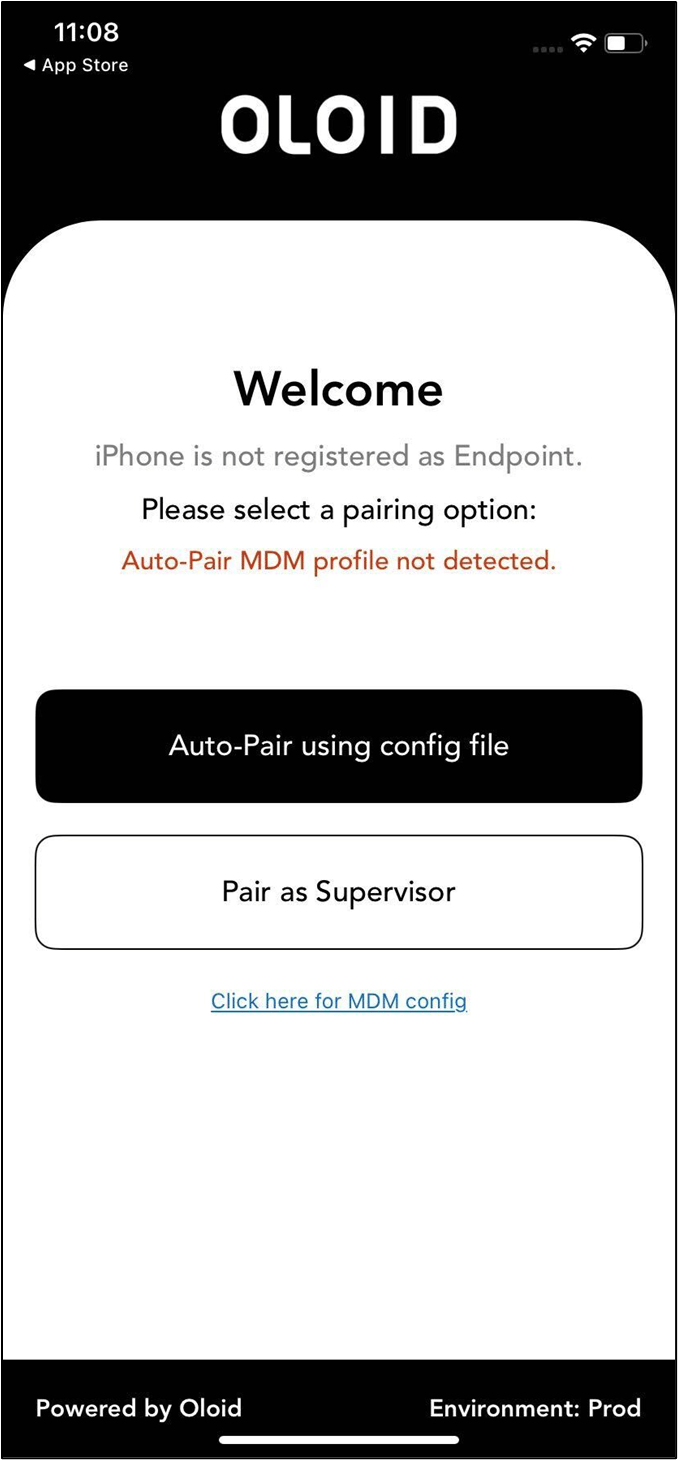
Launch the Oloid Connect app.
The Welcome screen is displayed.
-
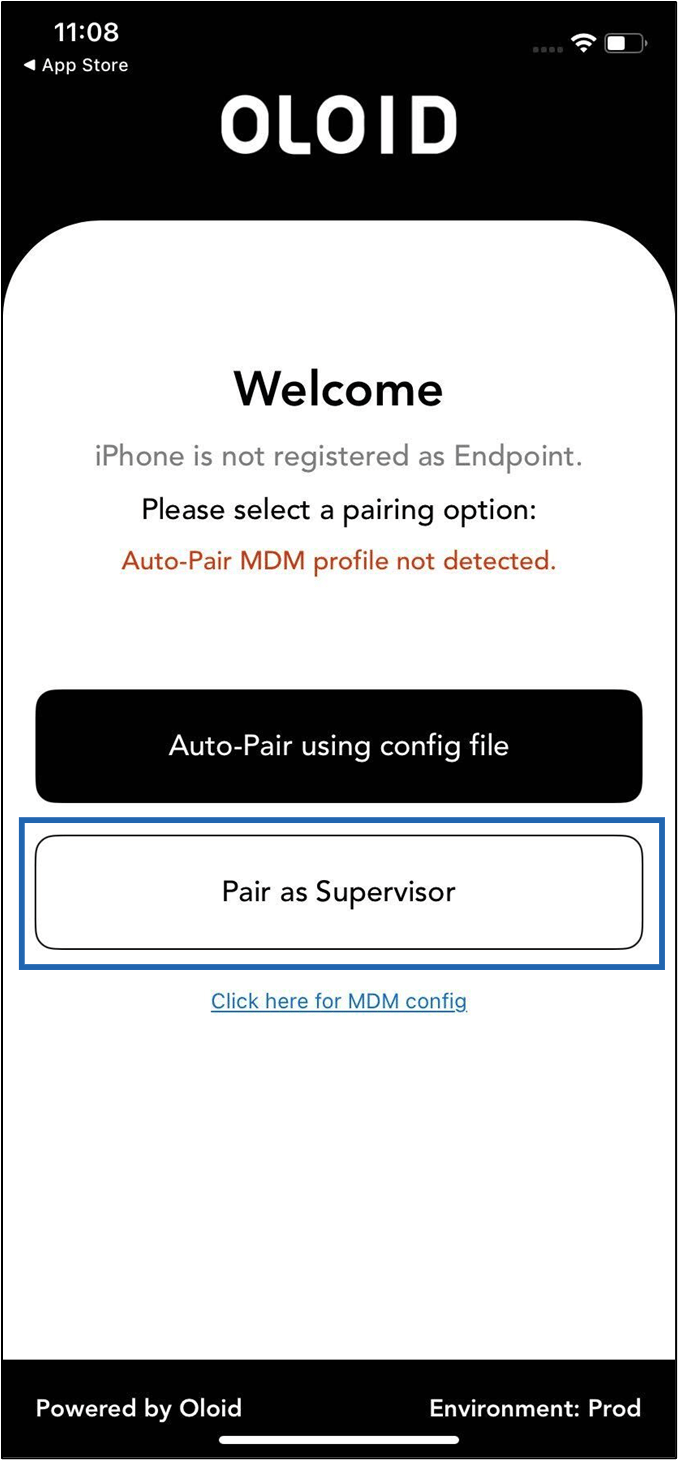
Tap Pair as Supervisor.

- Enter Tenant Name, then tap Next. The Login page is displayed.
-
Do the following:
- Enter your email ID in the Email text field.
- Enter your password in the Password text field.
-
Tap LOGIN.
Note: You may also log in using SSO options.

-
Pair the endpoint. For more, refer toHow to pair an Oloid Connect endpoint on iPhone
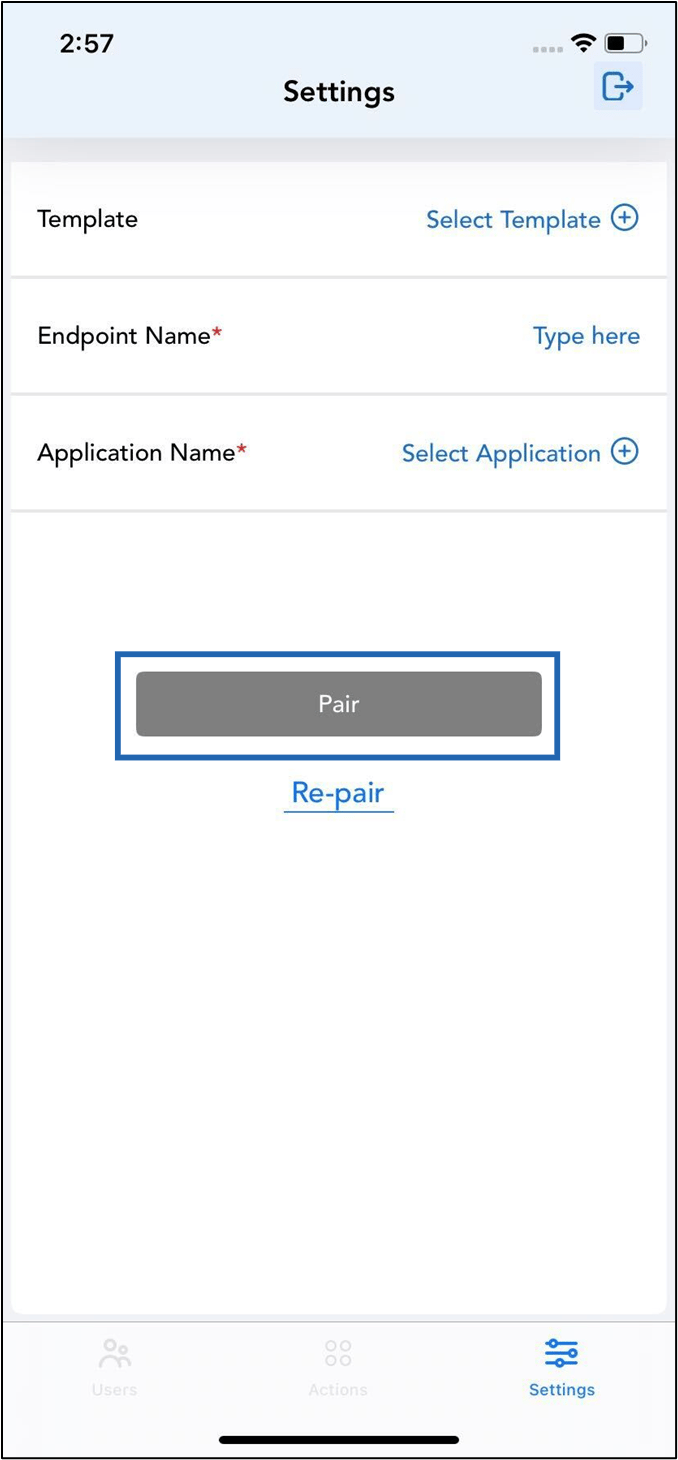
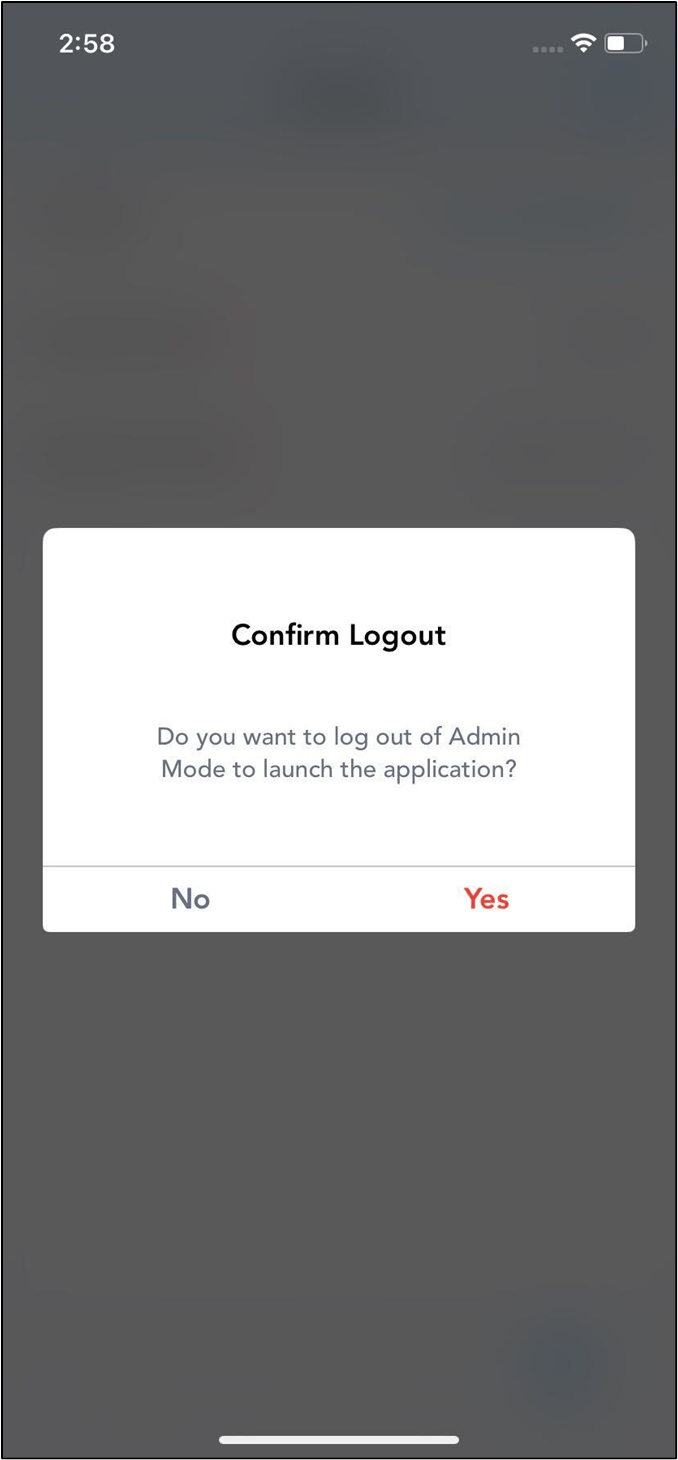
 The application prompts you to log out of Admin mode.Note: Once the iPhone is successfully paired, other settings can be configured in the Tenant Admin Portal.
 -
Do one of the following:
-
Tap Yes to log out and launch the application (preview mode).
The app displays preview mode and allows you to capture live Images for facial transactions.
Note: To go back to admin mode, double-click with two fingers on preview mode and tap Yes- To Continue.
- Tap No to stay logged in to the admin mode.
-
Tap Yes to log out and launch the application (preview mode).
The app displays preview mode and allows you to capture live Images for facial transactions.