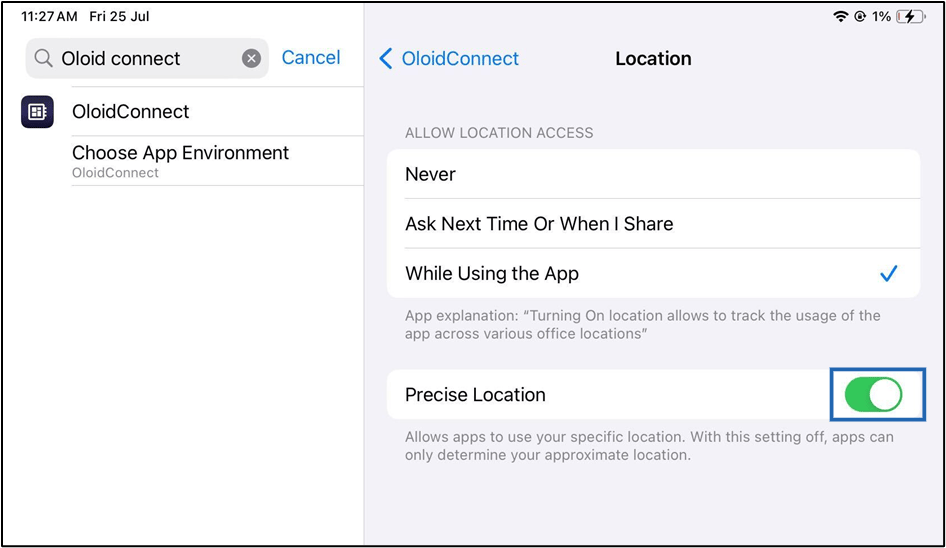
Steps to update location
-
Go to Settings on iPad.


-
Search Oloid Connect

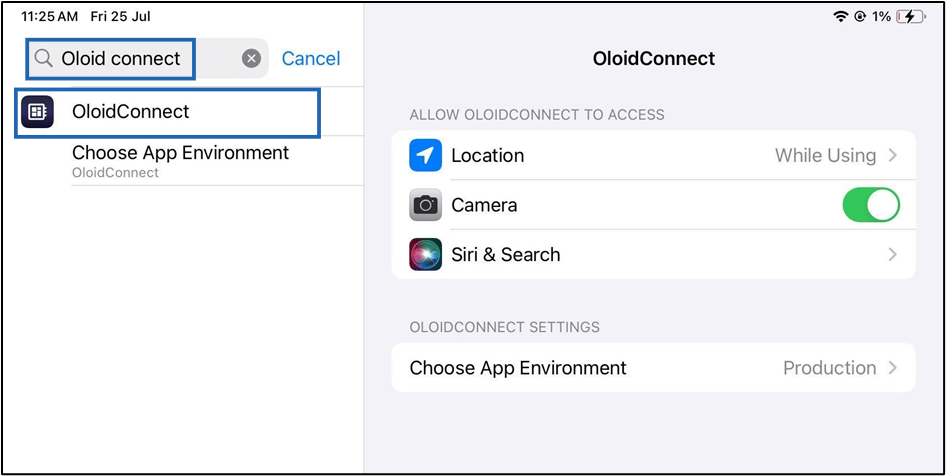
-
Tap Location.
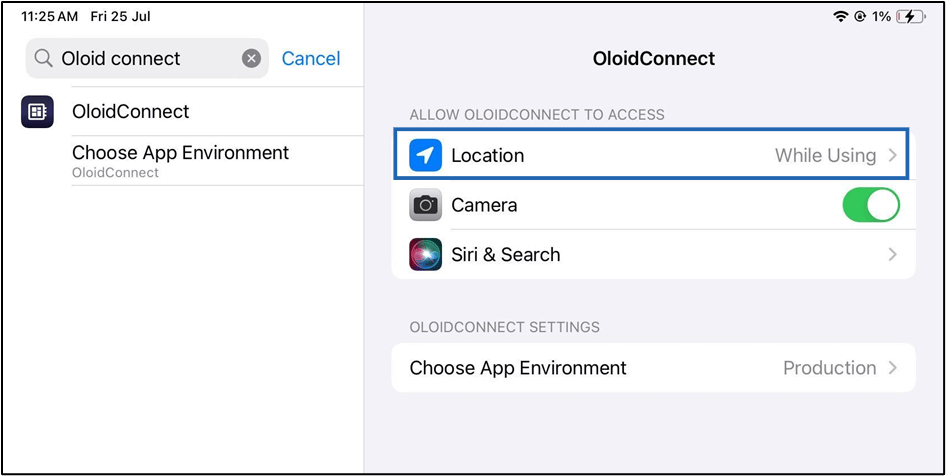
-
Do one of the following:
- Never: The app cannot use your location, even when you’re using the app.
- Ask Next Time Or When I Share: Every time you open the app, it’ll ask to use your location.
- While Using the App: The app can use your location only when you’re using that app.
-
Enable Precise Location to allow the app to detect your specific location.
The location is updated successfully.Note: Precise Location option appears when you allow location access.