- Launch the Oloid Connect app on your iPad.
-
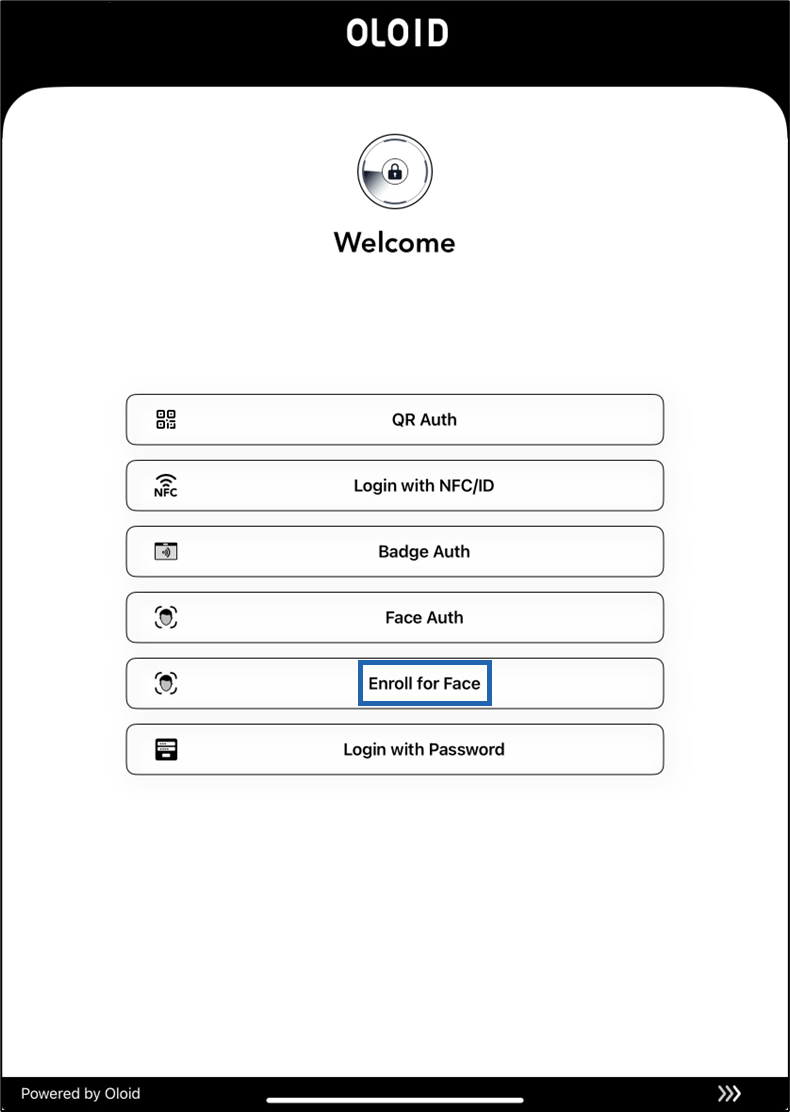
On the home page of the app, select Enroll for Face.
-
Do the following:
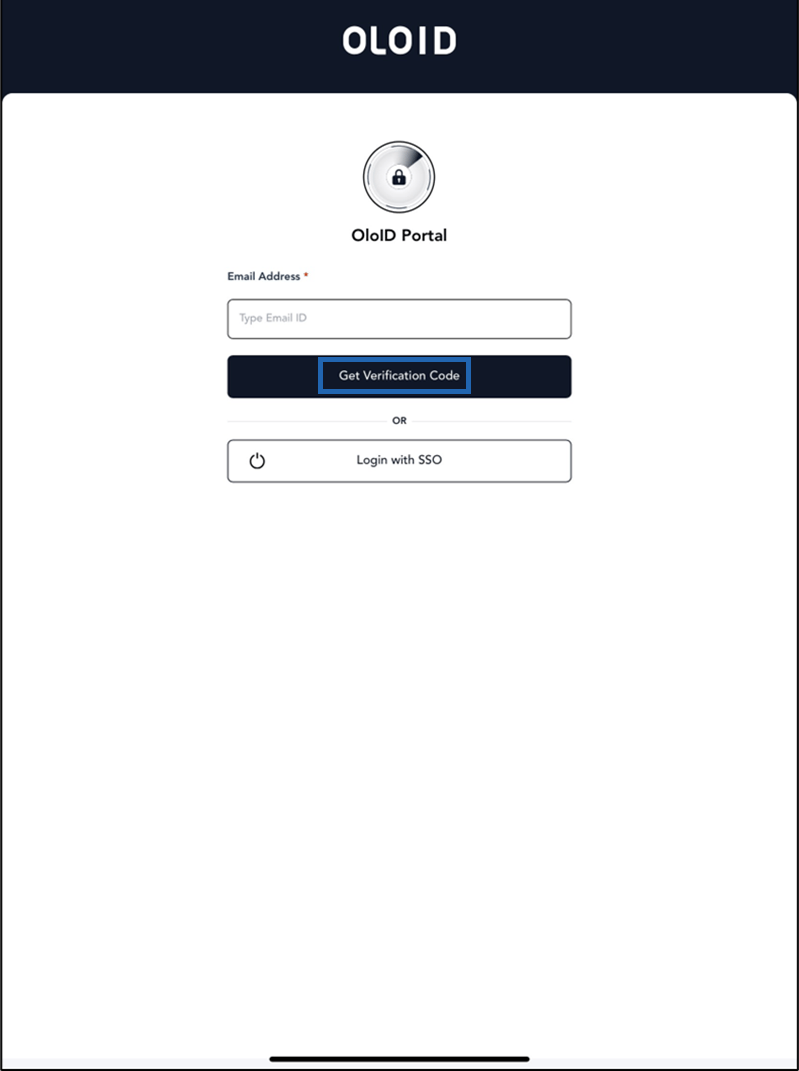
- Enter your email address in the Email Address field.
-
Click Get Verification Code.
-
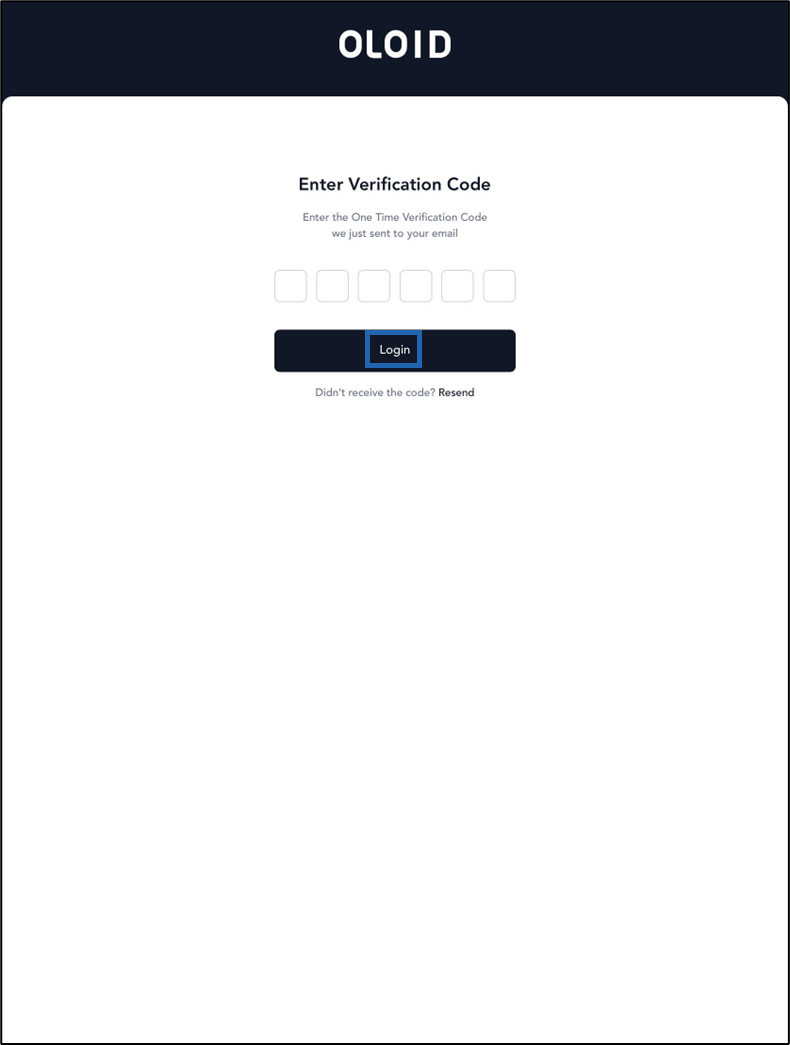
Enter the Verification code.
Note: The One Time Verification Code expires after 60 seconds.
-
Click Login.
-
On the credential page of the Oloid User Portal, select Faces.
 Note: You need to provide your consent to proceed to the next steps if consent is enabled for you.
 -
Select Add Face.
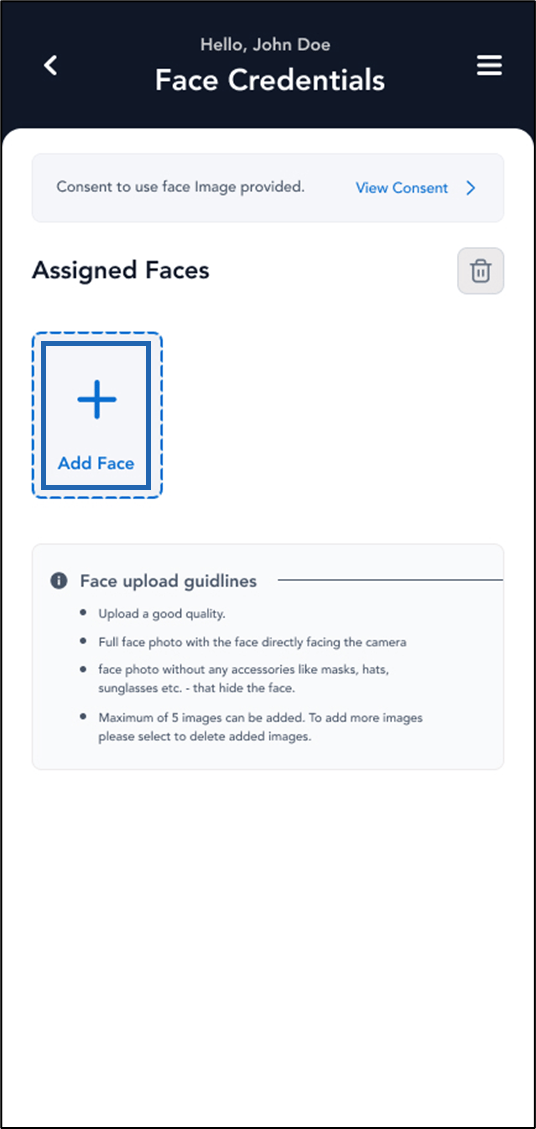
-
Look at the camera to confirm your identity.
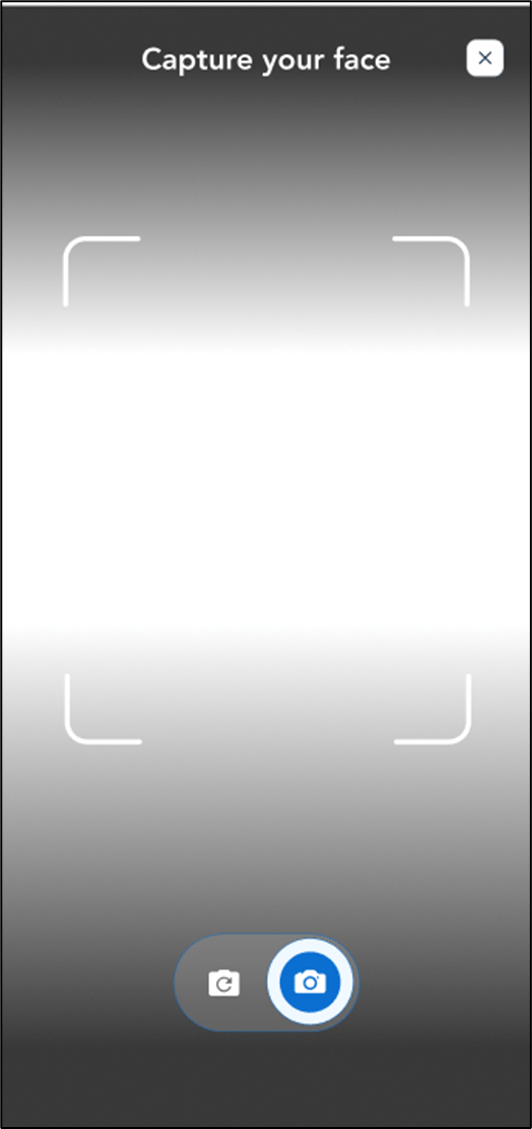
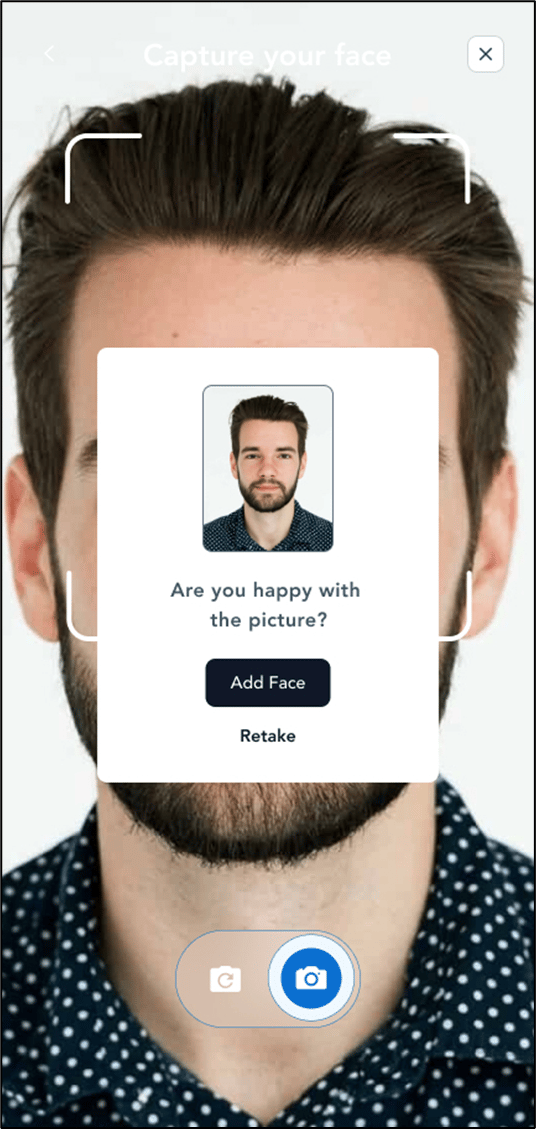
-
Do one of the following:
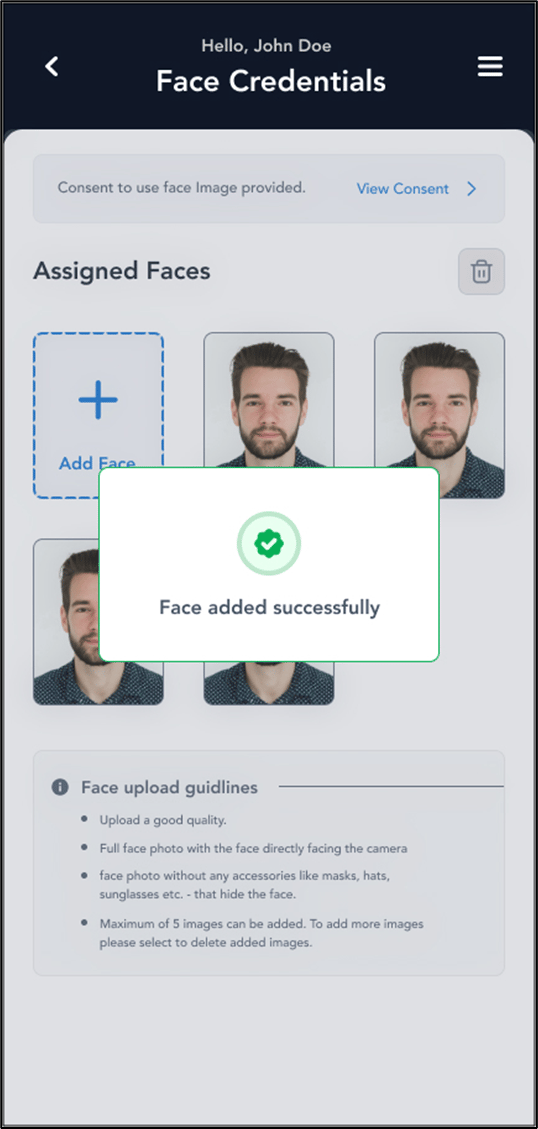
- Select Add Face to submit the image. The face is submitted successfully and is assigned as a face credential.
-
Select Retake to take your photo again.
The camera turns on to retake the photo.
Your face should be visible in the camera, or else it might get rejected. It is recommended to avoid wearing things that cover your facial features such as sunglasses, masks, headbands, etc.Note: You can add a maximum of five faces per user.