Steps to add QR Code
-
Launch the Oloid Connect
 The Settings page is displayed.Note: For more information about how to log in to the Oloid Connect, refer to How to log in to the Admin mode in Oloid Connect App.
-
Tap Users on the menu at the bottom of the screen.

-
Select user from the list, or search for a user using the search bar at the top.

-
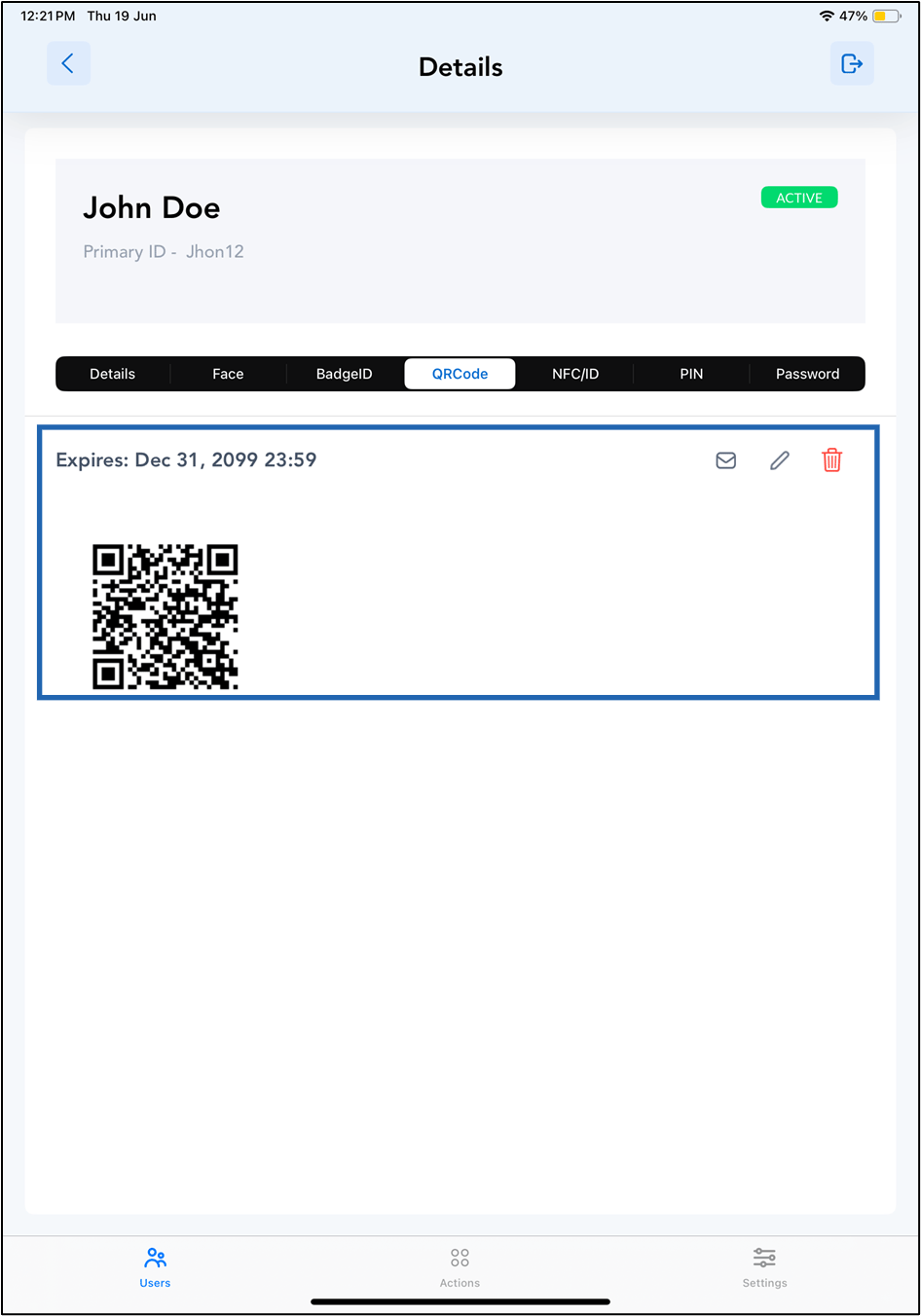
Tap QR Code tab>Tap Add.

-
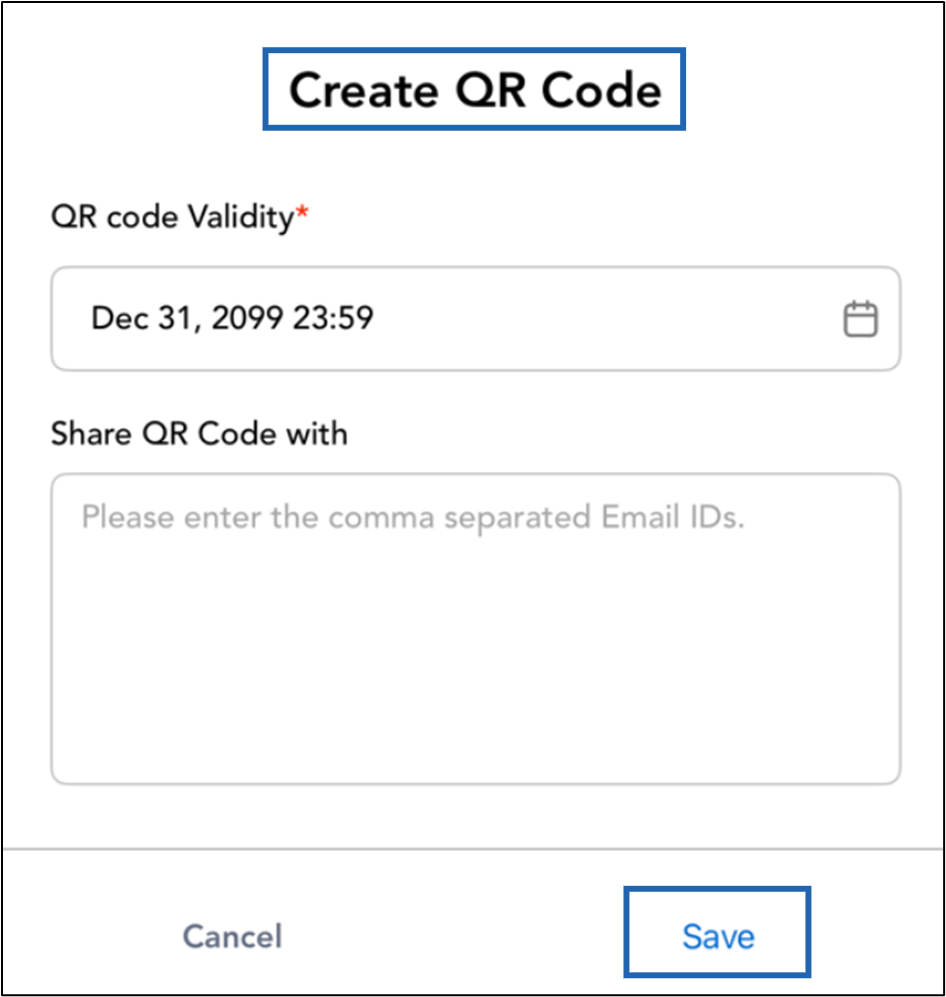
Do the following:
- Select QR code Validity from the calendar.
- Enter Email ID(s) to whom you want to Share QR Code With. (Optional)
- Tap Save.