

Introduction
This document explains how to authenticate a user in the Oloid Connect iPhone app using Face, QR Code, and PIN credentials.Prerequisite
The endpoint must be paired. For more, refer to How to pair an Oloid Connect endpoint on iPhone Following are the authentication method used: Authenticate using Face Authenticate using QR Code Authenticate using PINAuthenticate using Face
- Launch Oloid Connect App. The Welcome screen is displayed.
- Tap Login with Face.

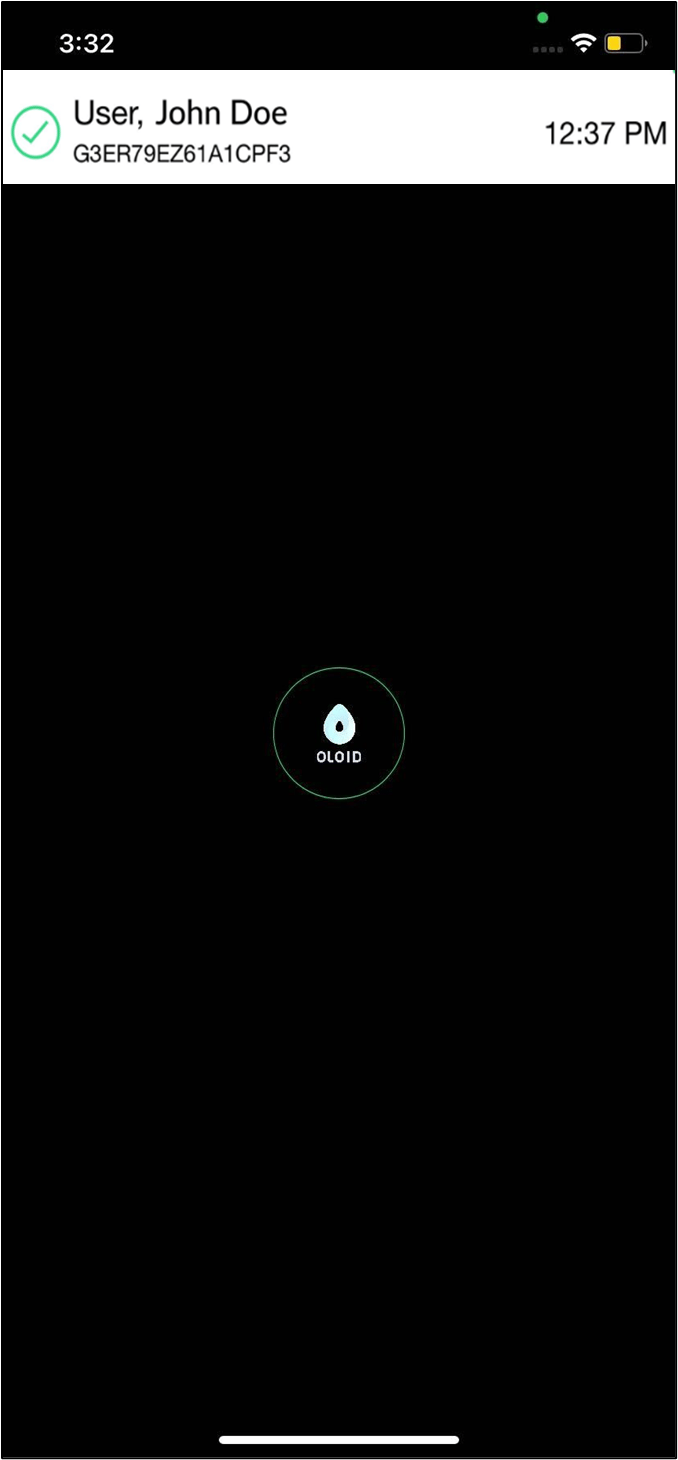
- The Oloid logo appears in the center. Look into your iPhone’s camera or toward the center of the screen to allow the app to capture your face and complete the authentication process. After successful authentication, the user details appear at the top of the screen.
Authenticate using QR Code
- Launch Oloid Connect App. The Welcome screen is displayed.
- Tap Login with QR code.
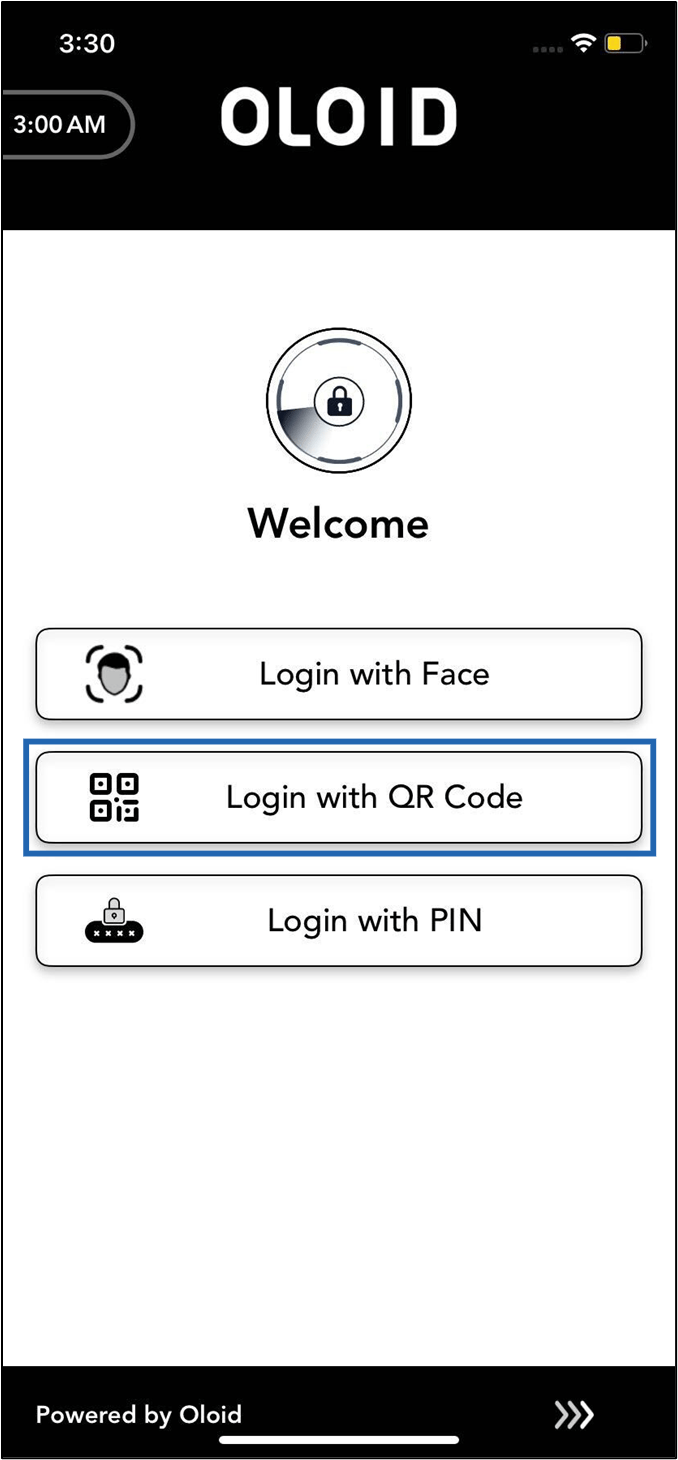
- The Oloid logo appears in the center. Show your QR code to your iPhone’s camera to complete the authentication process.
After successful authentication, the user details appear at the top of the screen.

Authenticate using PIN
- Launch Oloid Connect App. The Welcome screen is displayed.
- Tap Login with PIN.
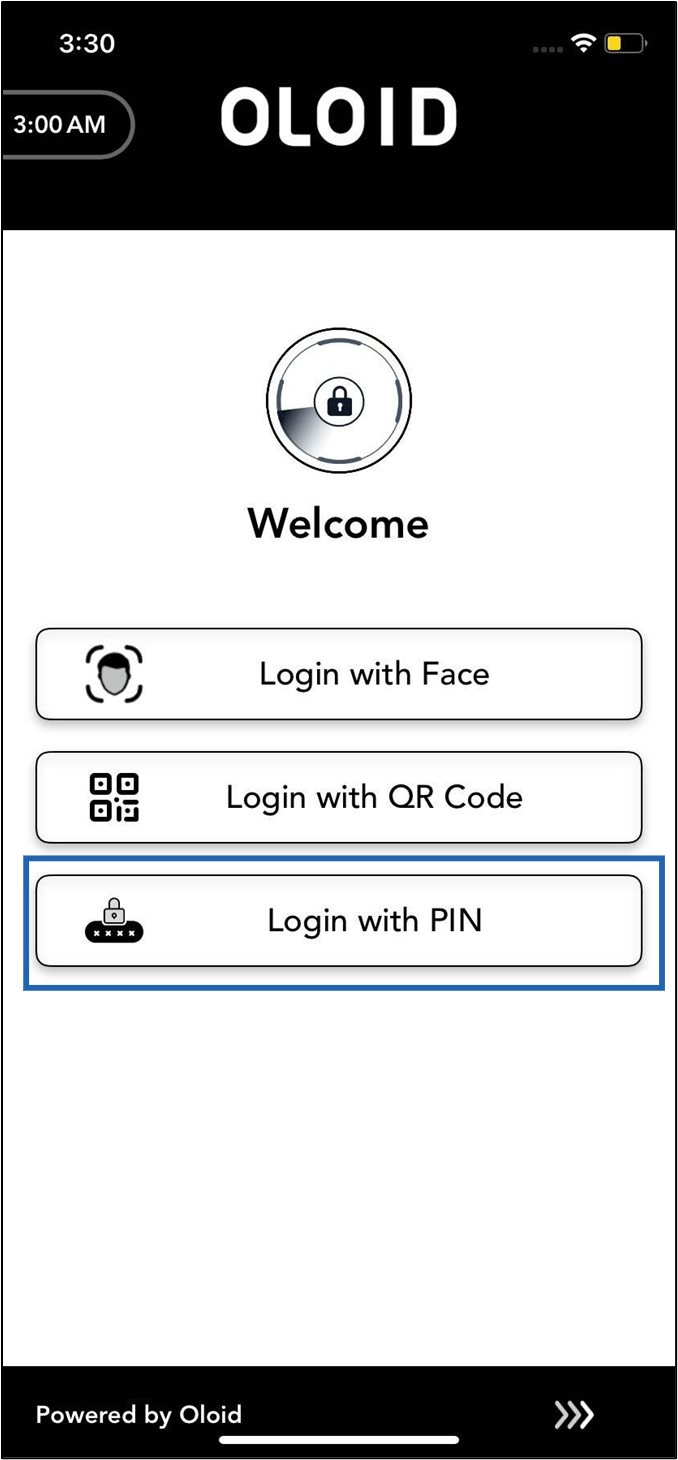
- Enter PIN. After successful authentication, the user details appear at the top of the screen.
