Introduction
The Add QR Code feature in the Oloid Verify app allows Tenant Admins and Supervisors to generate and add a QR Code credential.Prerequisites
- You must have a Tenant Admin or Supervisor account.
- You must add the user. To add user referOloid Verify: Add User.
- The Oloid Verify endpoint must be paired. To pair refer How to pair an Oloid Verify endpoint
Step to add QR Code
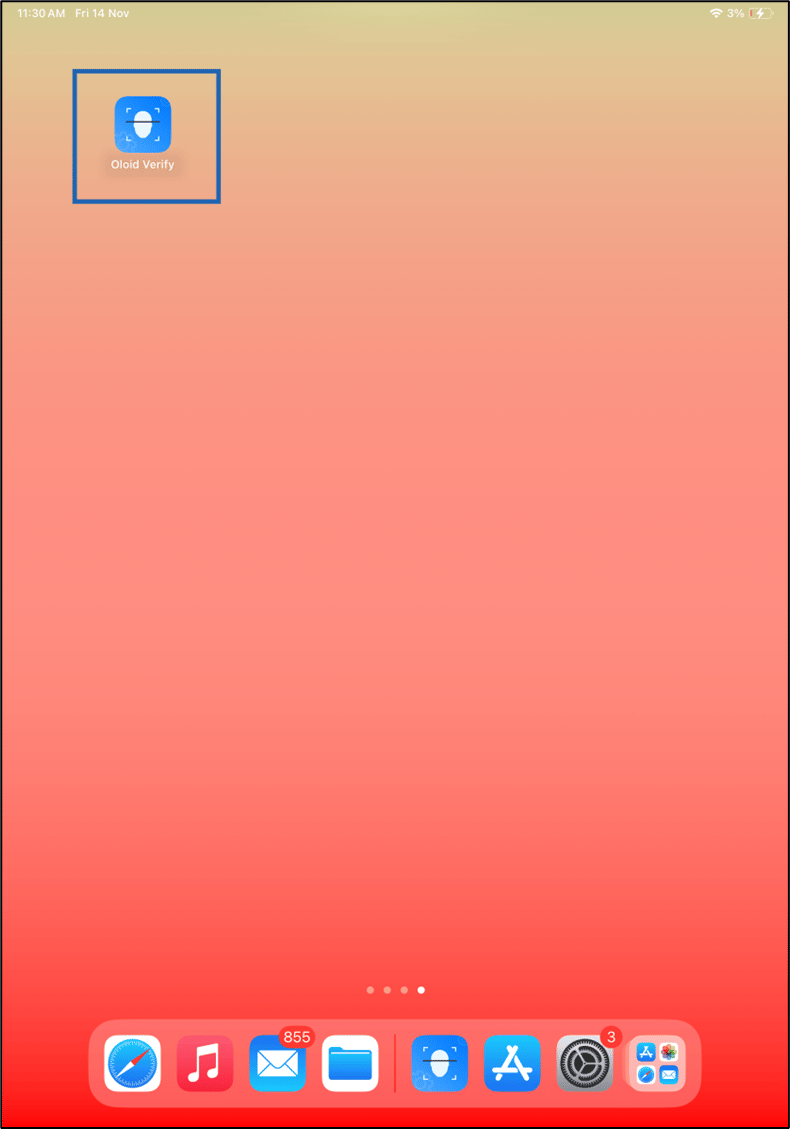
- Launch the Oloid Verify app.
- Log in to Admin mode in Oloid Verify app. To login, refer How to log in to the admin mode of Oloid Verify App as an Admin or Supervisor. The Users screen with list of users is displayed.
- Tap on the preferred user.

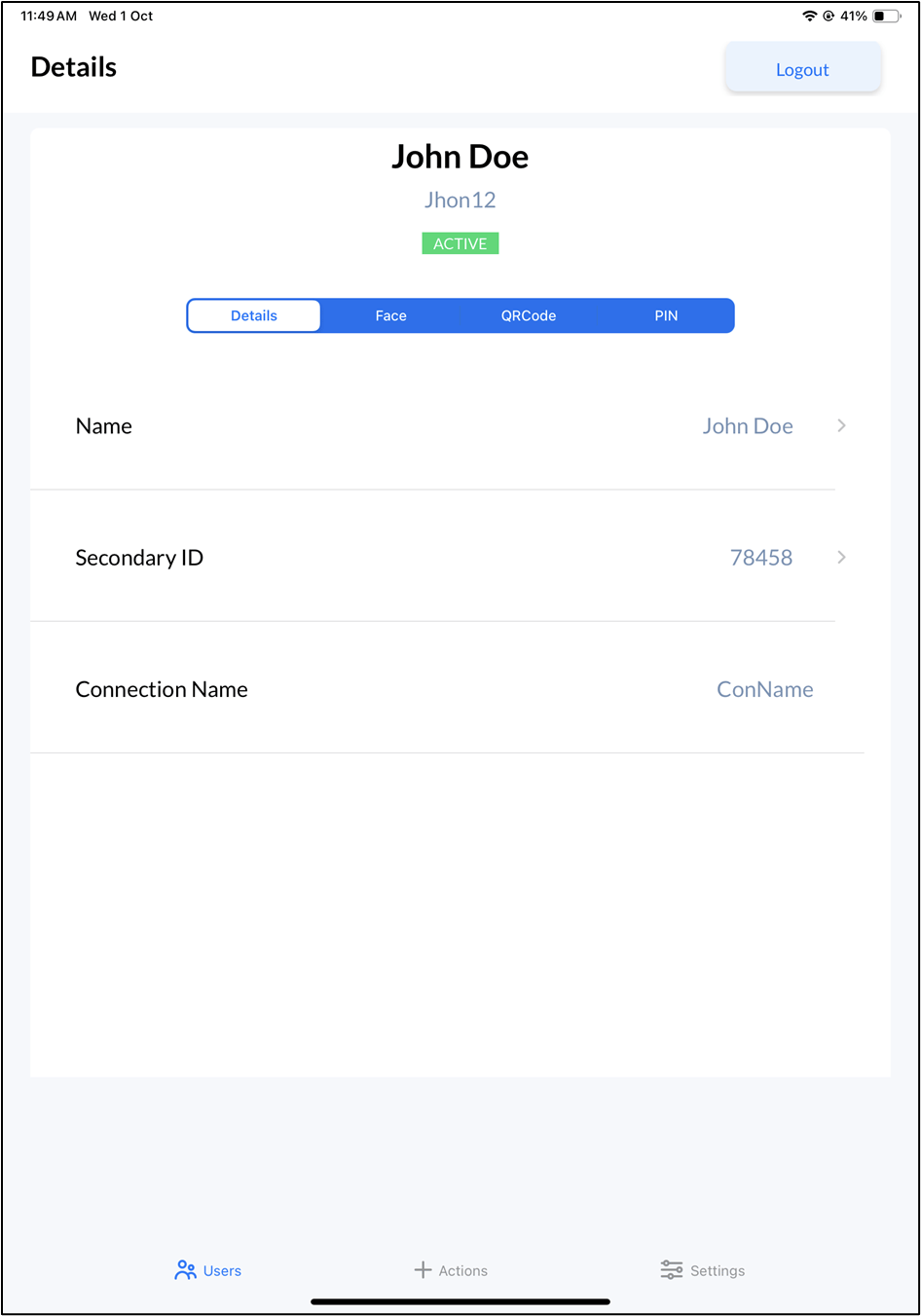
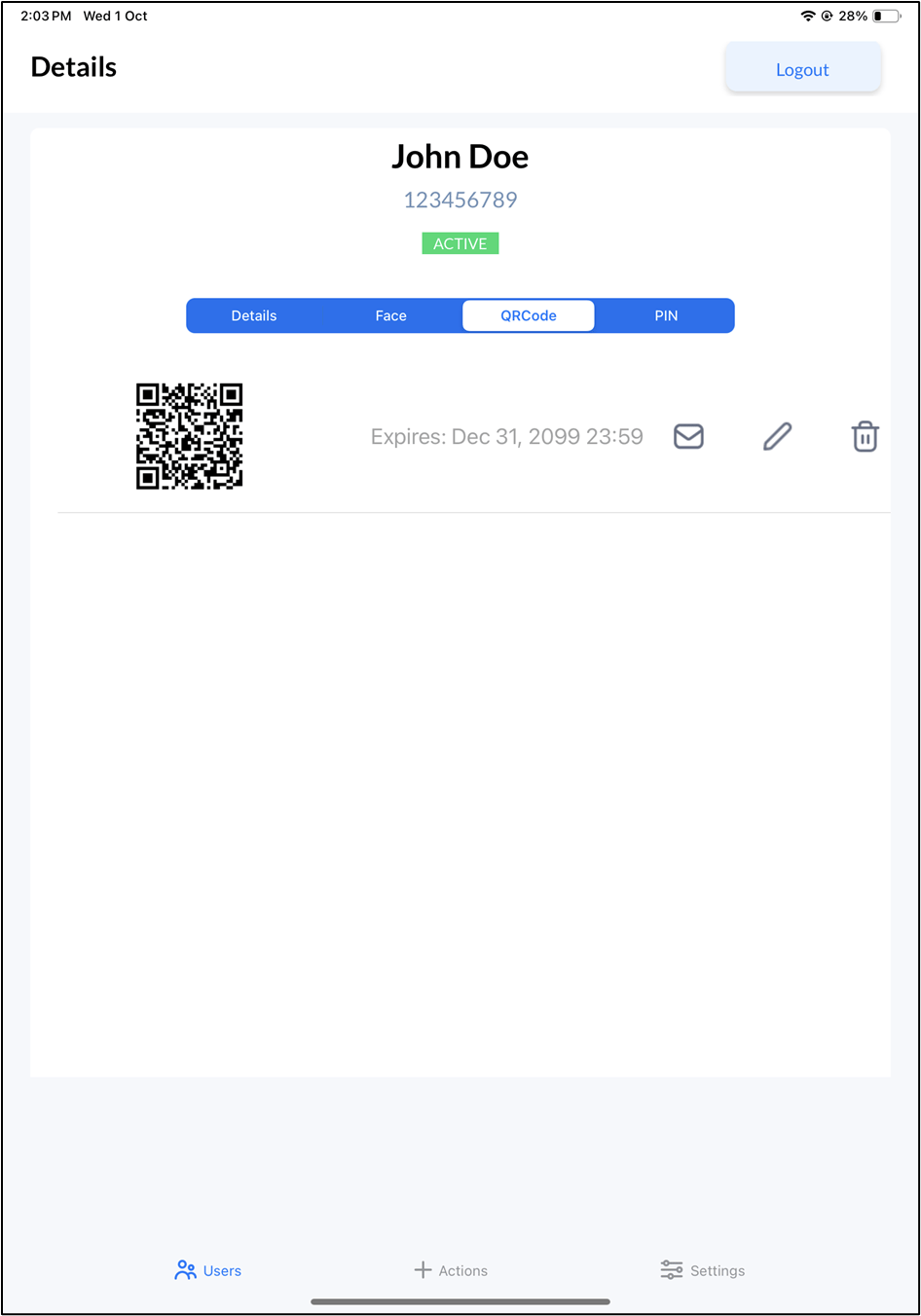
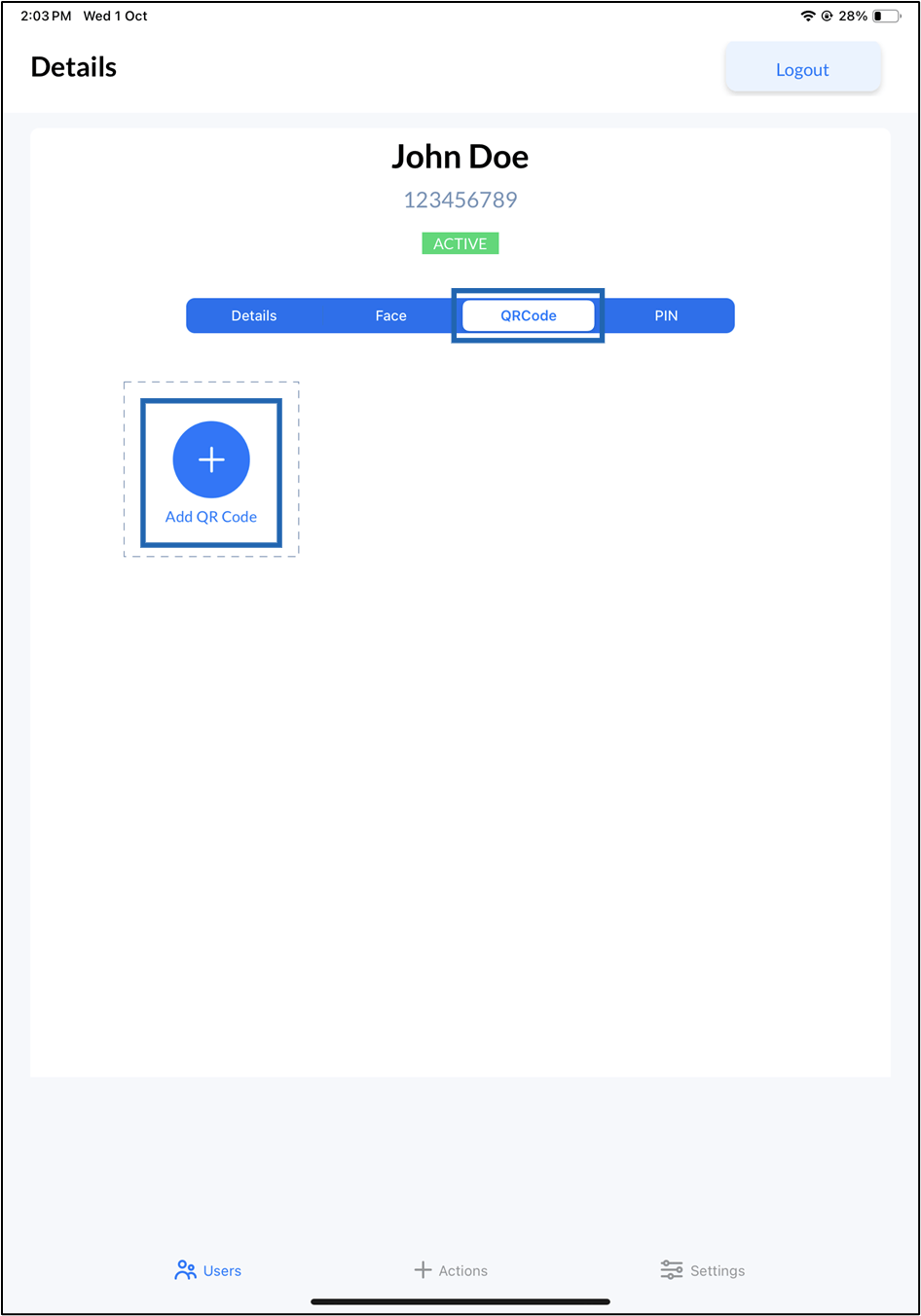
- Go to QR Code > Add QR Code.
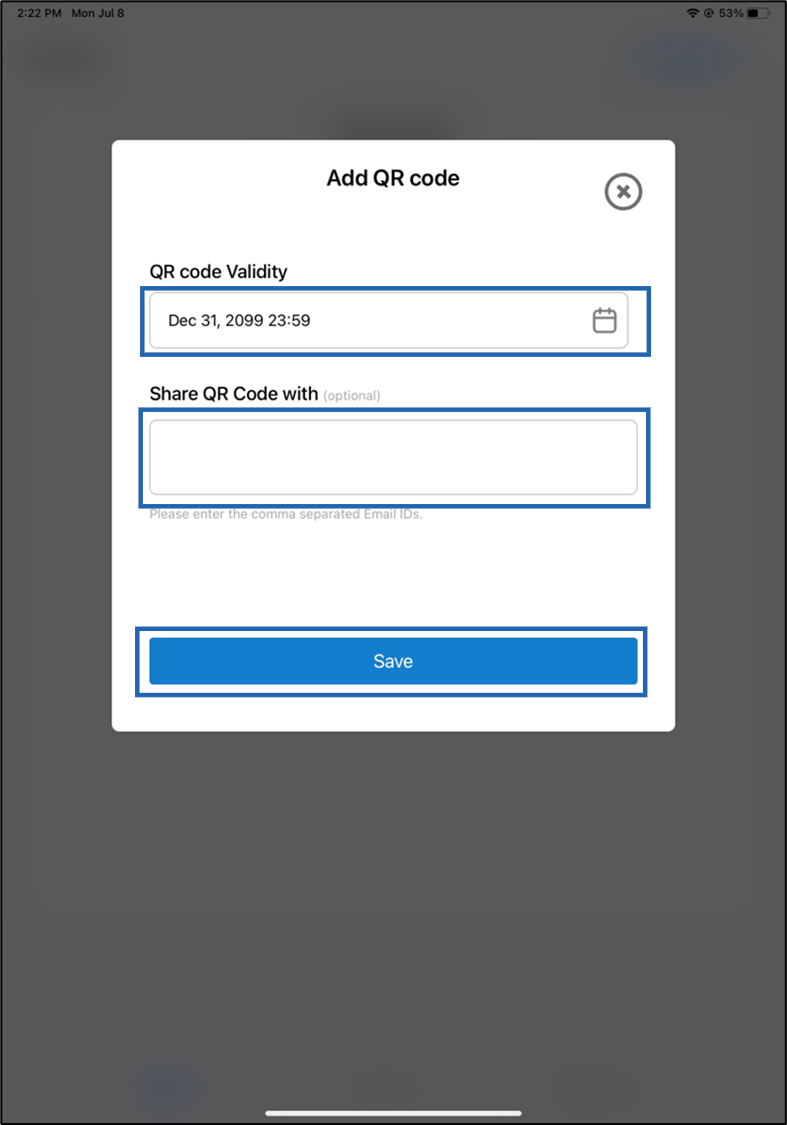
- On the pop-up box, do the following:
- Set QR code Validity from the calendar.
- Enter the recipient Email ID(s) to share QR Code. (Optional)
- Tap Save.