Introduction
An Oloid Connect endpoint that is already paired and in use can be deactivated when it is no longer required for active use.Note: Once you pair an endpoint with Oloid Connect application, it gets saved and appears in the Tenant Admin Portal.
Prerequisites
- You must have Admin access to the Tenant Admin Portal.
- The Oloid Connect endpoint must be paired and available in the Tenant Admin Portal. For more, refer toOloid Connect – How to Pair an Endpoint
Steps to Deactivate Endpoint
- Log in to the Tenant Admin Portal.
- On the home page of the portal, click Endpoints on the left menu panel.
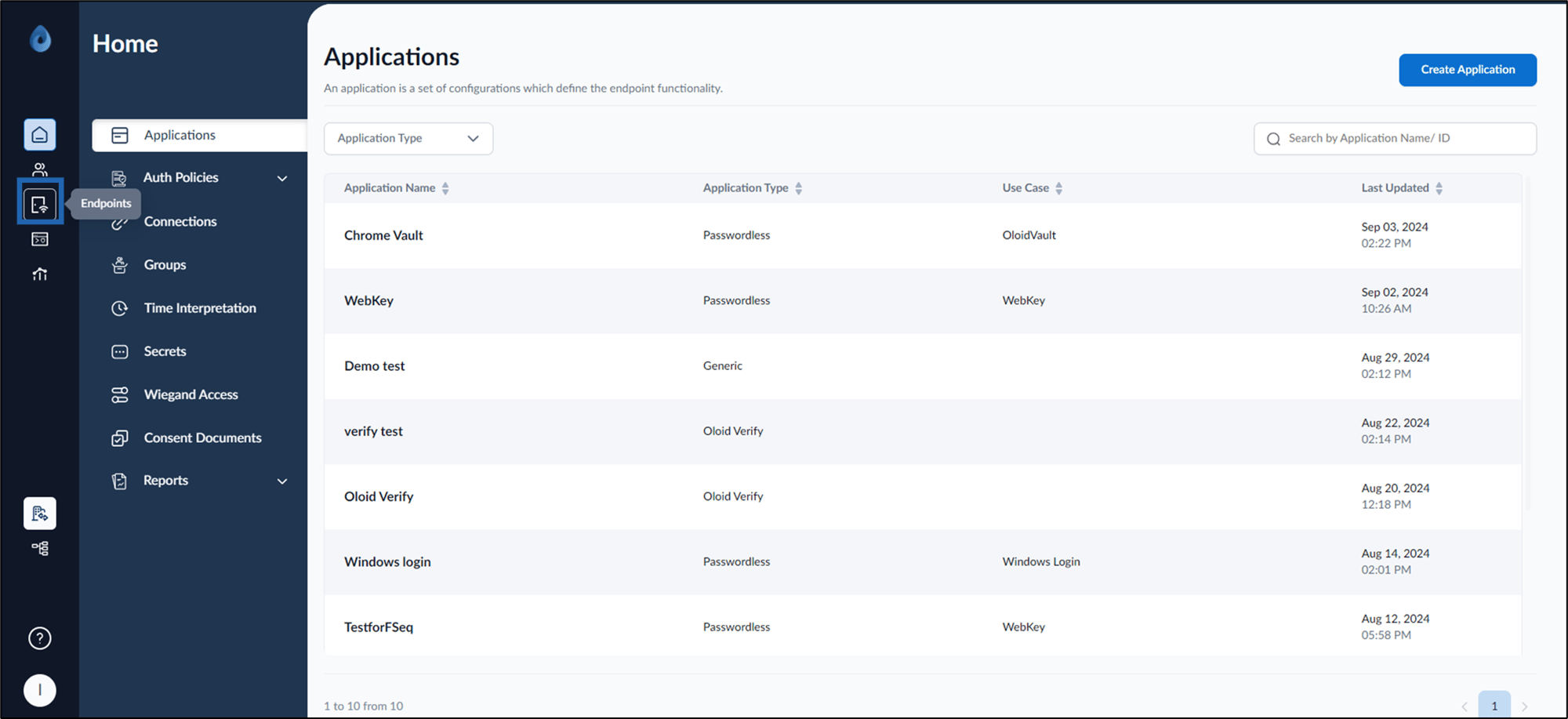
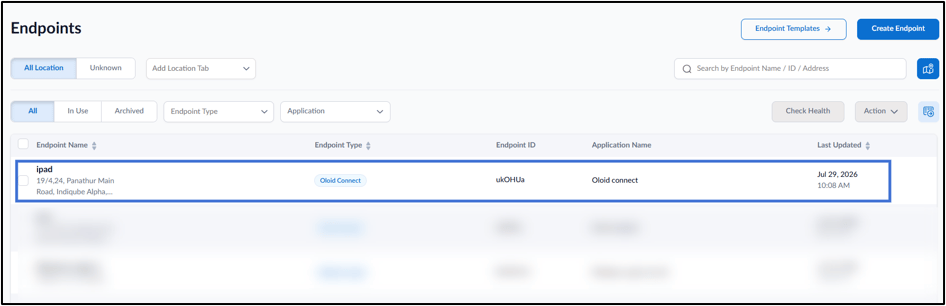
- Select the Oloid Connect Endpoint.
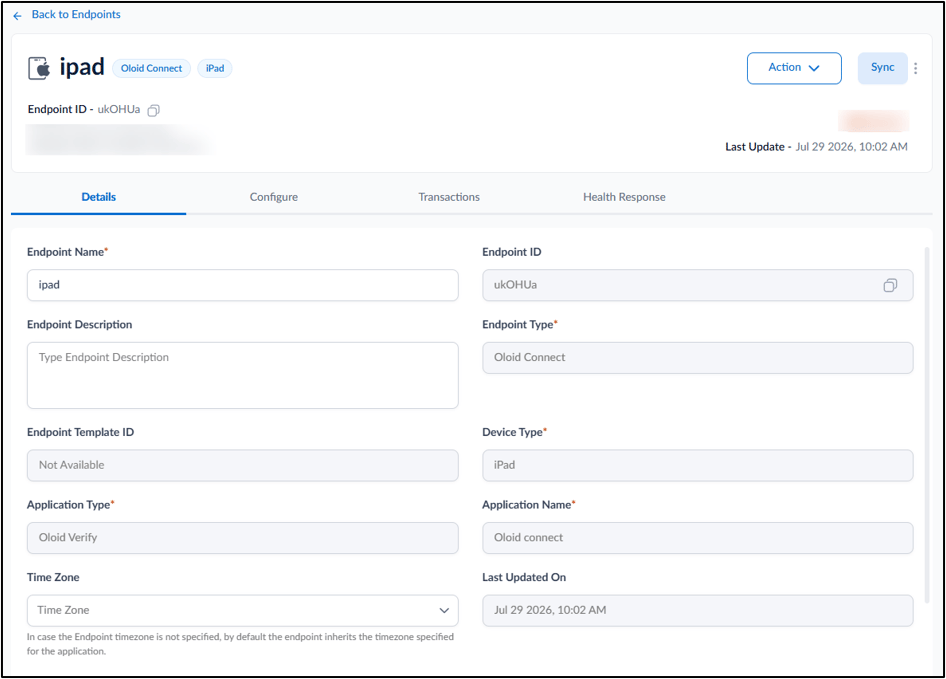
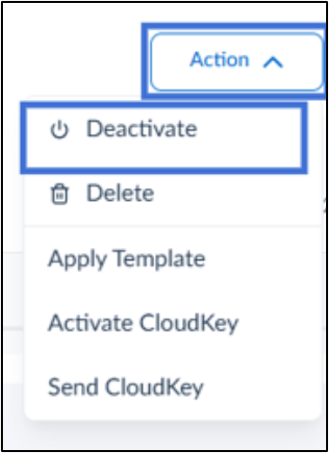
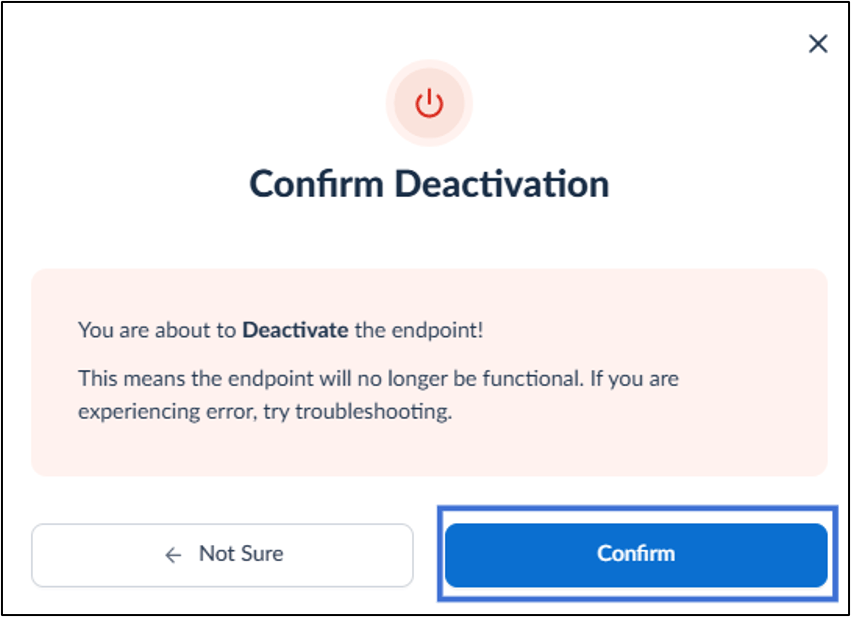
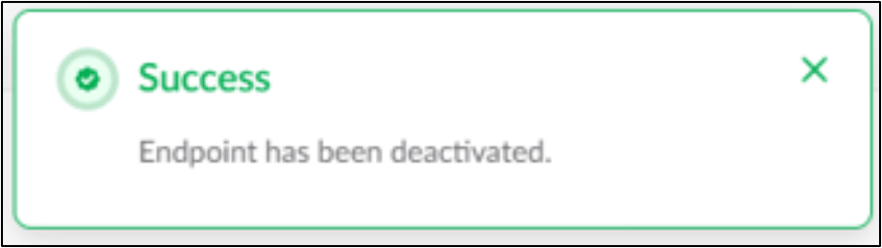
- Do the following to deactivate the endpoint:
- Click Action.
- From the drop-down menu, click Deactivate.