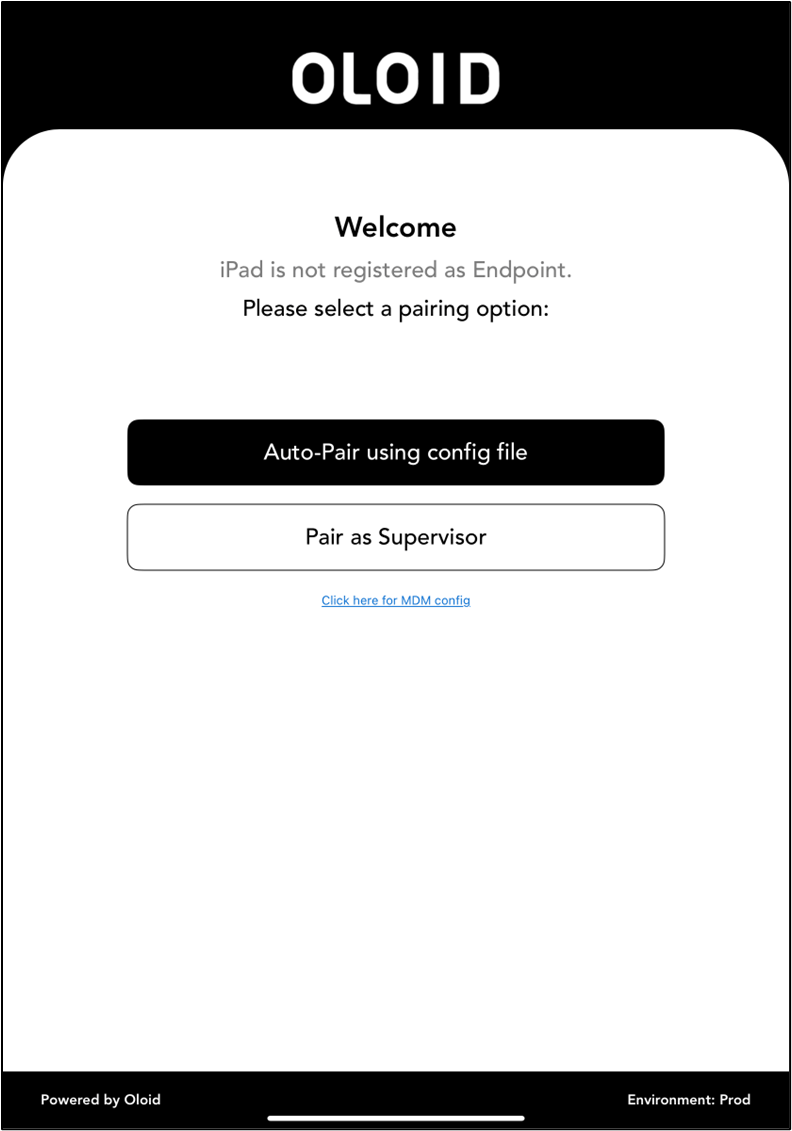
Steps to download and install Oloid Connect App in iPad
-
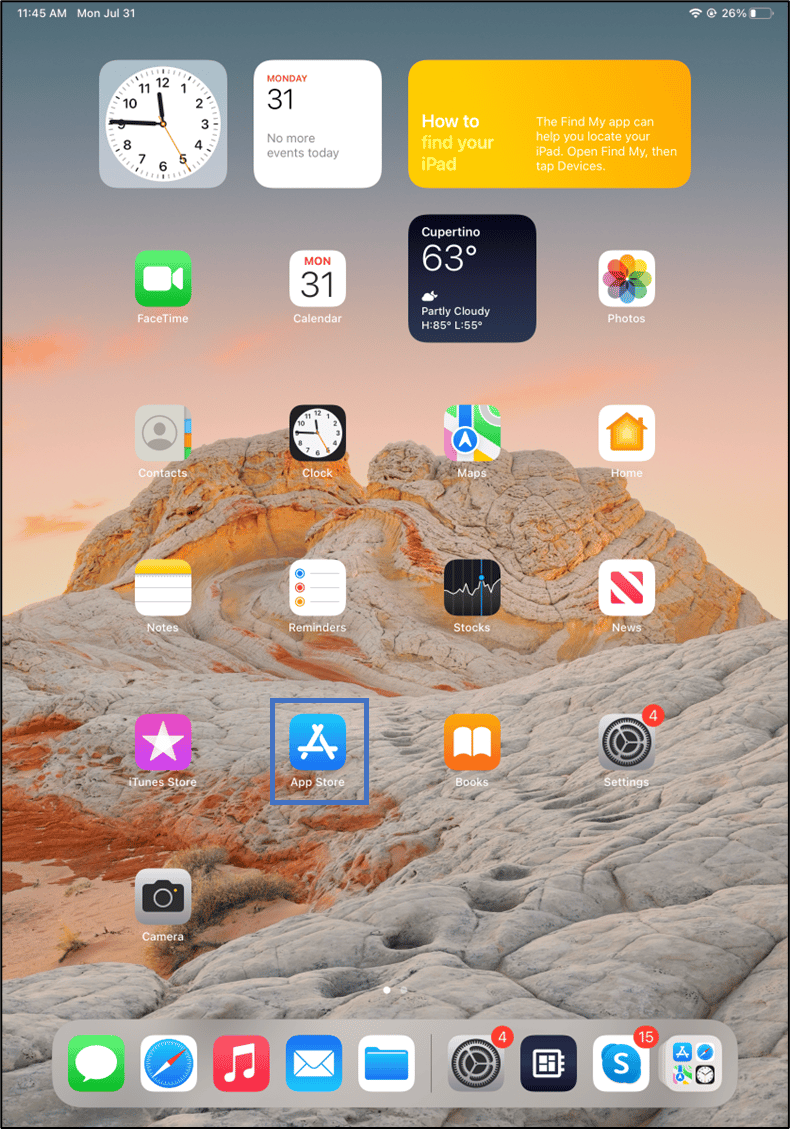
Locate the App Store on your home screen and tap on it to launch the application.
-
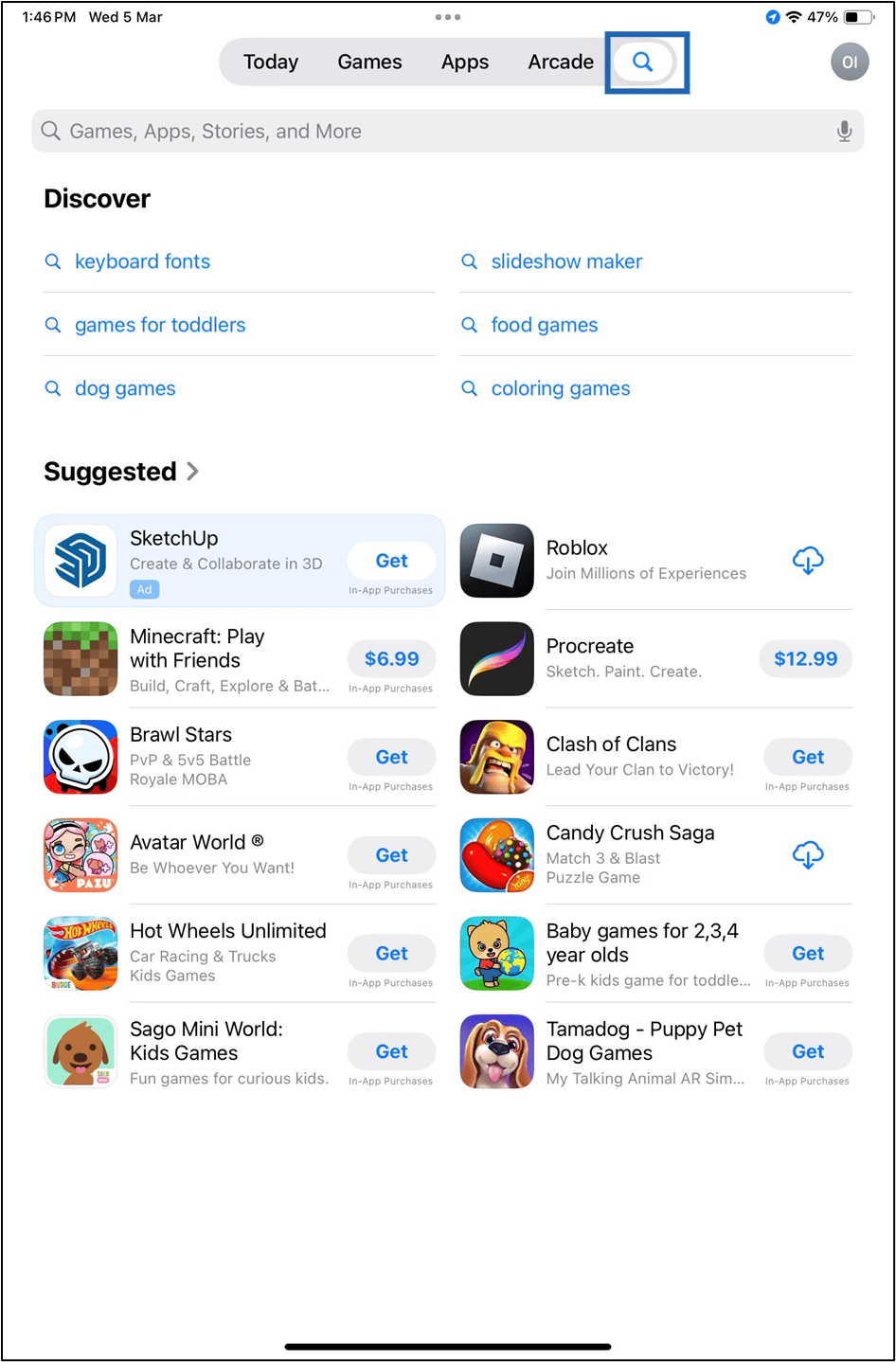
Tap on the Search icon located at the upper right corner of the screen.
-
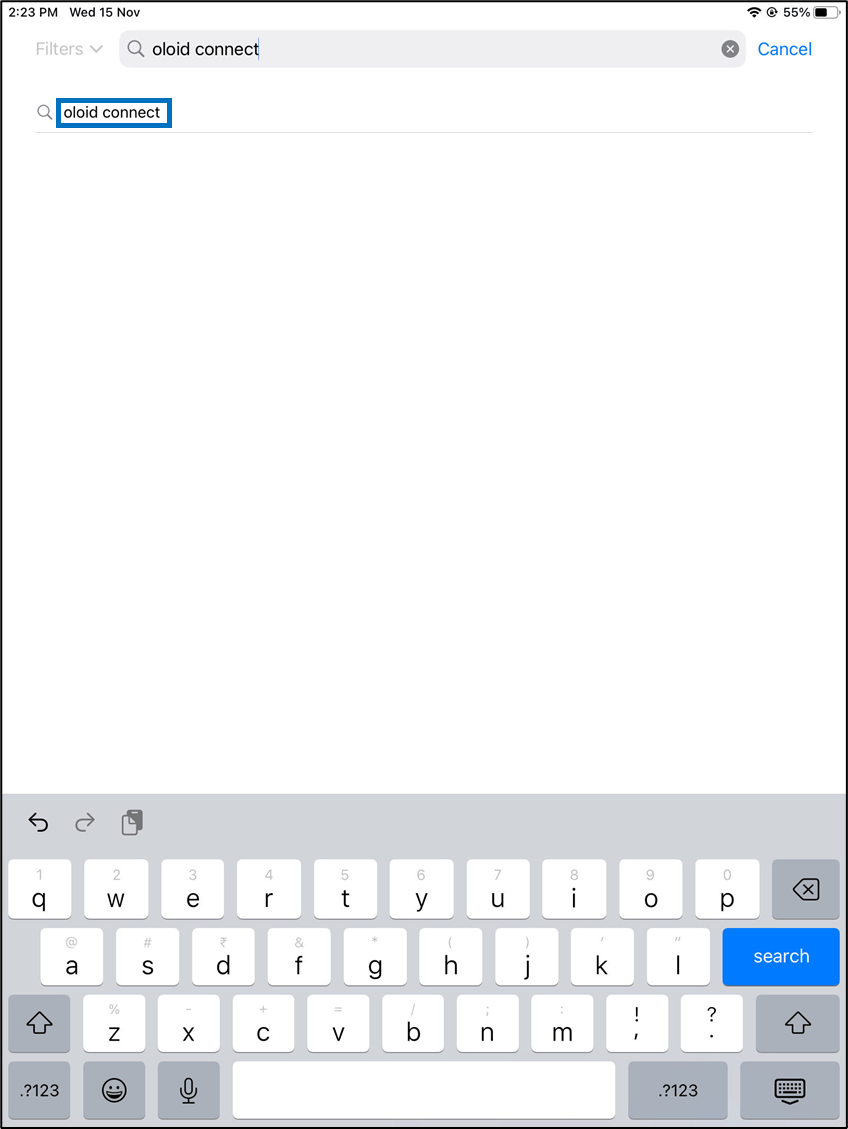
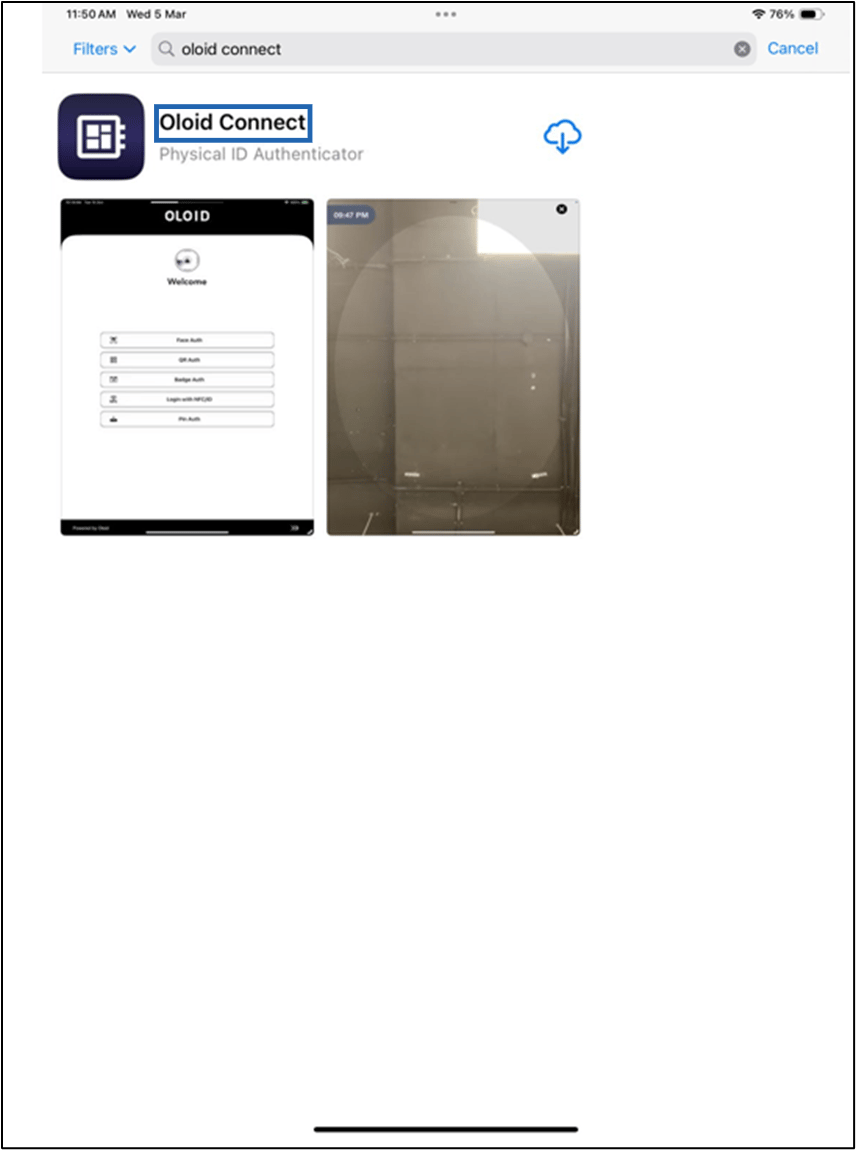
In the search bar at the top of the screen, enter Oloid Connect and tap on the search result.
-
Select Oloid Connect

-
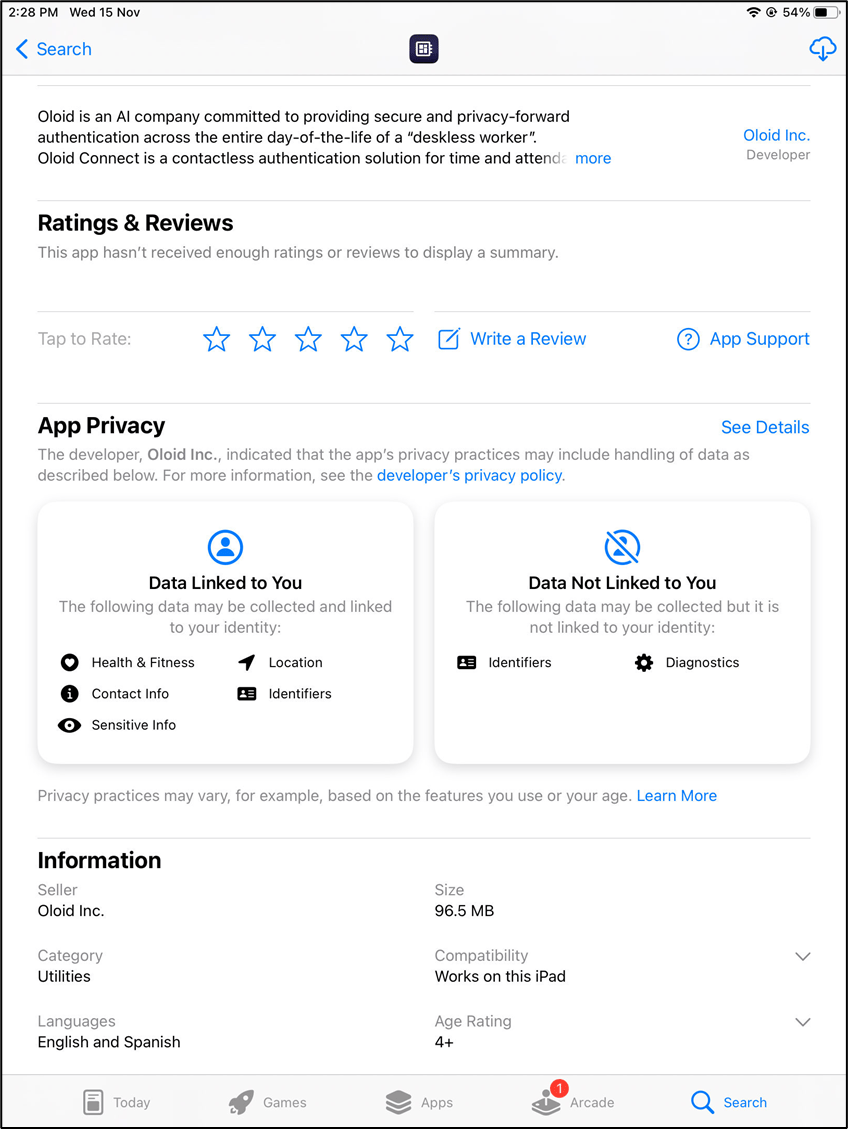
Review the app’s details, ratings, and user reviews to make sure it’s the correct app you want to download.
-
Tap the Get button located next to the Oloid Connect
 Once the installation is complete, the Get button is changed to an Open button.Note: If prompted, enter your Apple ID password or use Touch ID/Face ID to confirm the download.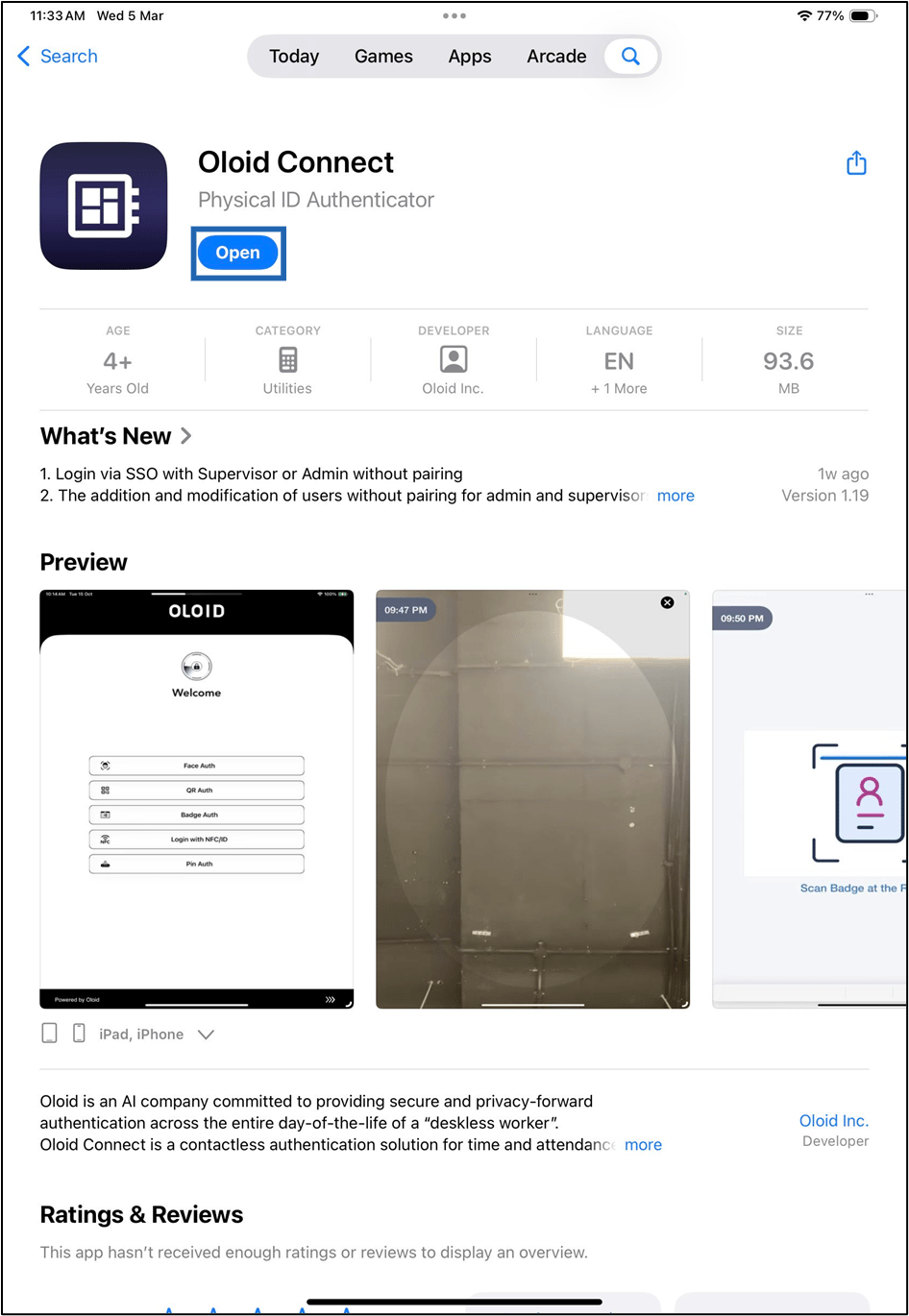
-
Tap the Open button to launch the Oloid Connect