

Steps to prepare Job and Charge Code template
- Log in to Tenant Admin Portal.
- On the home page of the portal, click Oloid connect application.
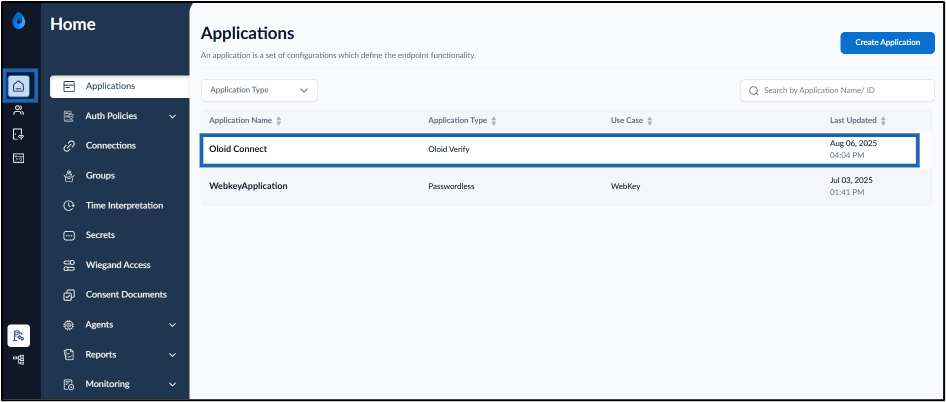
- Go to Oloid Connect Application > Configure tab > Configure Intent screen.
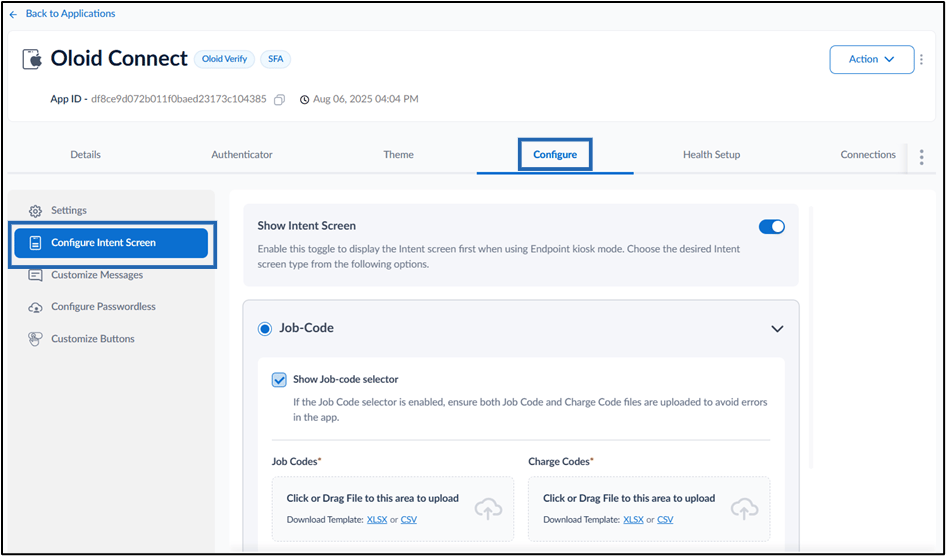
- Enable Show Intent screen > Select Job-Code > Click Download Template under Job Codes and Charge Codes to download the templates.

- Open the downloaded template in Excel.
- Prepare the following templates:
- Job Code template OR
- Charge Code template The Job and Charge Code templates are prepared and ready to use.
Job Code Template
Steps to prepare Job Code template
Open the template and do the following:- Enter Code Type.
- Enter Jobs in this column for all rows. This value indicates that the entry is a job code.
- Enter Description.
- Provide a short description of the job. Example: General, Supervisor, Technician etc.
- Enter Code.
- Enter the unique job code identifier.
Example: CTS-999, CTS-1

- Enter the unique job code identifier.
Example: CTS-999, CTS-1
Charge Code Template
Steps to prepare Job Code template
Open the template and do the following:- Enter Code Type.
- Enter Charge in this column for all rows. This value indicates that the entry is a Charge code.
- Enter Description.
- Provide a short description of the job. Example: General, Supervisor, Technician etc.
- Enter Code.
- Enter the unique job code identifier. Example: CTS-605, CTS-999
