Prerequisites
Before beginning installation, ensure the following components are available in your MDM system:- Oloid Connect IPA file
- Auto-Pair Configuration File (
AutoPairConfig.xml) - Target iOS device details
Preparation Steps
- Generate the Auto-Pair Config File
- Log in to the Tenant Admin Portal.
- Navigate to the section for generating Auto-Pair config.
-
Download and save the file as
AutoPairConfig.xml.For step-by-step guidance, refer to: How to generate Auto-Pair config file for Oloid Connect in Tenant Admin PortalNote: You can generate the Auto-Pair Configuration File from the Tenant Admin Portal.
- Upload Files to MDM
- Upload the IPA file of Oloid Connect.
- Upload the AutoPairConfig.xml to the appropriate configuration section in your MDM system.
Steps to install and auto-pair Oloid Connect app on end-user machines
- Once the IPA and config files are uploaded and policies are set:
- The MDM system will automatically push the IPA file to the registered iOS devices.
- The Oloid Connect app will be installed on the device.
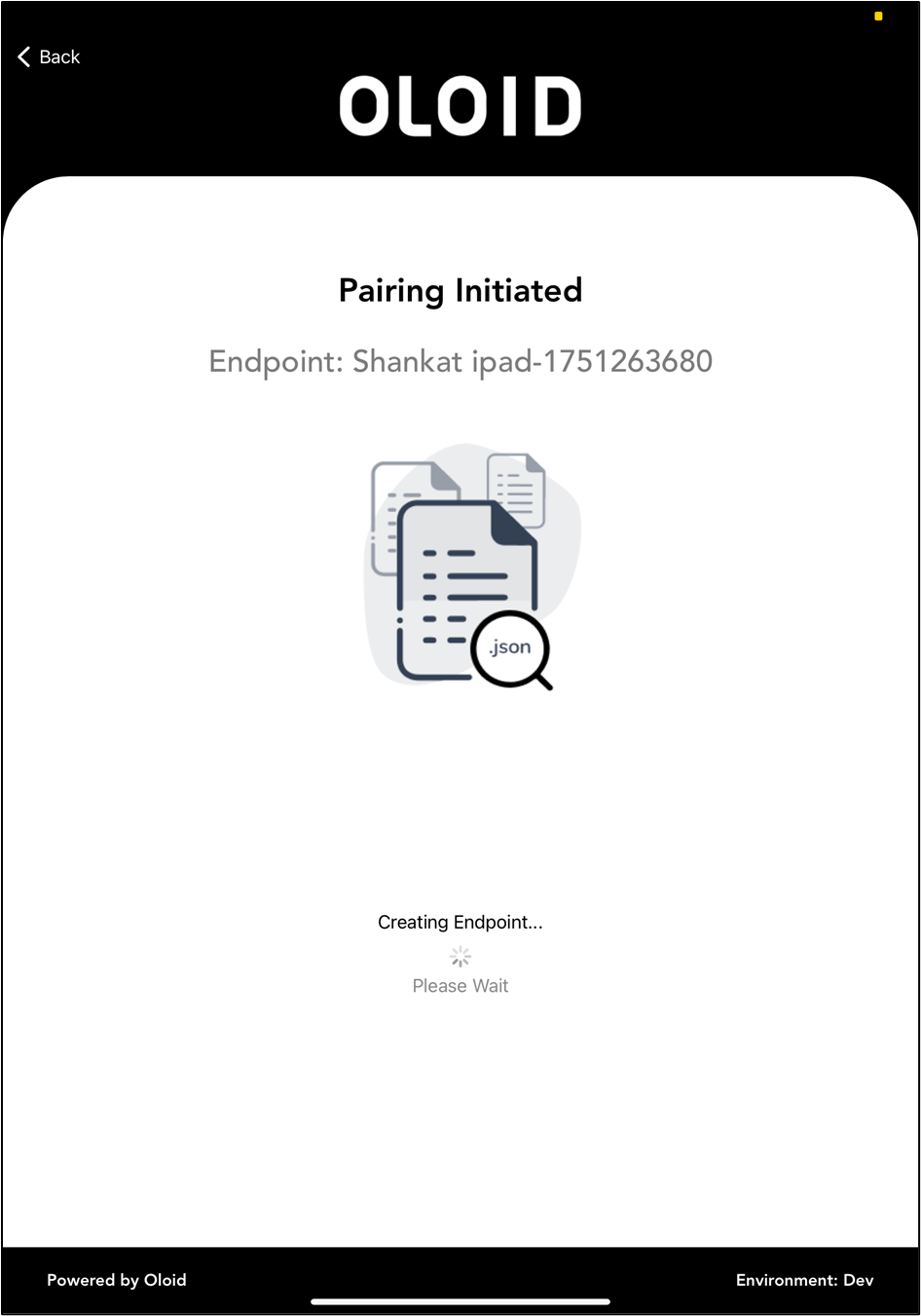
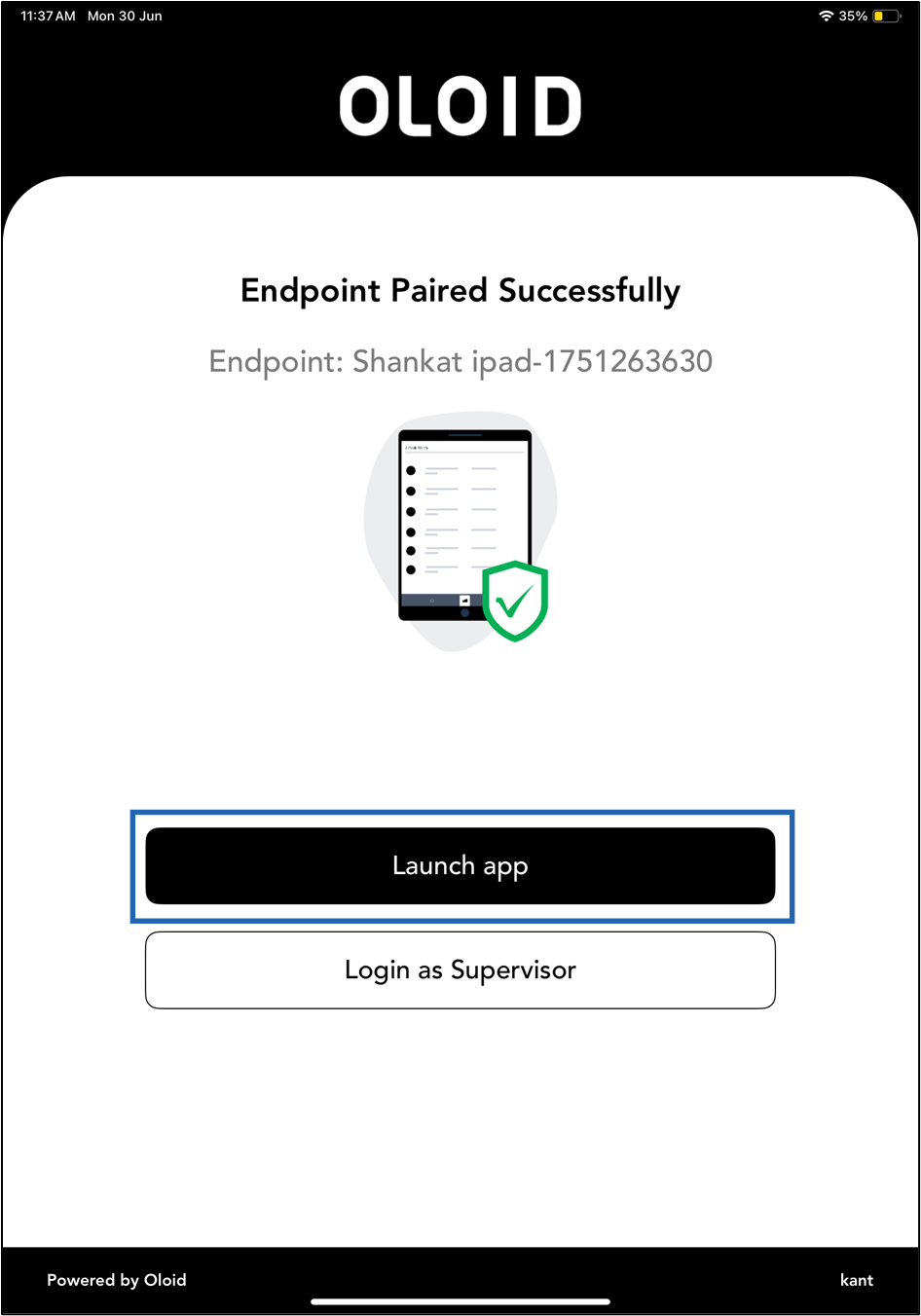
- Launch the Oloid Connect app, the AutoPairConfig.xml file configures and pairs the app on the endpoint automatically.
- Once pairing is complete, the device will be ready to use.