Log in Using Email and Password
Pre-requisite
- The user must be a Tenant Admin or Supervisor to log in to Admin Mode.
- The endpoint must be paired. For more, refer to How to pair an Oloid Connect endpoint
Steps to log using Email and Password
-
Launch the Oloid Connect
 Note: Since the endpoint is already paired, the App will launch in the preview screen of the App. For more, refer to How to pair an Oloid Connect endpoint.
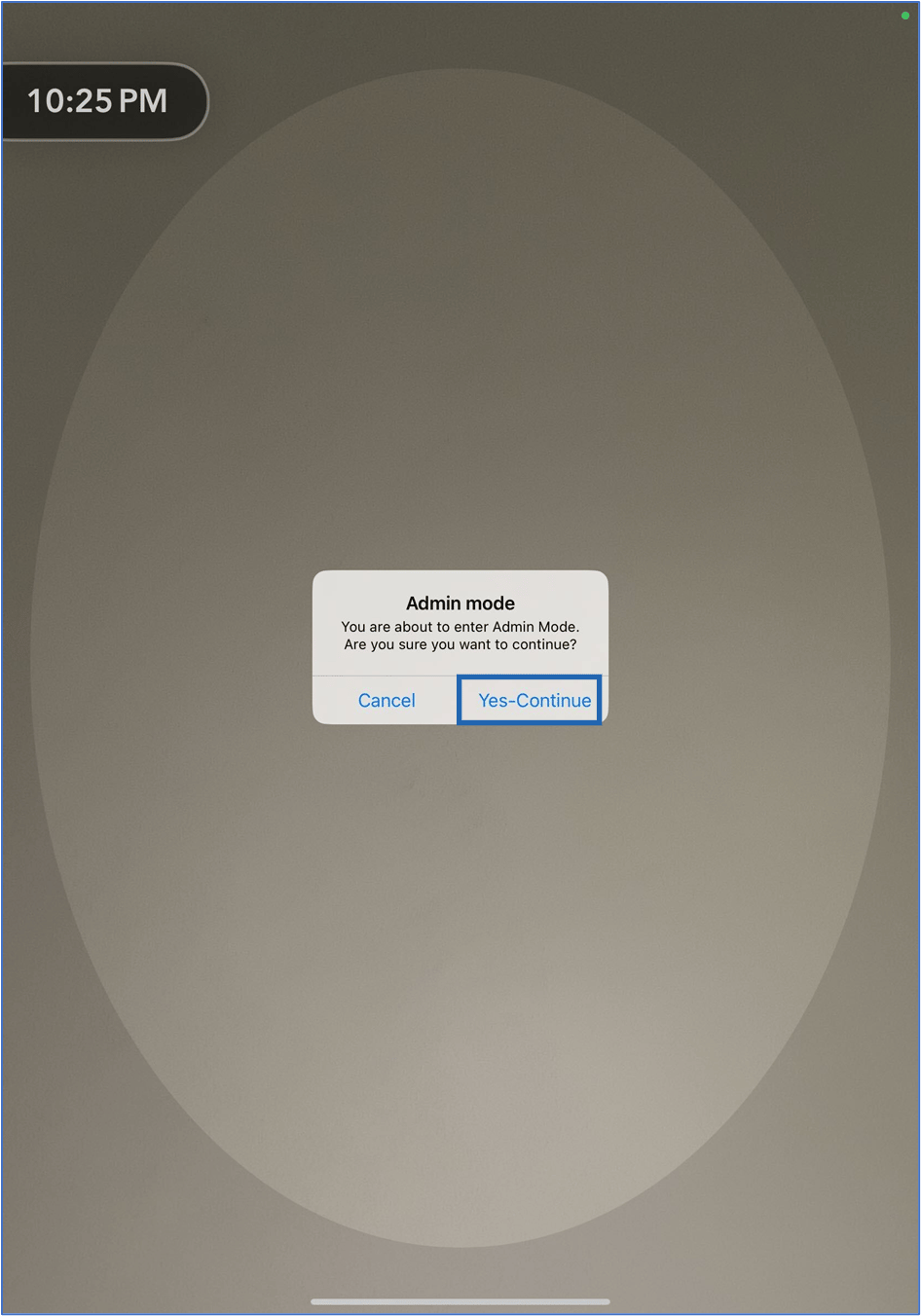
- Double tap with two fingers on the preview screen to launch the Admin Mode.
-
Tap Yes- Continue.
-
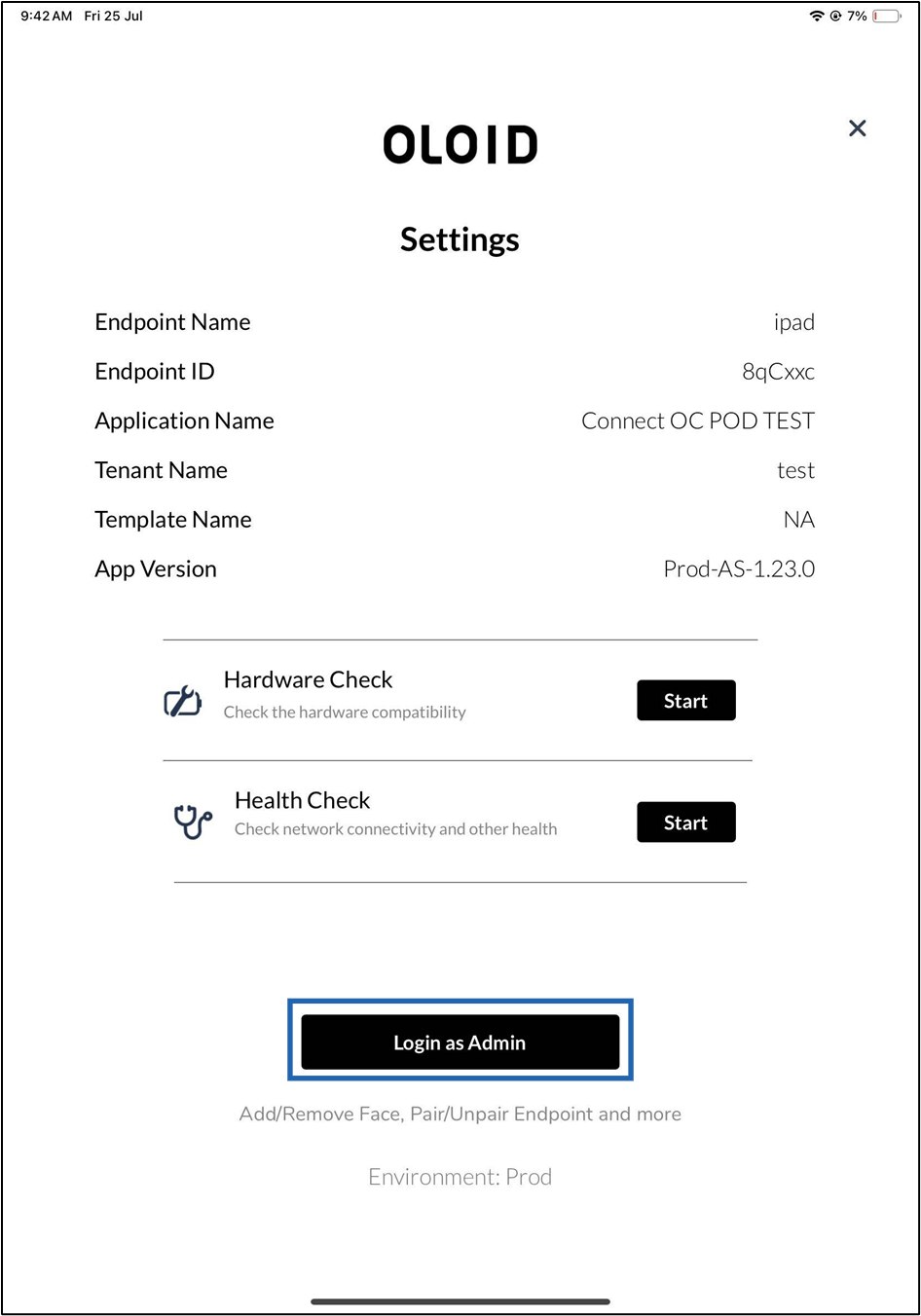
Click Login as Admin.
-
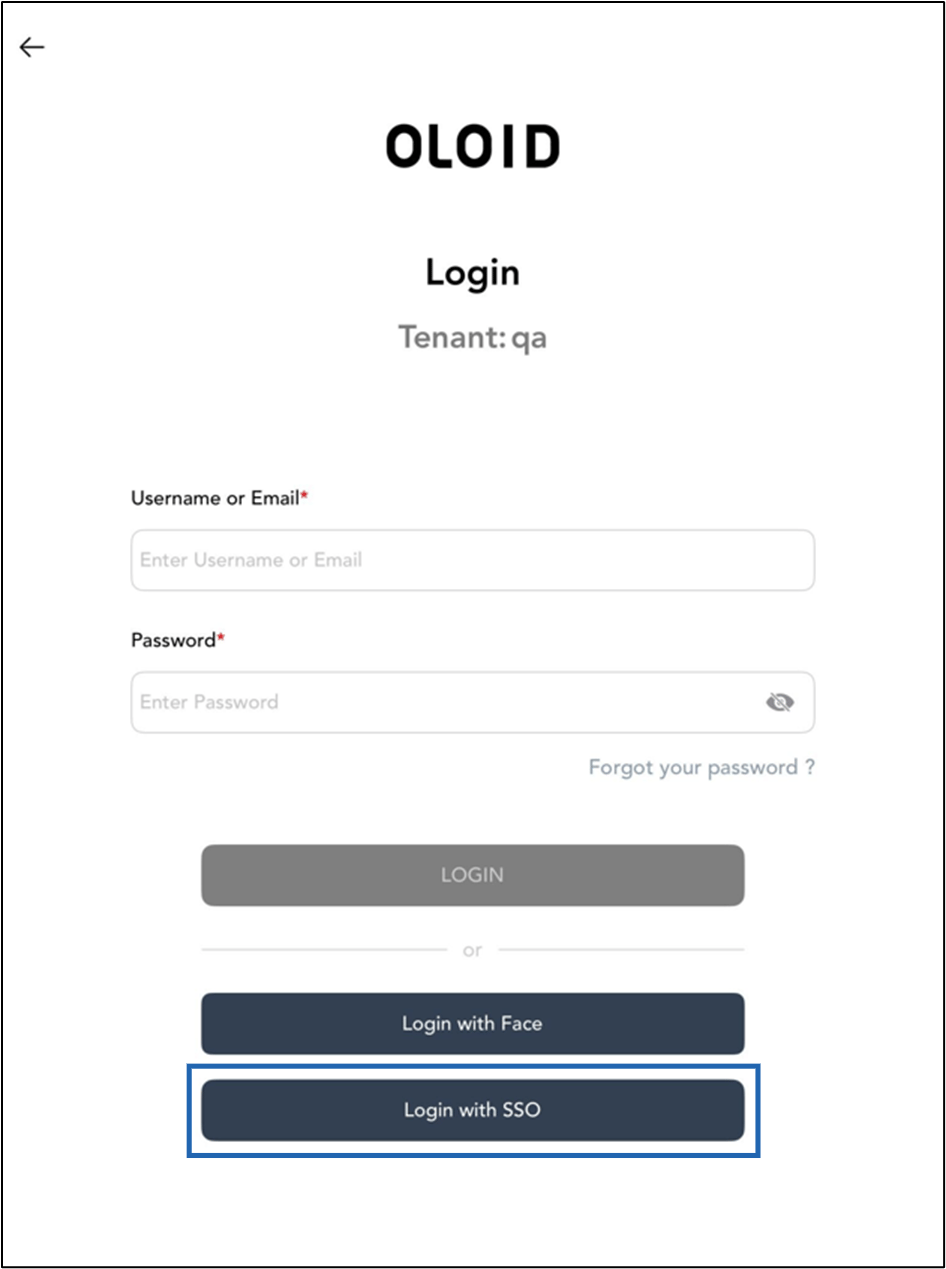
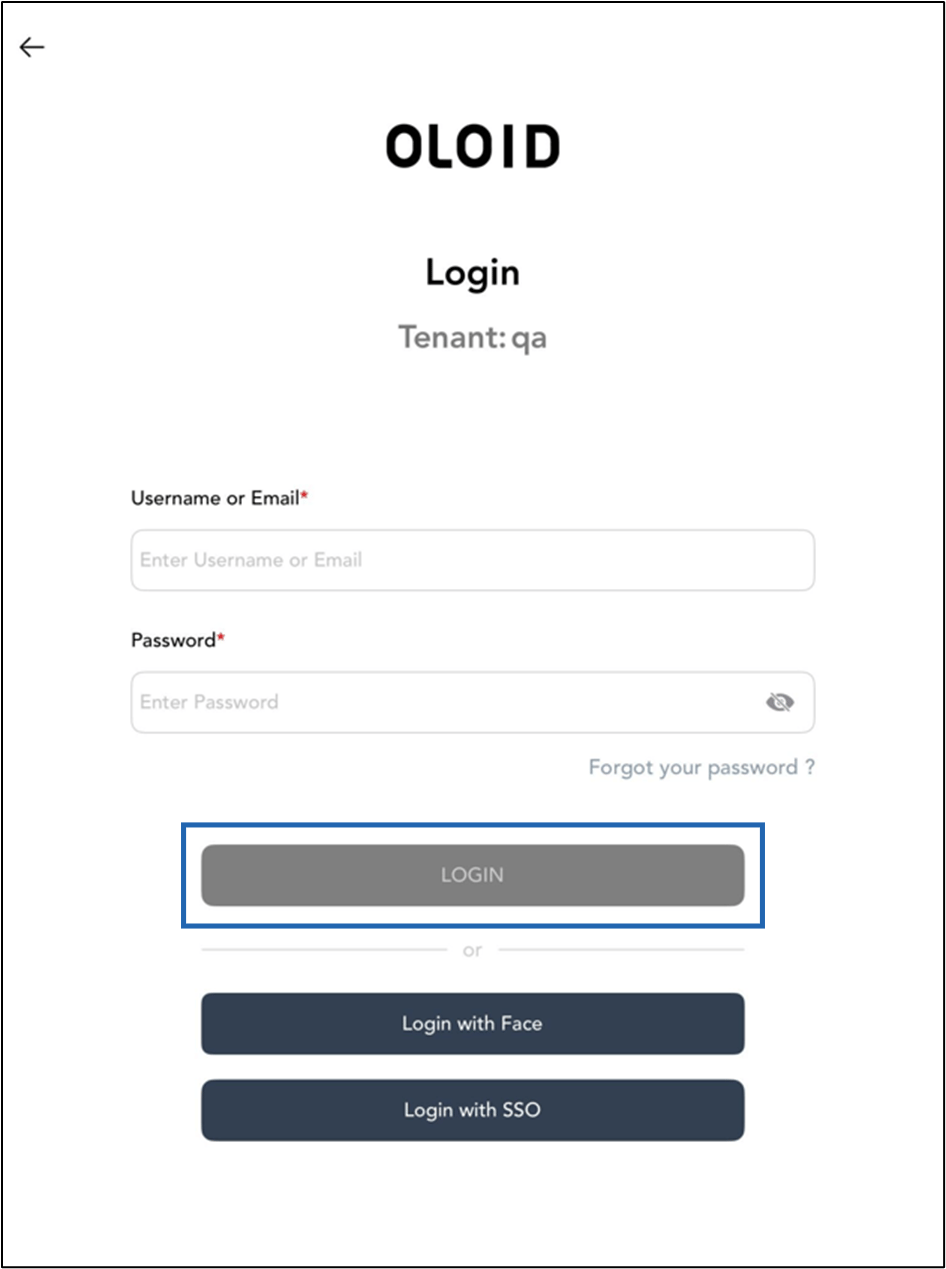
Do the following:
- Enter your email ID in the Email text field.
- Enter your password in the Password text field.
-
Tap Login.
Log in Using Face
Pre-Requisite:- Face should be onboarded for the Tenant Admin or Supervisor.
- Endpoint should be paired with the Oloid Connect application.
- The Connection assigned to the Supervisor must be linked to the application paired with the endpoint. For further details, refer How to pair an Oloid Connect endpoint
Steps to log in with Face
-
Launch the Oloid Connect
- Double tap with two fingers on the preview screen to launch the Admin Mode.
-
Tap Yes- Continue.
-
Click Login as Admin.
-
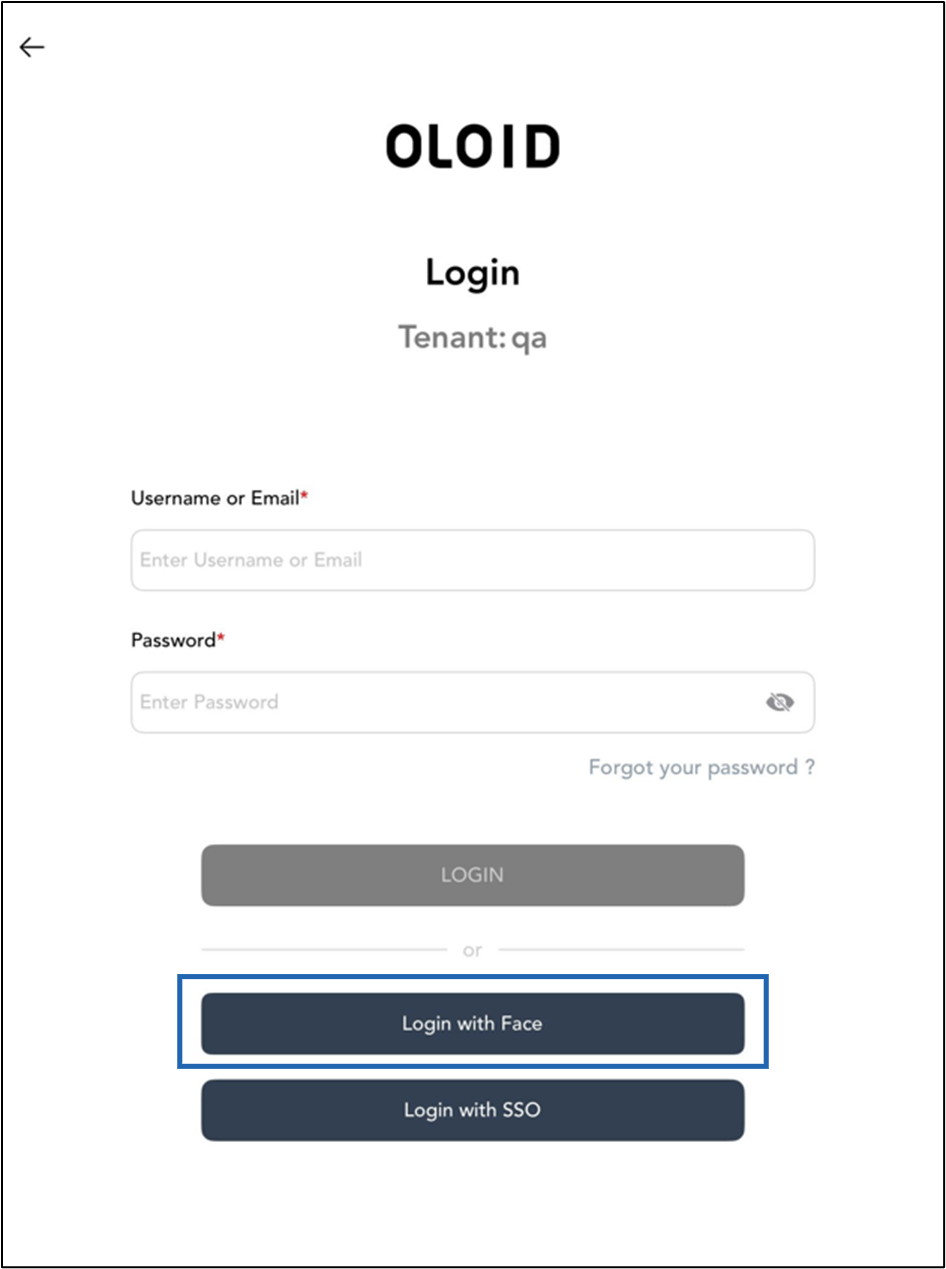
On the Login Page, tap Login with Face.
-
Tenant Admin and Supervisor needs to show their face.

Log in Using SSO
Pre-requisite
- Tenant admin and Supervisor’s Email ID needs to be updated in the Tenant Admin Portal.
- The endpoint must be paired. For further details, refer How to pair an Oloid Connect endpoint
Steps to log in with SSO Options
-
Launch the Oloid Connect
- Double tap with two fingers on the preview screen to launch the Admin Mode.
-
Tap Yes- Continue.
-
Click Login as Admin.
-
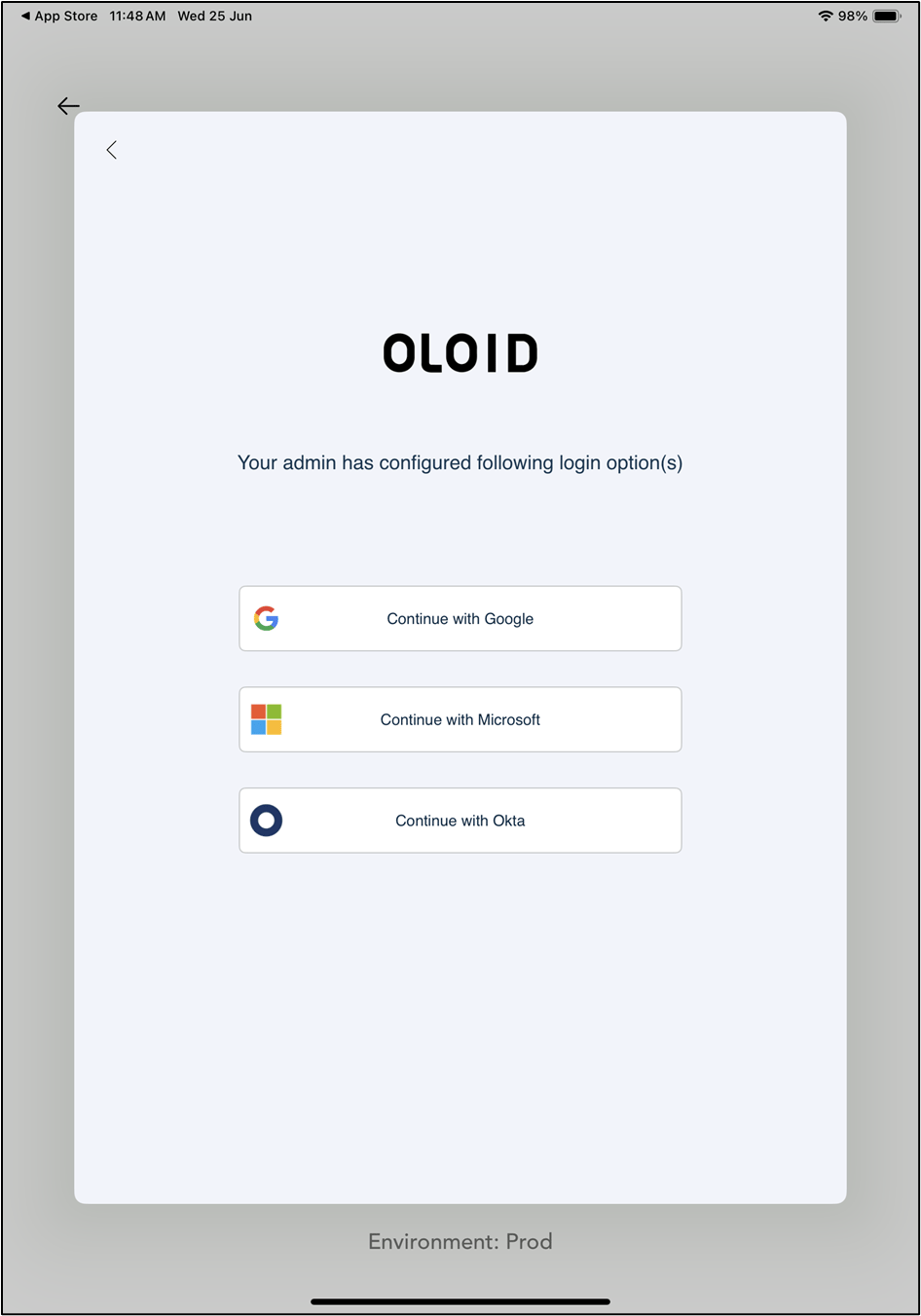
On the login page, tap Login with SSO.