Introduction
The Tenant Admin Portal allows Tenant Admin to create and configure Oloid Verify Endpoint Templates to standardize the setup and deployment of Oloid Verify endpoints. These templates streamline configuration by letting administrators predefine endpoint details, settings, groups, web buttons, integrations, and health monitoring options.Prerequisite
You must have a Tenant Admin access to Tenant Admin Portal.Steps to Create Endpoint Template
- Log in to the Tenant Admin Portal. The Application page is displayed.
- Select Endpoint from the left menu panel.
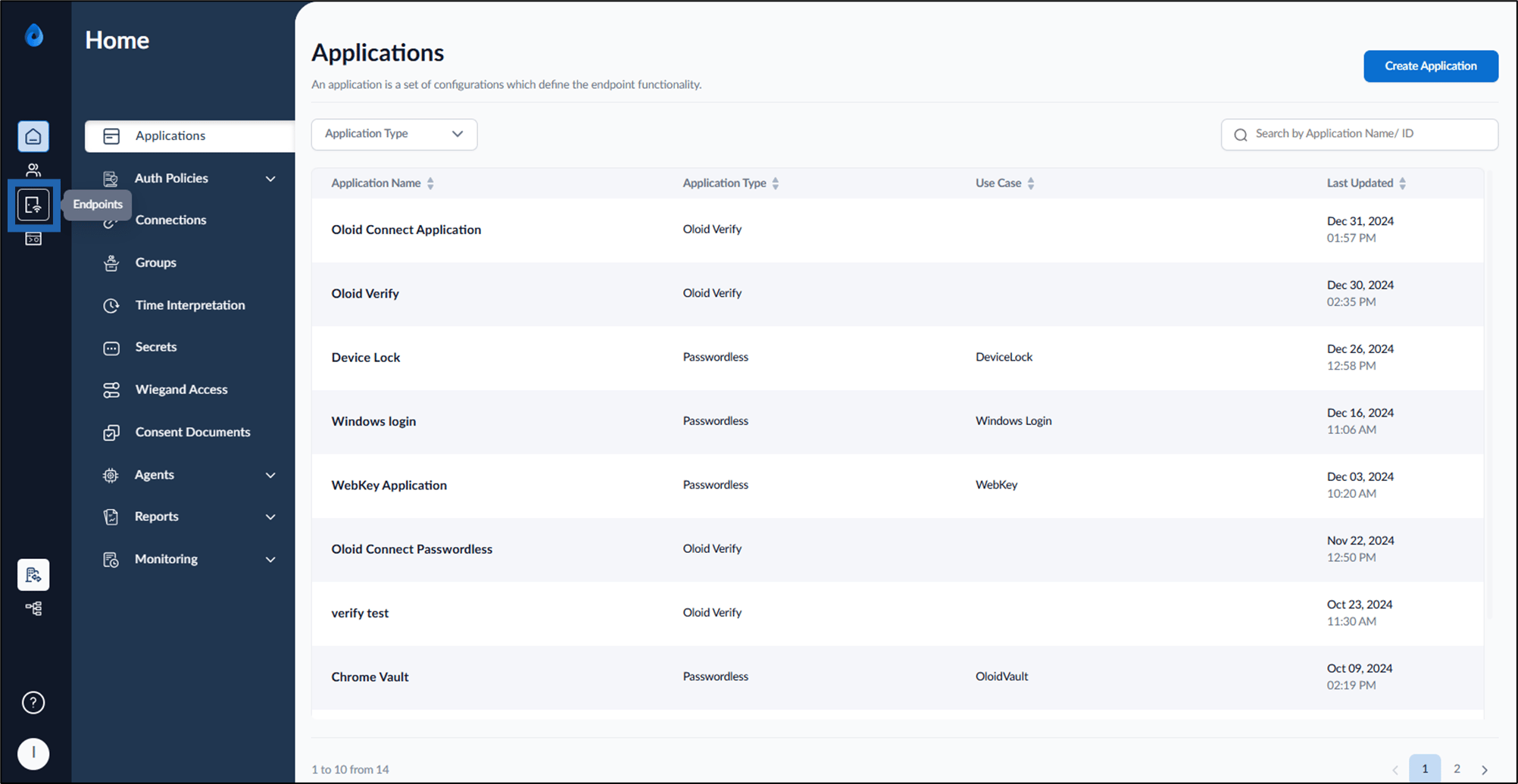
- On the top right, click Endpoint Template.
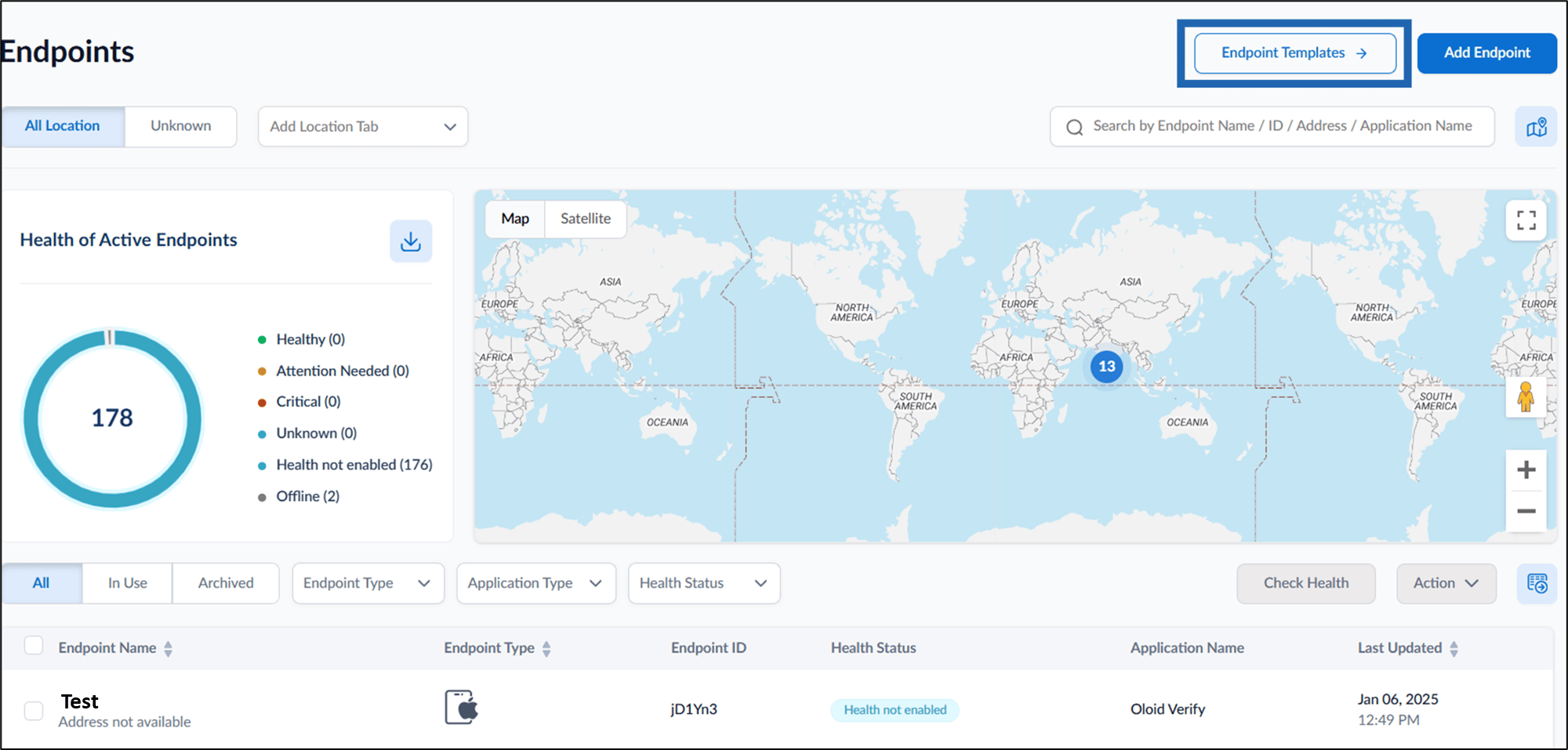
- On the top right, click Create Template.
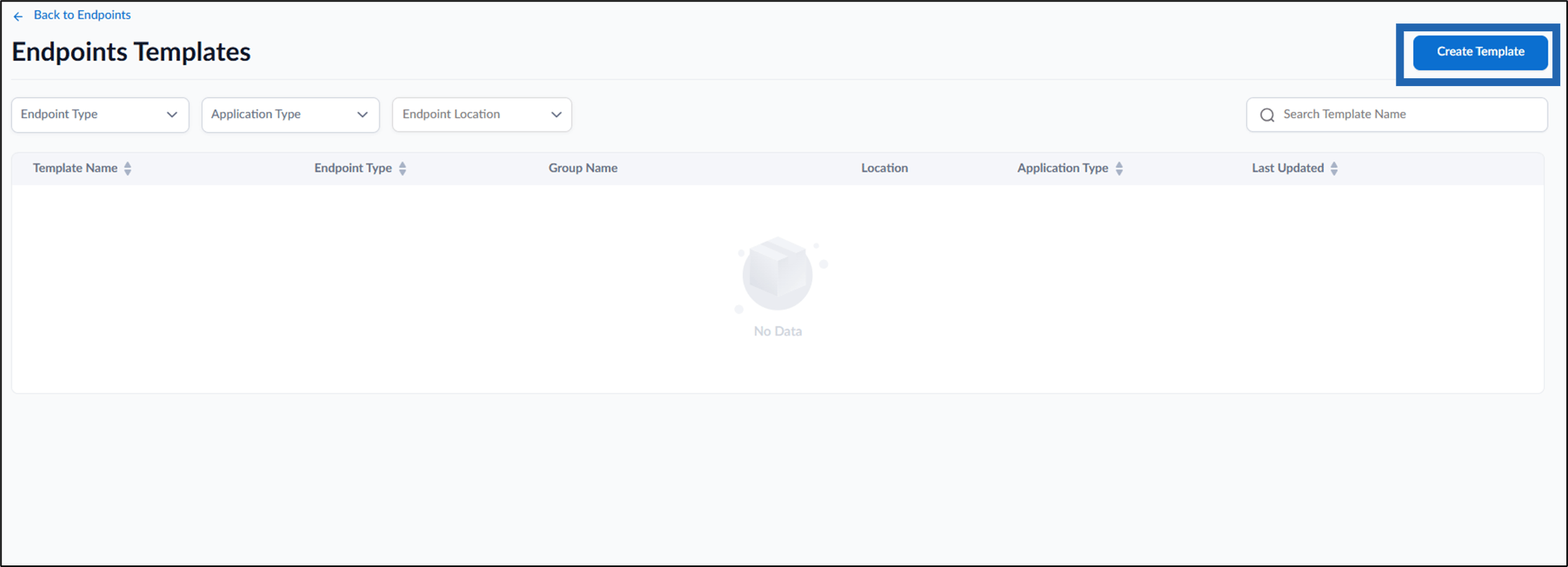
- Do the following:
- Enter Template Name.
- Select Application Type as Oloid Verify from the dropdown list.
- Select Endpoint Type as Oloid Verify from the dropdown list.
- Click Create.
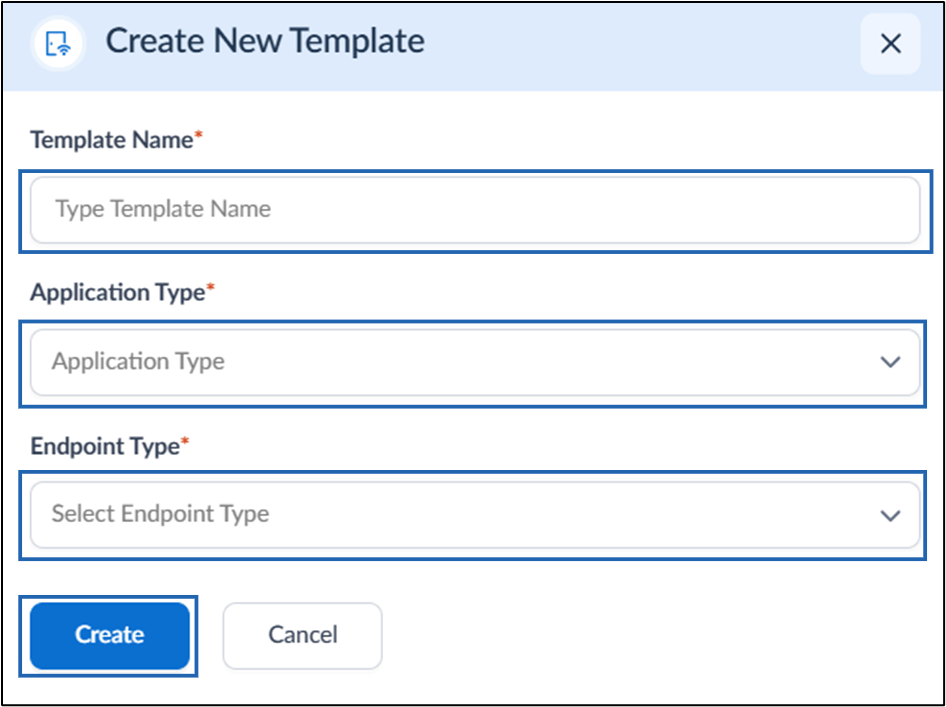
Steps to Configure Endpoint Template
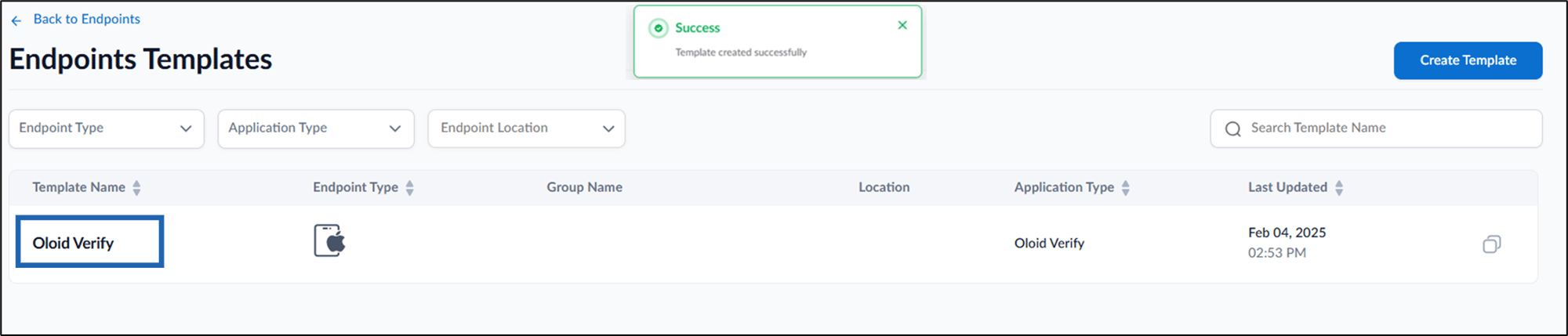
- Click Endpoint Template to be configured from the listed templates.
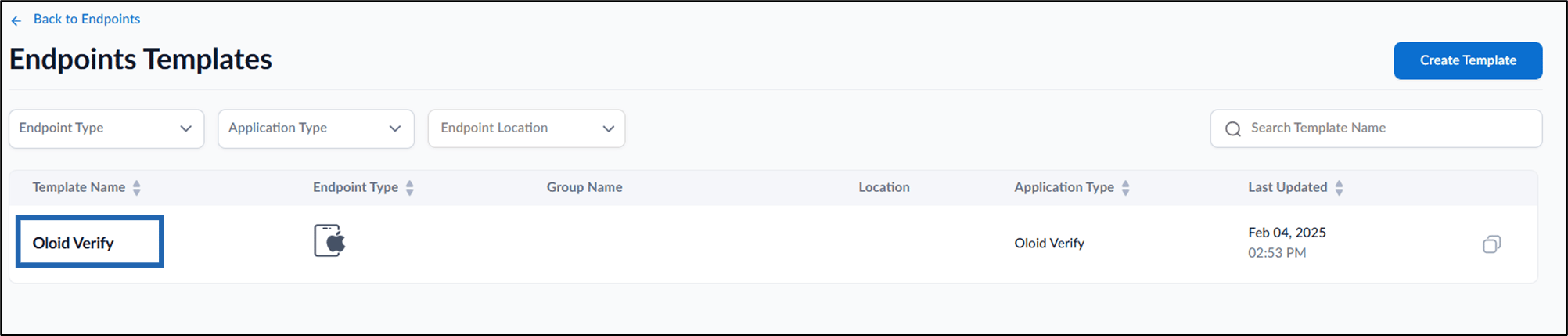
- Configure the following:
Configure Details Tab
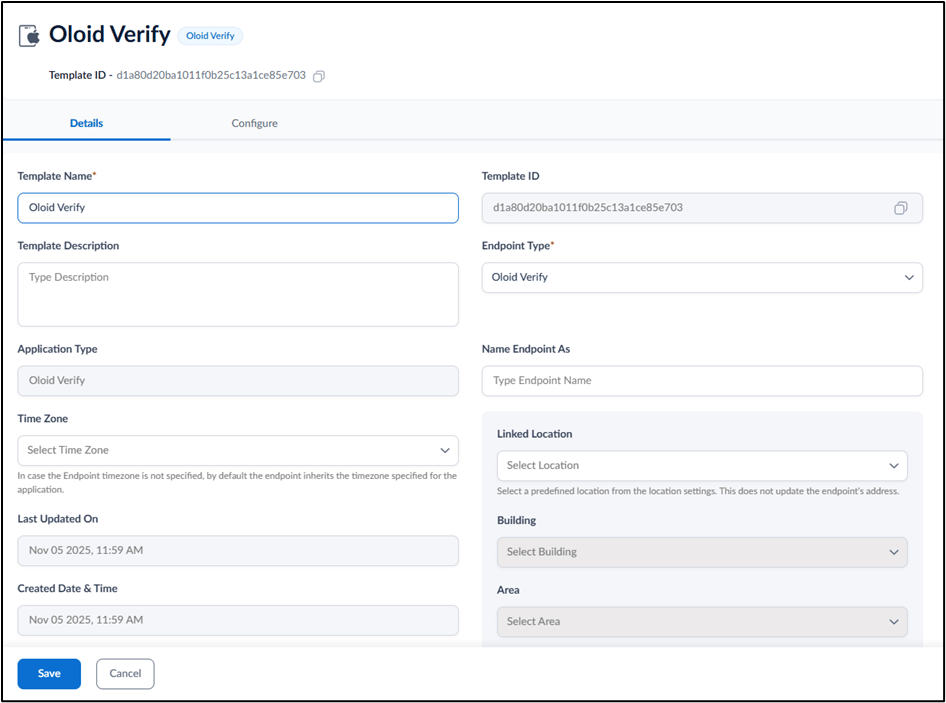
- Edit Template Name (If required).
- Enter Template Description. (Optional)
- Select Endpoint Type from the dropdown list.
-
Select Time Zone from the dropdown list. (Optional)
Note: In case the Endpoint time zone is not specified, by default the endpoint inherits the time zone specified for the application.
- Enter name in Name Endpoint As text field. (Optional)
- Select Location from the dropdown list. Once selected, this activates the Building field. For more information on creating a location, refer How to create a new location and add location details. (Optional)
- Select Building associated with the chosen locationfrom the dropdown list. Once selected, this activates the area field. (Optional)
- Select area within the building from the dropdown list. (Optional)
-
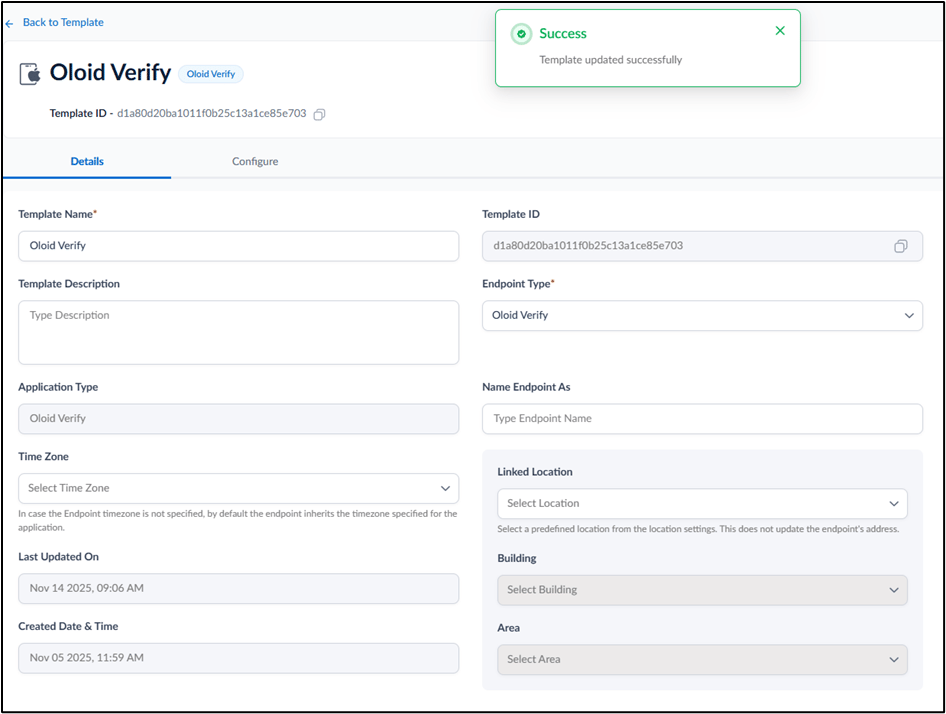
Click Save.
Note: The Building and Area fields remain disabled until a valid Location is selected.The Details tab is configured successfully.Note: Configure settings only if they are applicable. Consult your Oloid representative before making any changes.
Setting up Configure Tab
Configure Endpoint Setting
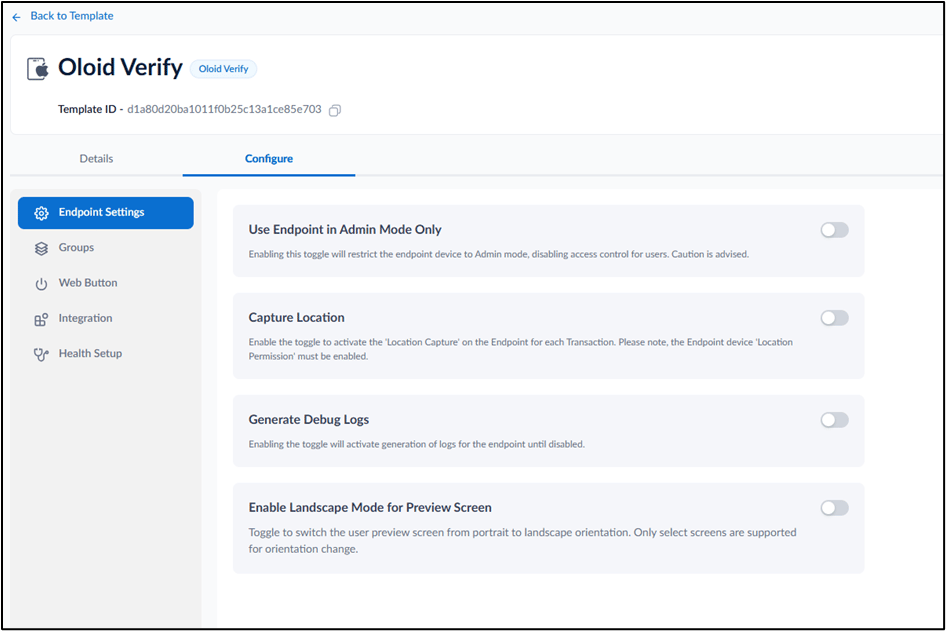
- Use Endpoint in Admin Mode Only: Coming Soon
- Capture Location: Turn on this toggle to capture location on the endpoint for each transaction. Note: Location Permission on the Endpoint device must be enabled to Capture Location.
- Generate Debug Logs: Turn on this toggle to generate and send debug logs from the endpoint to the backend.
- Enable Landscape Mode for Preview Screen: Coming Soon
-
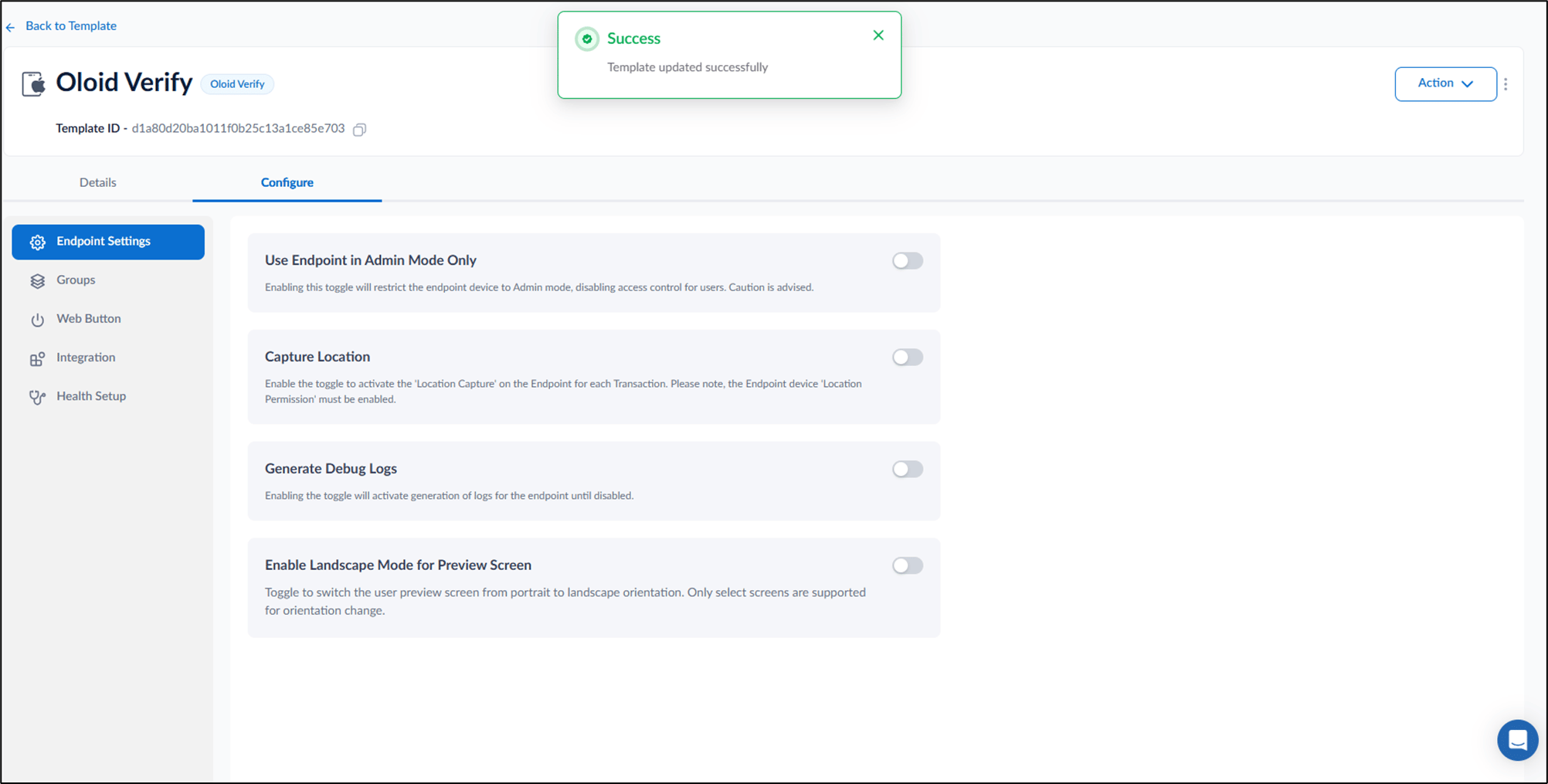
Click Save.
Note: Configure settings only if they are applicable. Consult your Oloid representative before making any changes.
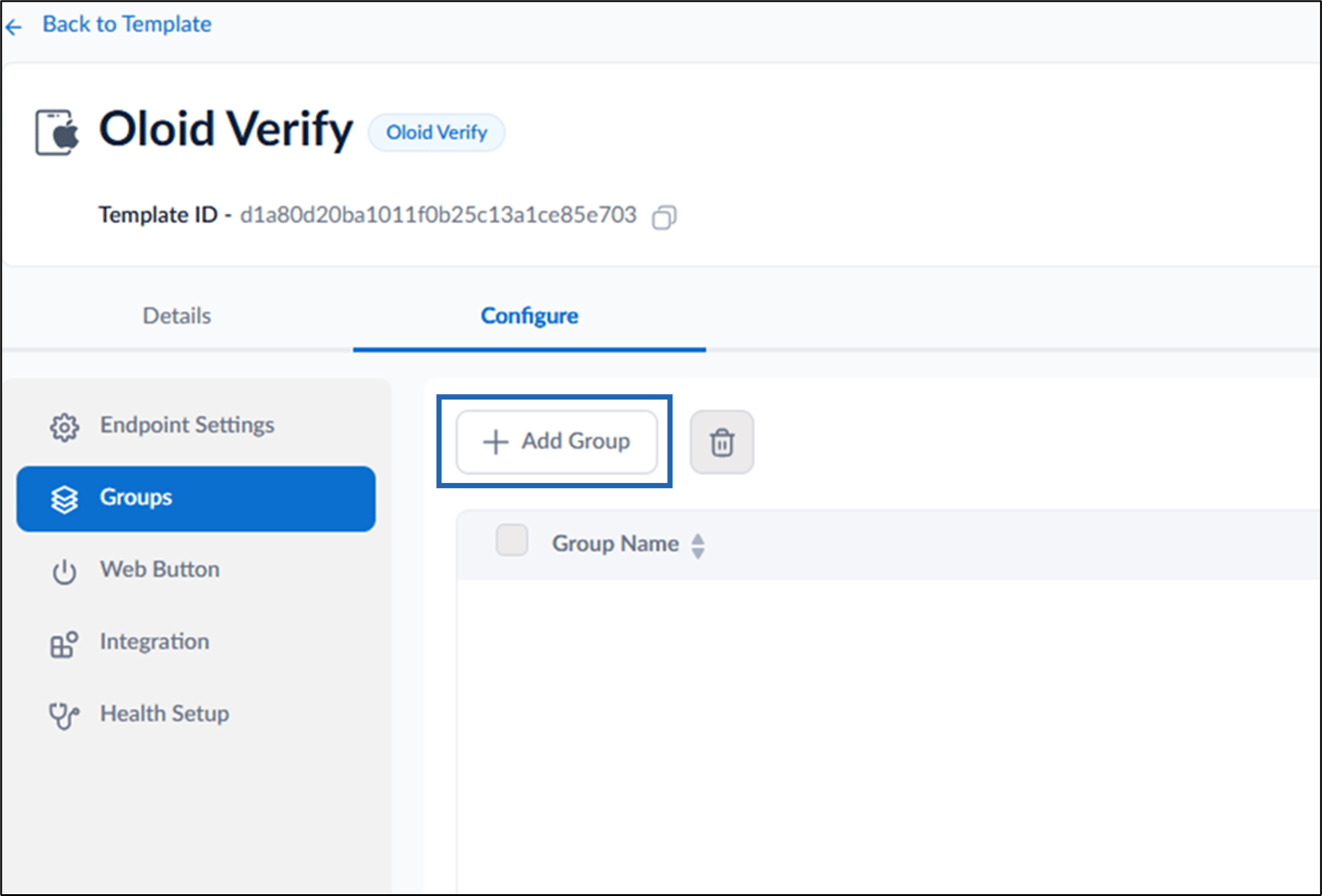
Groups
-
Click +Add Group.
The Add Group pop-up box is displayed.
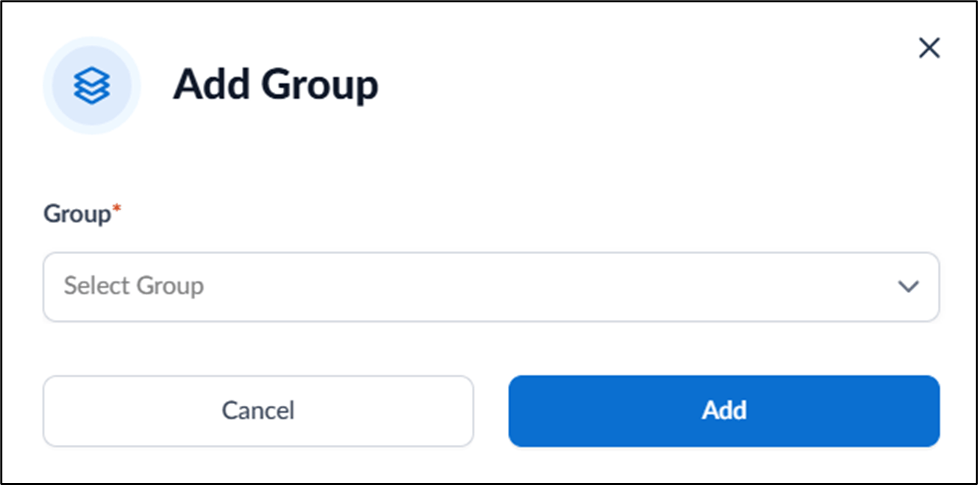
- Select Group(s) from the dropdown list.
-
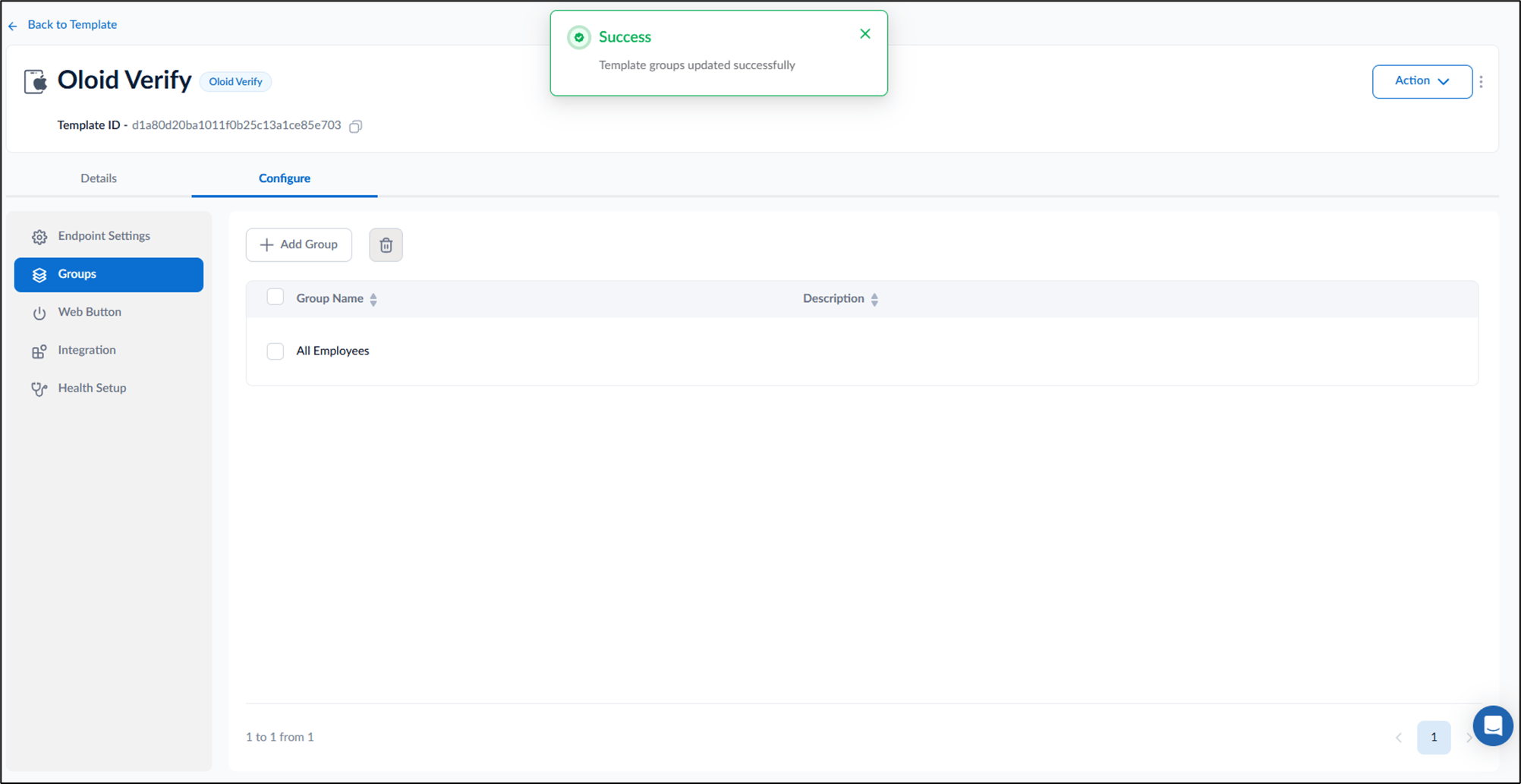
Click Add.
Note: Configure settings only if they are applicable. Consult your Oloid representative before making any changes.
Configure Web Button
-
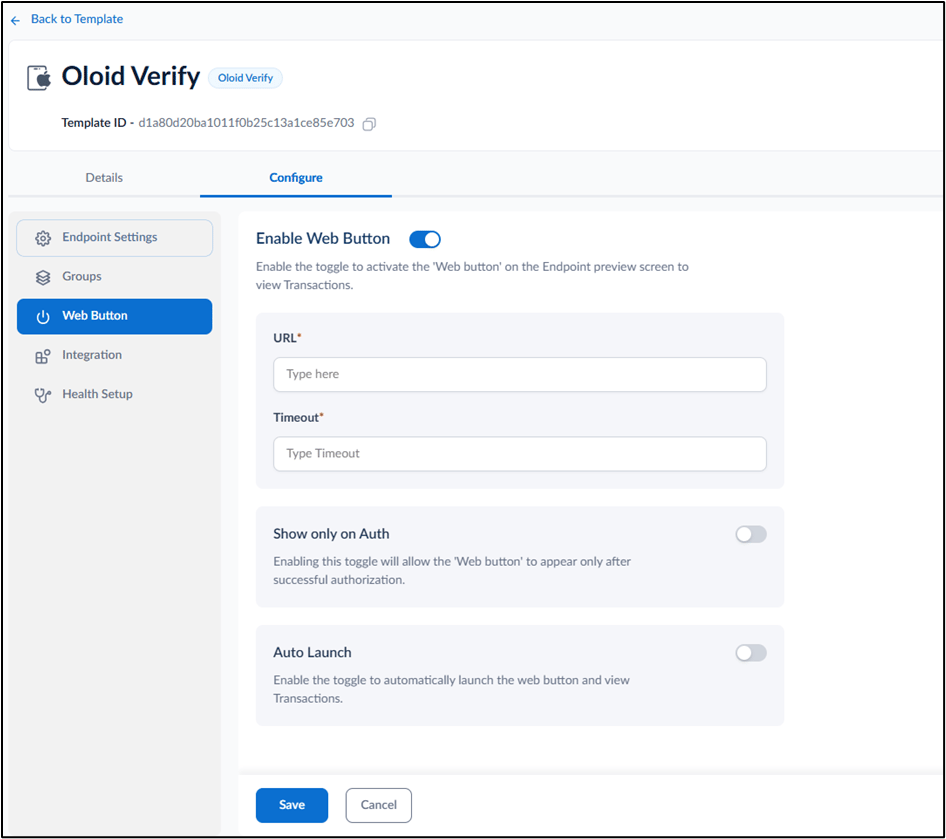
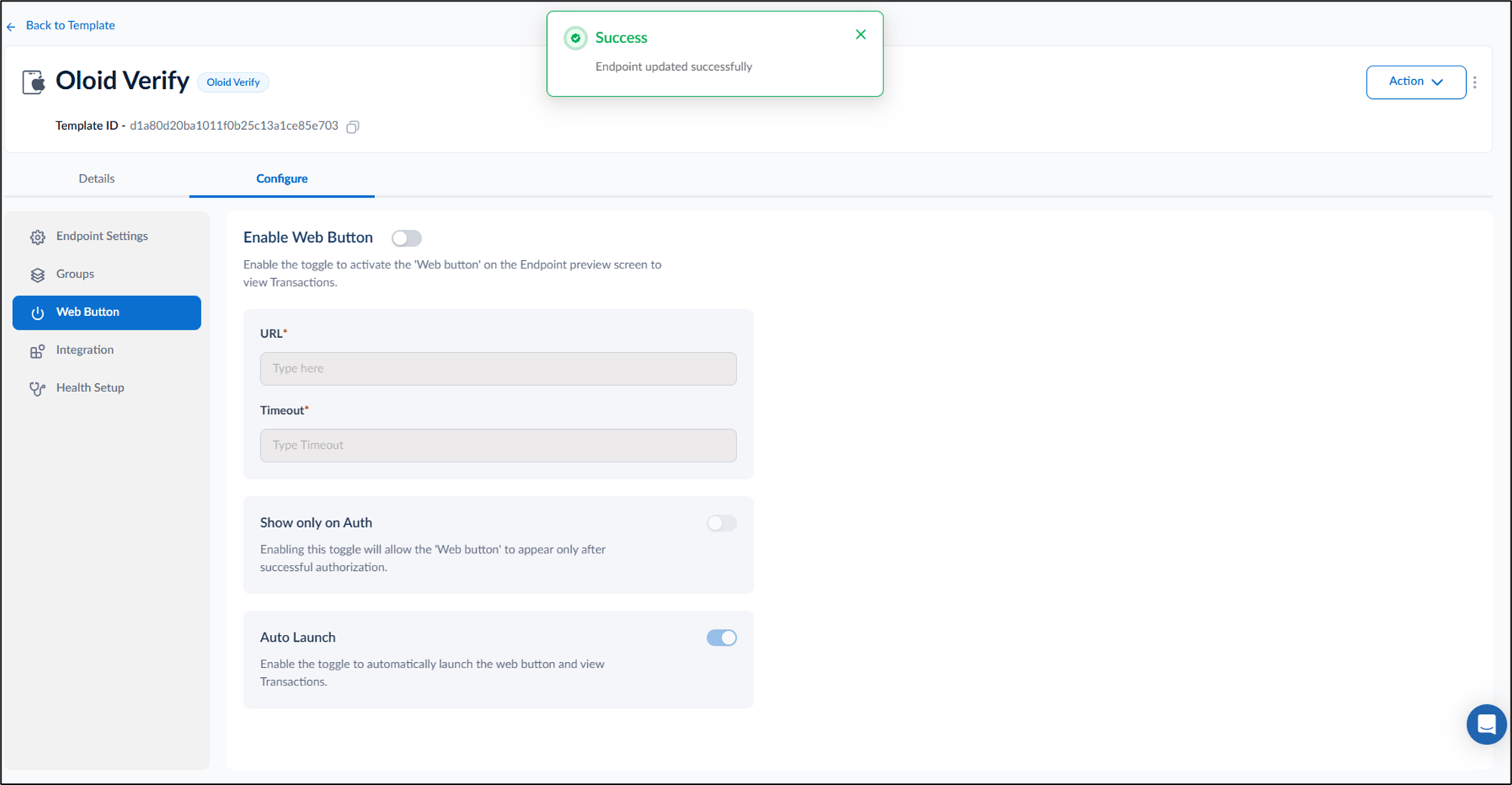
Enable Web Button toggle to activate the web button on the endpoint preview screen to view transaction.
-
Enter URL.
Note: You have to enter the URL of the website where the user will review the punches.
- Enter Timeout duration.
-
Enter URL.
- Turn on Show only on Auth toggle to allow the web button to appear only after successful authorization.
- Turn on Auto Launch toggle to automatically launch the web button and view transaction.
-
Click Save.
Note: Configure settings only if they are applicable. Consult your Oloid representative before making any changes.
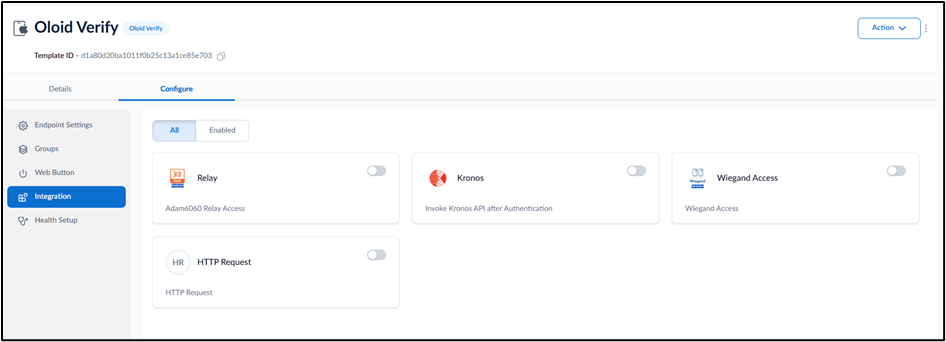
Configure Integration
Configure Health Setup
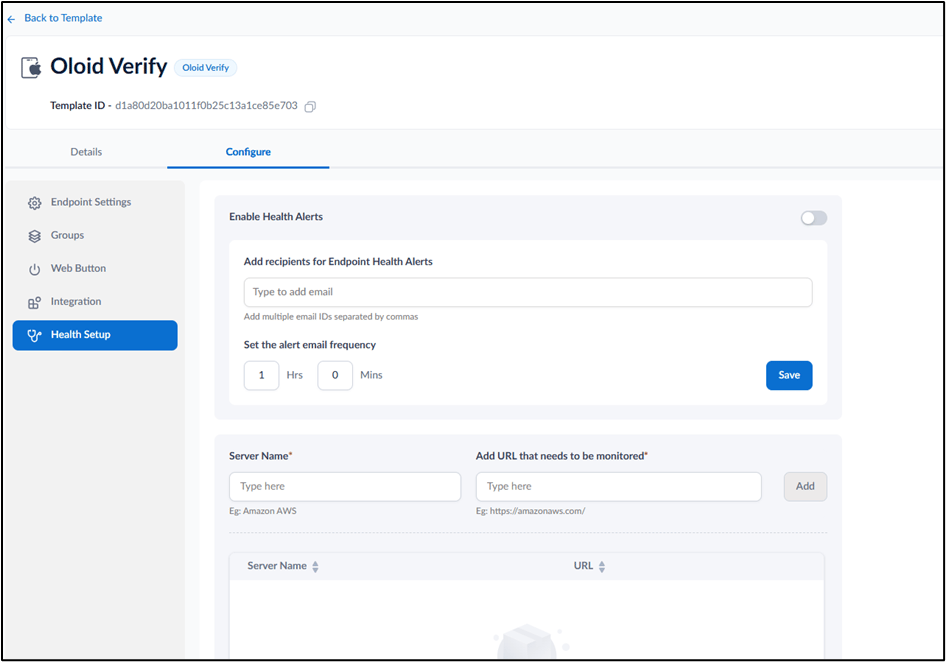
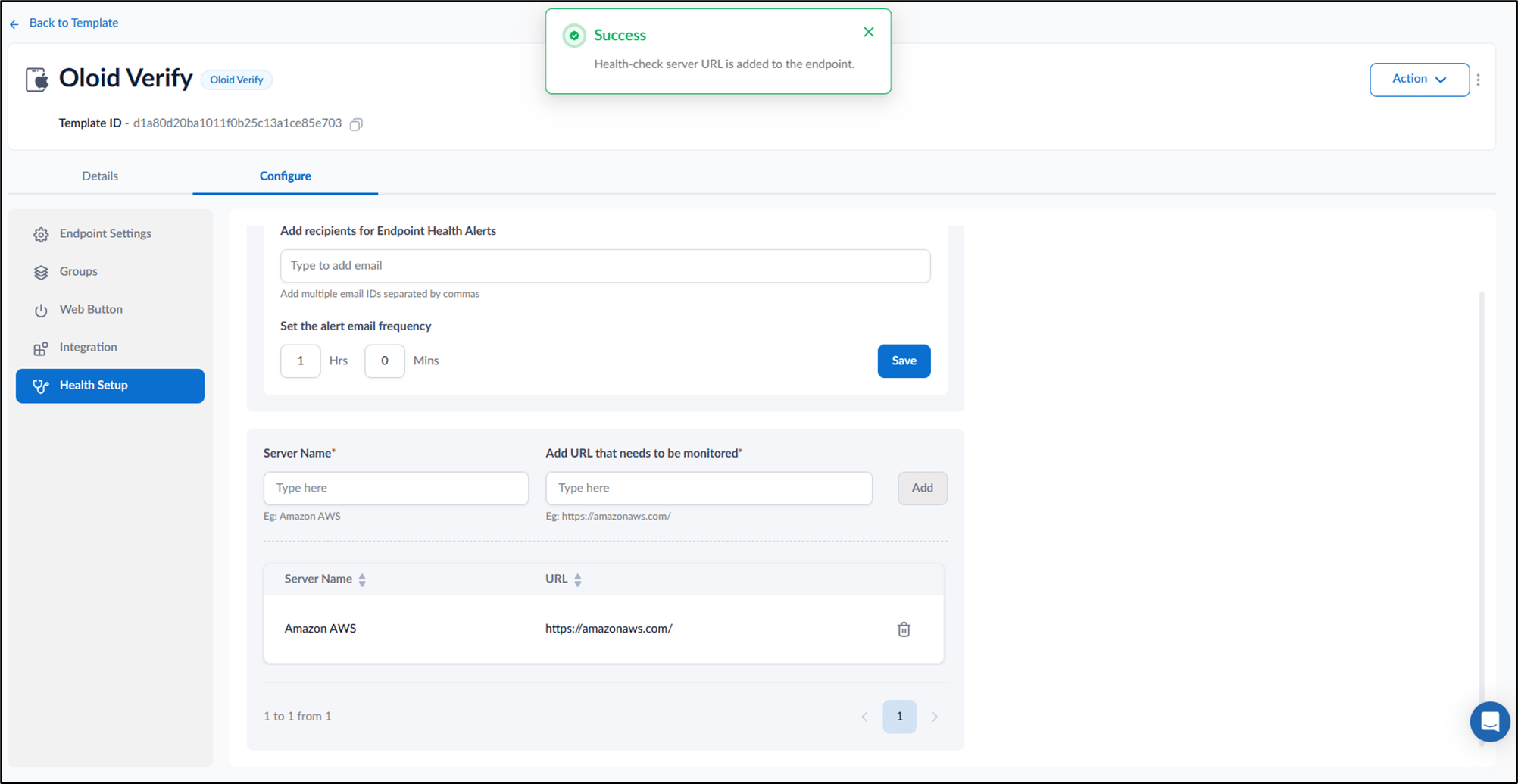
- Turn on Enable Health Alerts toggle to monitor the health of the paired endpoints.
- Enter email ID(s) in Add recipients for Endpoint Health Alerts whom you want to share the health alert notifications.
- Set Email frequency in Hours and Mins to adjust the frequency of email notifications.
- Click Save to apply your changes.
The Health Alert is configured for the endpoint.
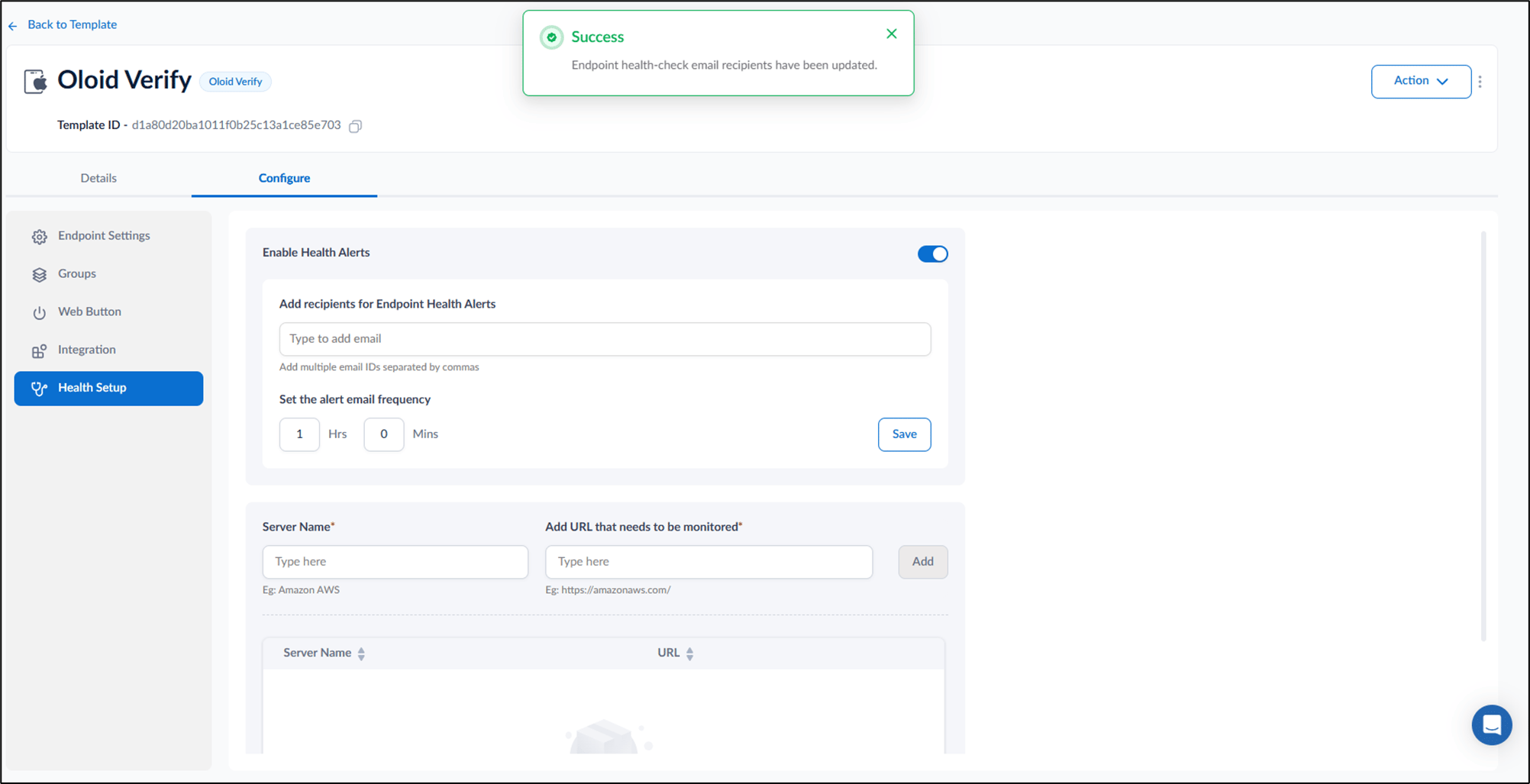
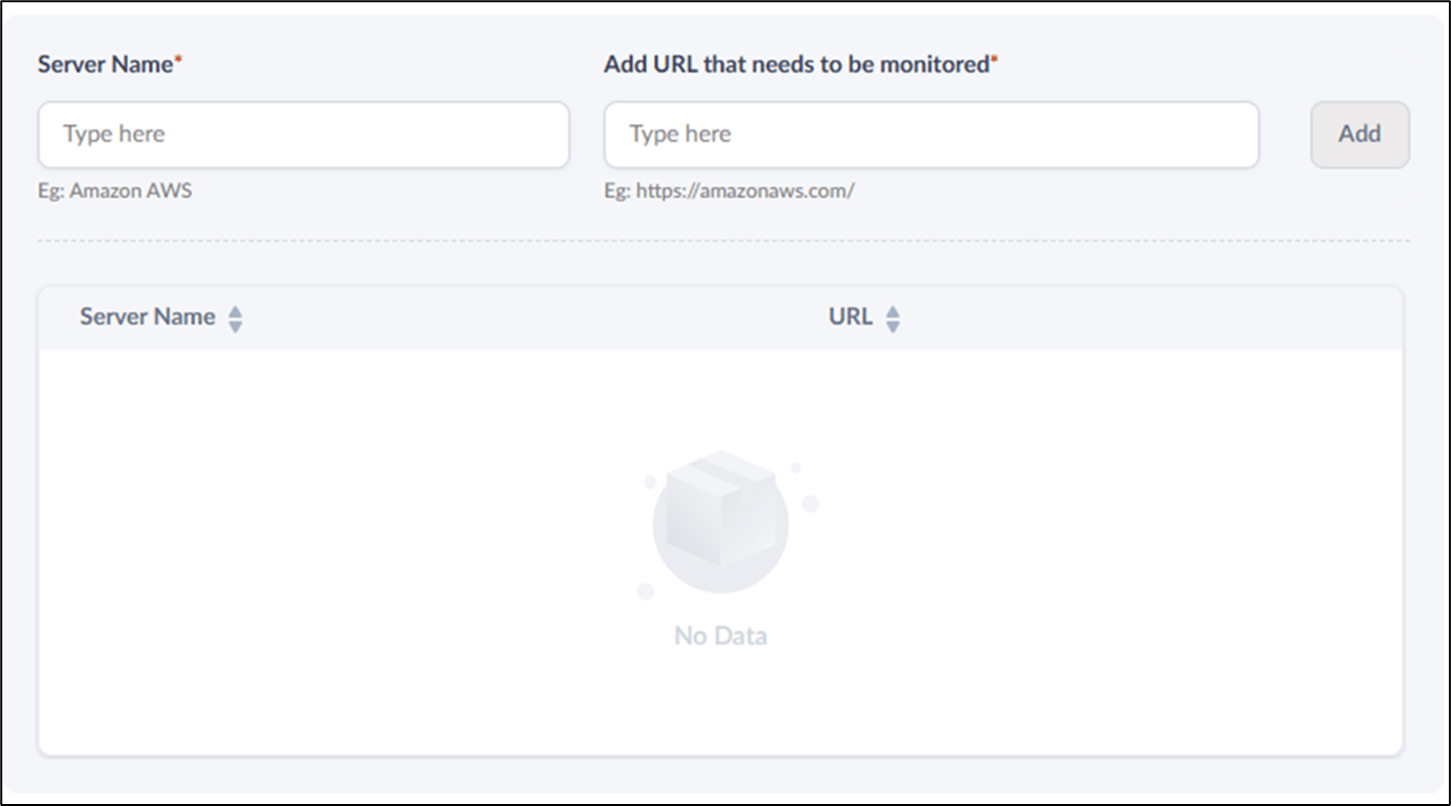
- Enter Server Name.
- Enter URL in Add URL that needs to be monitored field.
- Click Add.