Introduction
This document provides step-by-step instructions for logging in with badge and PIN to Workforce / HRMS platform.Pre-requisite
- User must have an Okta account.
- In the Oloid Portal, admin must do the following:
- Okta credential (user email ID) must be added to the user details page in Oloid Portal.
- Assign badge to the user. For more details, refer How to assign Badge ID as credential to users
- Add a PIN for the user. For more details, referHow to add PIN as credential to users
- Enable Badge option under the Oloid Verify application in Authentication tab. For more details, refer How to create and configure Connect for Passwordless application.
Using the Badge
- Launch the Oloid Connect app on your iPad.
-
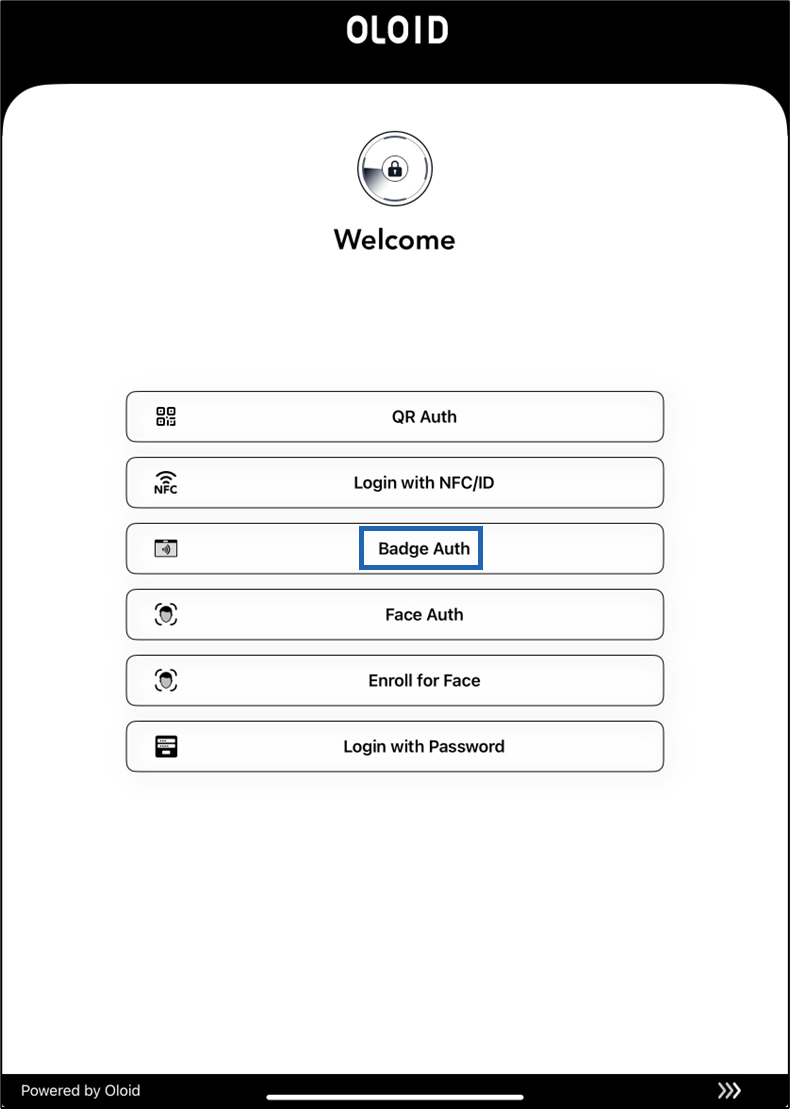
On the home page of the app, select Badge Auth.
-
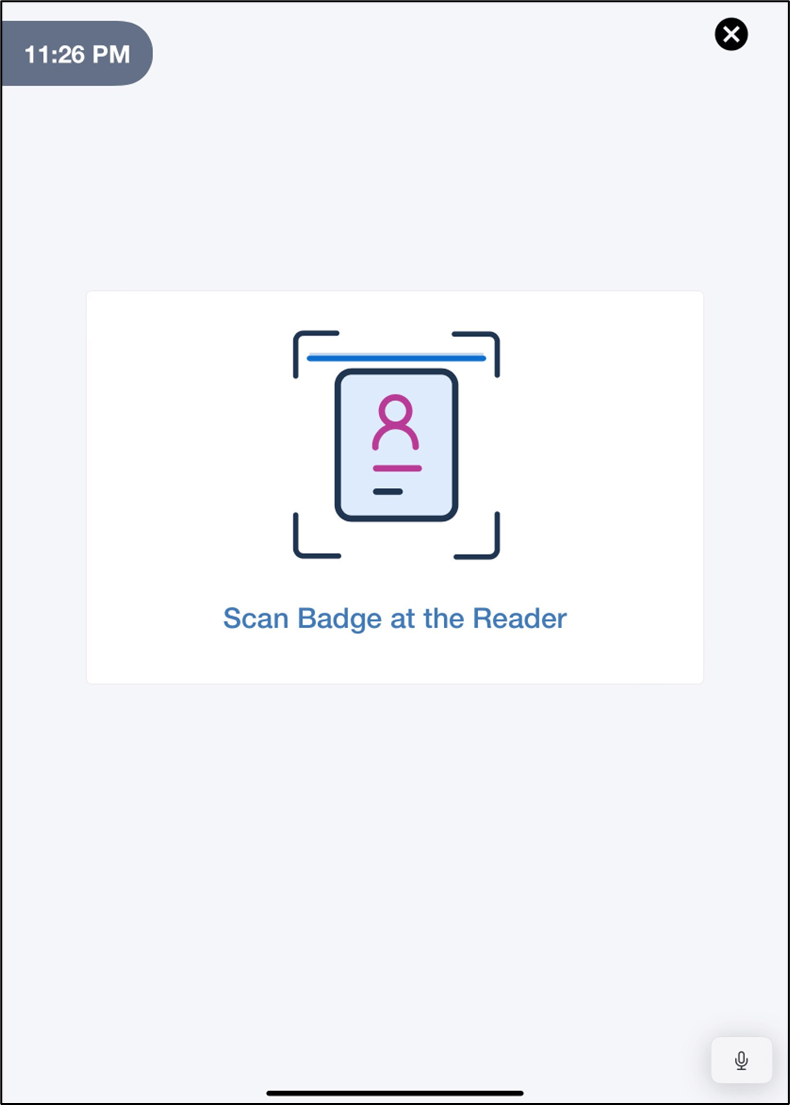
Tap the Badge on the Reader to scan it.
Note: The Card Reader should be connected to your iPad.
-
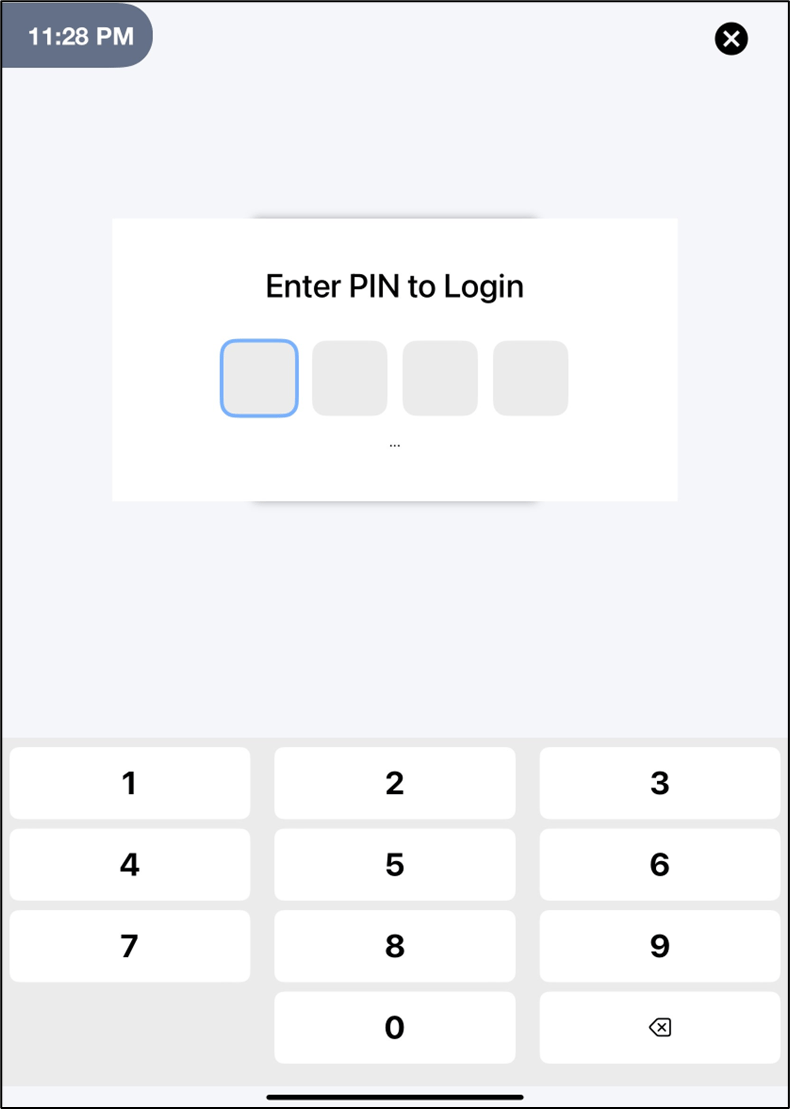
On Badge authentication, the Enter PIN to Login screen is displayed.
-
Enter the PIN.
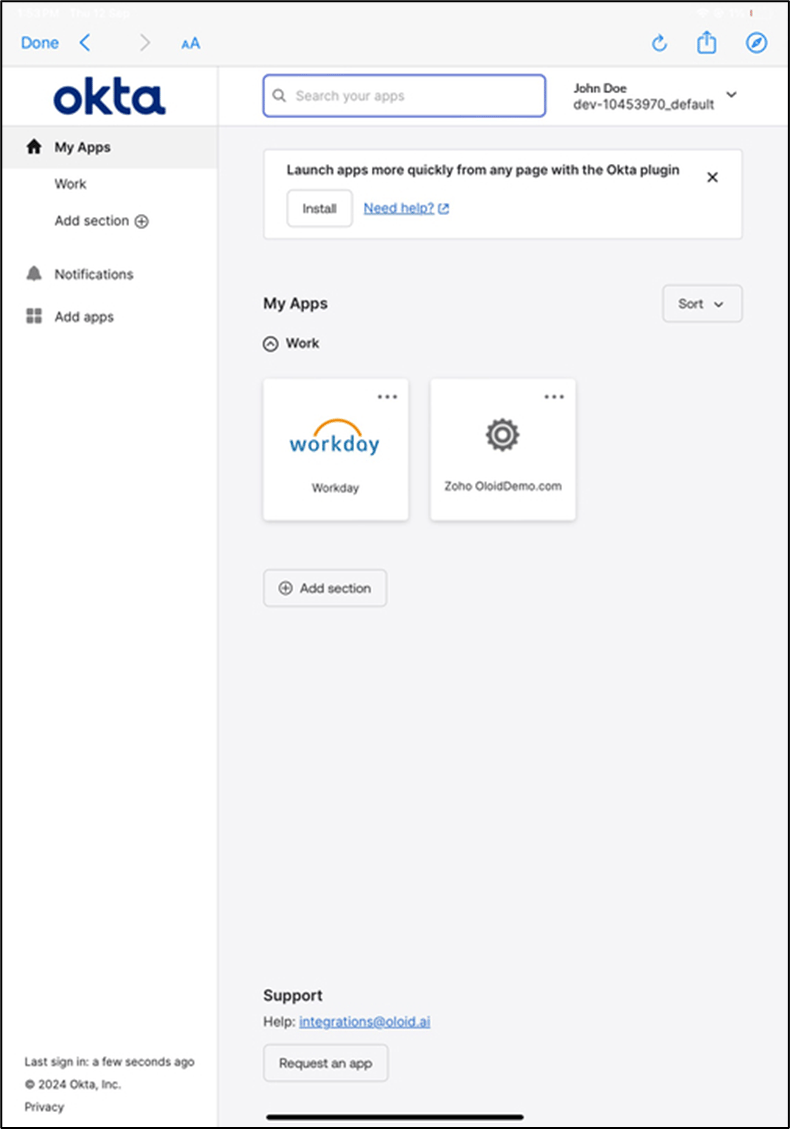
On PIN authentication, you are signed in to the Workforce /HRMS platform.