

Note: If user consent is enabled in the connection, the app will ask for permission before uploading the picture.
Steps to add Face
-
Launch the Oloid Connect
 Note: For more information about how to log in to the Oloid Connect, refer to How to log in to the Admin mode in Oloid Connect App.
 -
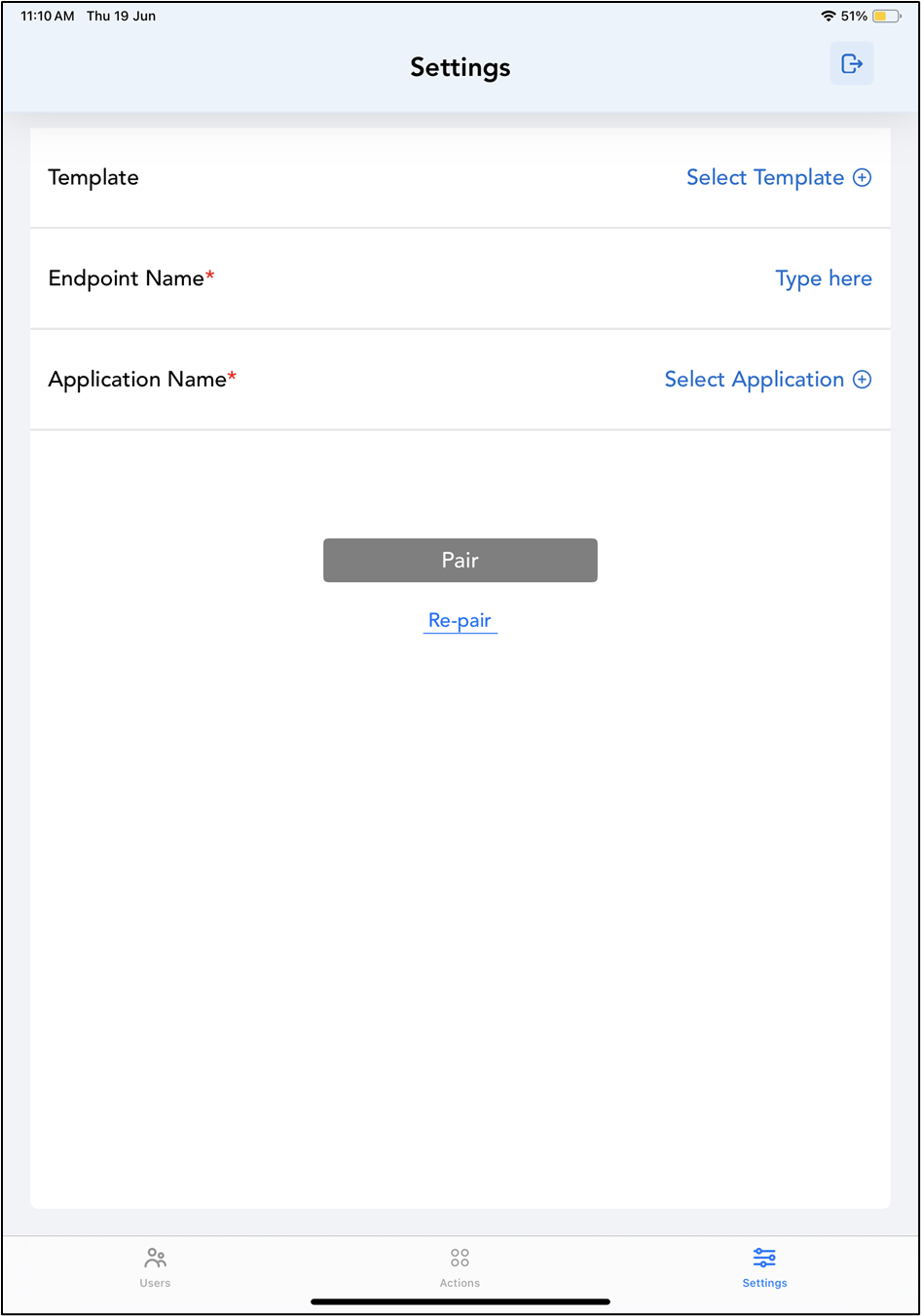
The Settings page is displayed.
-
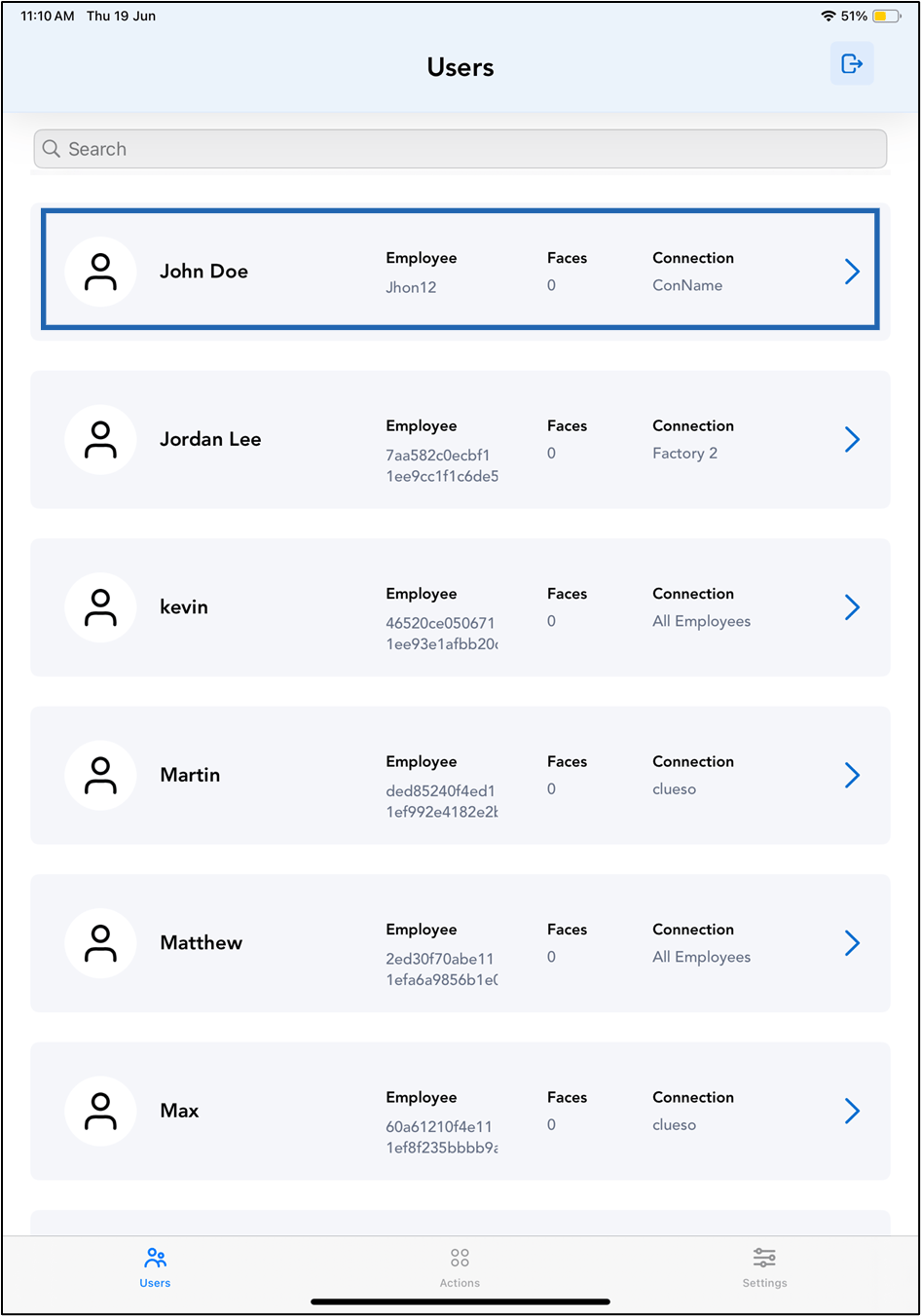
Tap Users on the menu at the bottom of the screen.

-
Tap on the selected user to view details, or search for a user using the search bar at the top.
-
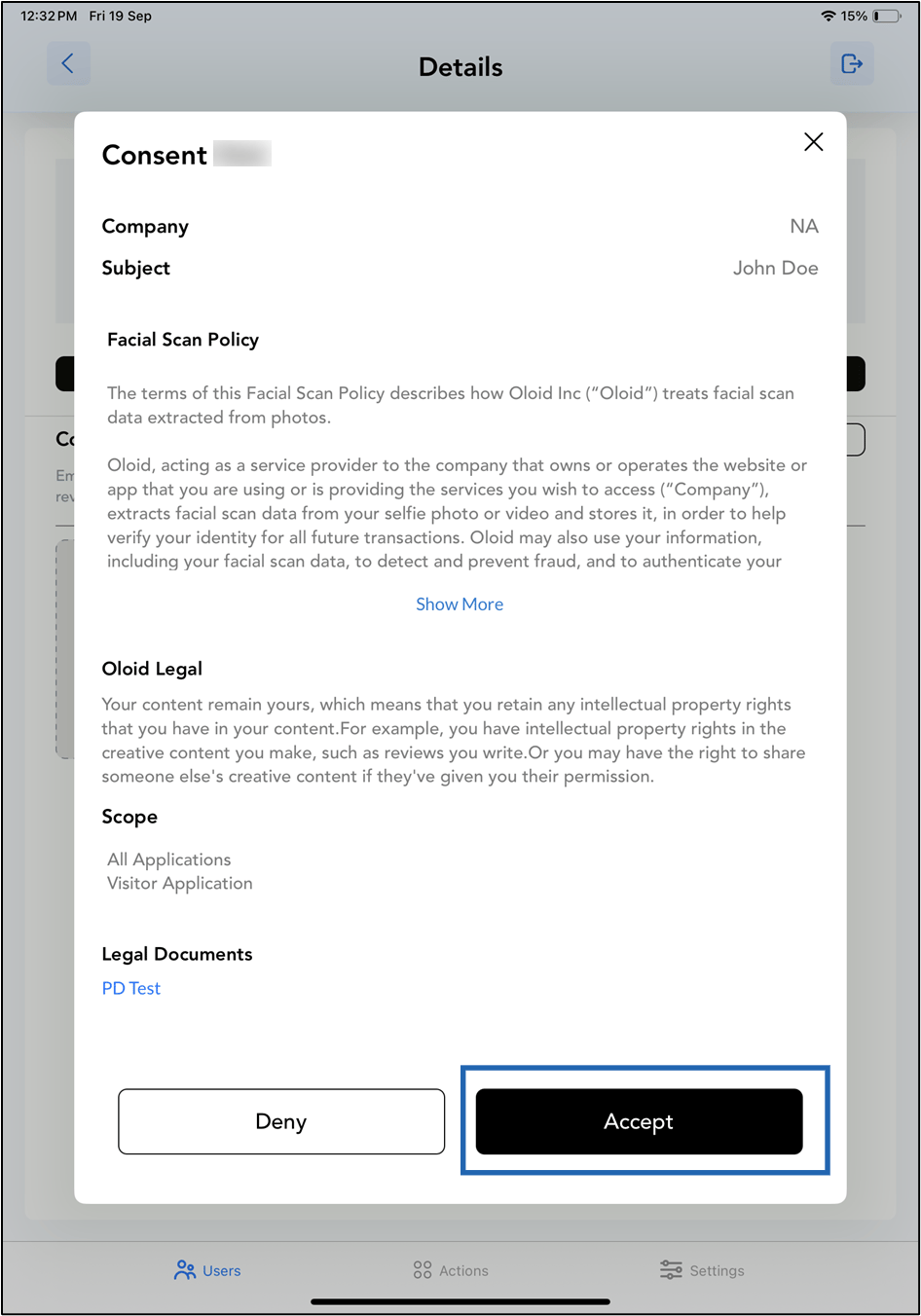
Tap Submit Consent.

-
Tap Accept.
-
Tap Face tab, then do the following:
a. Tap +Add Face.
b. Place your face within the oval frame on the screen to confirm your identity.

-
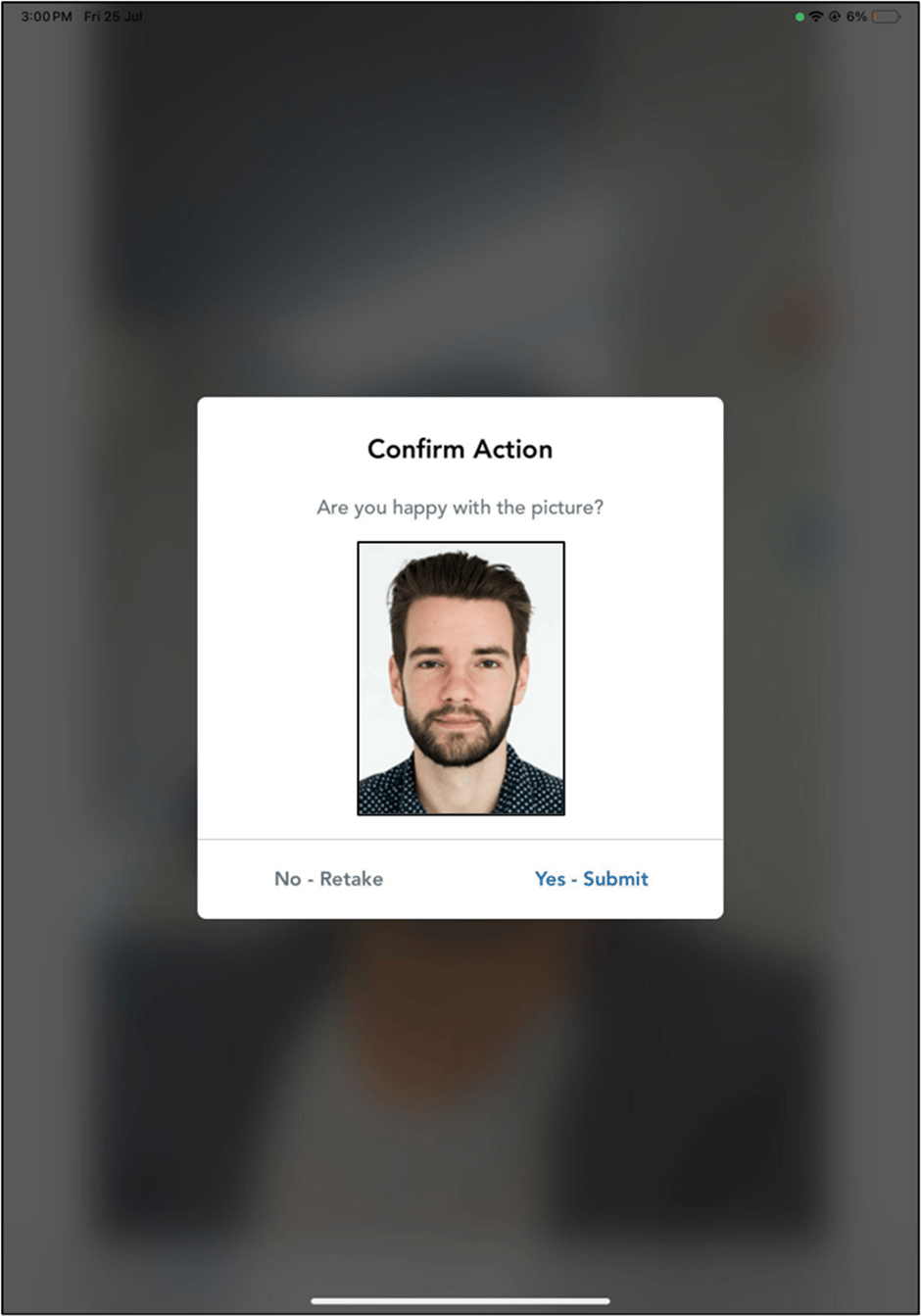
Do one of the following:
- Tap Yes- Submit to submit the image.
- Tap No- Retake to click the image again.
Note: You can add a maximum of five faces per user.