

Introduction
Shared Credentials can be updated after they are created to reflect changes such as the display name, username, password, associated machine, preferred machines, or external ID.Prerequisites
- Ensure the endpoint is paired with the Windows Login application. For more information, refer: Windows Login - How to manually pair the Supervisor App
- Log in to the Supervisor App using an Admin or Supervisor account. Refer: How to log in to Supervisor App
- Ensure the shared credential is created. For more information, refer: How to Create Shared Credentials Using the Supervisor App.
Steps to view and edit Shared Password
- Log in to Supervisor App. The Admin Home screen is displayed.
- Select Shared Credentials.

- Select Shared Password.
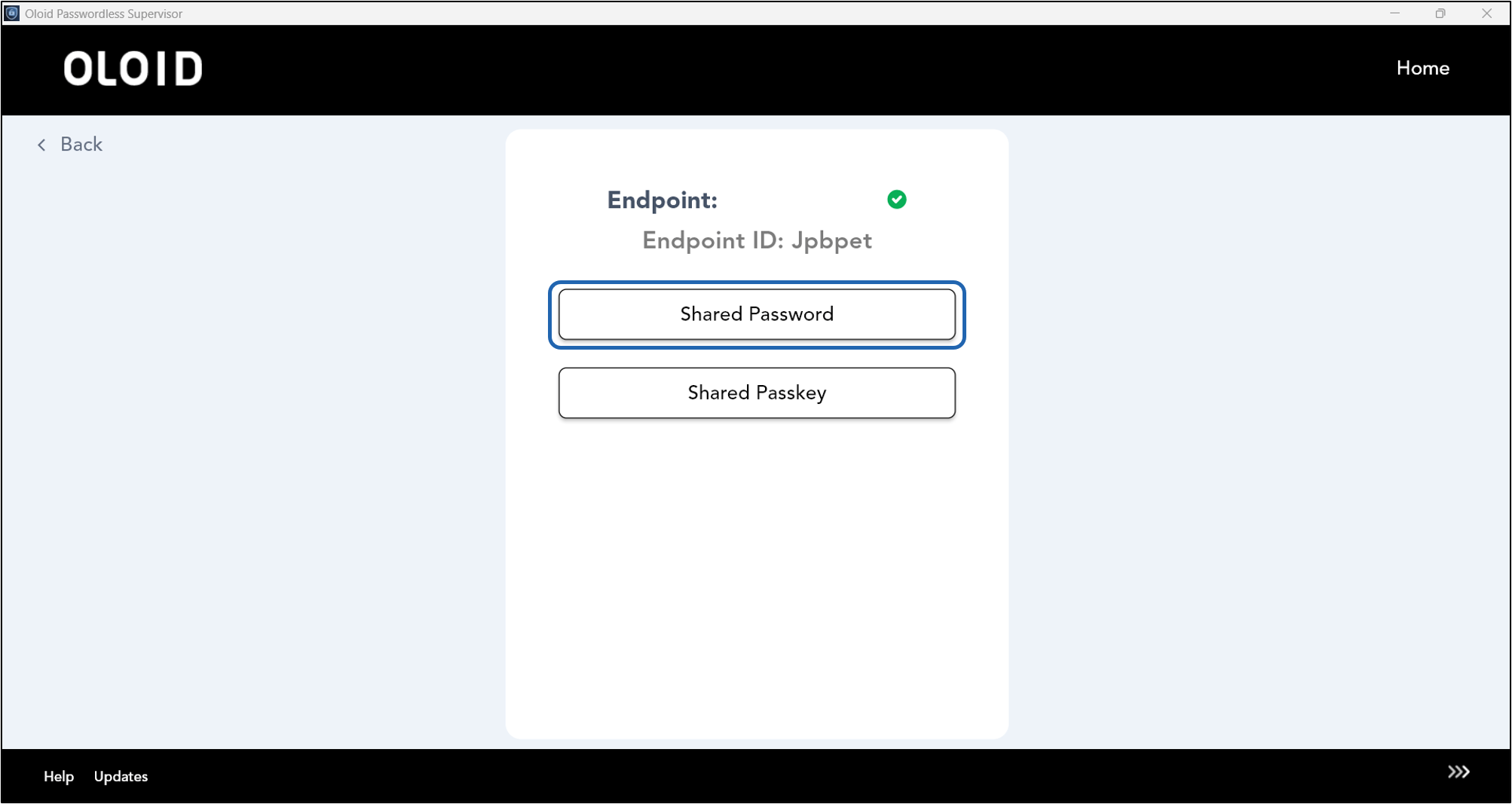
- Select one of the following based on the type of shared credential you want to edit:
- View and Edit Local Shared Credential
- View and Edit Domain Shared Credential The respective (Local / Domain) Shared Credential screen is displayed.
View and Edit a Windows Local User Shared Credential
- Select the required Shared Password from the list.
- Go to Details tab.

- Edit Display Name.
- Select Machine from the Select Machine list.
- Select a machine and then click Assign.
- Select a machine and then click Assign.
- Edit Username.
- Enter Password. (Optional)
- Enter External ID. (Optional)
- Click Save.


View and Edit a Domain User Shared Credential
- Select the required Shared Password from the list.
- Go to Details tab.

- Edit Display Name.
- Edit Domain Name.
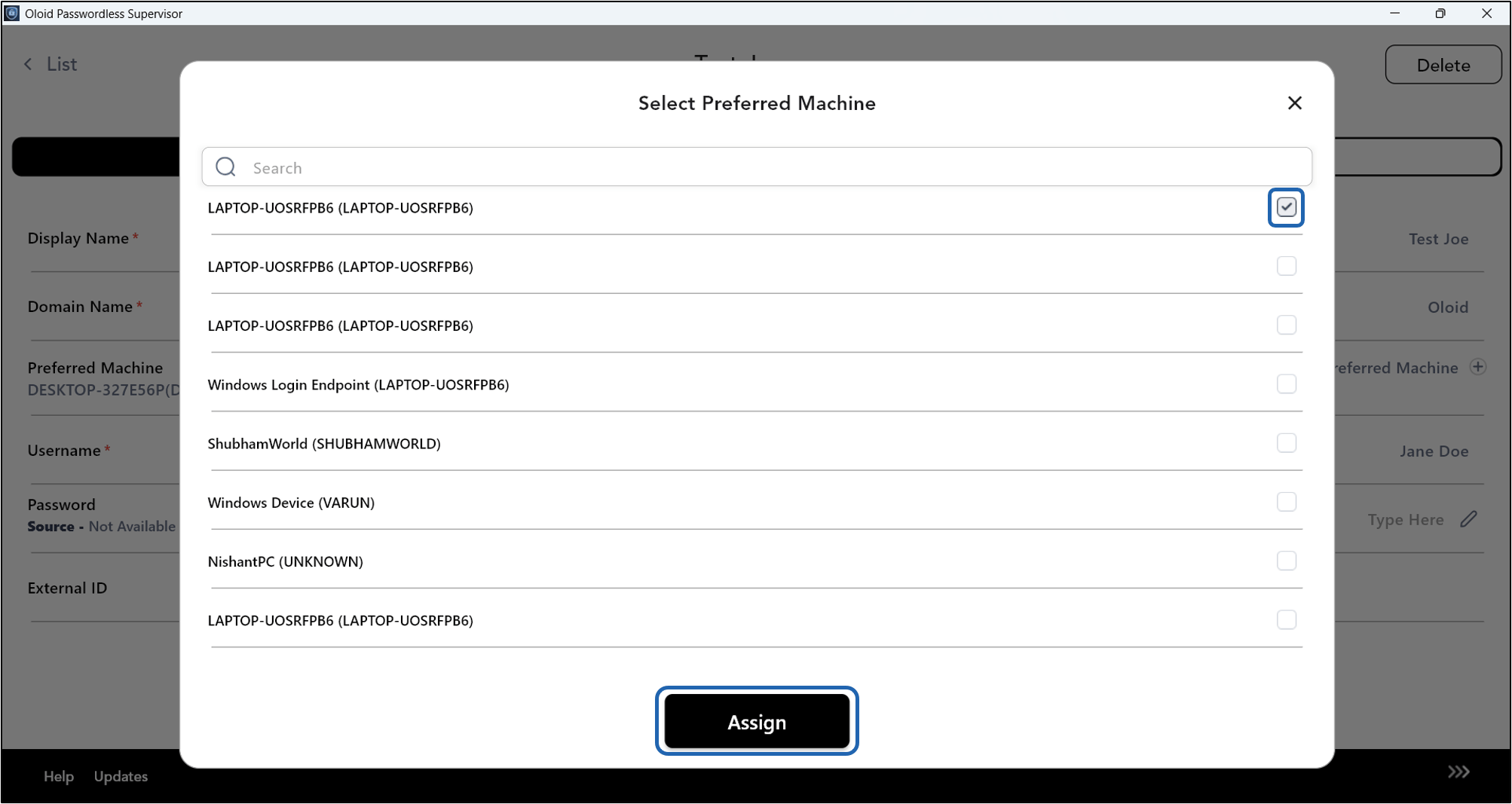
- Select Preferred Machine from the Select Preferred Machine list.
- Select machine(s) and then click Assign.

- Select machine(s) and then click Assign.
- Edit Username.
- Enter Password. (Optional)
- Enter External ID. (Optional)
- Click Save.

