

- On the Admin Home screen, select Settings.
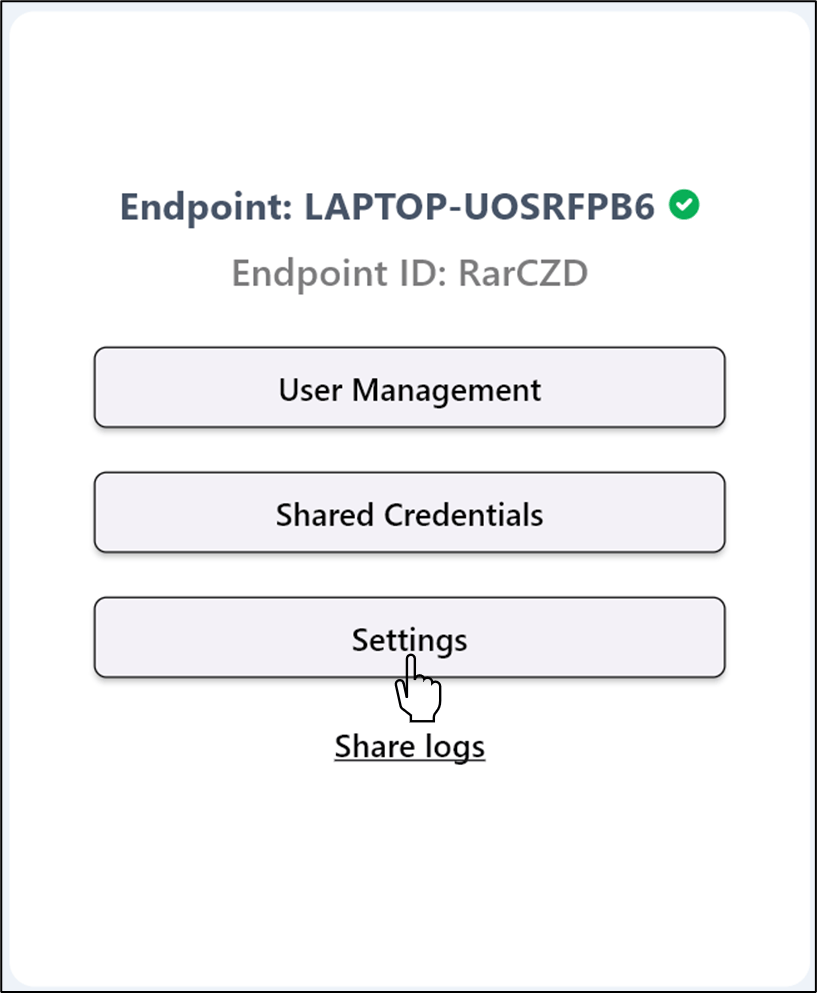
- Select rf IDEAS Reader Update.

- Do one of the following:
- Upload Manually
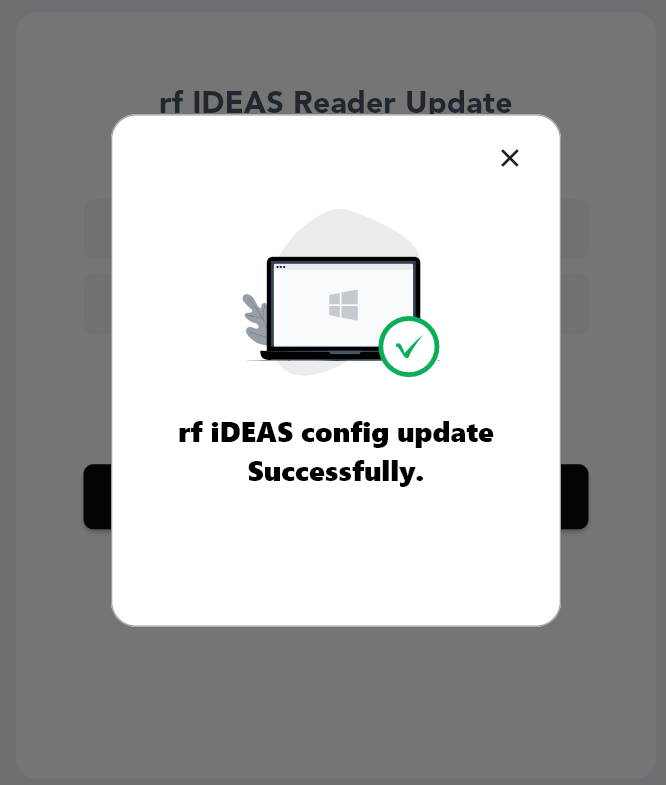
- Select uploaded file The file is uploaded and the badge reader is updated.
Upload Manually
-
Select Upload Manually on the screen.
Note: The badge reader must be connected to the system.

- Click Program Reader.
-
Click or drag and drop to upload the .hwg file.
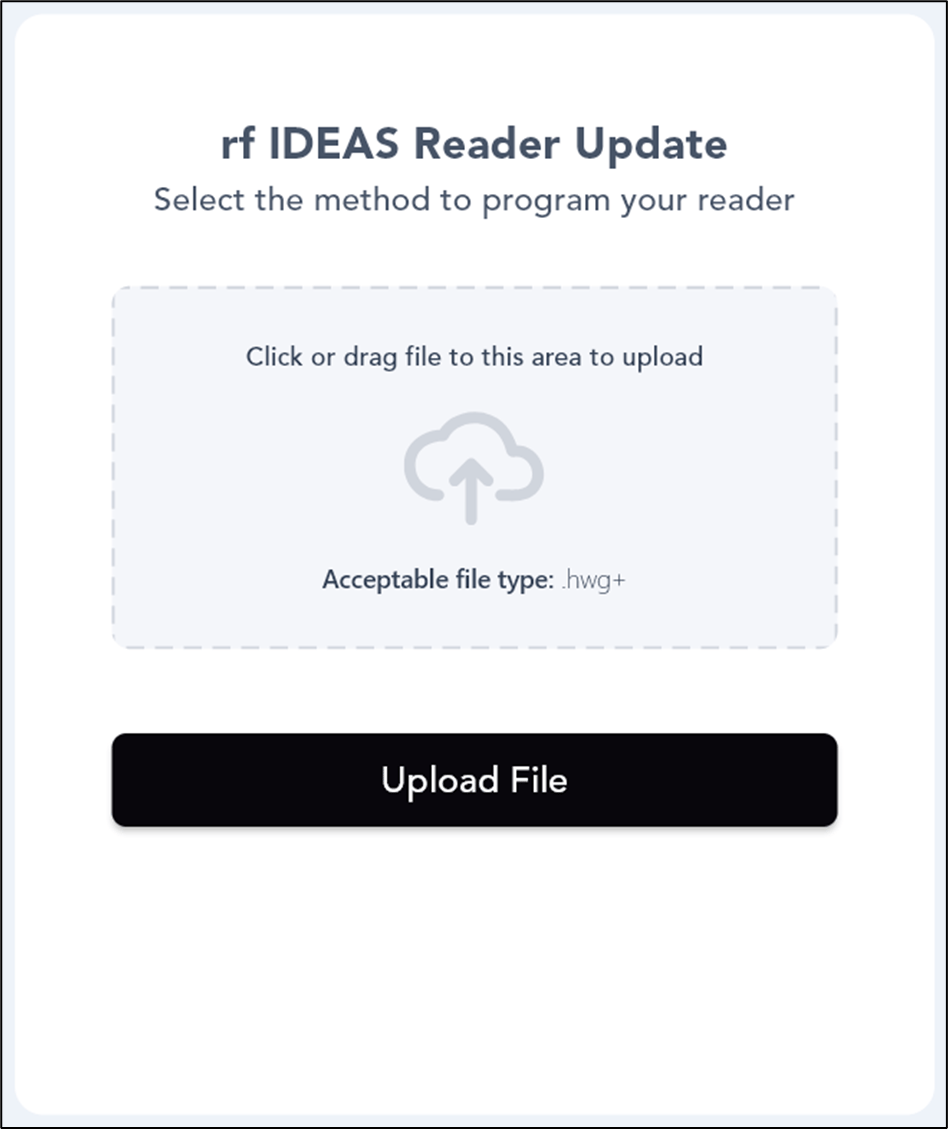
- Click Upload File.
Note: You can download the .hwg file from Oloid Portal. For more details, refer How to download HWG file in Oloid Portal.
Select uploaded file
- Select the uploaded .hwg file.
- Note: The badge reader must be connected to the system.

- Note: The badge reader must be connected to the system.
- Click Program Reader.
The badge reader is updated with the latest configuration.