Introduction
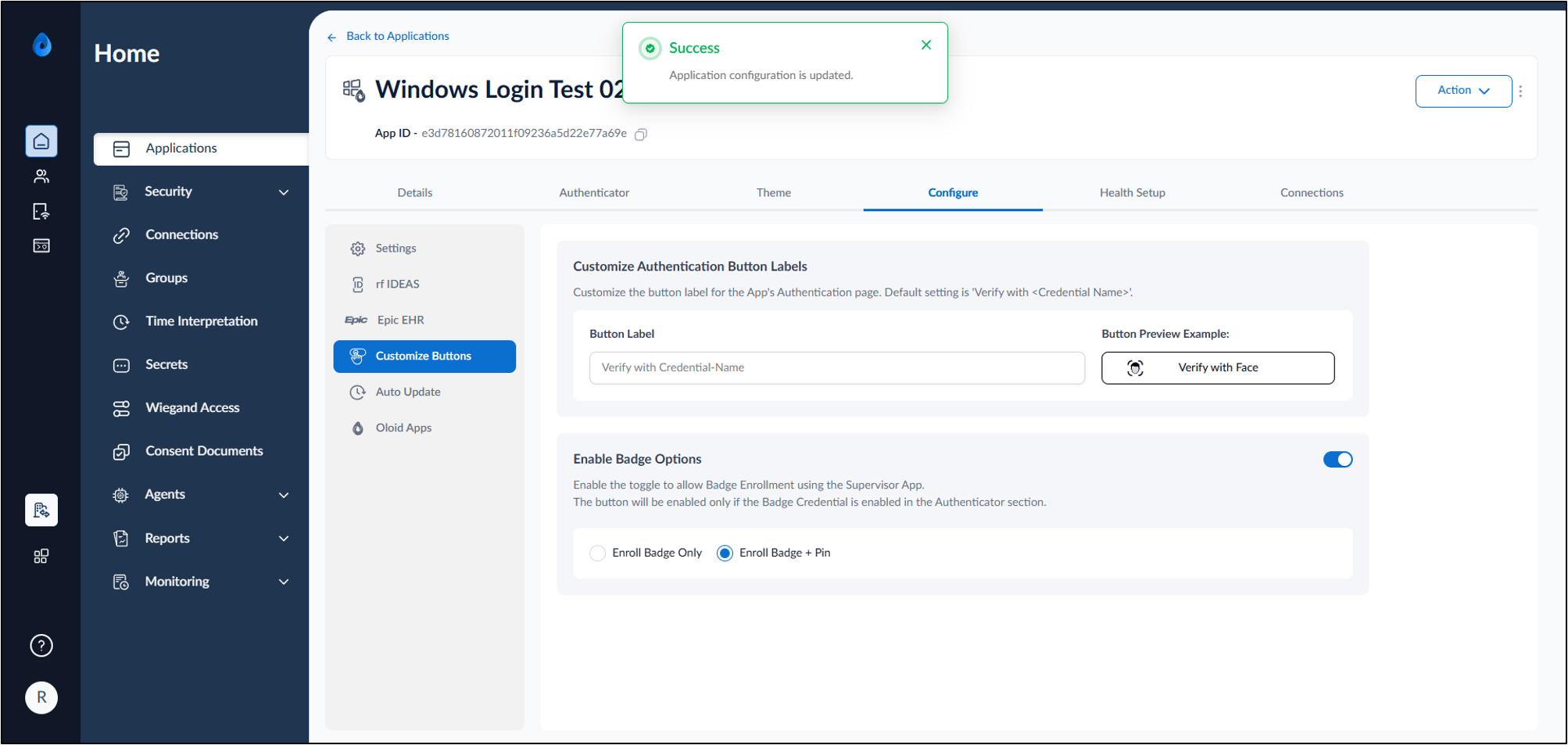
The Enable Badge Options setting allows Tenant Admin to control the badge enrollment options available in the Supervisor App. Depending on your authentication requirements, you can allow users to enroll using Badge only or require Badge + PIN authentication.Prerequisites
- You must have access to the Tenant Admin Portal.
- Ensure Windows Login application is created in the Tenant Admin Portal. For more information, refer Windows Login - How to create and configure Windows Login application in the Tenant Admin Portal
Steps to Enable Badge Enrollment Options
- Log in to the Tenant Admin Portal. The Application Detail page is displayed.
- Select the application that is configured in the Supervisor App.

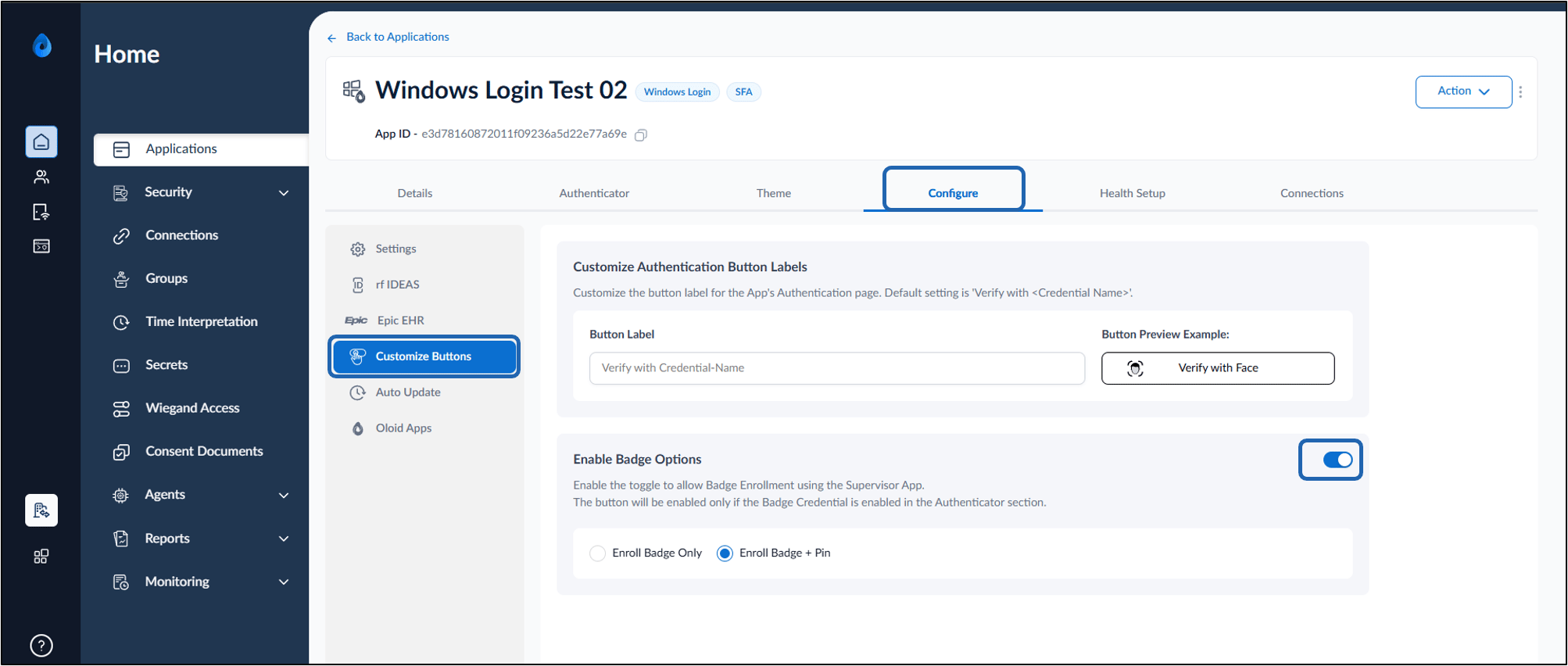
- Do one of the following:
- Select Enroll Badge Only to allow badge-only enrollment.
- Select Enroll Badge + PIN to require badge and PIN authentication.
- Click Save.