

Introduction
The Delete User feature in the Supervisor App allows authorized Admins and Supervisors to permanently remove users from the application when they no longer require access.Prerequisites
- Ensure the endpoint is paired with the Windows Login application. For more information, refer: Windows Login - How to manually pair the Supervisor App
- Supervisors can delete users only if the required Delete User privilege is enabled for the application.
- Log in to the Supervisor App using an Admin or Supervisor account. For more, refer How to log in to Supervisor App
- Ensure at least one connection is configured for the selected application in the Tenant Admin Portal. For more information, refer: How to Configure a Connection in the Tenant Admin Portal
Steps to Delete a User
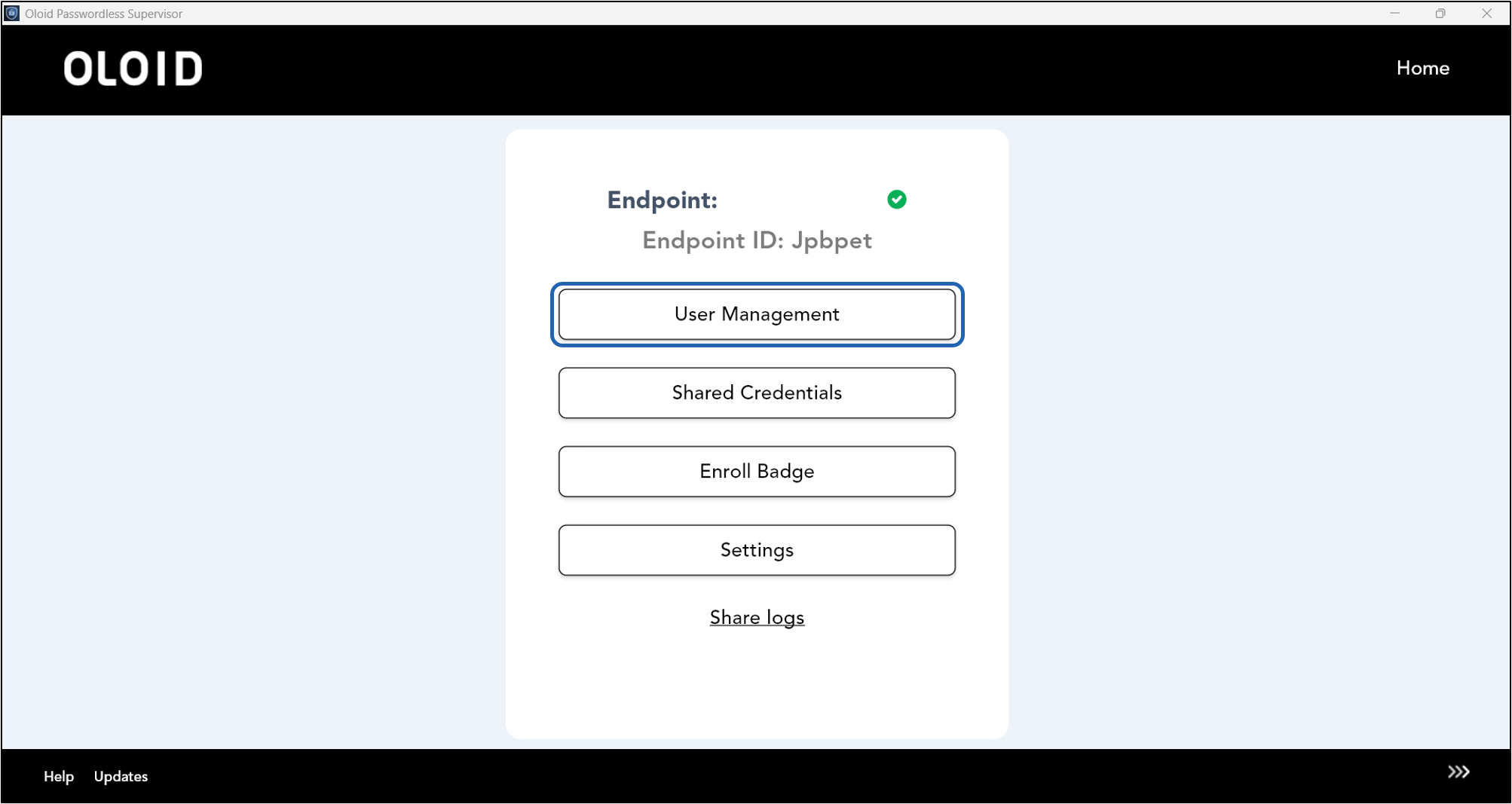
- Log in to Supervisor App. For more, refer How to log in to Supervisor App The Admin Home screen is displayed.
- Select User Management.
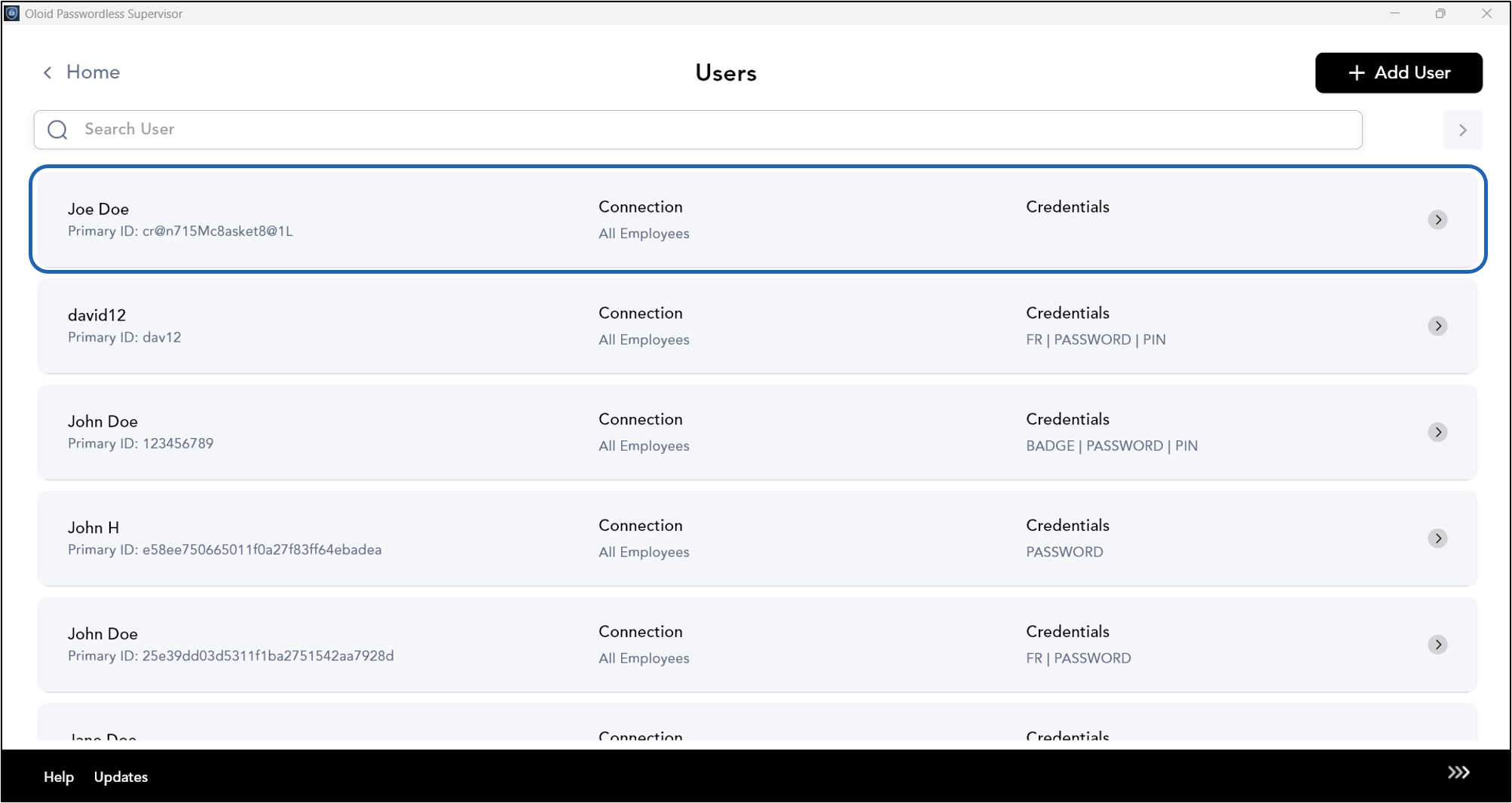
- Select the User you want to delete.
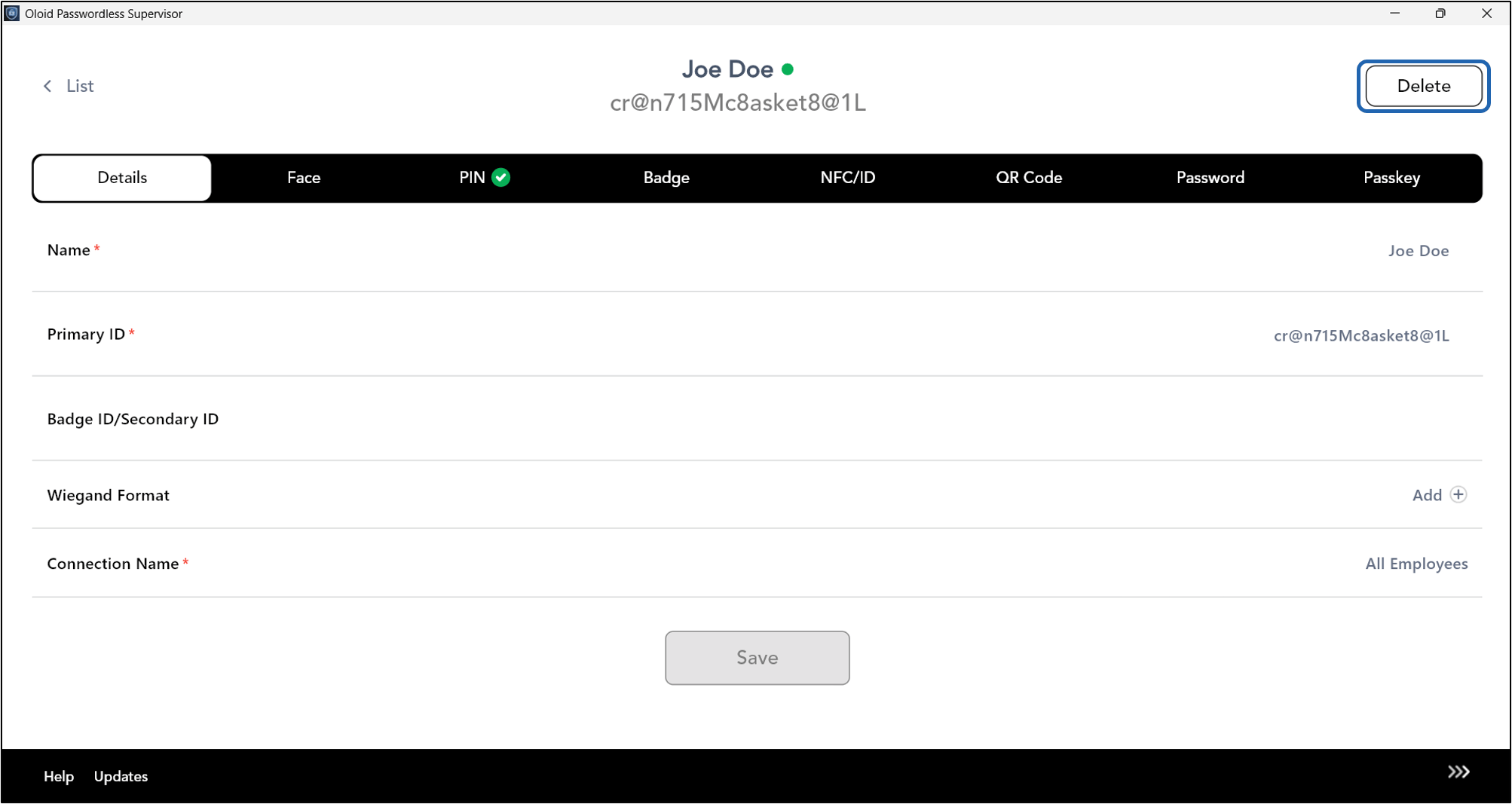
- Click Delete on the top right corner of the screen.
- Click Confirm to delete the user.

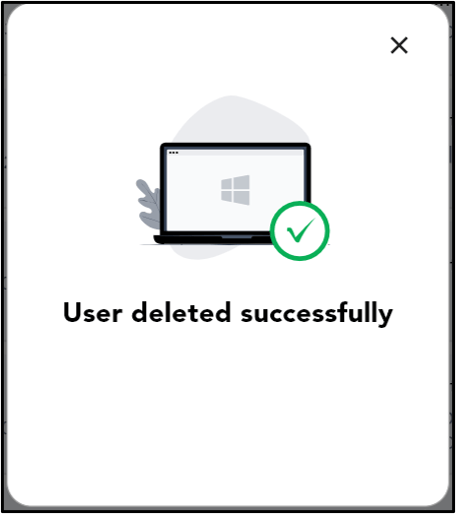
Note: Deleting a user permanently removes the user from the Oloid platform. This action cannot be undone. Supervisors cannot delete users who are assigned to one or more groups.