The Tenant Admin / Supervisor can unblock the user’s blocked screen in one of the following ways:

Using Transaction Tab

  1. Log in to Oloid Portal.
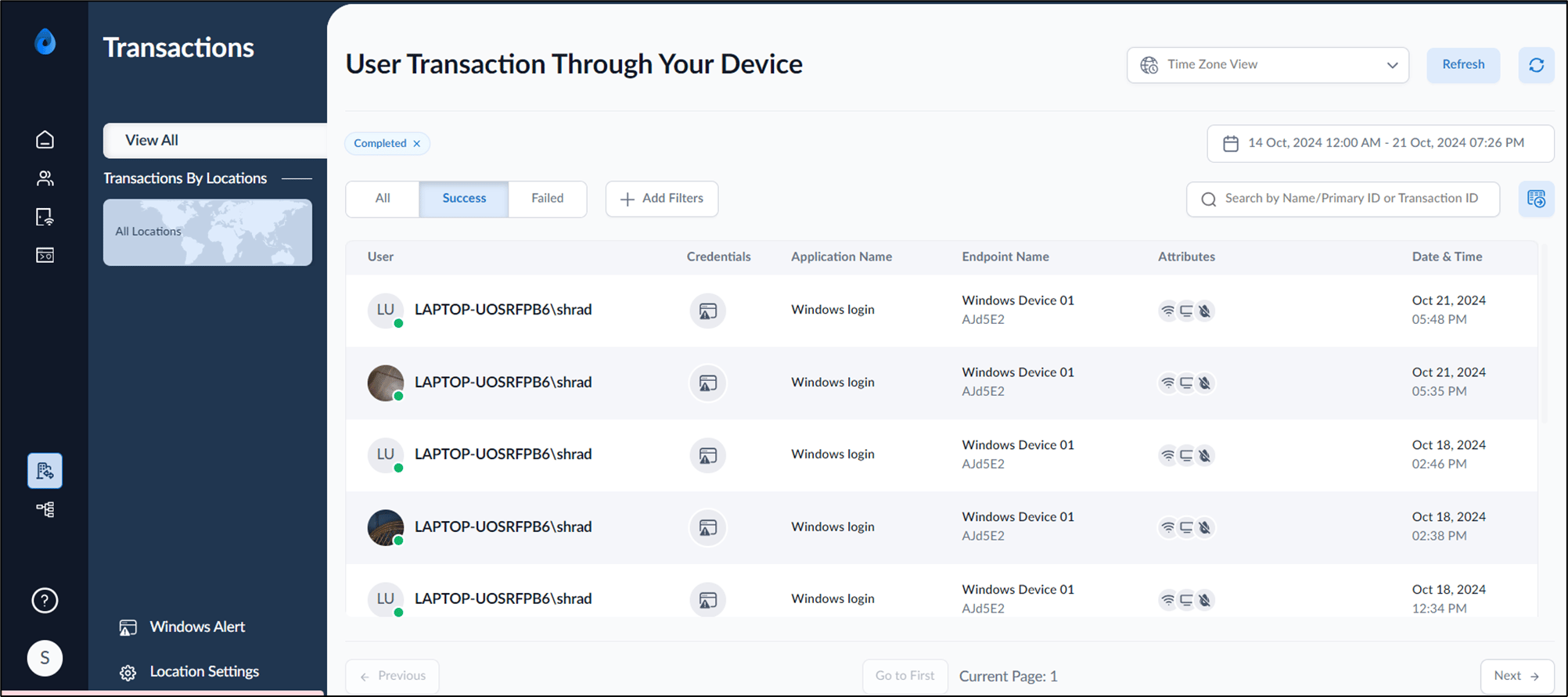
  2. On the home page of the portal, select Transactions on the left menu panel. How to unblock a user's blocked screen - screenshot 1 The User Transaction Through Your Device page is displayed. How to unblock a user's blocked screen - screenshot 2
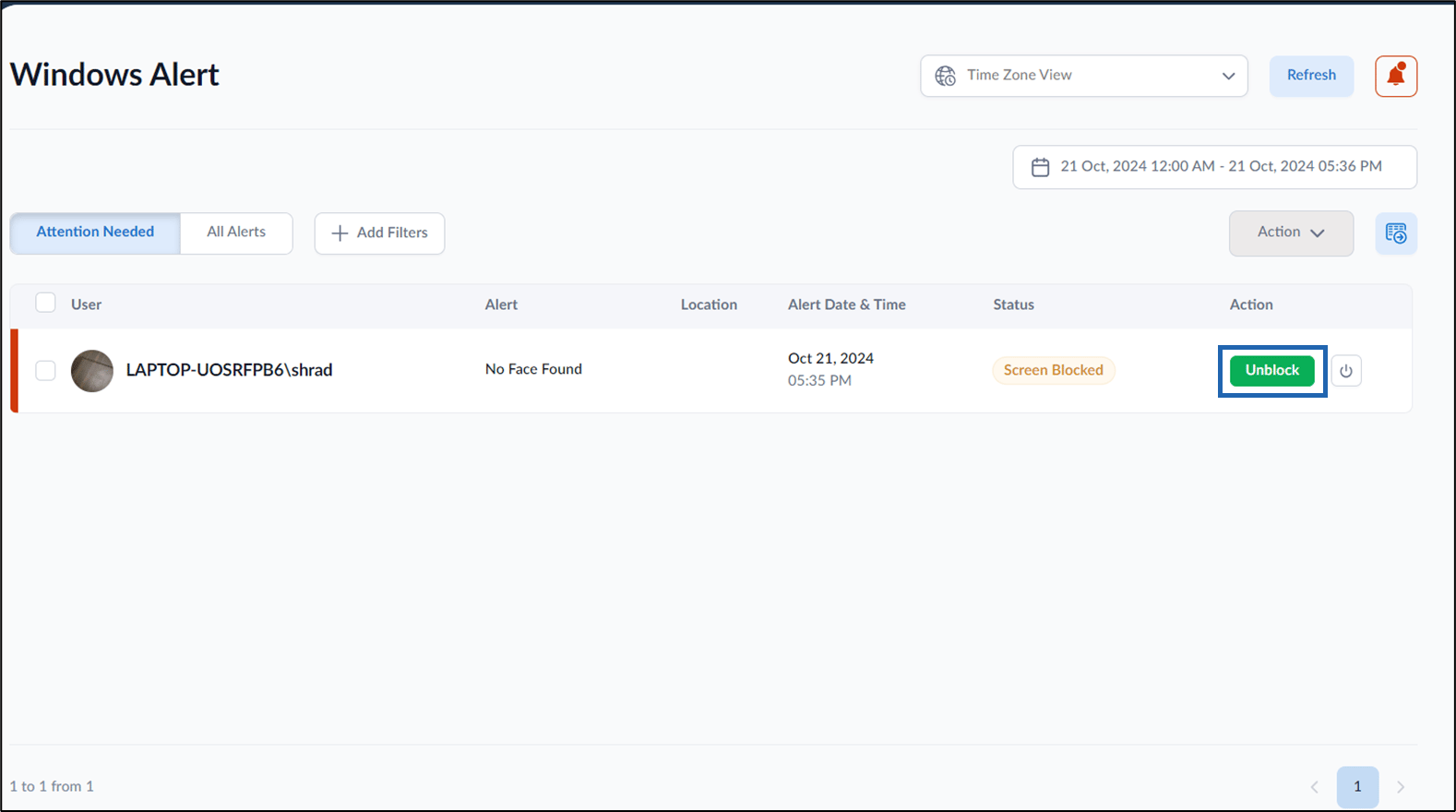
  3. Select Windows Alert. How to unblock a user's blocked screen - screenshot 3 The Windows Alert page is displayed.
  4. Do one of the following:
    1. Go to the Alert ID and click Unblock. How to unblock a user's blocked screen - screenshot 4 Or
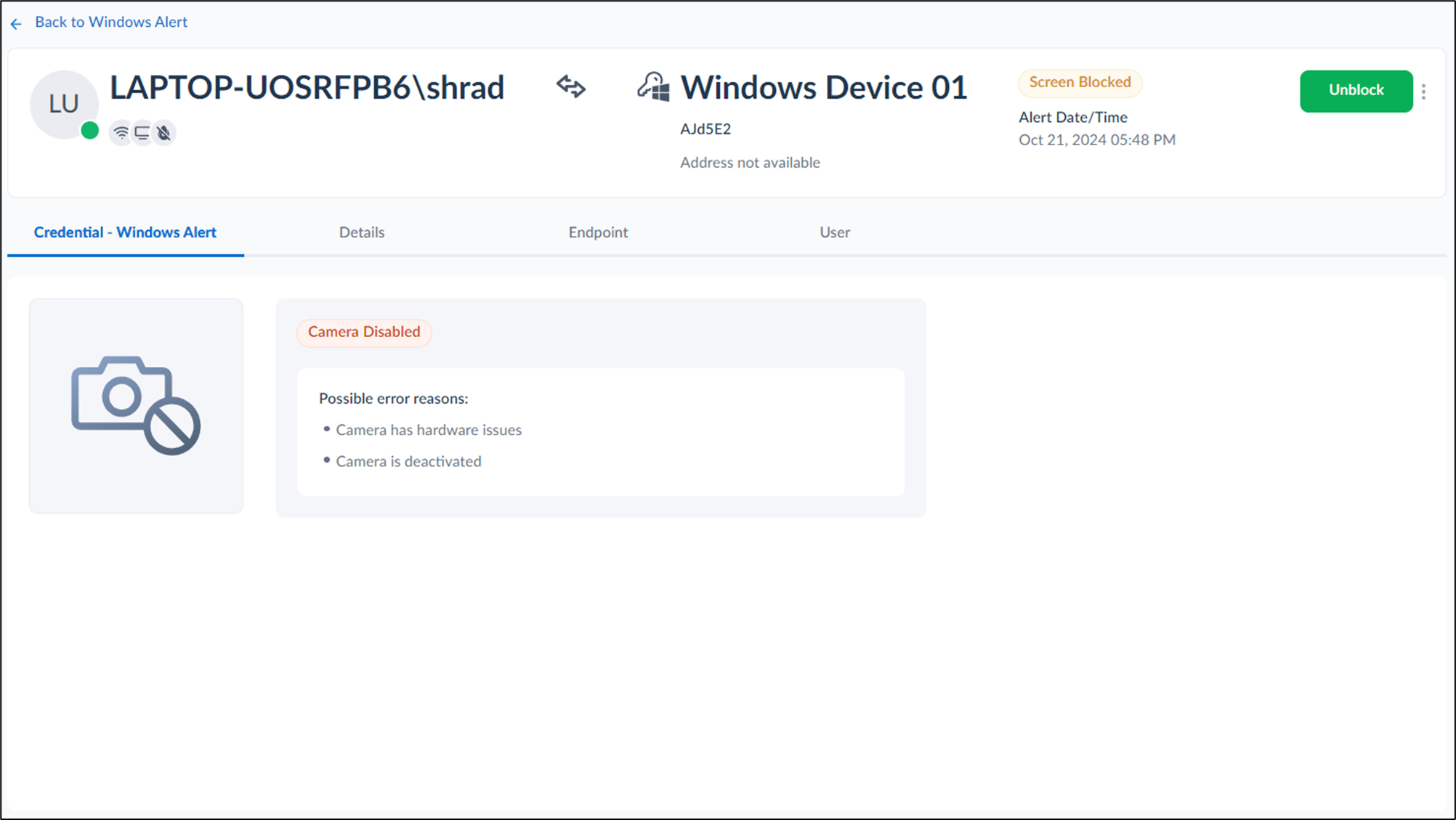
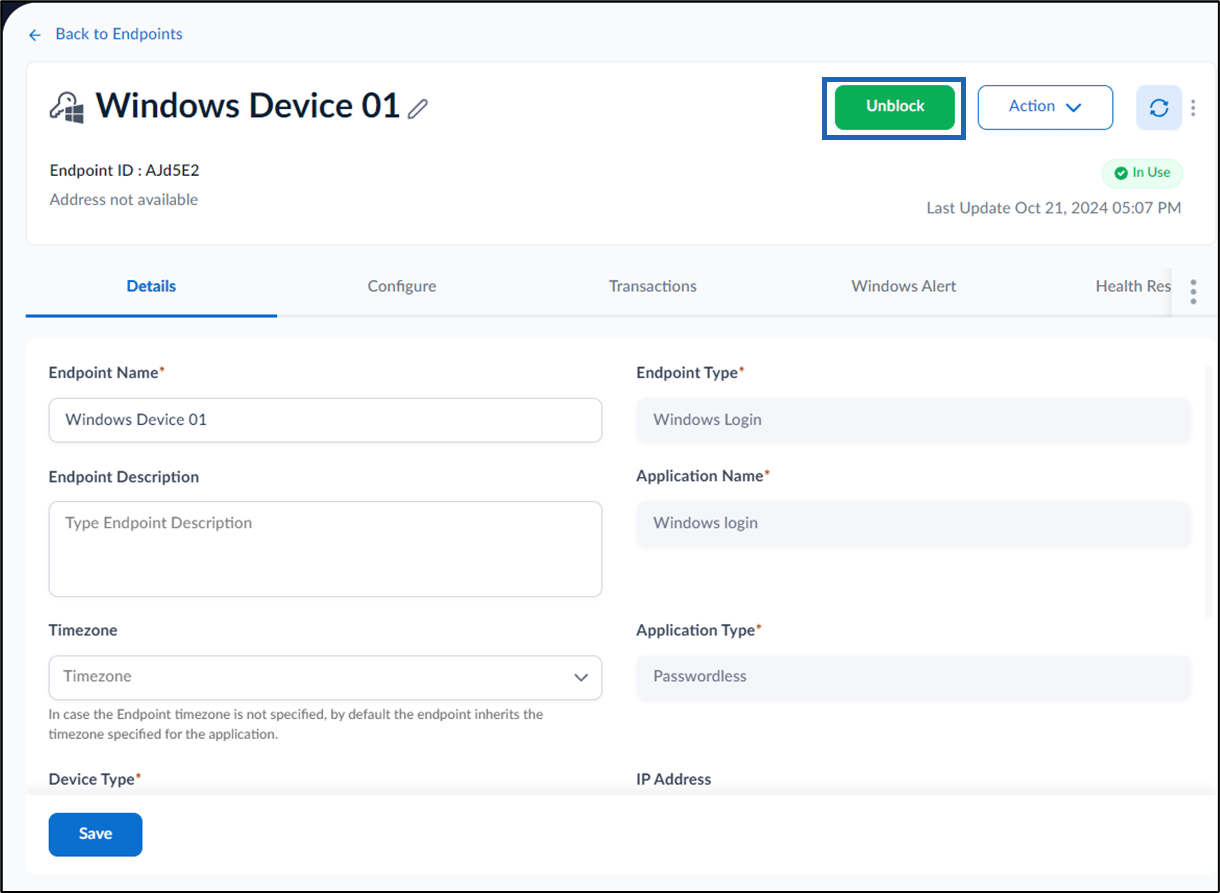
    2. Go to the user endpoint detail page and select Unblock.
      Note: You can also navigate to the user detail page from the Transactions (User Transaction Through your Device) page.
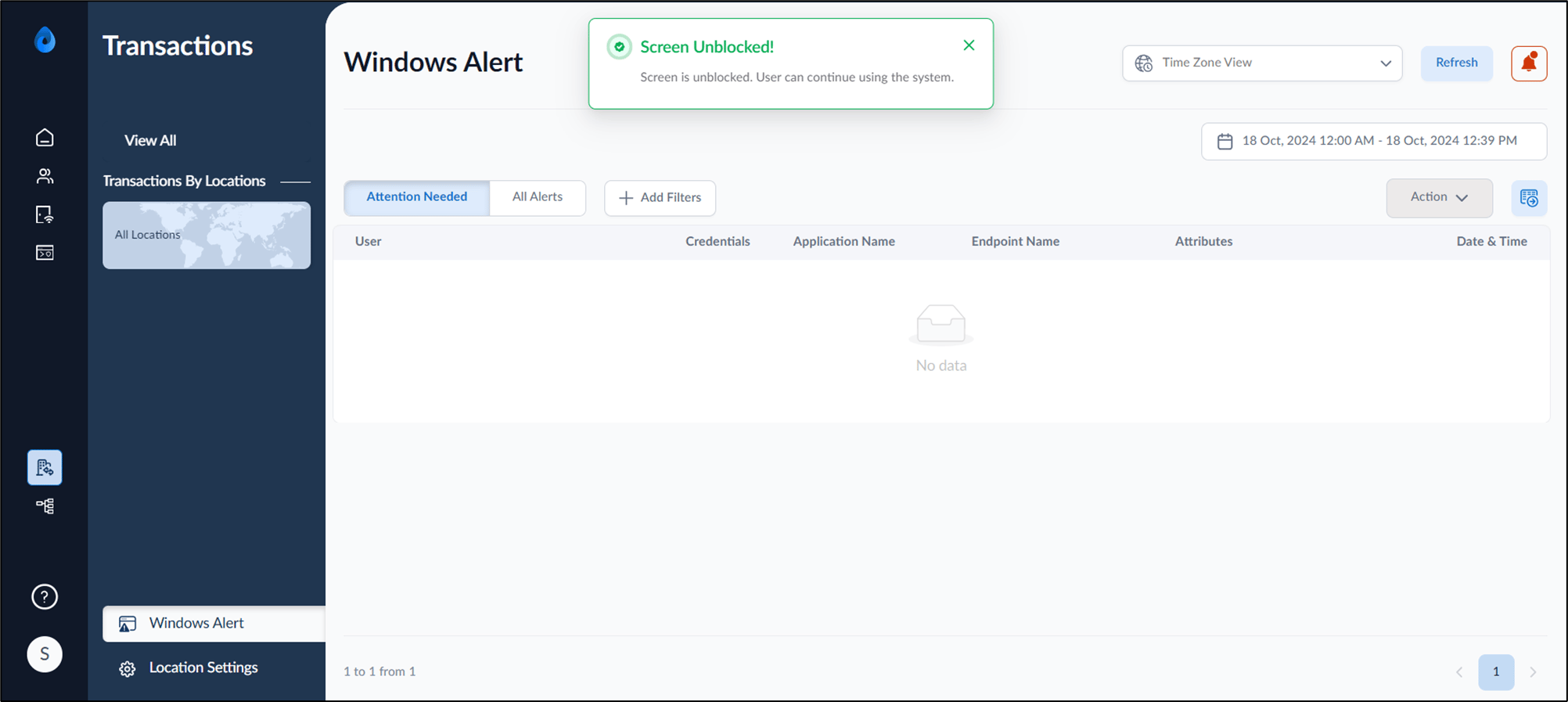
      How to unblock a user's blocked screen - screenshot 5 The user’s screen is unblocked successfully. How to unblock a user's blocked screen - screenshot 6 How to unblock a user's blocked screen - screenshot 7

Using Windows endpoint

  1. Log in to Oloid Portal.
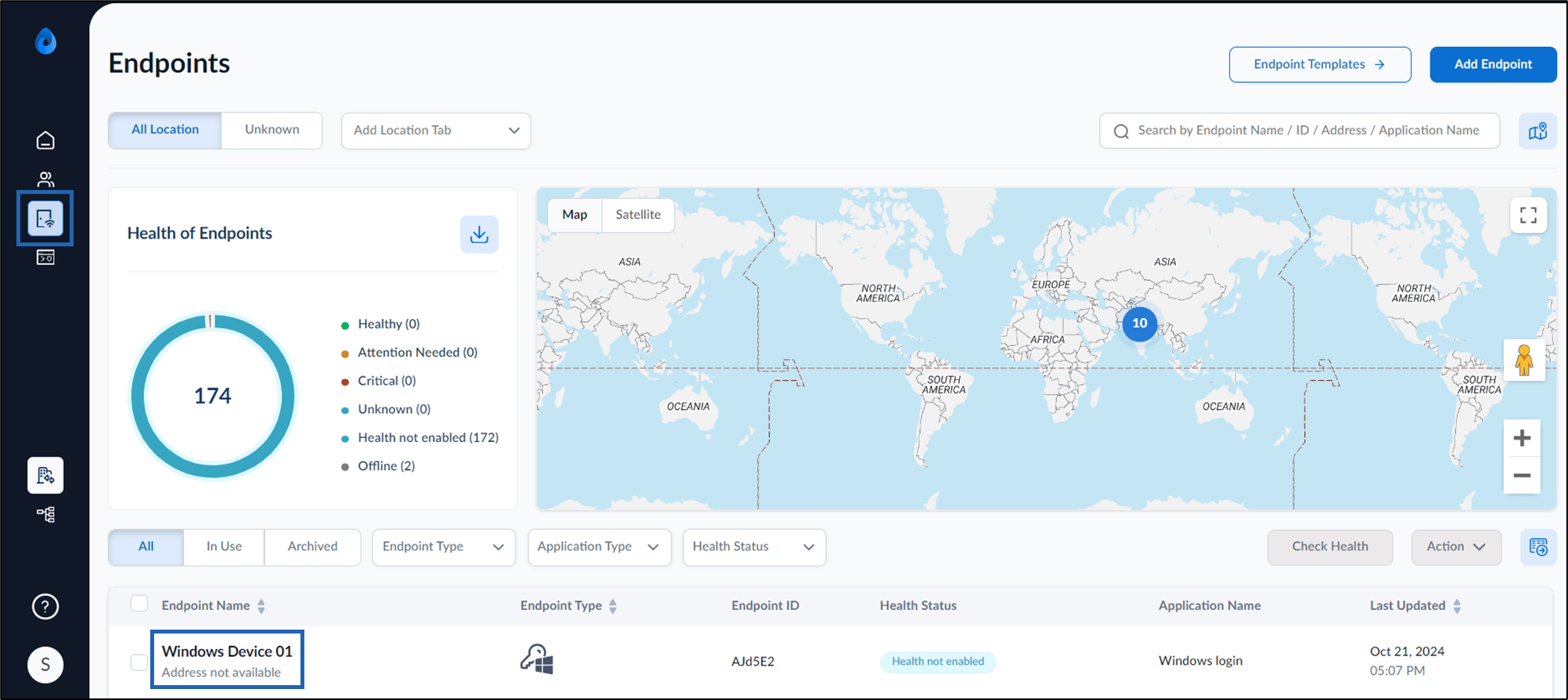
  2. Navigate to Endpoints > select preferred Endpoint Name. How to unblock a user's blocked screen - screenshot 8 The endpoint details page is displayed. How to unblock a user's blocked screen - screenshot 9
  3. Select Unblock to unblock the user’s screen. How to unblock a user's blocked screen - screenshot 10 The endpoint is unblocked successfully and the user can continue using the system. How to unblock a user's blocked screen - screenshot 11
Video Tutorial

Watch the video How to unblock a user’s blocked screen