

Introduction
Installing Epic Hyperspace (Hyperdrive Client Test Harness) is required to enable secure authentication workflows and integration with supported applications such as the Windows Authenticator (Healthcare).Prerequisites
- You must have access to the Epic Hyperdrive Client Test Harness installer provided by your Oloid representative.
- Local administrator rights to install applications on the system.
- Access to the system directory path:
C:\Program Files (x86)\Epic\Hyperdrive\Config - Notepad++ installed on the system to modify configuration files.
- Required Workstation ID details based on the configured authentication flow
Steps to install Epic Hyperspace
-
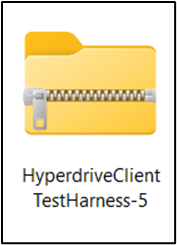
Download HyperdriveClientTestHarness-5 file on your system.
Note: Select the version as advised by your Oloid Rep.
-
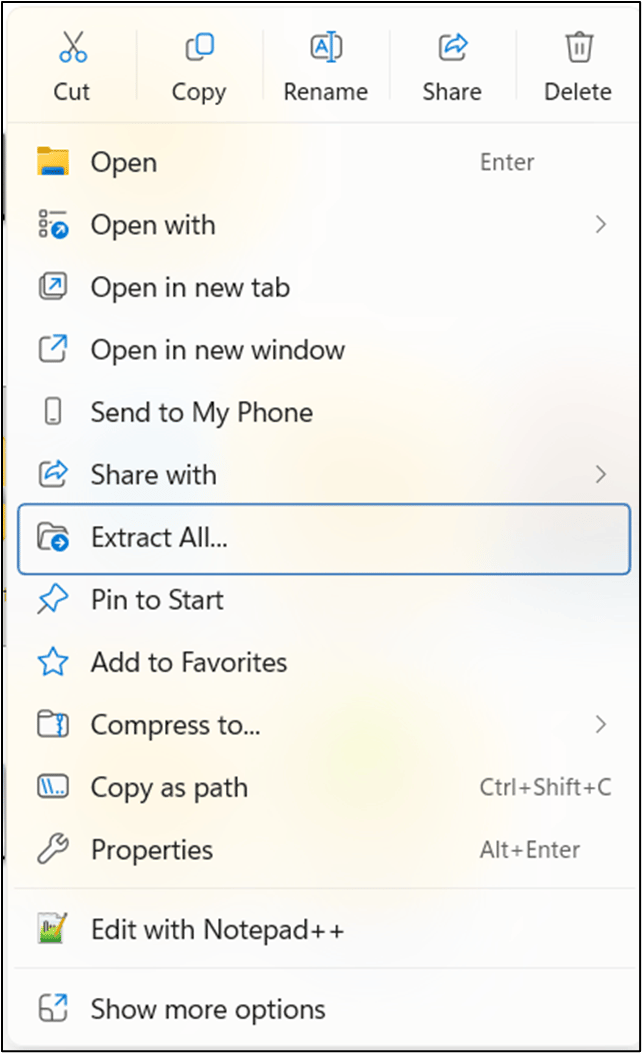
Right-click and select Extract All > HyperdriveClientTestHarness-5.zip file.
-
Double-click on HyperdriveClientTestHarness-5 file > double click Epic Hyperdrive setup file.
 Note: If any of the files are missing, the application prompts to install the missing component.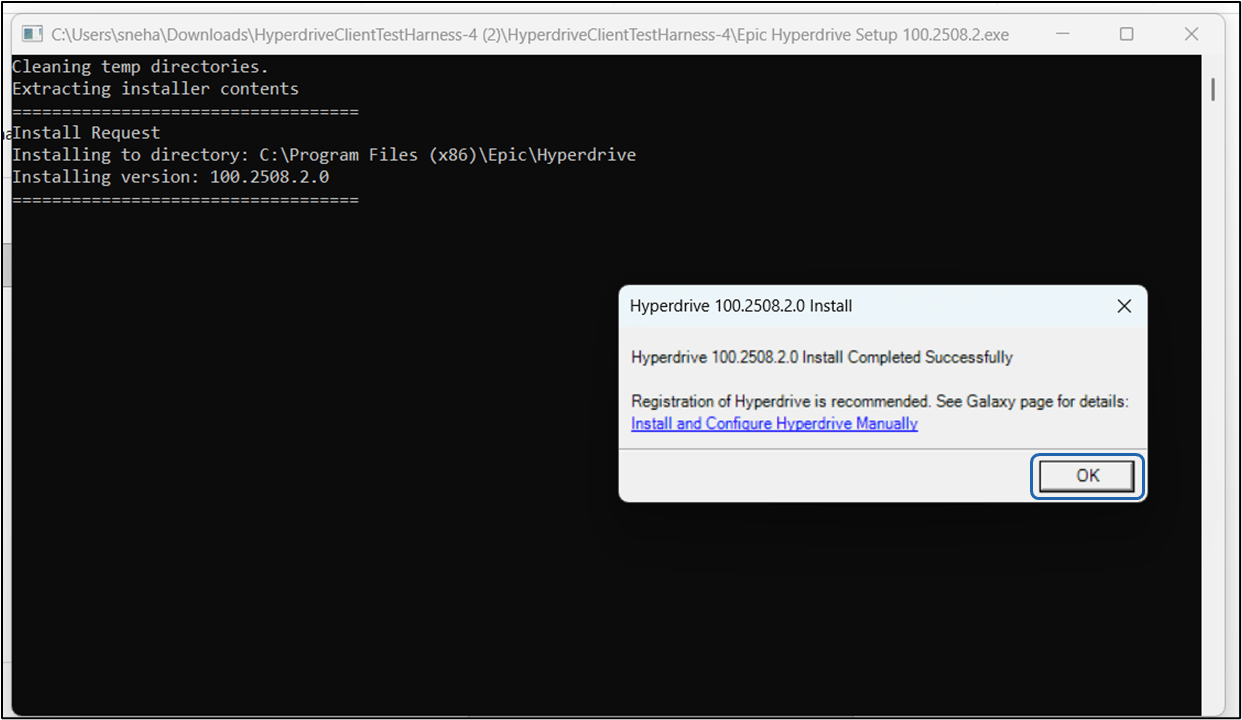
- Click Ok to finish the installation. Hyperdrive is successfully installed.
Setting Up Epic Hyperspace
-
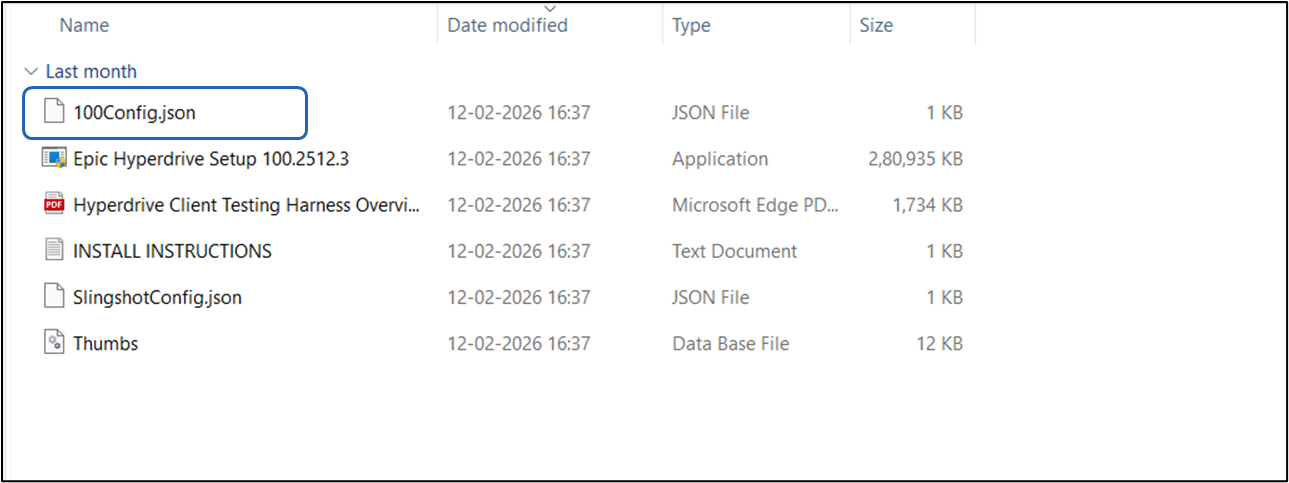
In the HyperdriveClientTestHarness-5.zip file, right click the 100config file and click Copy.
-
In C drive > click Program files x86 > select Epic.
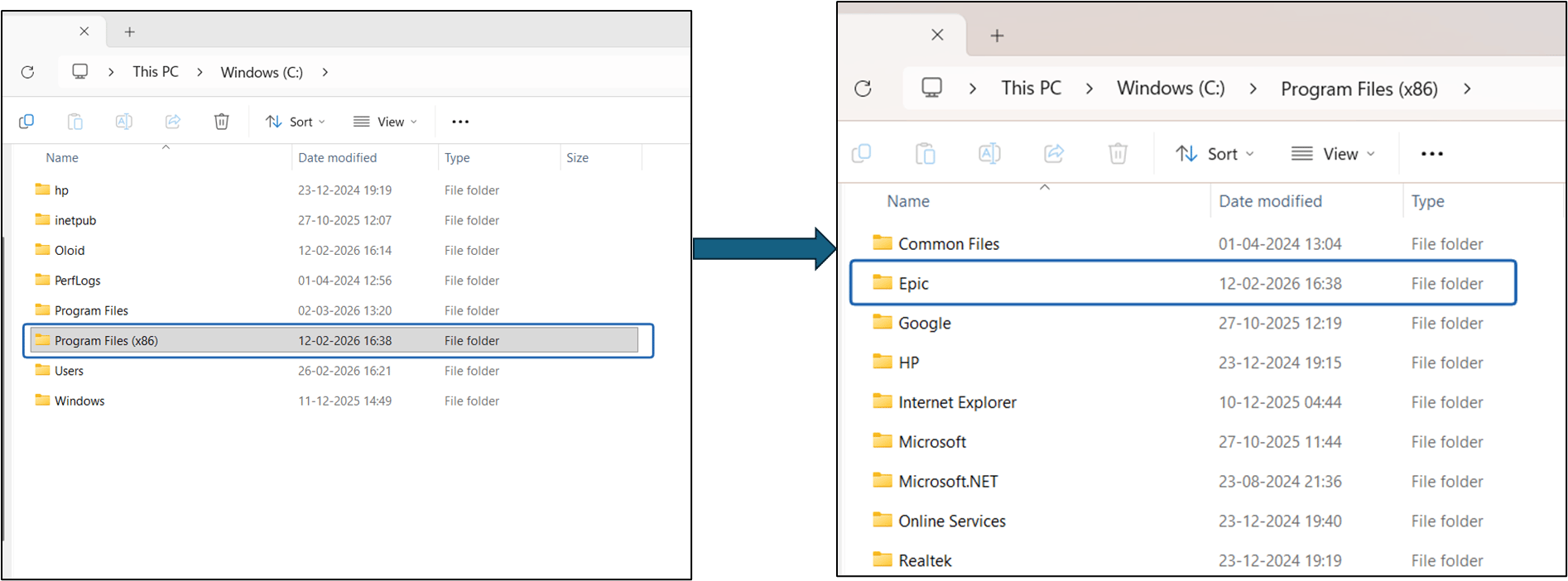
-
Select the Hyperdrive folder > click Config File
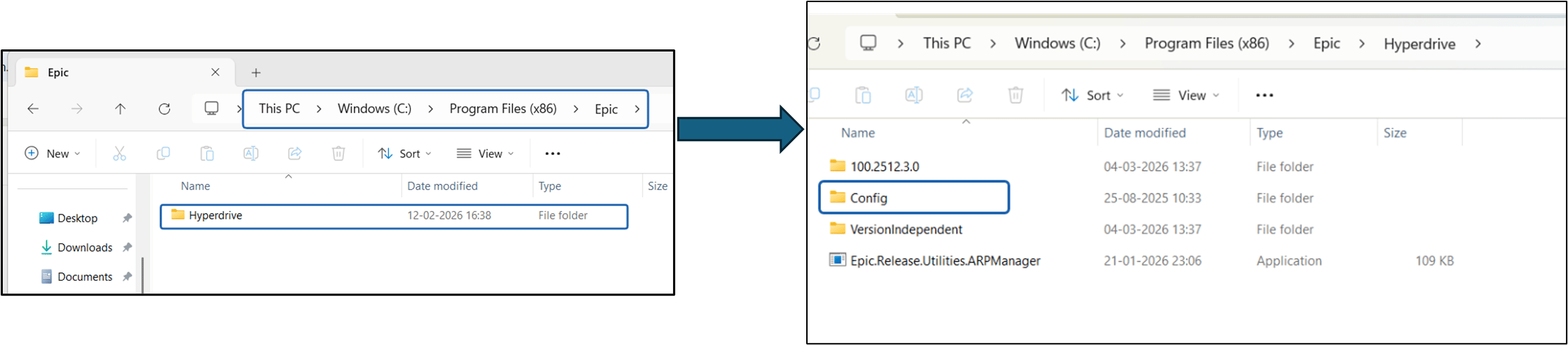
-
Right click and click paste the 100config file in this folder.
- Click replace in destination.
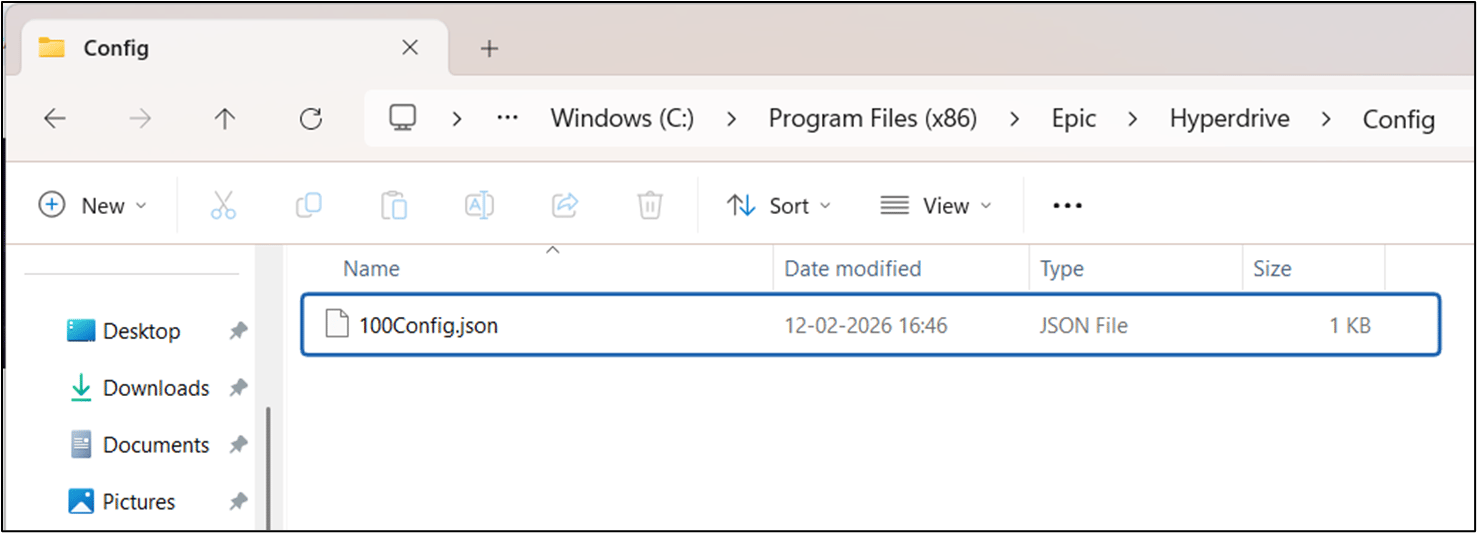
- Click replace in destination.
-
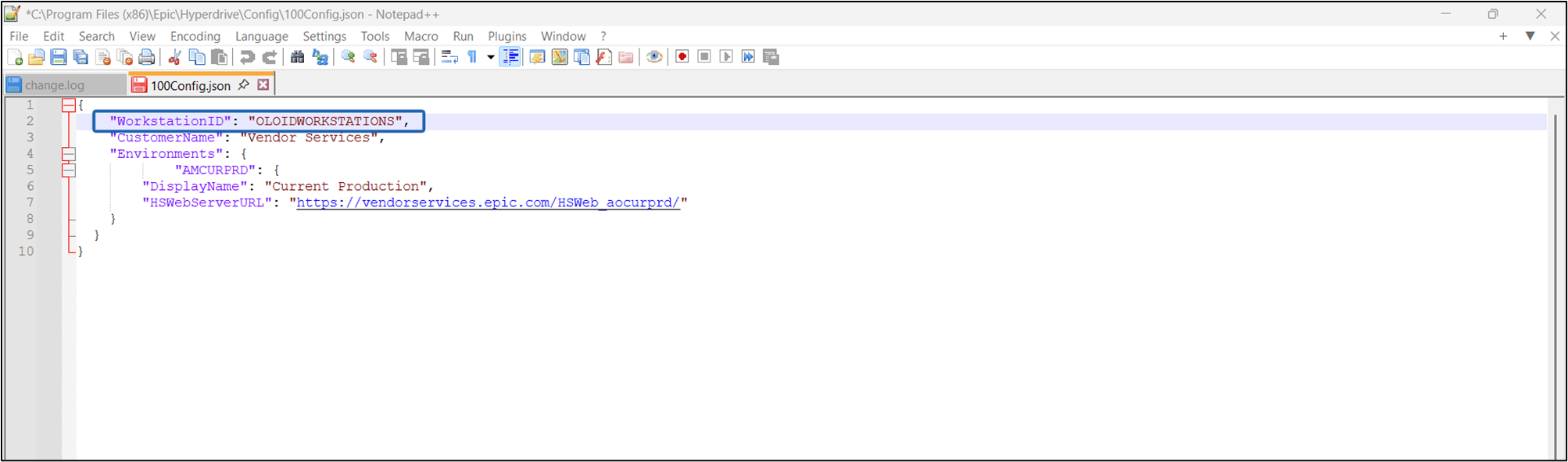
Open the 100config file using Notepad++.
Note: Changes may not save in Notepad, it is recomended to use Notepad++

-
Change the Workstation ID to:
- For Username and Password flow: “OLOIDWORKSTATION”
- For SAML flow: “OLOIDWORKSTATIONSAML”
-
Click File > Save.
Note: Now restart your system for the Windows Epic Hyperspace to take effect.