

Introduction
Assigning users to a shared credential enables centralized credential management while controlling which users are authorized to use the credential.Prerequisites
- Ensure the endpoint is paired with the Windows Login application. For more information, refer: Windows Login - How to manually pair the Supervisor App
- Log in to the Supervisor App using an Admin or Supervisor account. Refer: How to log in to Supervisor App
- Ensure the shared credential is created. For more information, refer: How to Create Shared Credentials Using the Supervisor App.
Steps to Assign Shared Password
- Log in to Supervisor App. The Admin Home screen is displayed.
-
Select Shared Credentials.

-
Select Shared Password.

-
Select Users Assigned tab > + Assign Users.
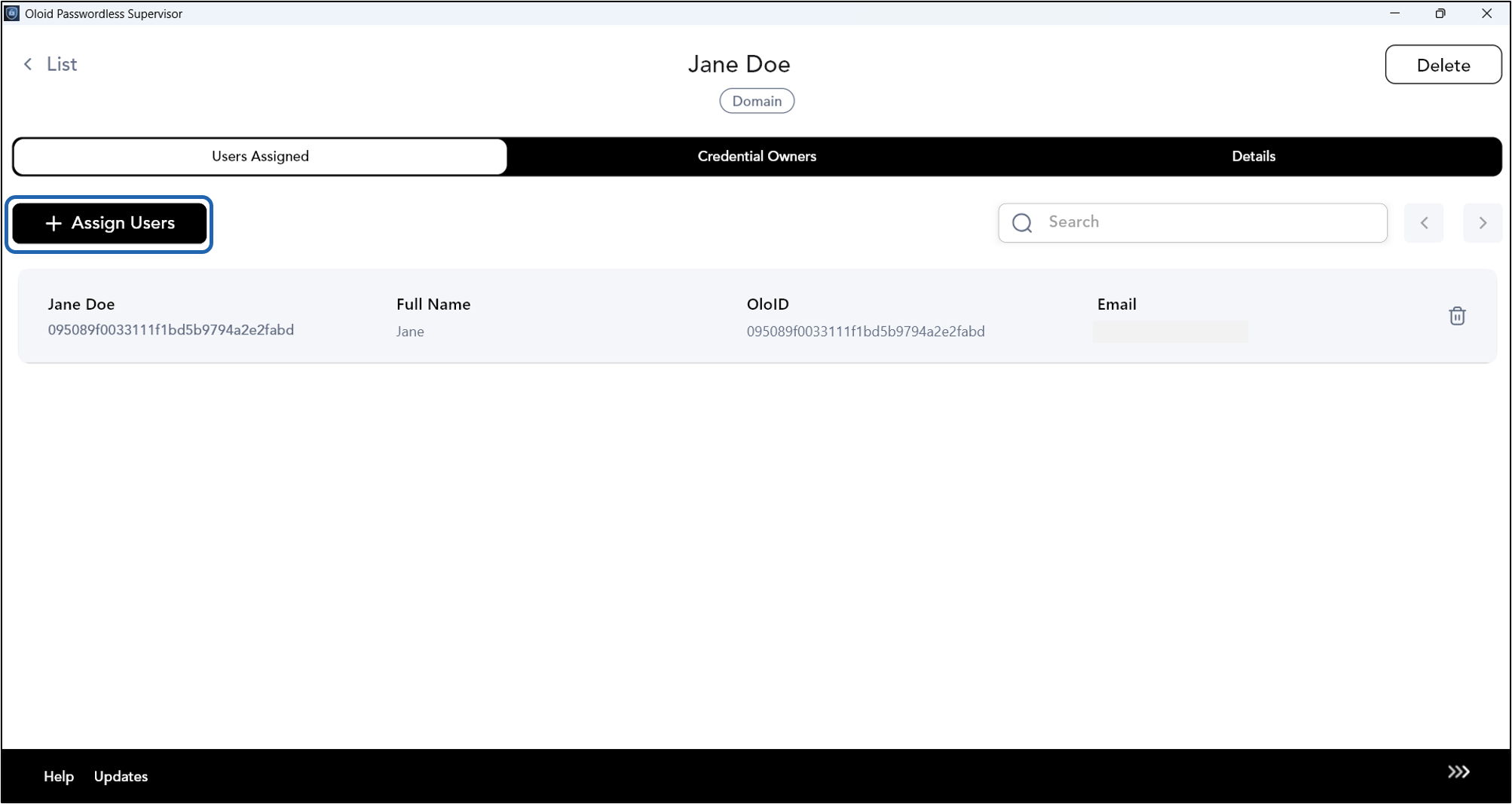
-
You can select user(s) from the displayed list.
Note: You can search the user(s)
- Click Assign.


