Introduction
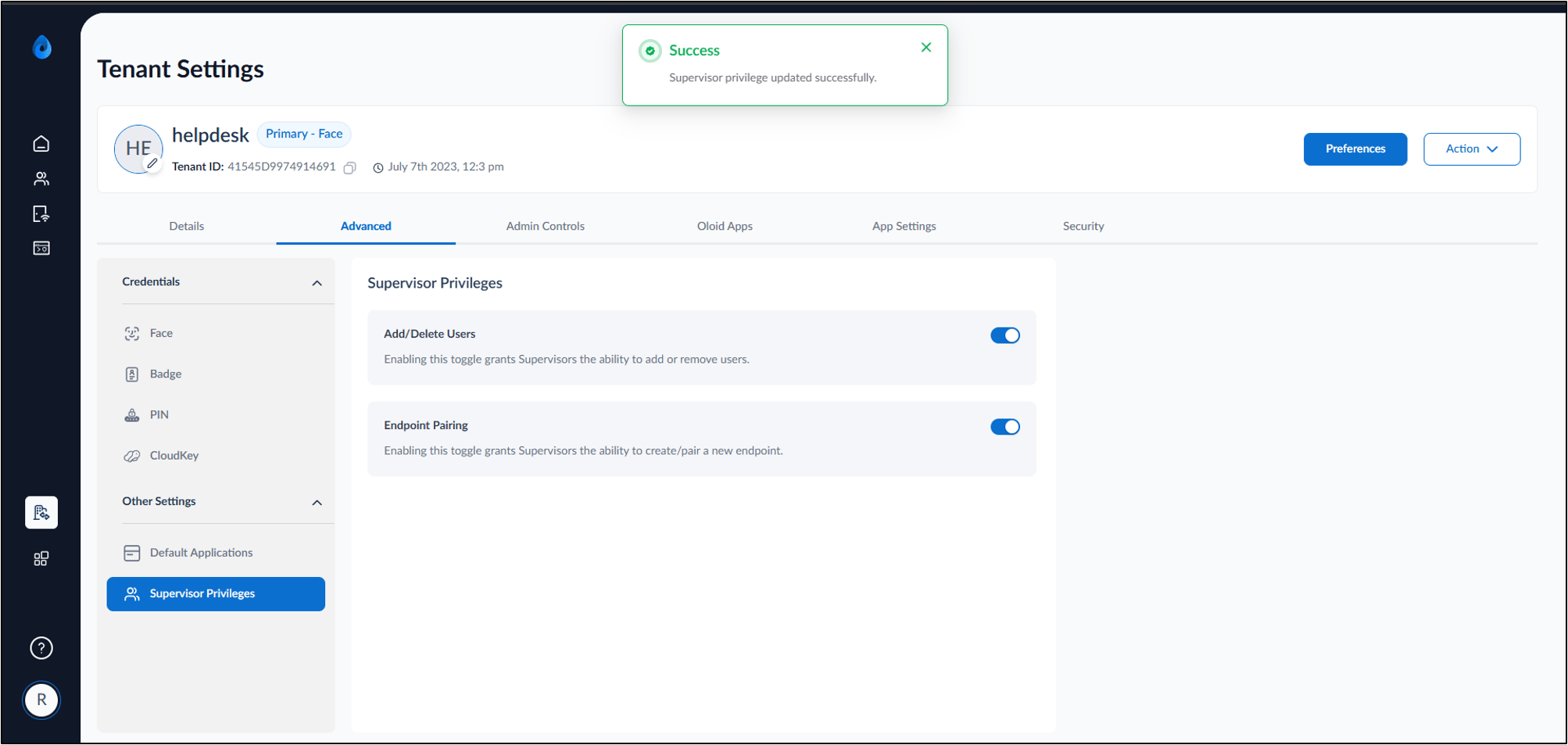
The Activate Add/Delete Users setting allows the Tenant Admin to grant Supervisors permission to add and delete users directly from the Supervisor App. When enabled, authorized Supervisors can manage users without requiring Tenant Admin intervention.Prerequisites
- You must have access to the Tenant Admin Portal.
- Ensure Windows Login application is created in the Tenant Admin Portal. For more information, refer Windows Login - How to create and configure Windows Login application in the Tenant Admin Portal
Steps to Enable the Add/Delete Users Privilege
- Log in to the Tenant Admin Portal.
- On the homepage of the portal, click user profile icon on the bottom left corner of the menu panel.

- Click Tenant Settings.

- Go to Advanced > click Supervisor Privileges.
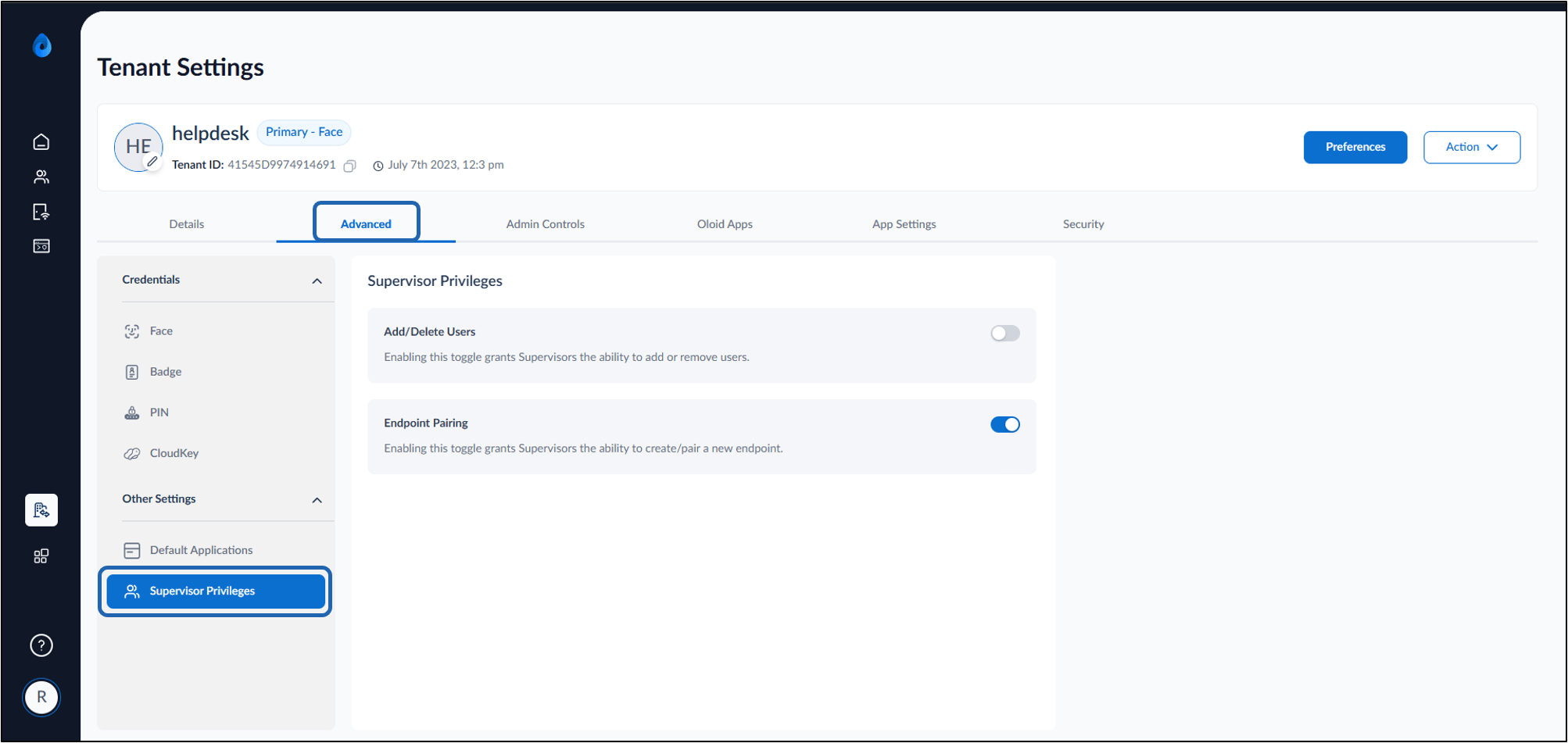
- Enable the Add/Delete Users toggle.
- Click Save.