Introduction
Shared Credentials allow multiple users to securely access shared Windows accounts without requiring individual password credentials. Admin and Supervisor can assign one or more shared credentials to a userPrerequisites
- Ensure the endpoint is paired with the Windows Login application.
- Log in to the Supervisor App using an Admin or Supervisor account. For more, refer How to log in to Supervisor App
- Ensure at least one connection is configured for the selected application in the Tenant Admin Portal. For more information, refer: How to Configure a Connection in the Tenant Admin Portal
- Shared Credentials must be created for the users. Refer: How to create Shared Credentials using the Supervisor App
Steps to Assign Shared Credentials
- Log in to Supervisor App. For more, refer to How to log in to Supervisor App The Admin Home screen is displayed.
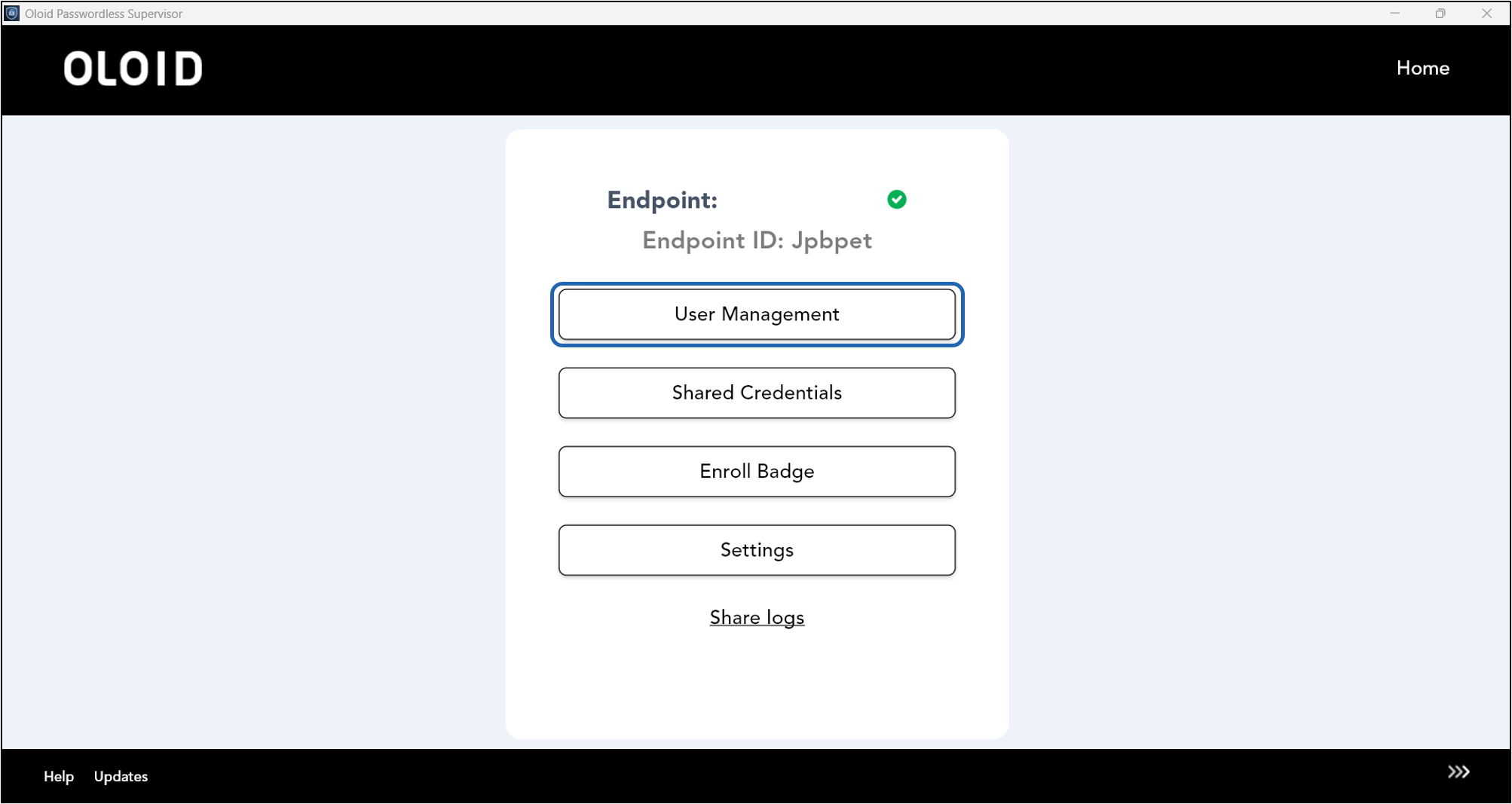
- On the Admin Home screen, select User Management.
- Select a user to view details.

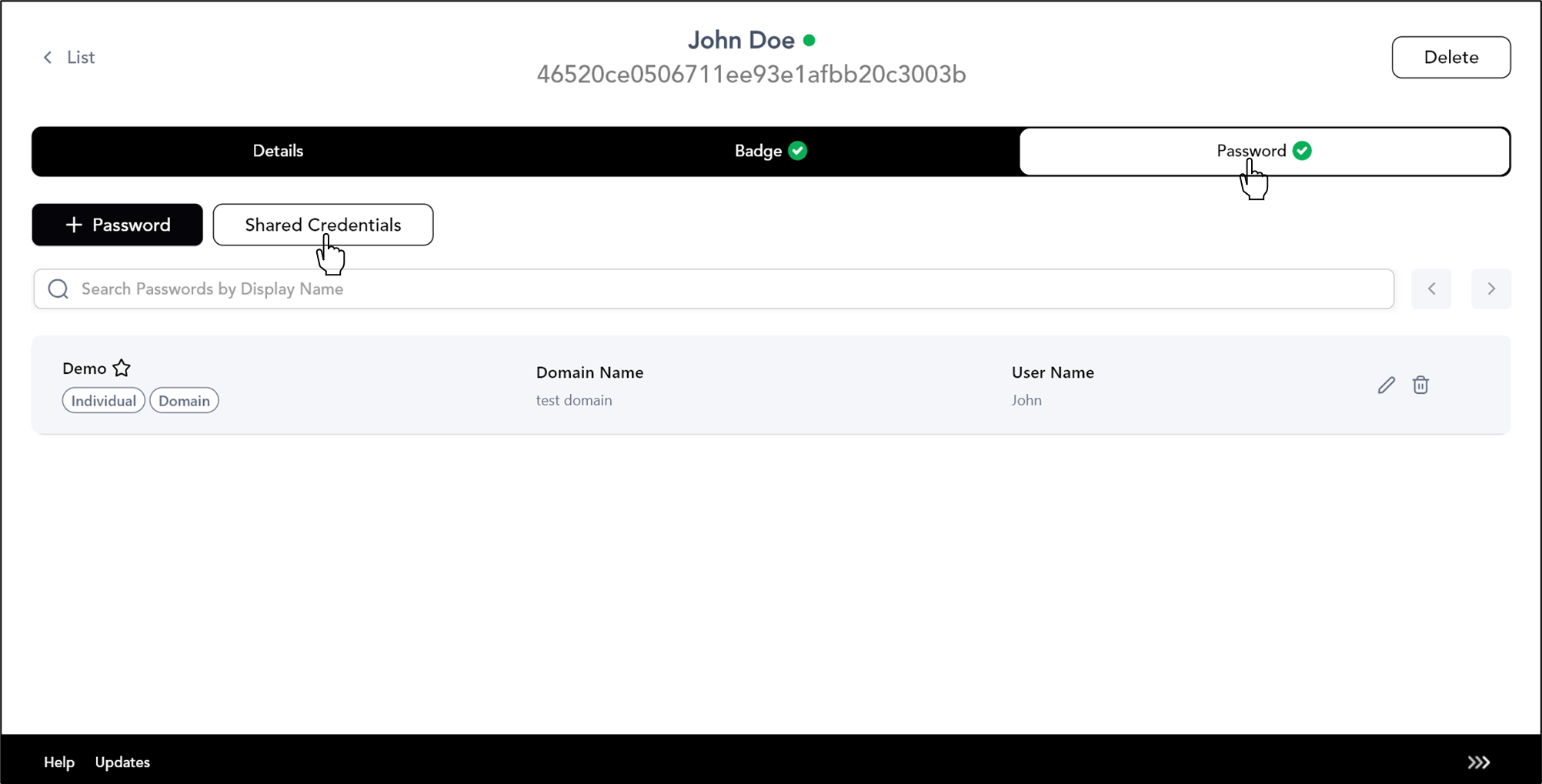
- Go to Password tab > Shared Credentials.
- Do the following:
- Select one or more Shared Credentials to assign to the user.
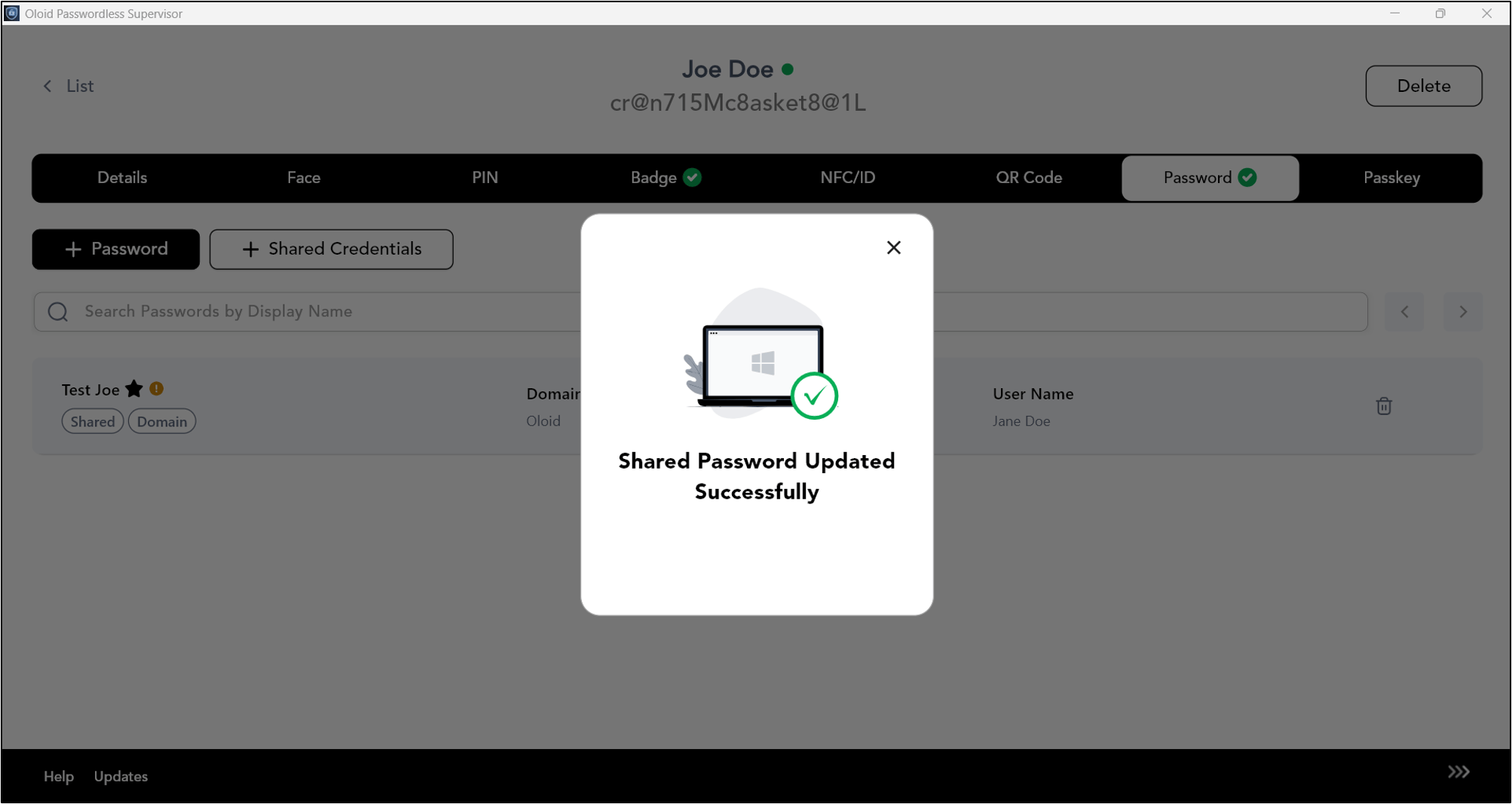
- Click Assign.