Introduction
This document provides step-by-step instructions for updating a user’s badge in the Supervisor App. You can update the badge number manually or scan a badge using a connected badge reader.Prerequisites
- Ensure the endpoint is paired with the Windows Login application. For more information, refer: Windows Login - How to manually pair the Supervisor App
- Log in to the Supervisor App using an Admin or Supervisor account. For more, refer How to log in to Supervisor App
- Ensure the Badge option is enabled for the application in the Tenant Admin Portal to make the Enroll Badge option available in the Supervisor App. Refer to How to enable badge option for Supervisor App.
- Ensure a supported badge reader is connected to the system.
- Ensure the user exists in the Tenant Admin Portal. Refer: Windows Login - How to Add a User
- The badge must be assigned to the user. For more details, refer Supervisor App: Assign Badge.
Steps to Update Badge
- Log in to Supervisor App. For more, refer How to log in to Supervisor App The Admin Home screen is displayed.
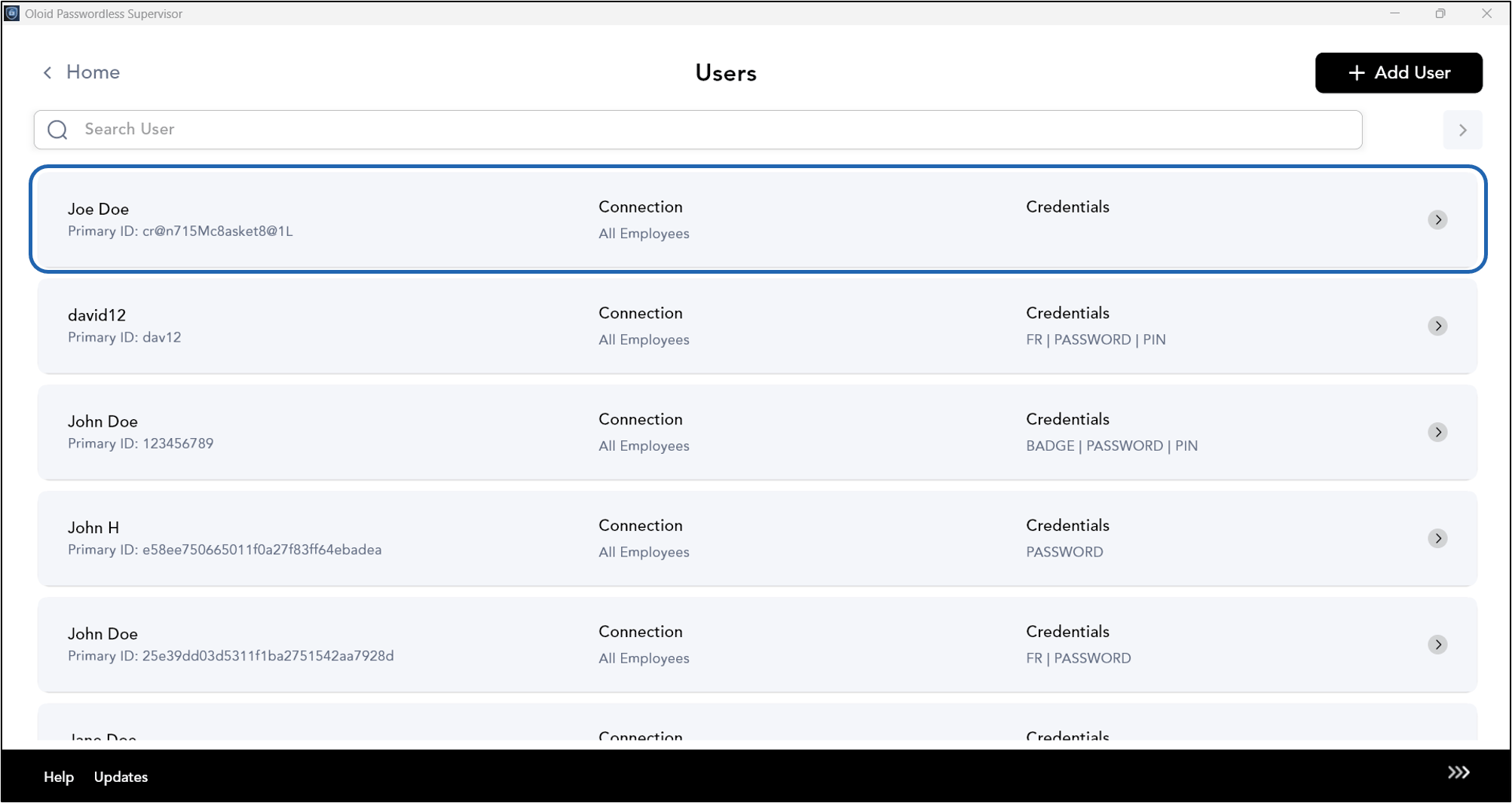
- On the Admin Home screen, select User Management.

- Select the user to view details.
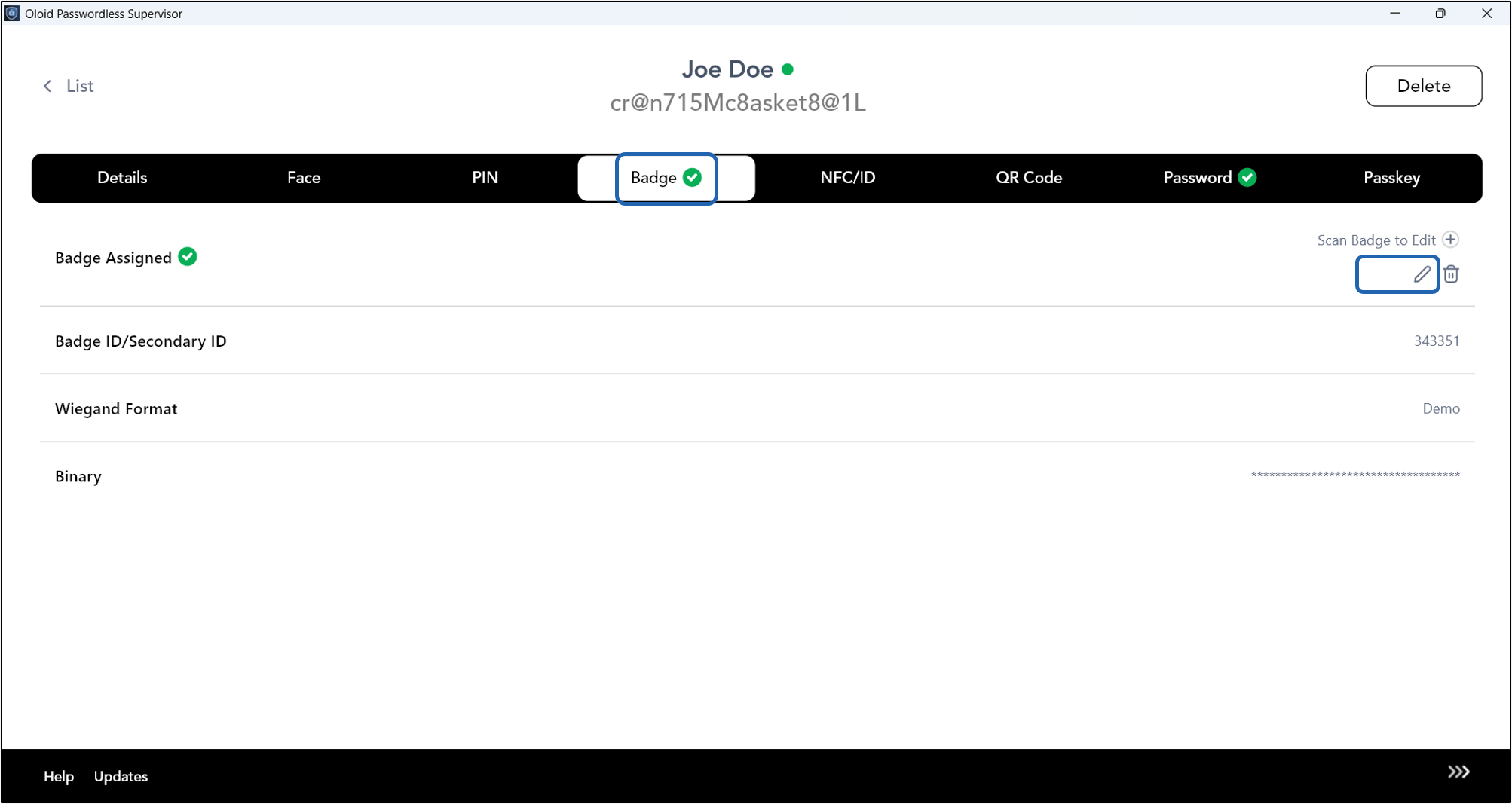
- Select Badge tab.
- Do one of the following:
- Click the Edit Icon to update badge.
- Do the following:
- Edit or Enter the Badge number
- Select Weigand format from dropdown.
- Click Save.

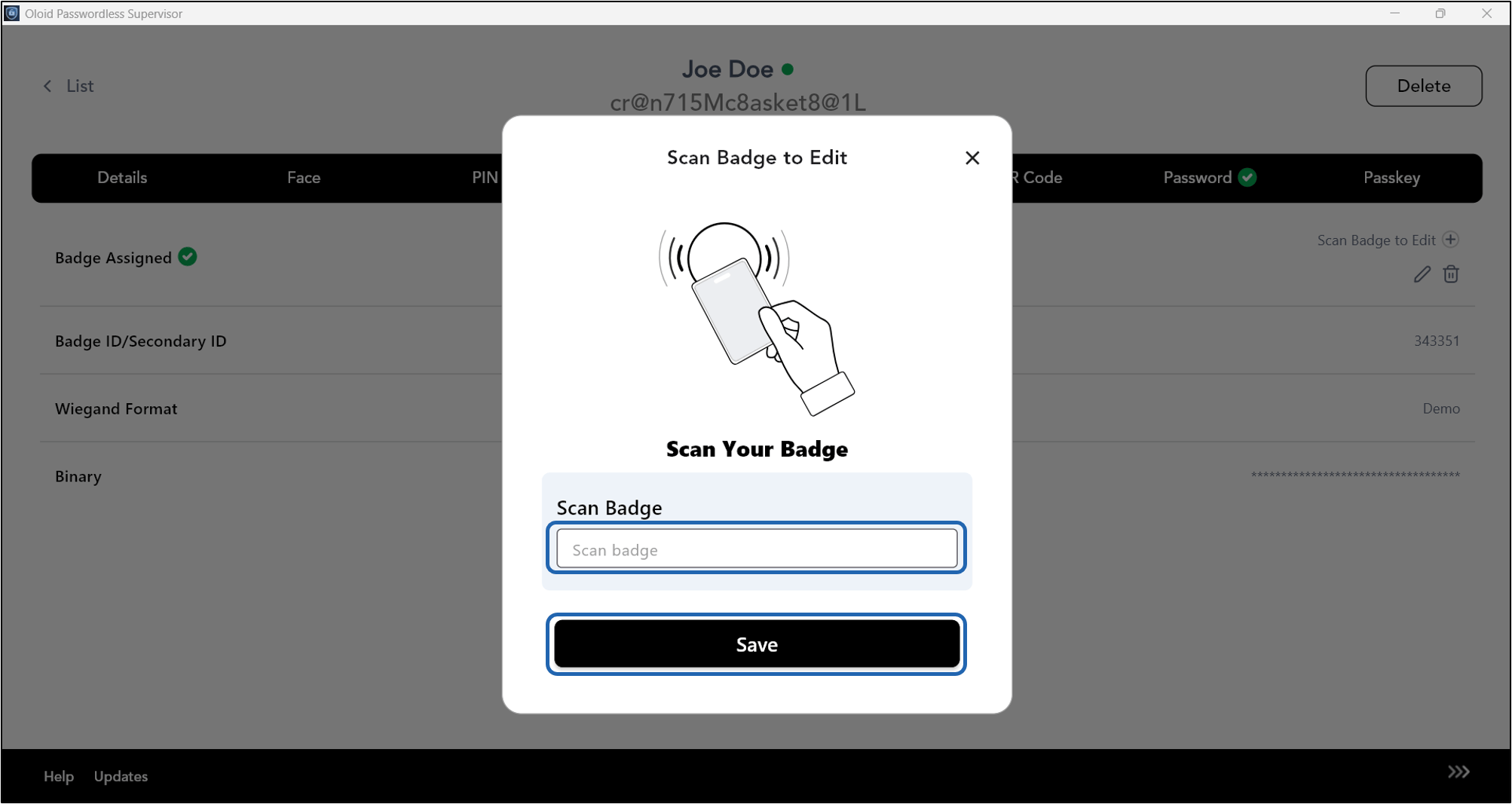
- Click Scan Badge to Edit.

- Do the following:
-
Tap the Badge on the Reader to scan it.
Note: Badge reader must be connected to the system.
-
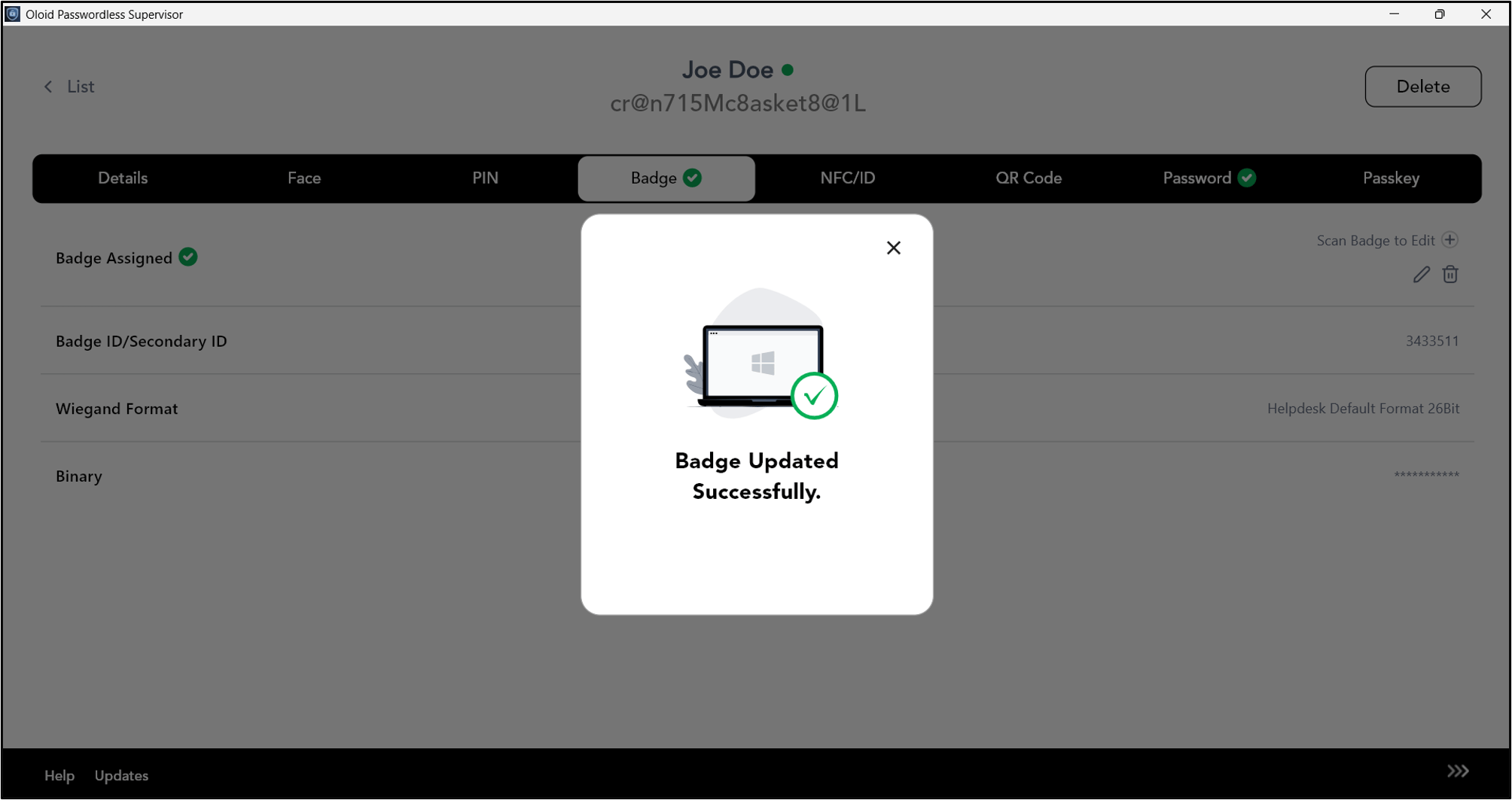
Click Save.
-
Tap the Badge on the Reader to scan it.
- Click the Edit Icon to update badge.