Introduction
The Badge tab in the Supervisor App allows Admin and Supervisor to assign a badge credential to a user. A badge can be assigned either by scanning it with a connected badge reader or by manually entering the Badge ID and Wiegand format.Prerequisites
- Ensure the endpoint is paired with the Windows Login application.
- Log in to the Supervisor App using an Admin or Supervisor account. For more, refer How to log in to Supervisor App
- Ensure at least one connection is configured for the selected application in the Tenant Admin Portal. For more information, refer: How to Configure a Connection in the Tenant Admin Portal
- Ensure User is created. Refer: Windows Login - How to Add a User
Steps to Assign Badge
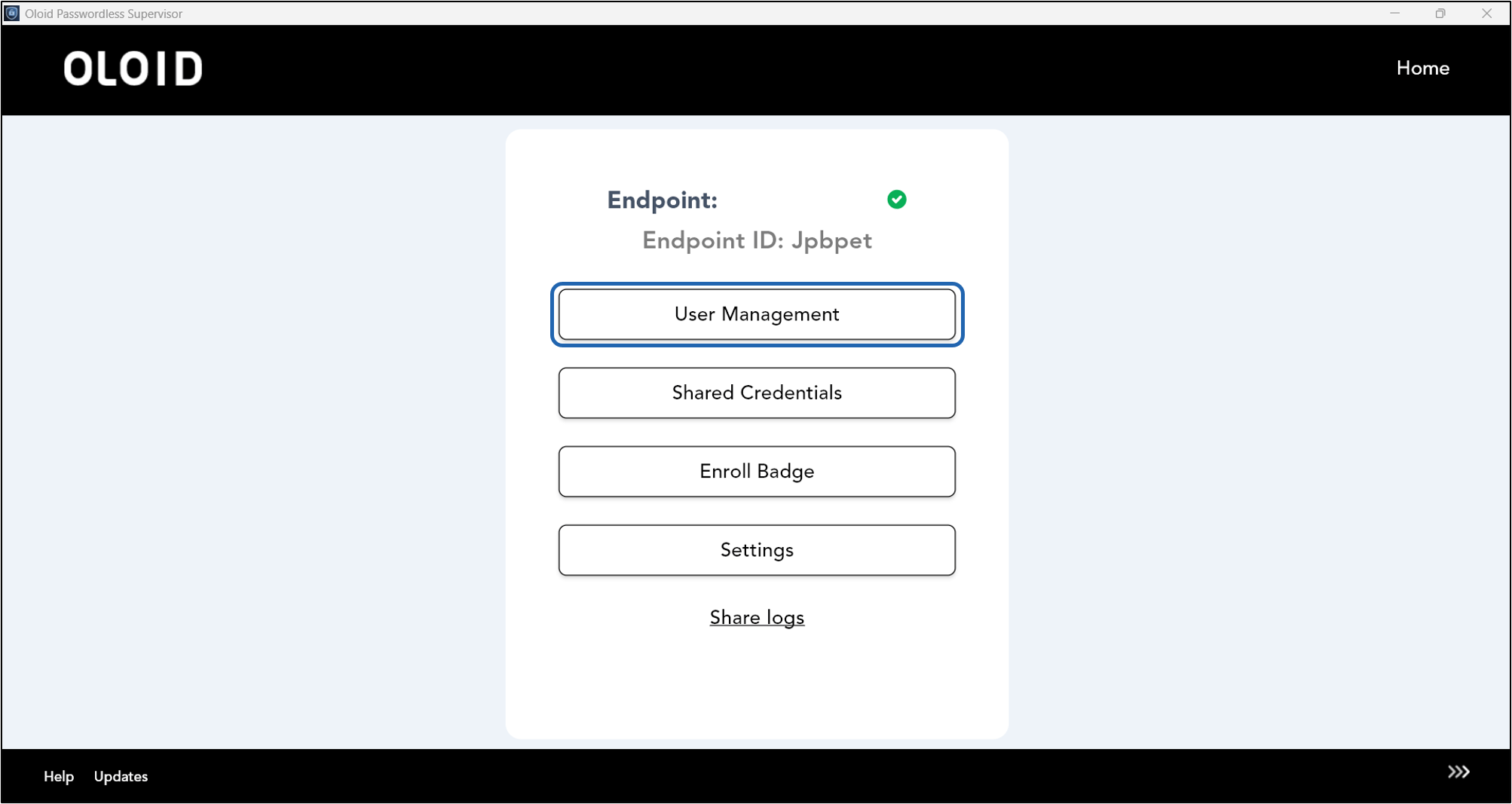
- Log in to Supervisor App. For more, refer toHow to log in to Supervisor App The Admin Home screen is displayed.
- On the Admin Home screen, select User Management.
- Select the user to view details.

- Select Badge tab.
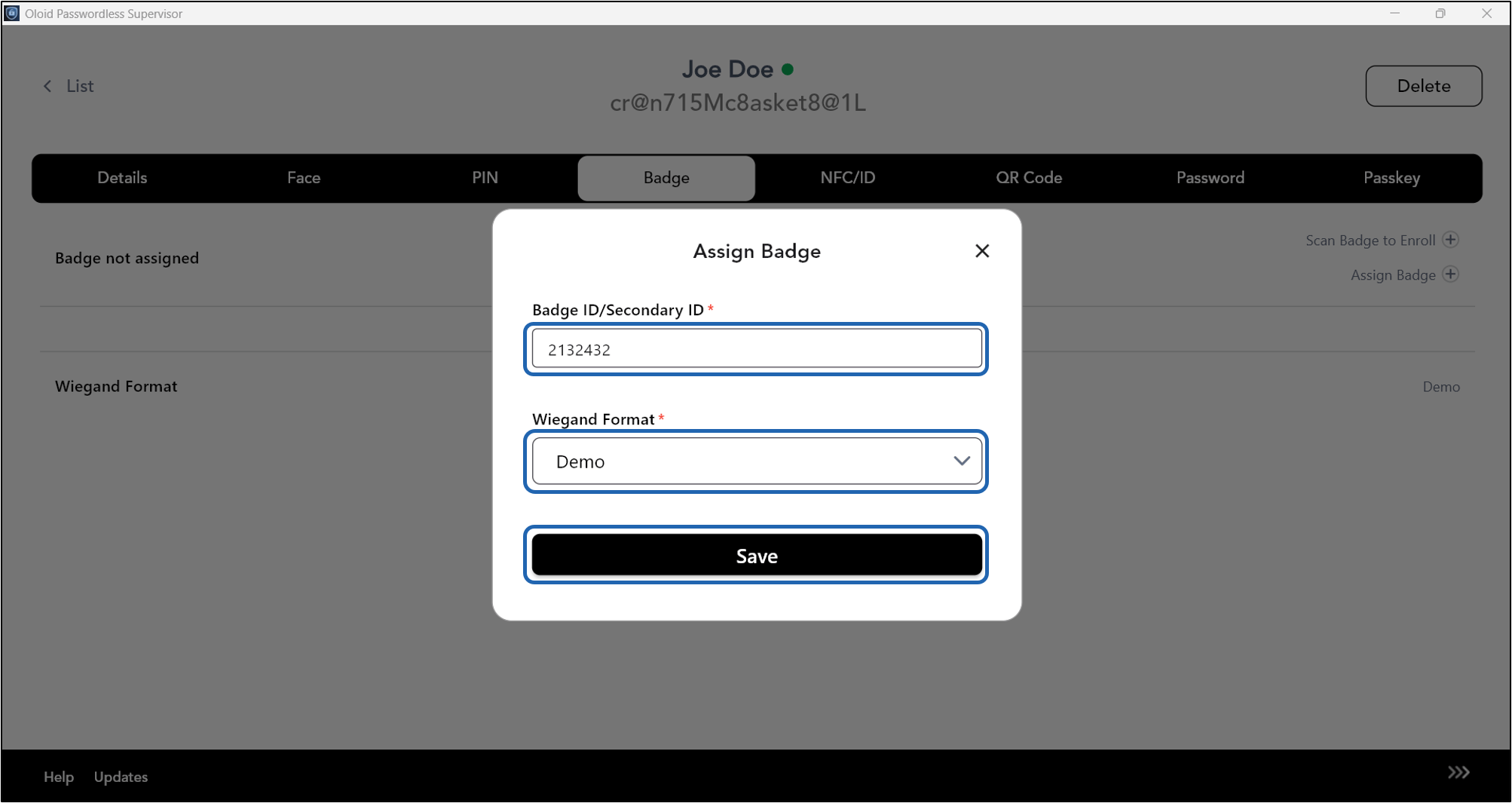
- Click Assign Badge.

- Do the following:
- Enter Badge ID/Secondary ID.
- Select Wiegand Format from dropdown.
- Click Save.