Introduction
QR Code assignment allows the Supervisor to generate and assign QR-based credentials to users through the Supervisor App. These QR codes can be shared with users for authentication, providing a secure and contactless login option.Prerequisite
- Ensure the endpoint is paired with the Windows Login application. For more information, refer: Windows Login - How to manually pair the Supervisor App
- Log in to the Supervisor App using an Admin or Supervisor account. For more, refer How to log in to Supervisor App
- Ensure the user exists in the Tenant Admin Portal. Refer: Windows Login - How to Add a User
Steps to Add QR Code
- Log in to Supervisor App. For more, refer to How to log in to Supervisor App The Admin Home screen is displayed.
- On the Admin Home screen, select User Management.

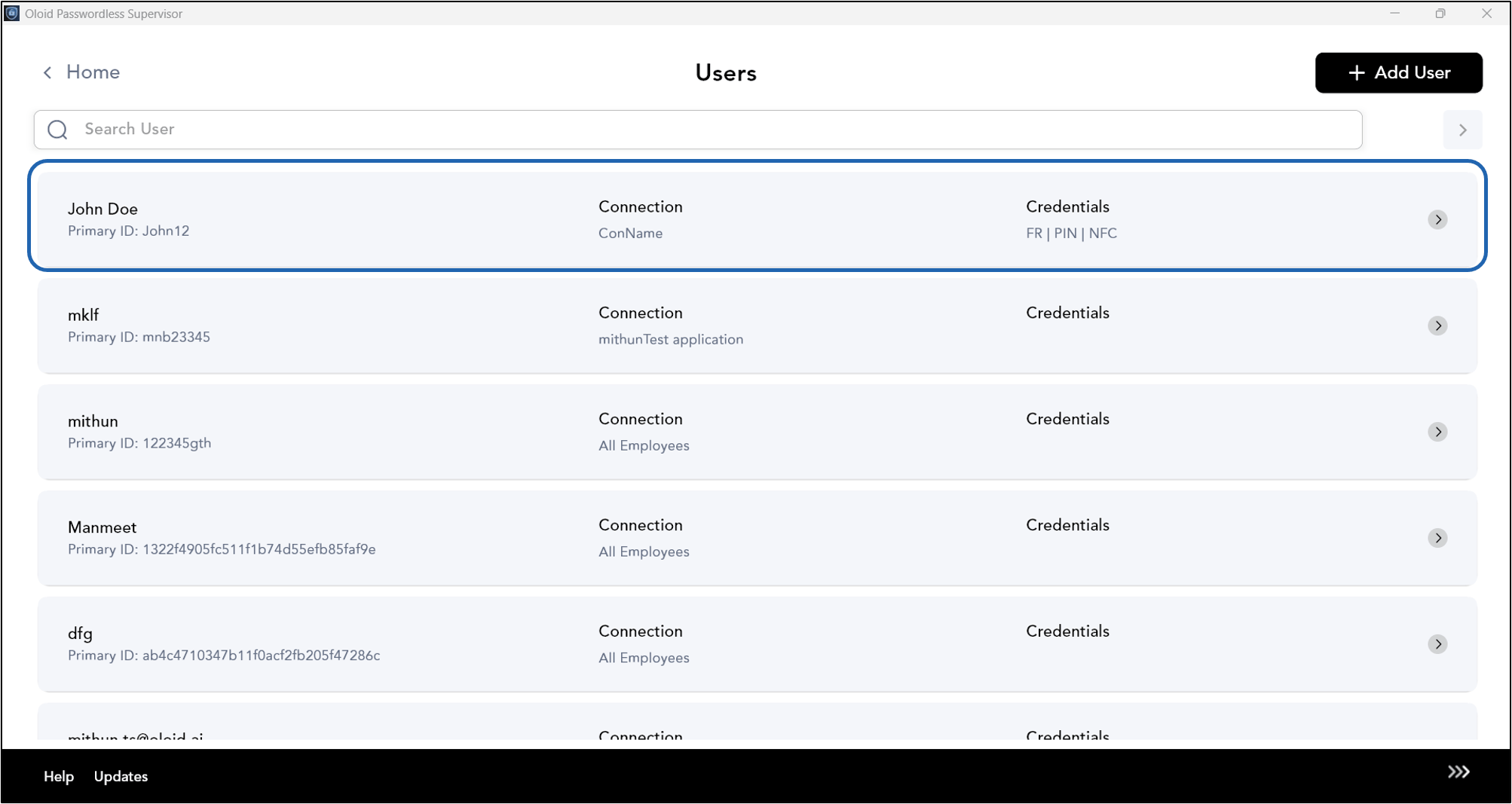
- Select user from the list, or search for a user using the search bar at the top.
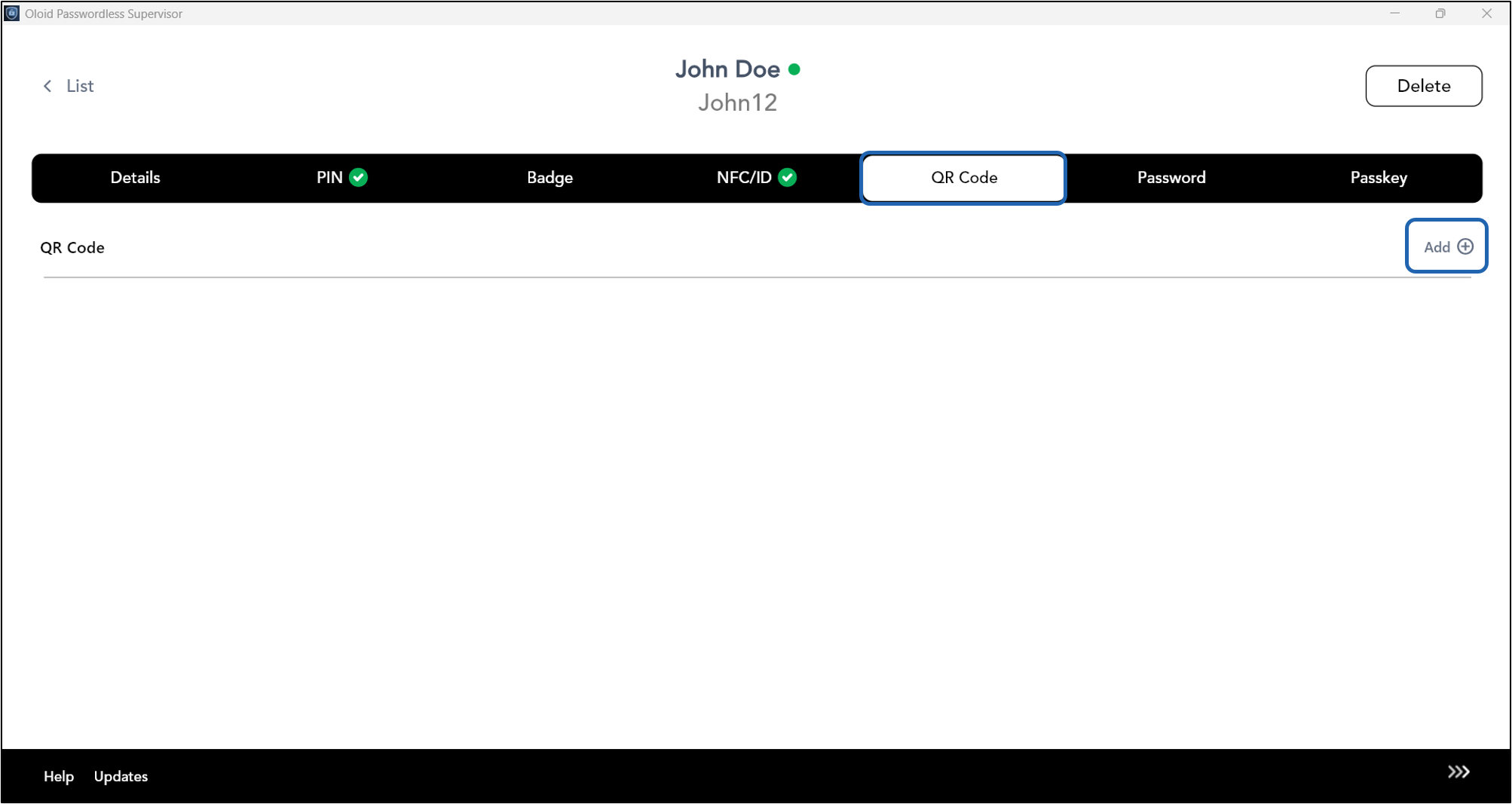
- Select QR Code tab > Tap ADD +.
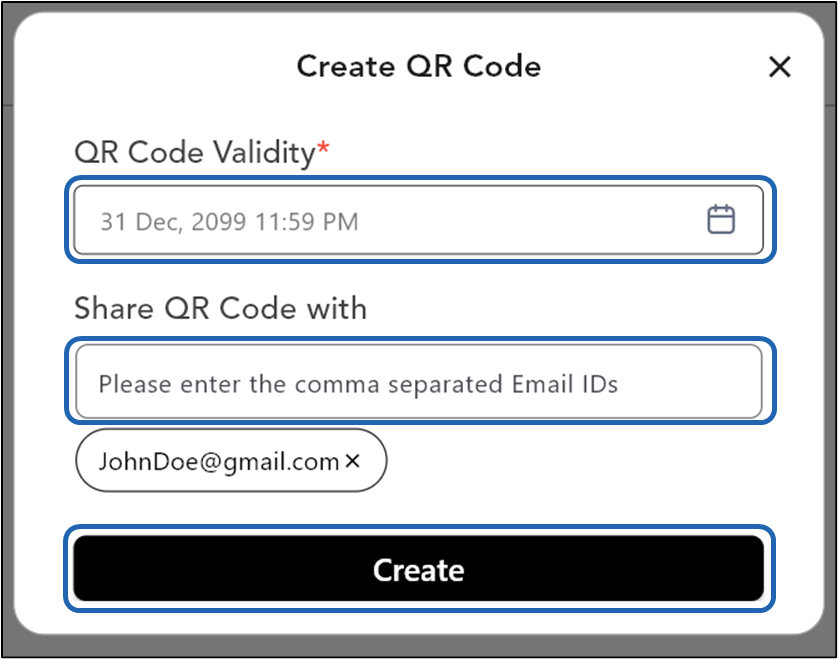
- Do the following:
- Select the QR Code Validity date.
- Enter Email ID of user(s) to Share QR Code with.
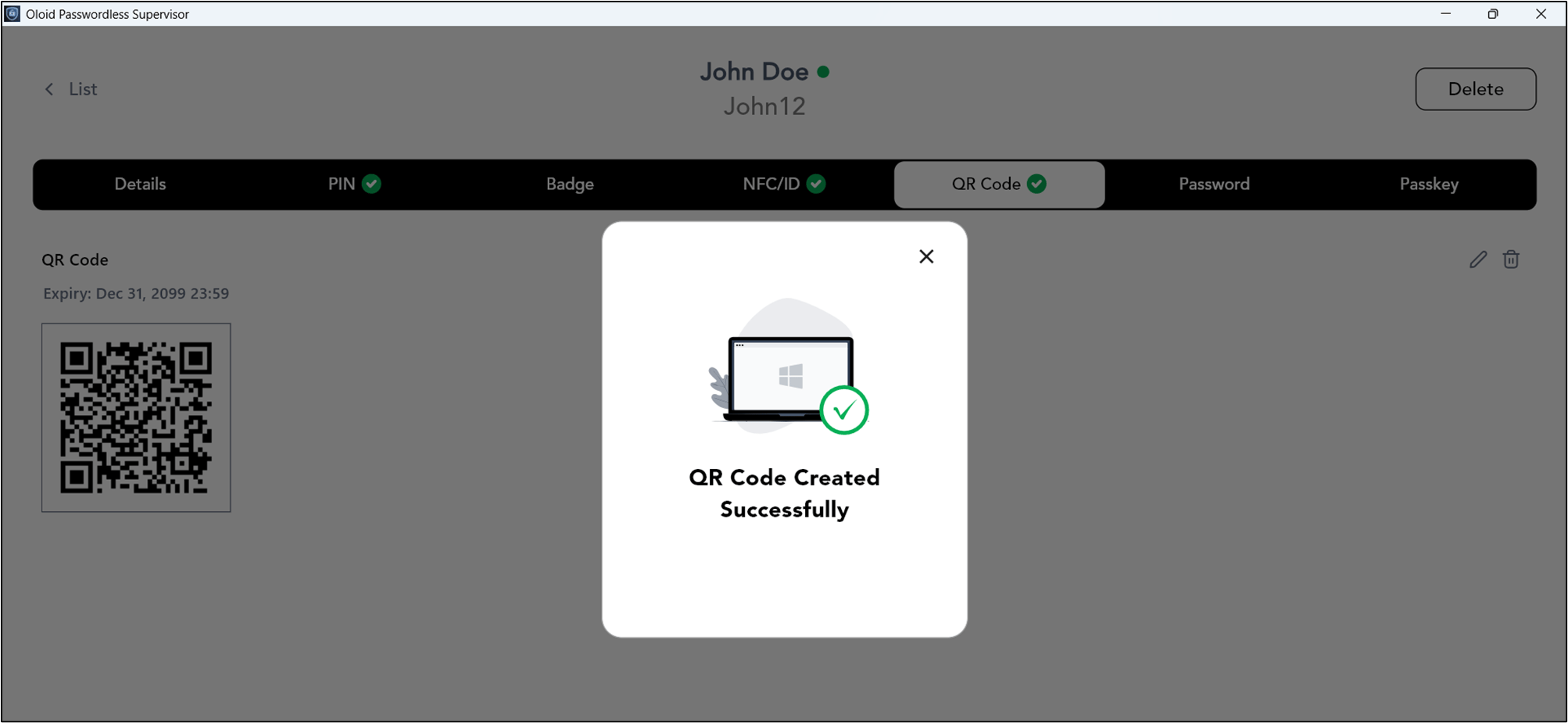
- Tap Create.