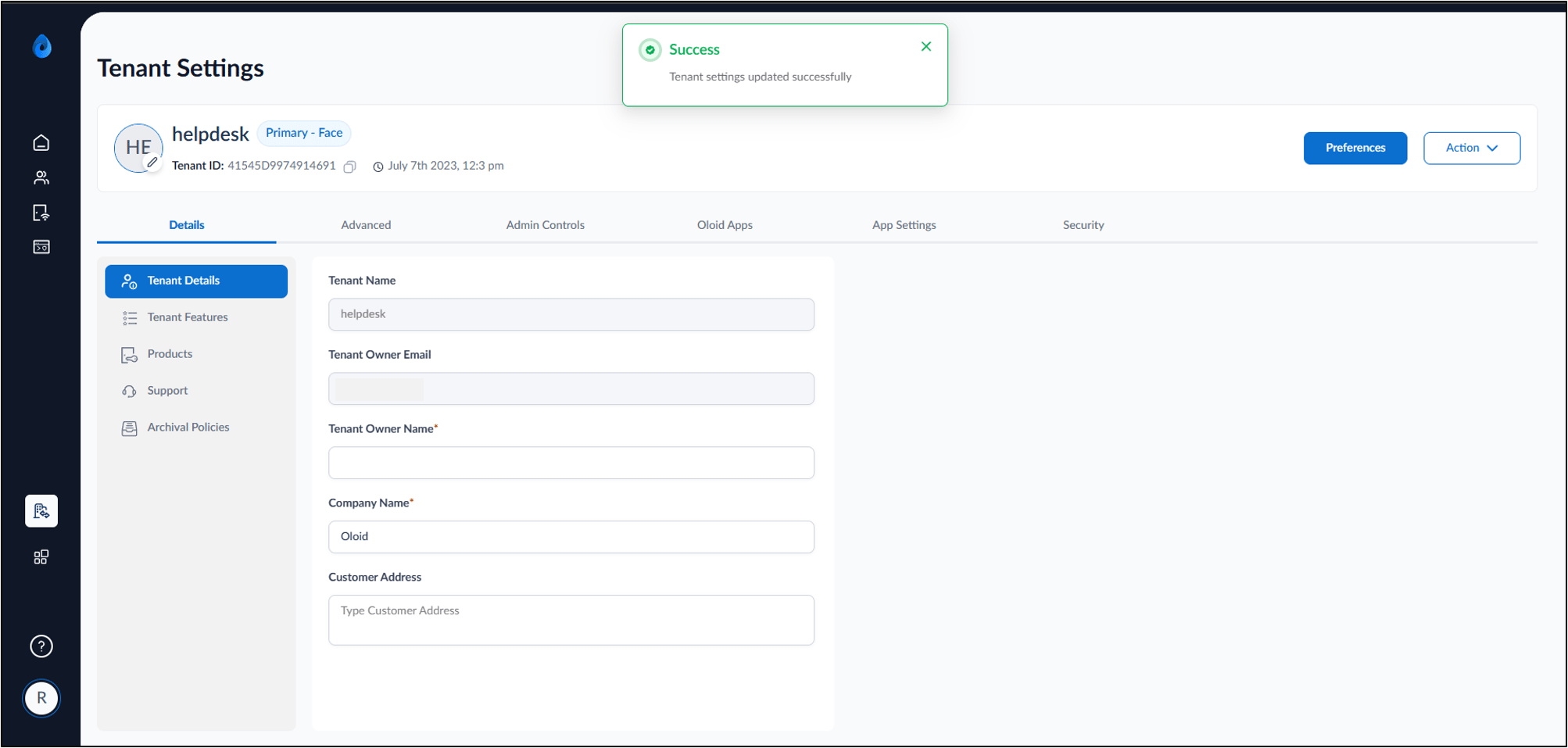
Introduction
Credential preferences allow Tenant Admin to define the authentication methods that are available and prioritized in the Supervisor App. These preferences determine which credential types are presented during user enrollment and authentication workflows.Prerequisite
You must have access to the Tenant Admin Portal.Steps to Set credential preferences for Supervisor App
- Log in to the Tenant Admin Portal.
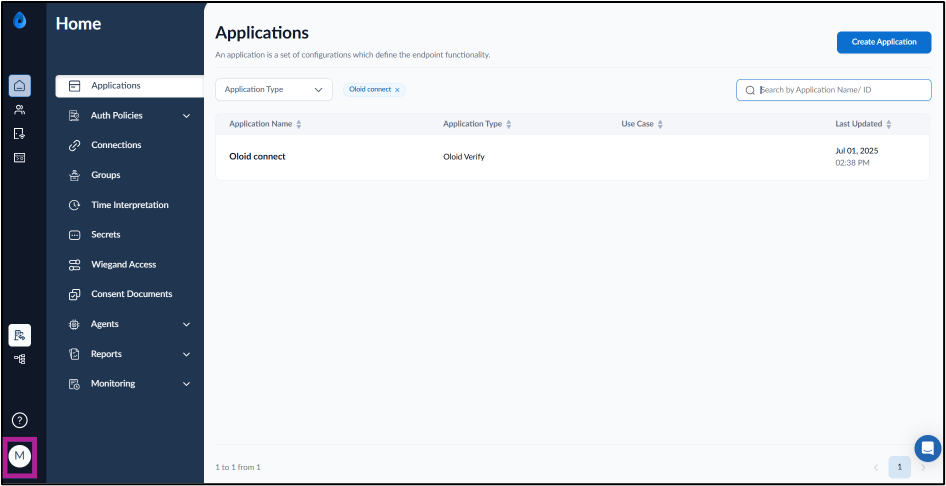
- On the homepage of the portal, click user profile icon on the bottom left corner of the menu panel.
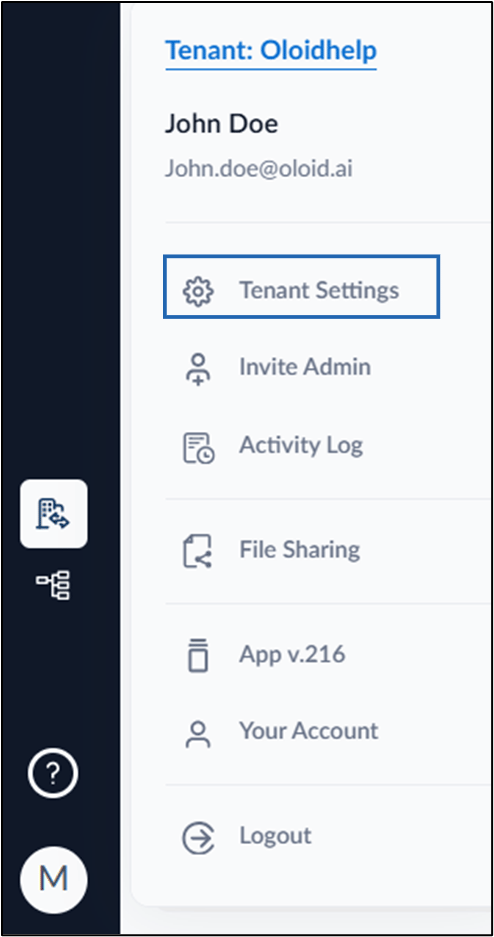
- Click Tenant Settings.
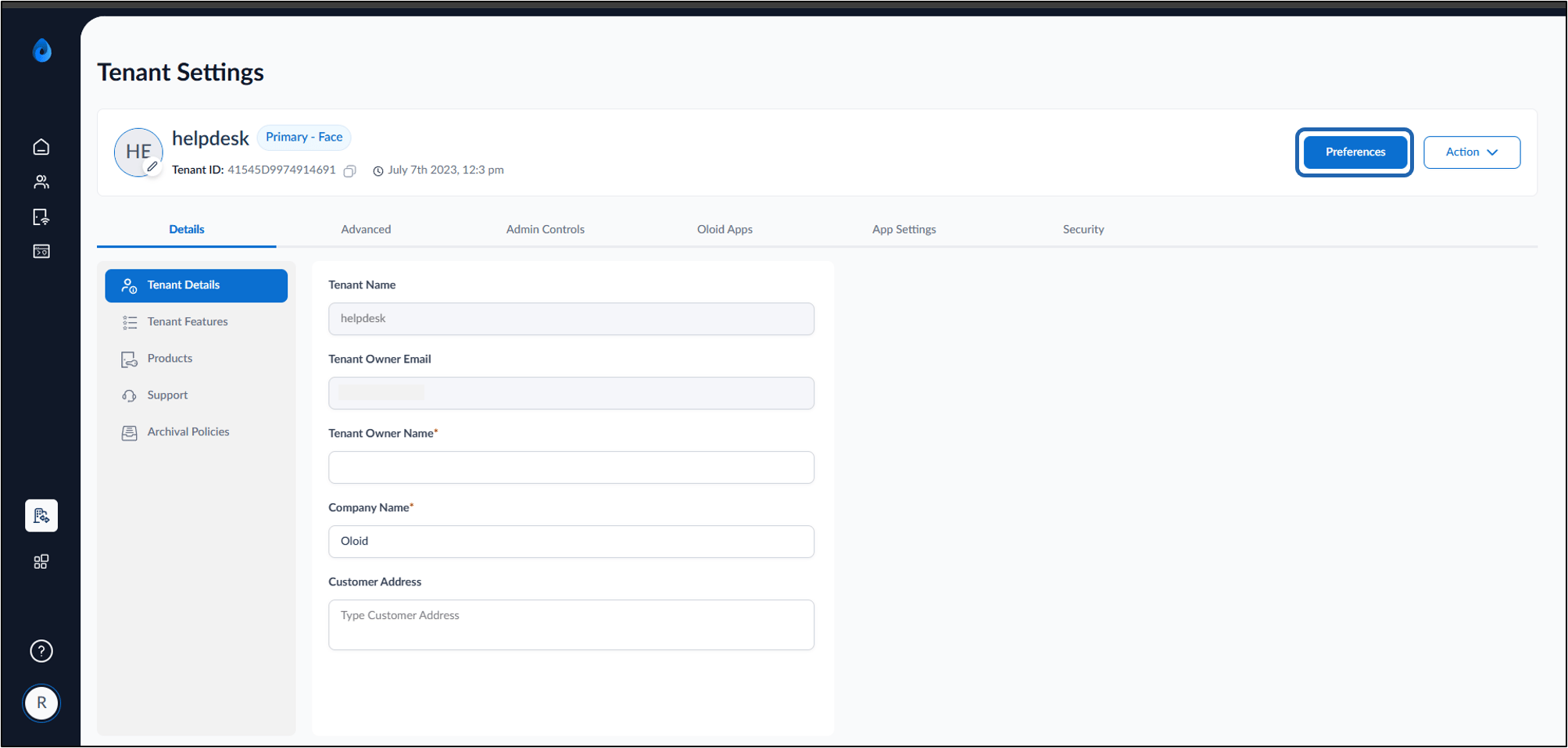
- Click Preferences.
- Do the following:
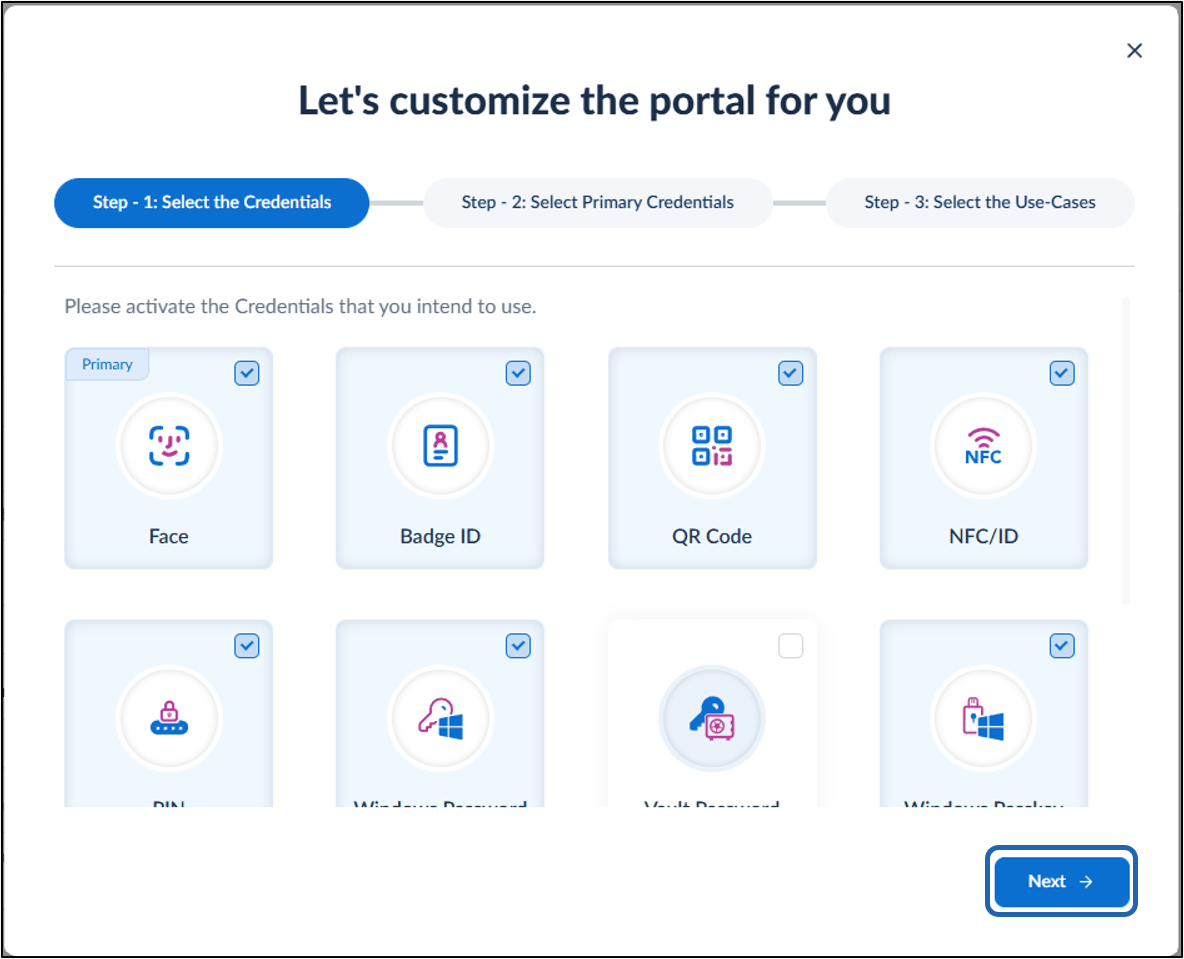
- Select the preferred Credentials you want to use.
- Click Next.
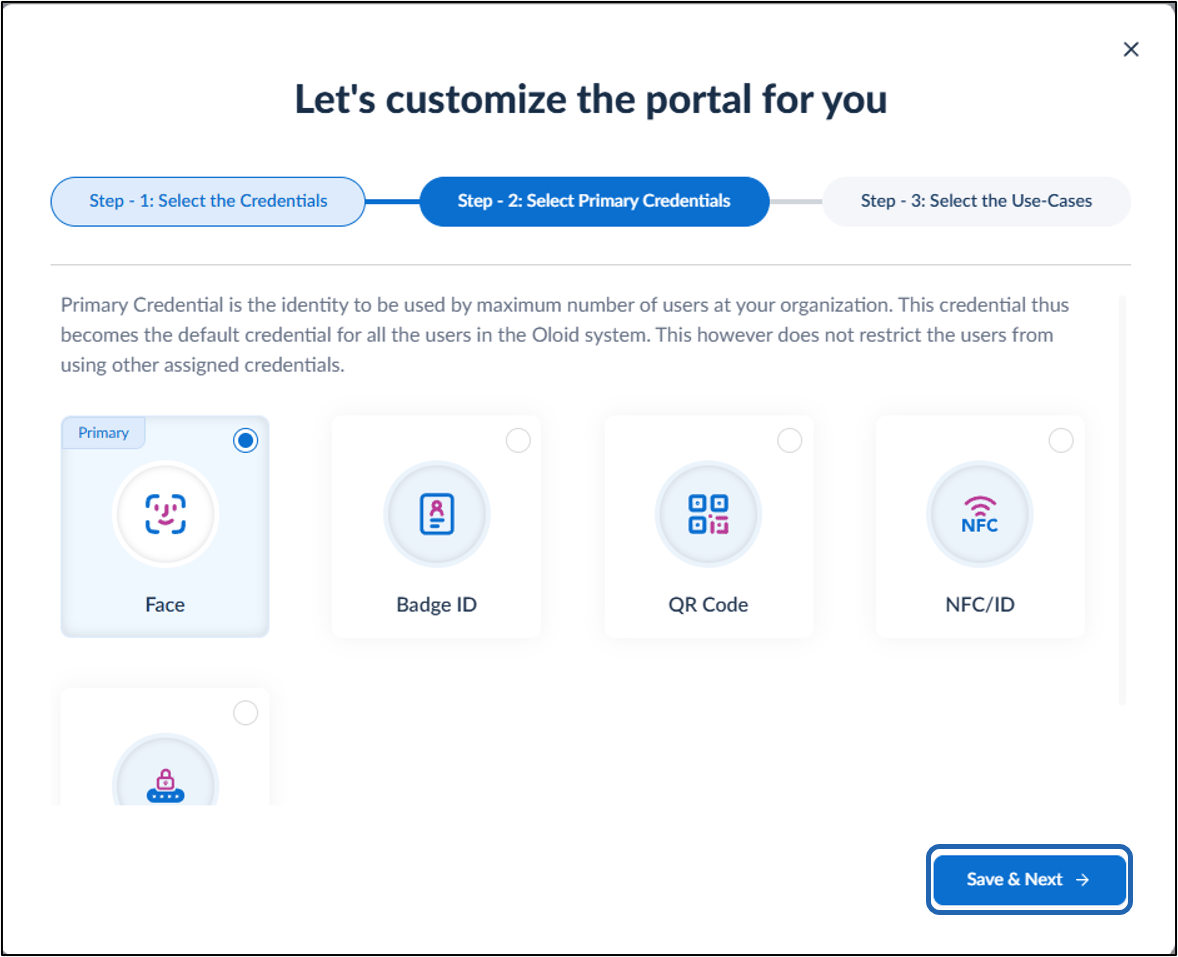
- Select the Primary Credentials.
- Click Save & Next.
- Select the Use-cases for which you intend to use the Oloid Portal.
- Click Finish Setup.