

Introduction
A user’s PIN can be updated at any time to maintain security or comply with organizational policies. Admins and Supervisors can view the user’s PIN details and update the PIN through the Supervisor App.Prerequisites
- Ensure the endpoint is paired with the Windows Login application. For more information, refer: Windows Login - How to manually pair the Supervisor App
- Log in to the Supervisor App using an Admin or Supervisor account. For more, refer How to log in to Supervisor App
- Ensure at least one connection is configured for the selected application in the Tenant Admin Portal. For more information, refer: How to Configure a Connection in the Tenant Admin Portal
- Ensure User is created. Refer: Windows Login - How to Add a User
Steps to View and Edit PIN
- Log in to Supervisor App. For more, refer toHow to log in to Supervisor App The Admin Home screen is displayed.
- On the Admin Home screen, select User Management.

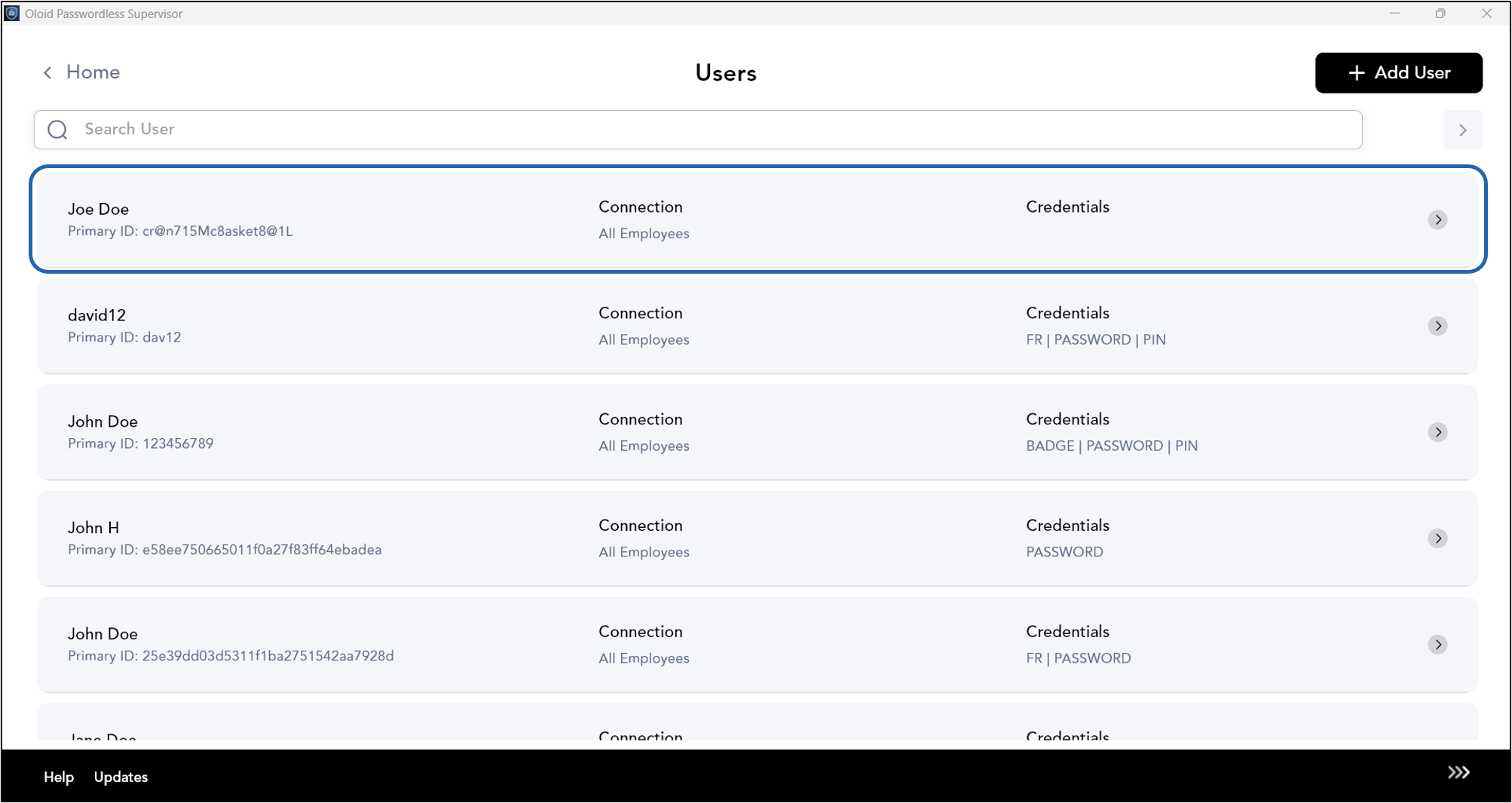
- Select the user whose PIN you want to view or edit.
- Select PIN tab >click the Edit icon.

- Do the following:
- Enter your new PIN.
- Re-enter your new PIN.
- Enter one or more email addresses in the Share PIN with field to share the updated PIN. (Optional)
- Click Update.

