

Introduction
The Enroll Badge + PIN feature in the Supervisor App allows Admin and Supervisor to enroll a badge and configure a PIN for a user in a single workflow. The enrolled badge and PIN can then be used together as a multi-factor credential for Windows Login authentication.Prerequisites
- Ensure the endpoint is paired with the Windows Login application. For more information, refer: Windows Login - How to manually pair the Supervisor App
- Log in to the Supervisor App using an Admin or Supervisor account. For more, refer How to log in to Supervisor App
- Enable Badge Options must be enabled in the Oloid Portal for the Enroll Badge option in the Supervisor App. Refer to How to enable badge option for Supervisor App.
- Ensure a supported badge reader is connected to the system.
- Ensure the user exists in the Tenant Admin Portal.
Steps to Enroll Badge and PIN
- Log in to Supervisor App. For more, refer How to log in to Supervisor App The Admin Home screen is displayed.
-
Click Enroll Credential.
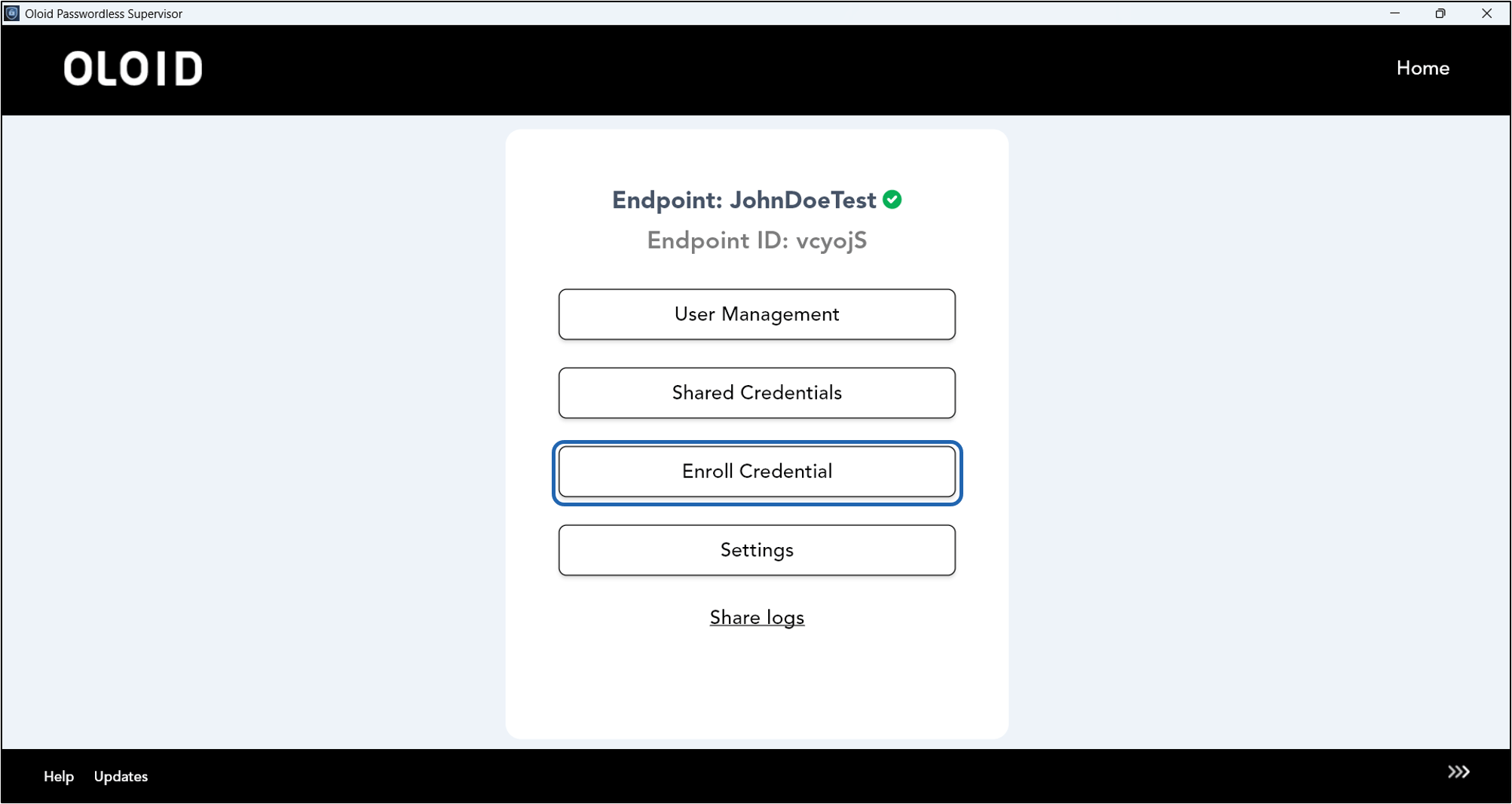
-
Click Enroll Badge.

-
Enter Employee ID.
Note: Employee ID is the primary ID of the employee in the Tenant Admin Portal. Select Make Employee ID case sensitive checkbox to enable case sensitivity for Employee ID. (Optional)
-
Click Continue.

-
Do the following:
- Scan your badge in the Badge Reader. The scanned badge number is automatically populated in the Scan Badge field.
-
Click Submit.
 Note: If a PIN already exists for the user, the Edit PIN screen is displayed. Otherwise, the Create PIN screen is displayed.
-
Do one of the following:
-
To update PIN, follow the screen instructions in the Edit PIN screen and click Update.
Note: Click Skip to escape the step and the badge is enrolled successfully.

-
To add a new PIN, follow the screen instructions in the Create PIN screen and click Create.
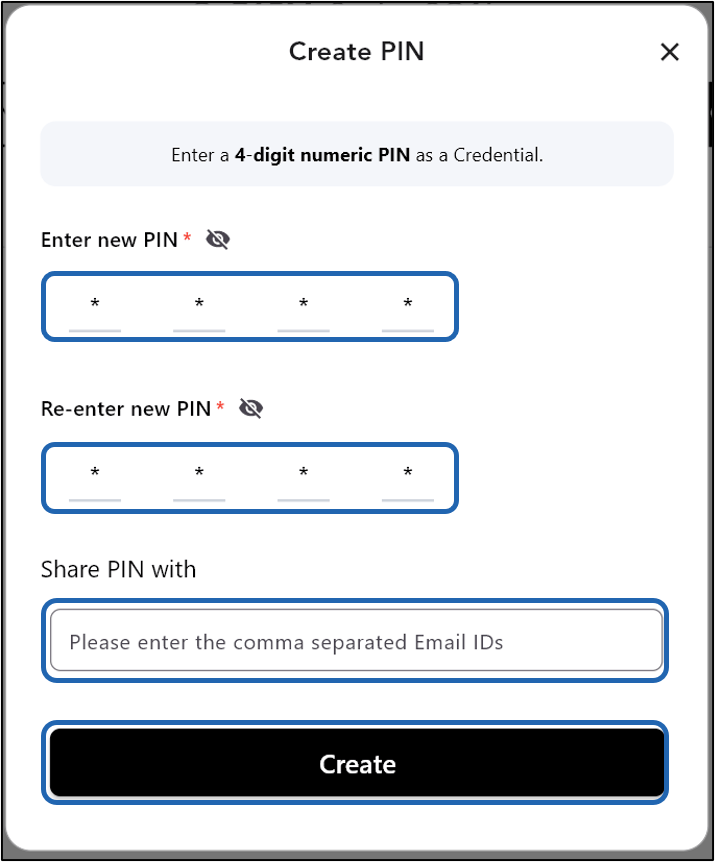
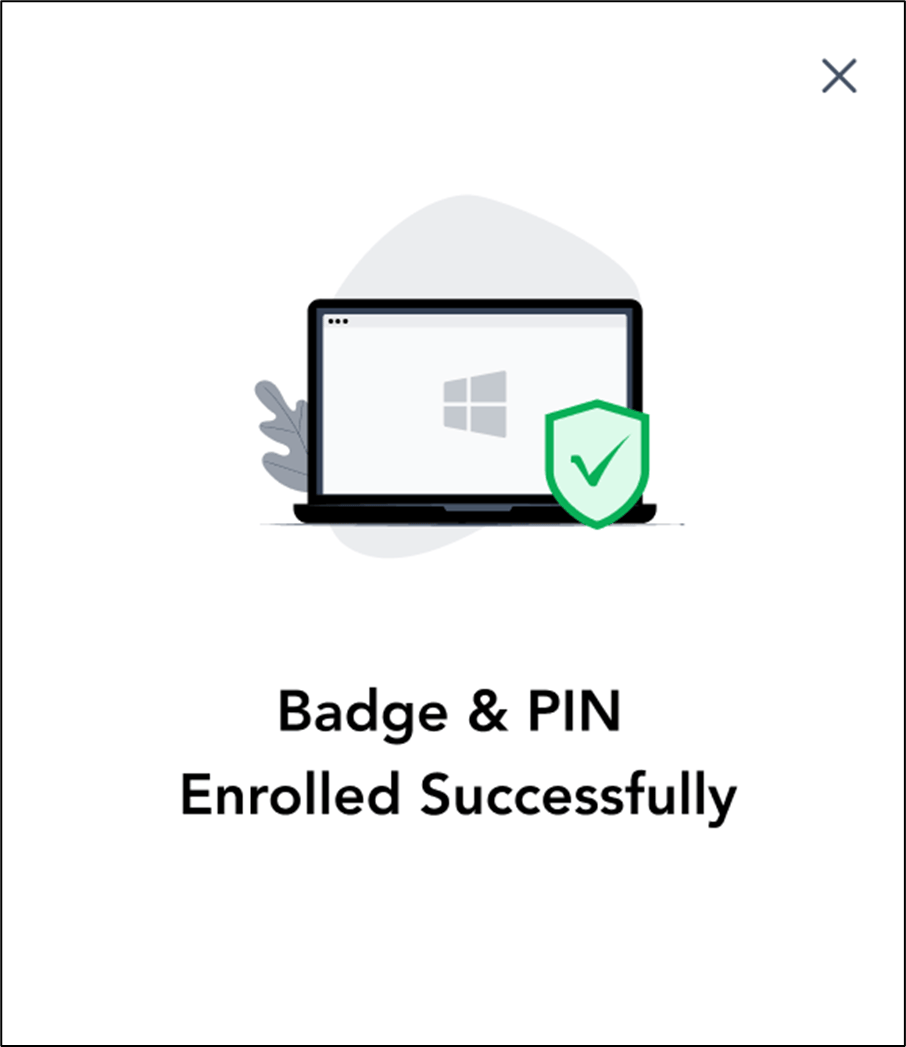
-
To update PIN, follow the screen instructions in the Edit PIN screen and click Update.