

- Double-click on Supervisor app. The app opens.
- Do the following:
-
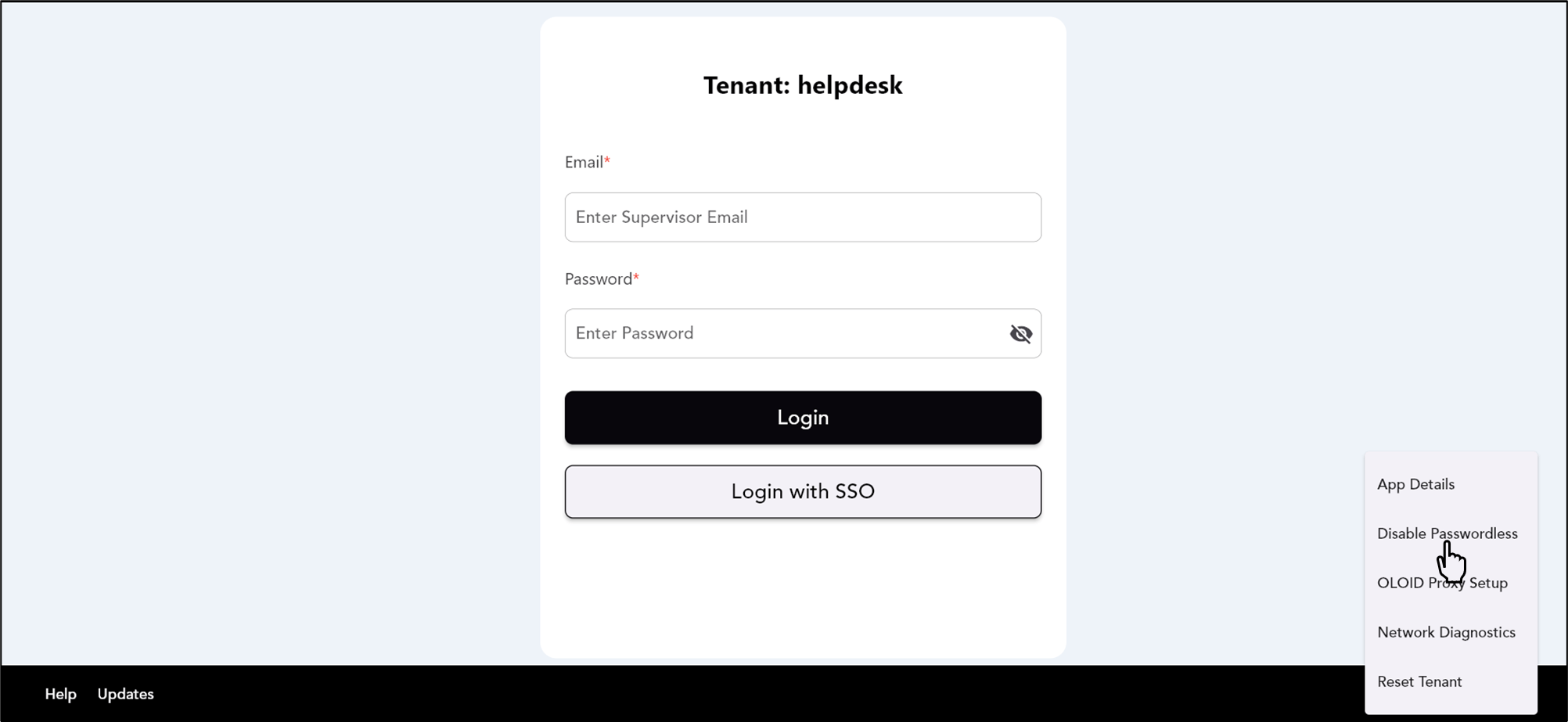
Click More Options > Disable Passwordless.
-
Enter the Device-Admin Passcode.
Note: The Device-Admin Passcode is created in the Oloid Portal.

-
Click Disable Passwordless.


-
Click More Options > Disable Passwordless.
How to disable Passwordless using Device-Admin Passcode in Supervisor App
The Supervisor app is already paired. Contact your Admin for the passcode.
Pre-requisite
The Supervisor app is already paired. Contact your Admin for the passcode.
For details, referHow to create device-admin passcode for Supervisor App.
To disable passwordless:
⌘I