Introduction
The Reauthenticate Current User – Second Factor workflow requires the logged-in user to verify their identity using an additional authentication factor during an active session. Tenant Admin can configure the authentication process, either as a primary or secondary authentication device, based on security requirements.Prerequisites
- You must have access to Tenant Admin account.
- The Windows Login application must be created in the Tenant Admin Portal, for more information refer: How to create and configure Application Type - Passwordless
Steps to Enable Reauthenticate Current User - Second Factor
- Log in to the Tenant Admin Portal.
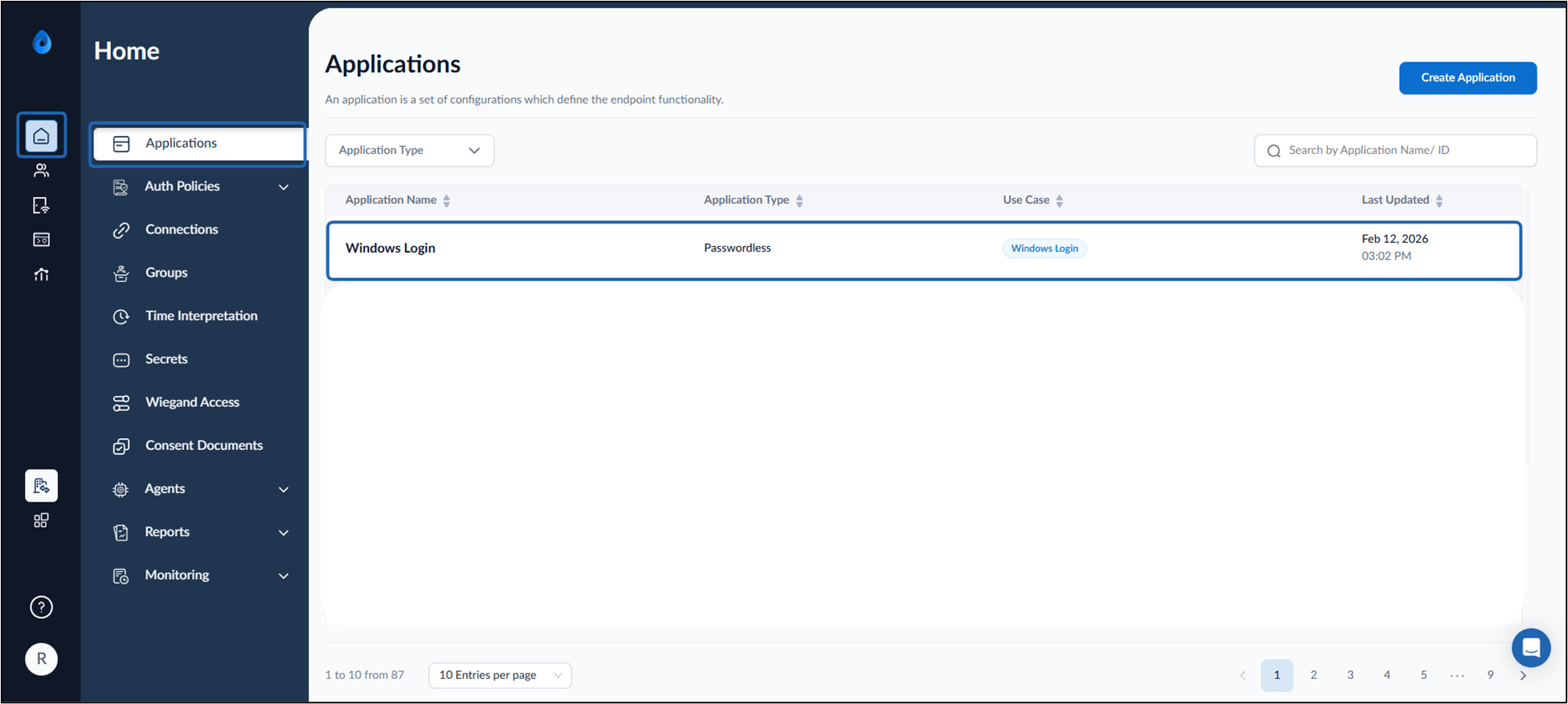
- On the Applications page, select the preferred Windows Login application.
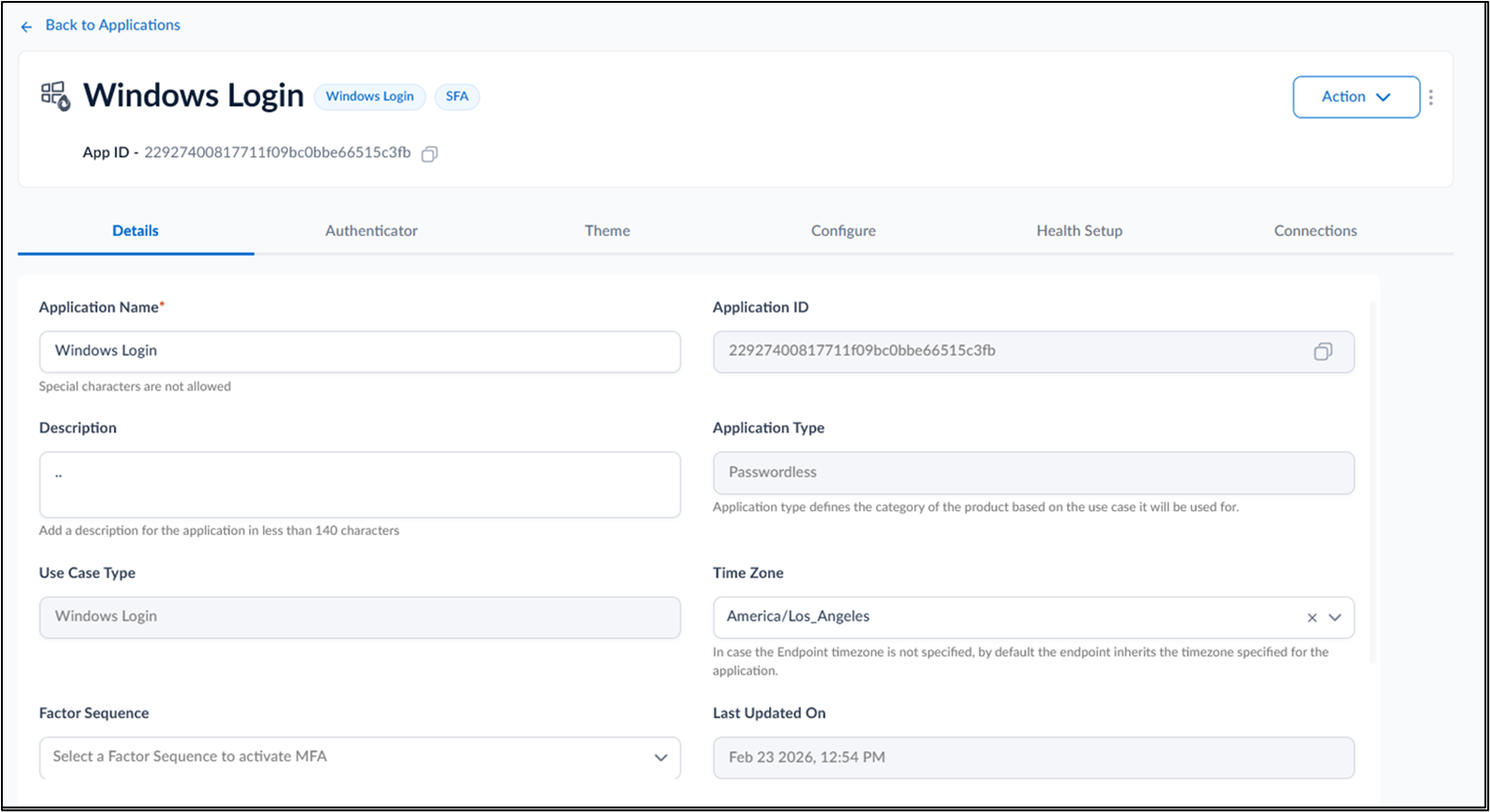
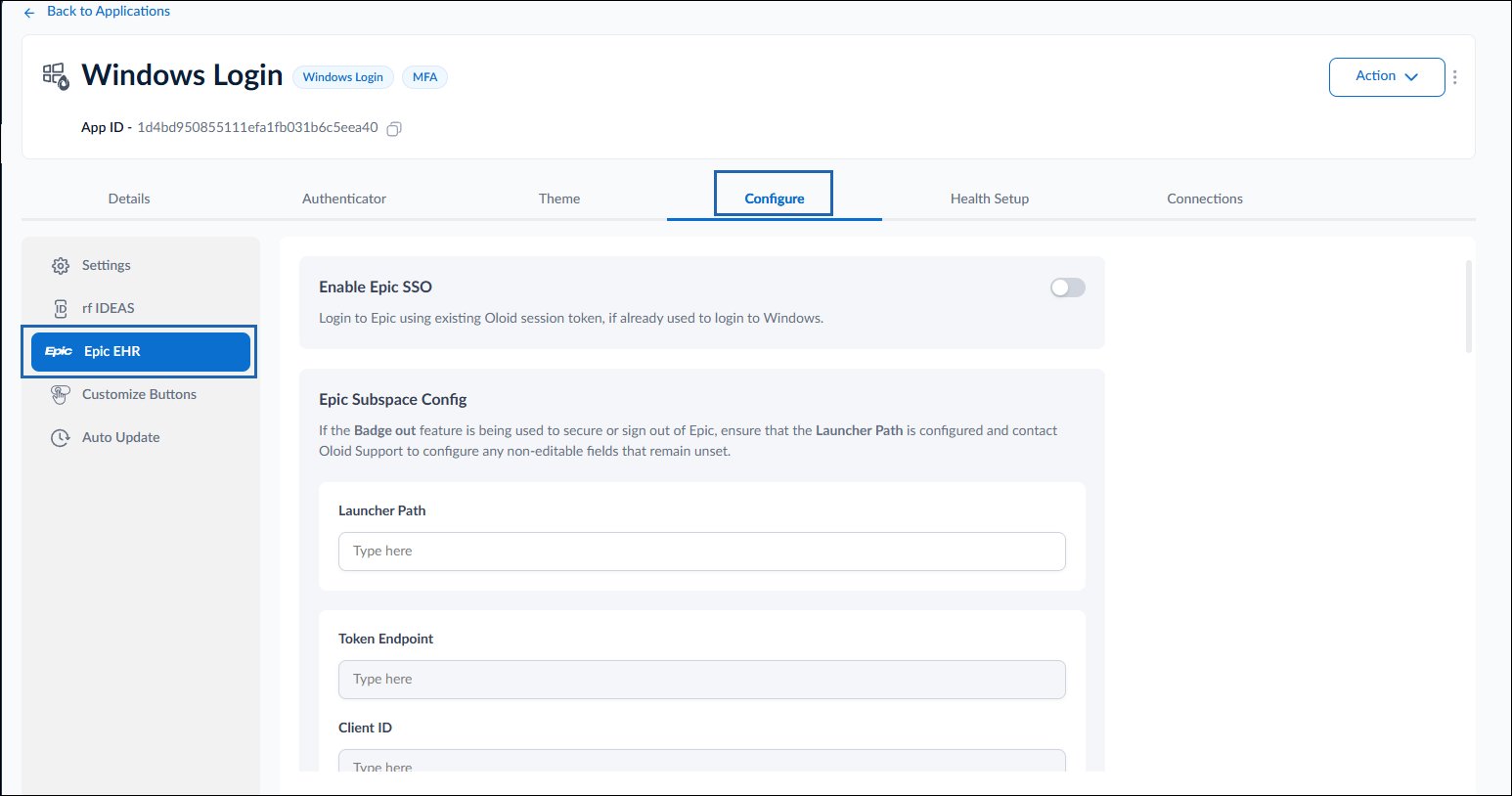
- Click Configure tab> Epic EHR .
- Do the following:
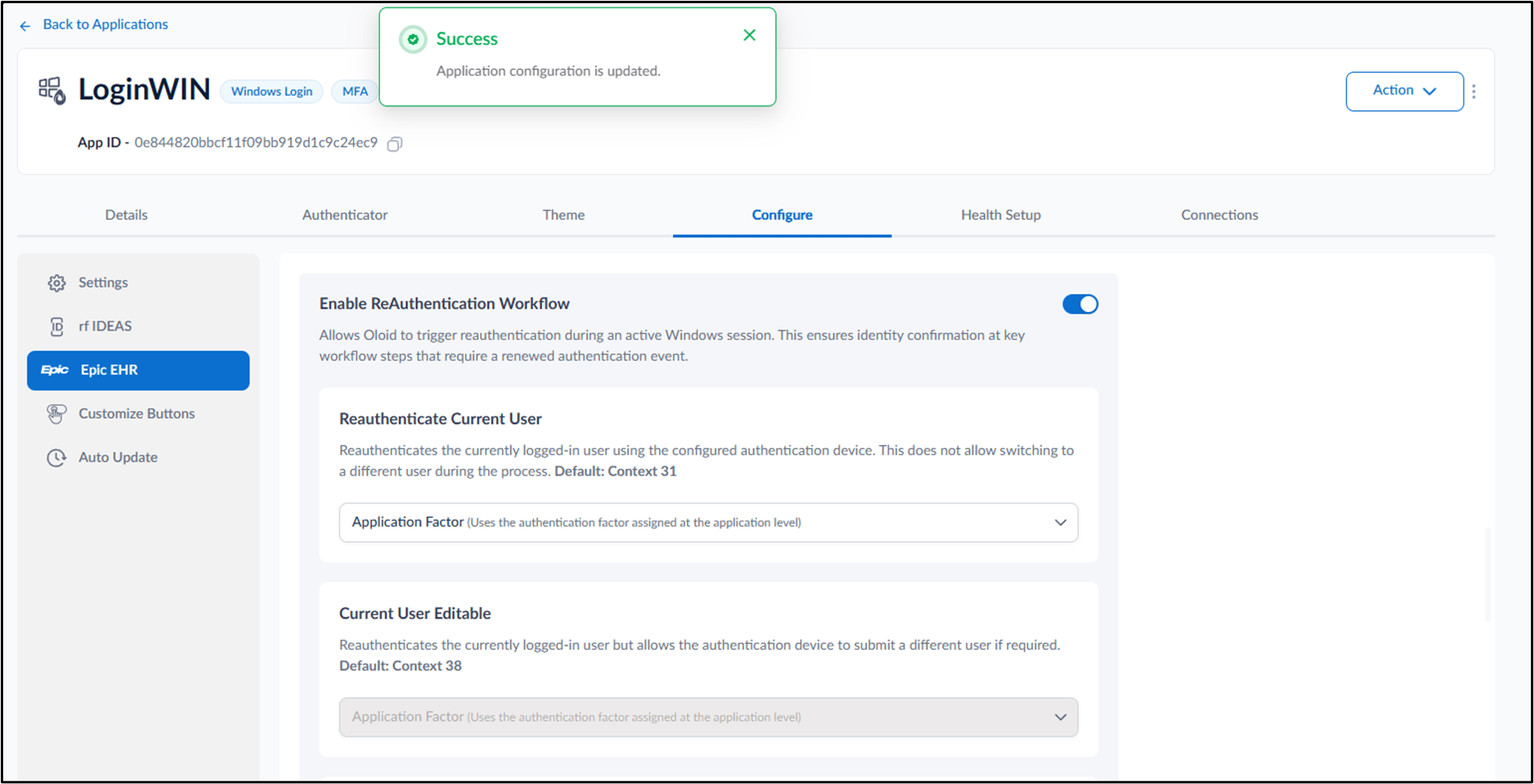
- Turn on Enable Reauthentication Workflow toggle button.

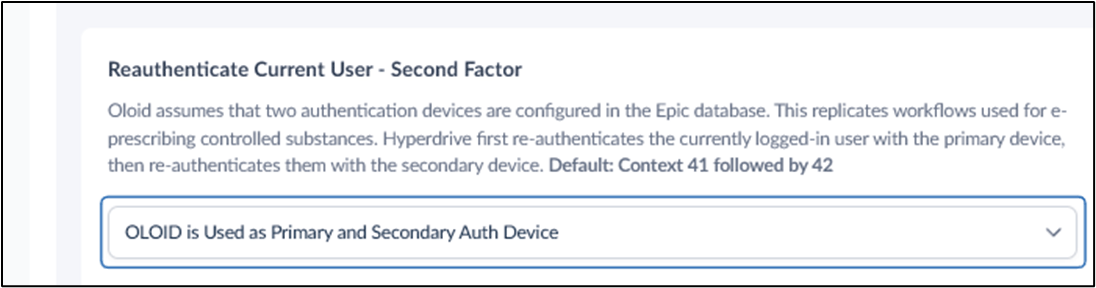
- Select Reauthenticate Current User - Second Factor.
- From the Application Factor dropdown, choose the authentication factor assigned at the application level:
- OLOID is Used as Primary and Secondary Auth Device
- OLOID is Used as Primary Authentication Device
- OLOID is Used as Secondary Authentication Device
- Click Save.
- Turn on Enable Reauthentication Workflow toggle button.