Introduction
This document provides instructions to pair a windows device using the Auto-Pair Config File in the supervisor app.Prerequisites
- You must have Admin or Supervisor credentials to perform endpoint pairing.
- You must have the Auto-Pair Config File in JSON format. To download the Auto-Pair Config File, refer to Windows Login - How to Generate and Download Auto-Pair config file for Windows Login in Tenant Admin Portal.
To Pair Supervisor App using Auto-Pair Config File
-
Double-click on the Supervisor App
 Note: The Auto-Pair Config File must be in JSON format and is available in the installer directory at
C:\OloidV2\Oloid\config. If you do not see the auto-pair option, reach out to Oloid Support. -
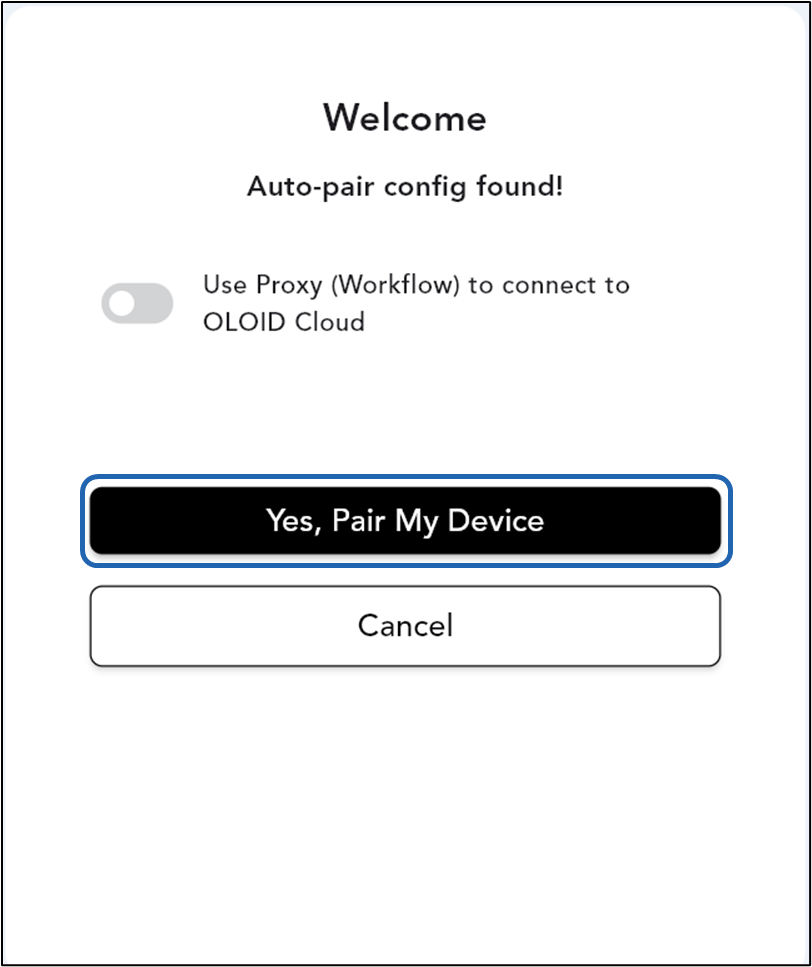
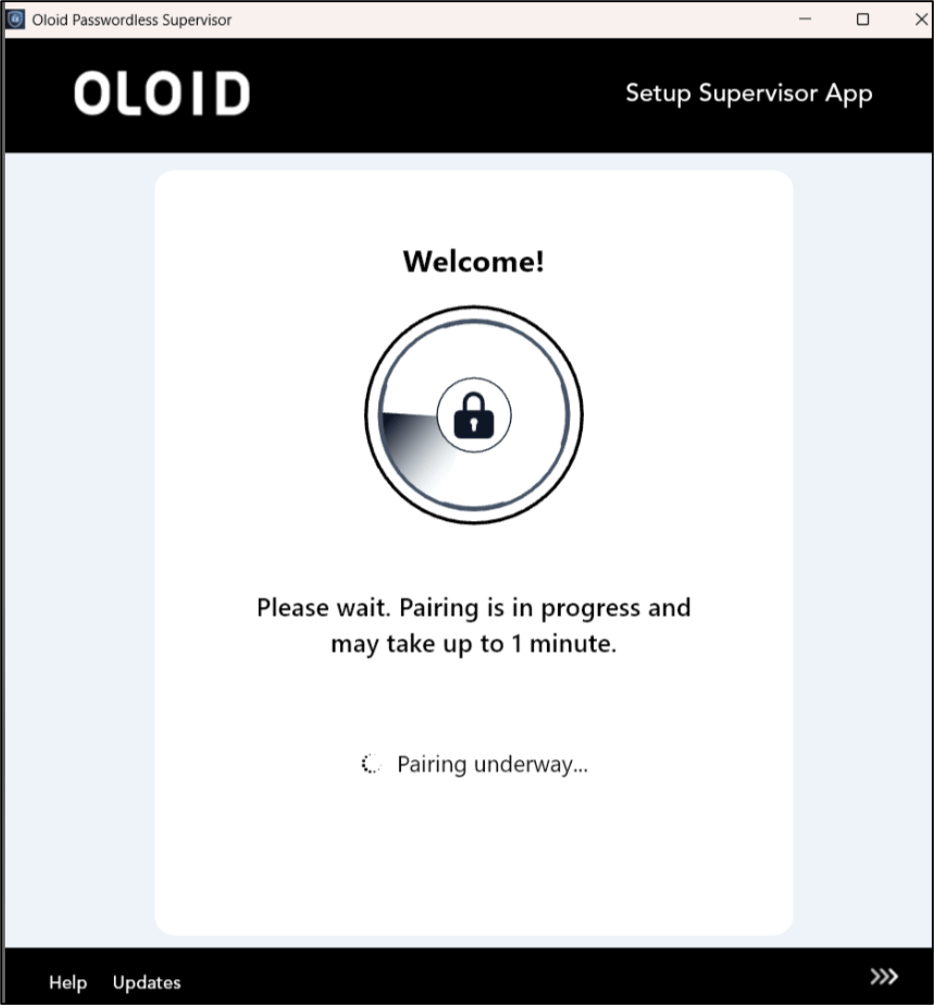
Select Yes, Pair my device to auto-pair the device.
-
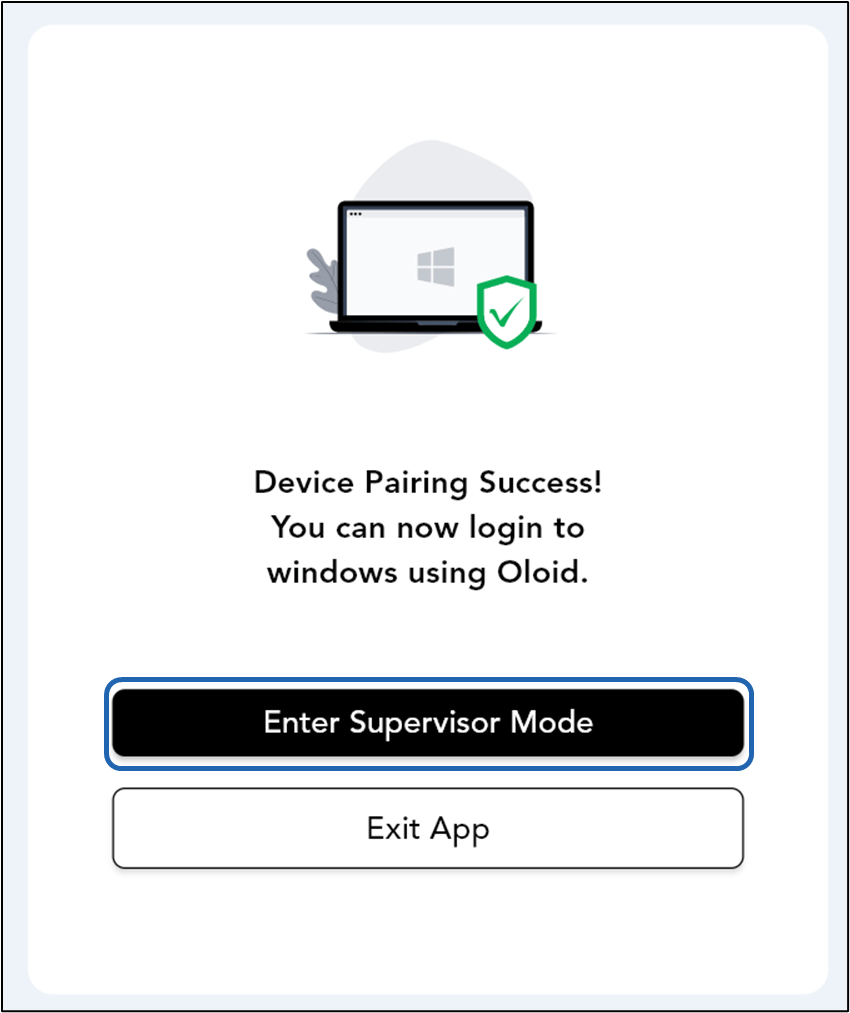
Click Enter Supervisor Mode to continue as Supervisor.