Introduction
The Add User feature in the Supervisor App allows authorized Admins and Supervisors to create user accounts directly from a paired Windows endpoint.Prerequisites
- Ensure the endpoint is paired with the Windows Login application.
- Log in to the Supervisor App using an Admin or Supervisor account. For more, refer How to log in to Supervisor App
- Ensure the required Add User privilege is enabled for the Supervisor. Without this privilege, Supervisors can only view users and their details.
- Ensure the Add User action is enabled for the application in the Tenant Admin Portal. If the Add User button is unavailable, contact your Tenant Admin. For more information, refer How to Activate Add User Action on the App for Supervisor guide.
- Ensure at least one connection is configured for the selected application in the Tenant Admin Portal.
Steps to Add User
- Log in to Supervisor App. The Admin Home screen is displayed.
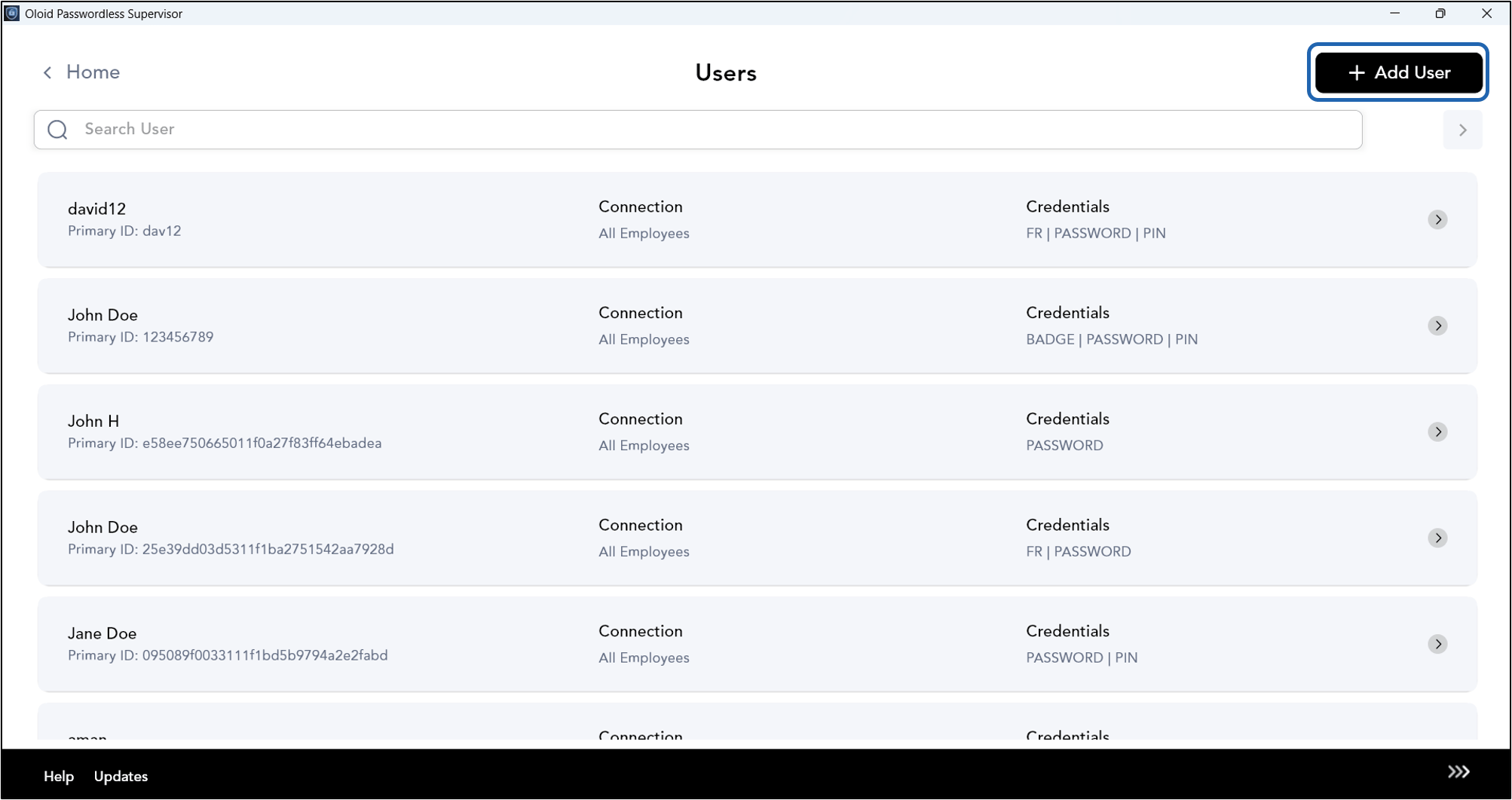
- Click User Management.

- Select +Add User at the top right.
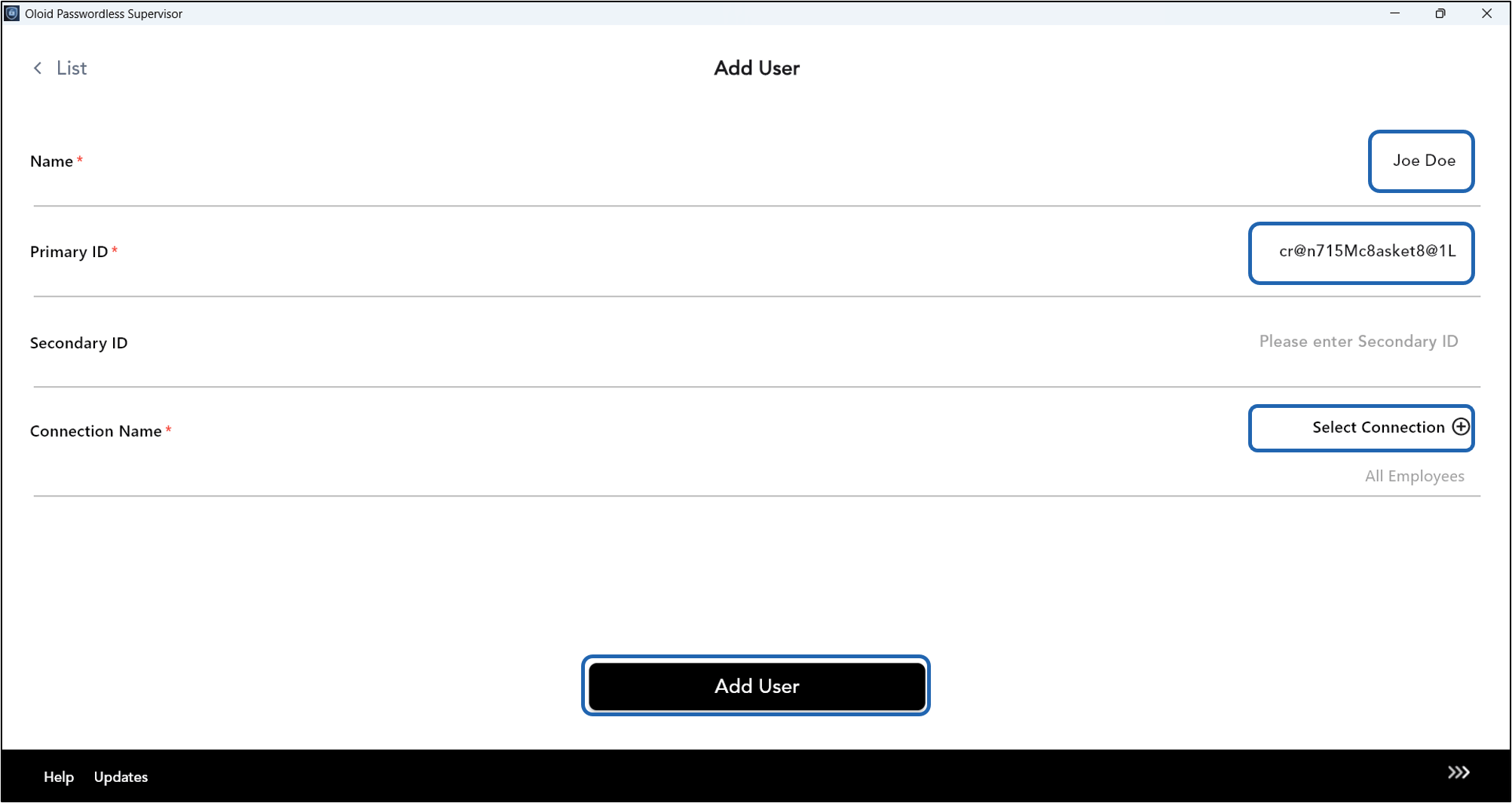
- Do the following:
- Enter Name.
- Enter Primary ID.
- Enter Secondary ID ( Optional)
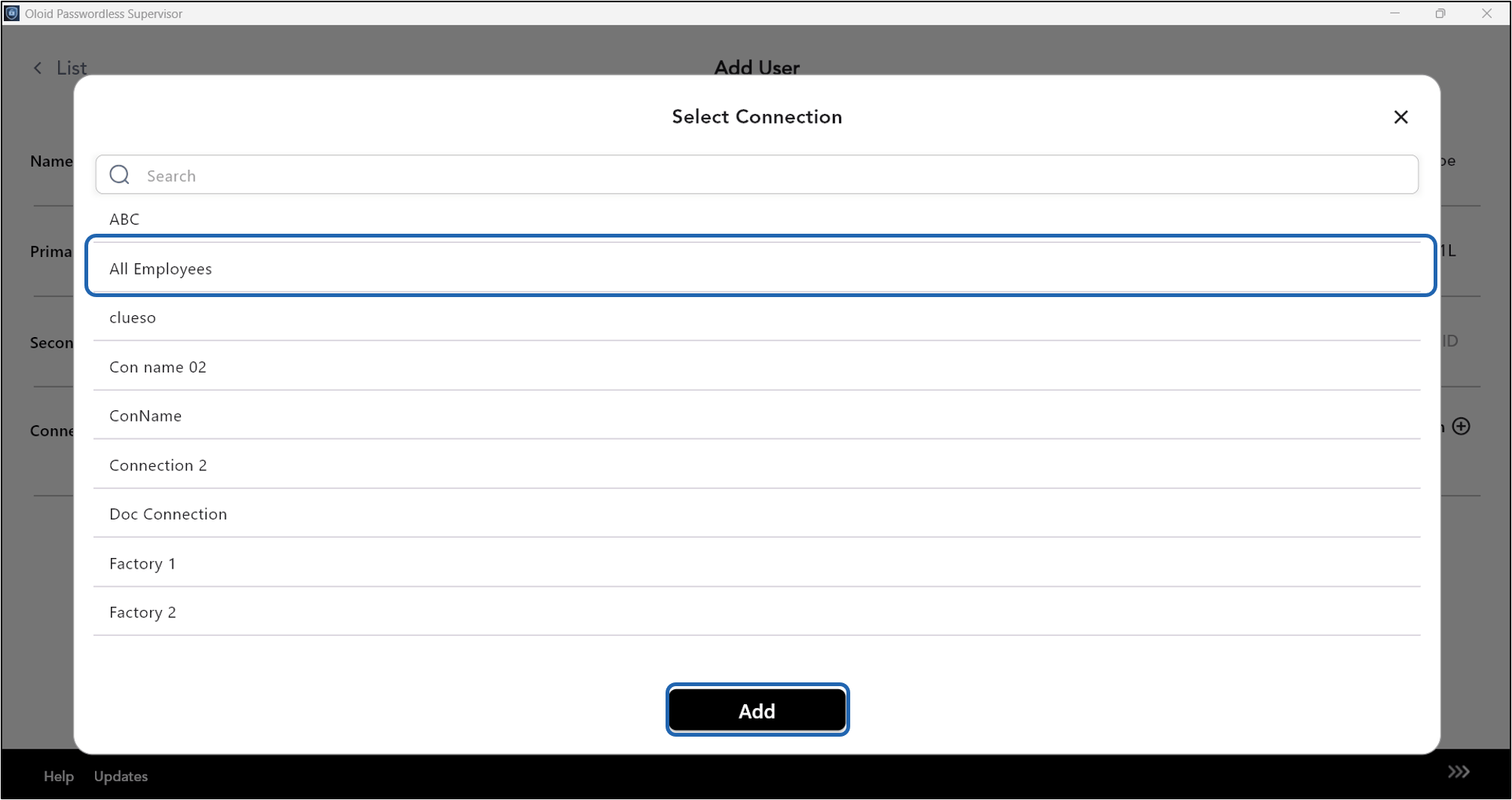
- Click Select Connection.
- Do the following:
-
Select Connection from the list.
Note: You must add connection(s) to the selected application in the Tenant Admin Portal.
-
Click Add.
-
Select Connection from the list.
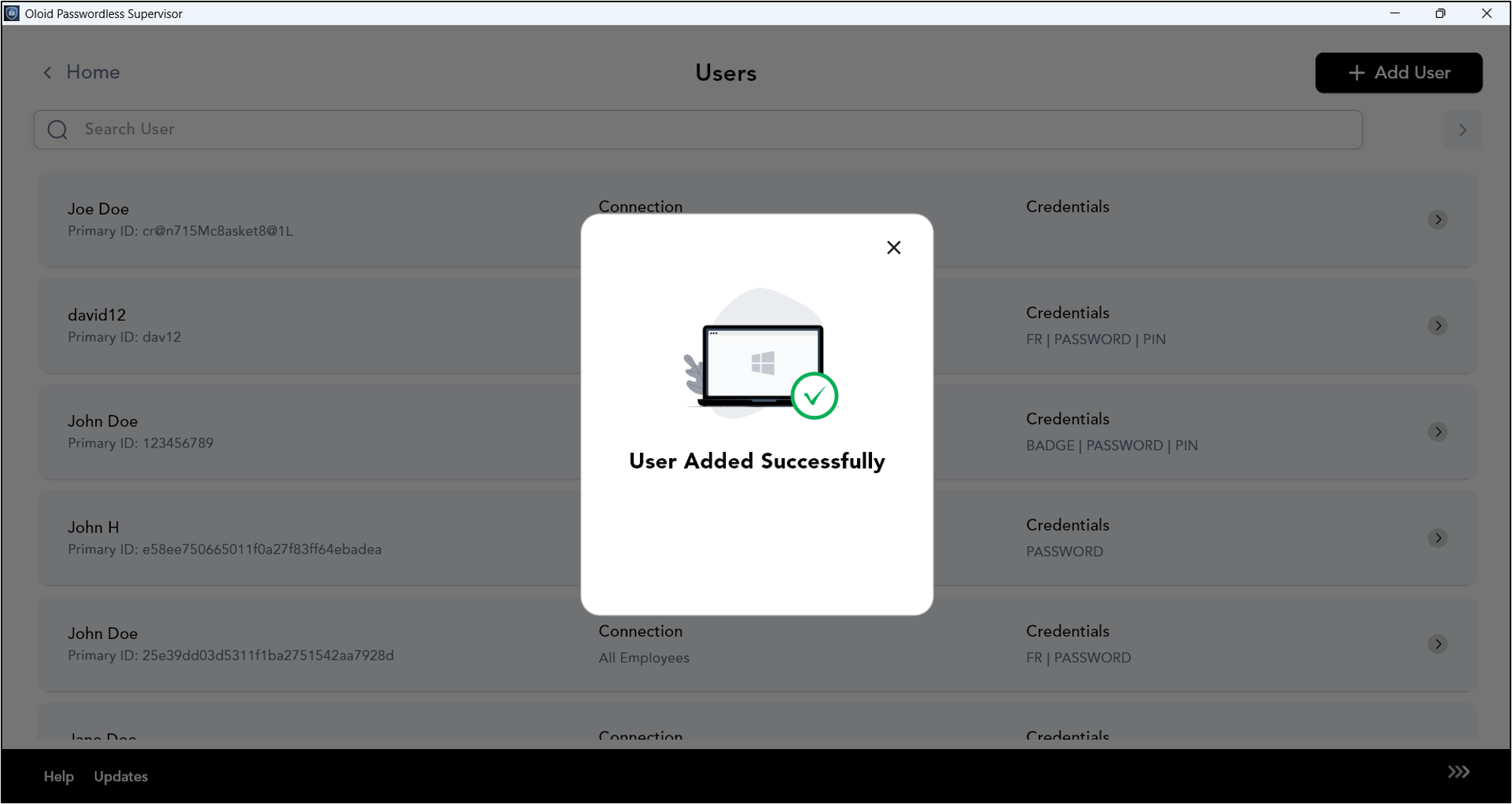
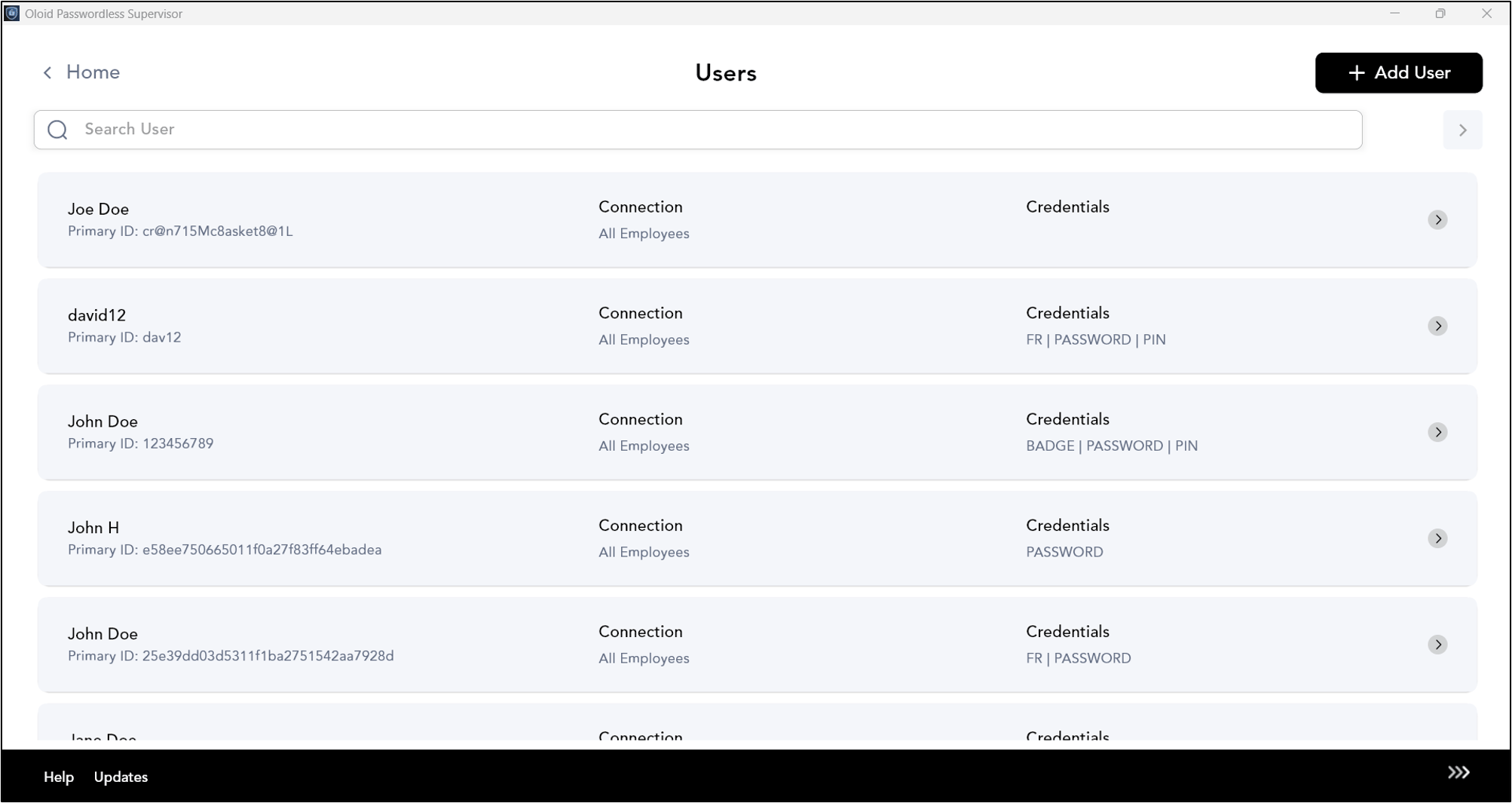
- Click Add User.