

- Log in to Oloid Portal.
- On the homepage, select Endpoint from the left menu panel.
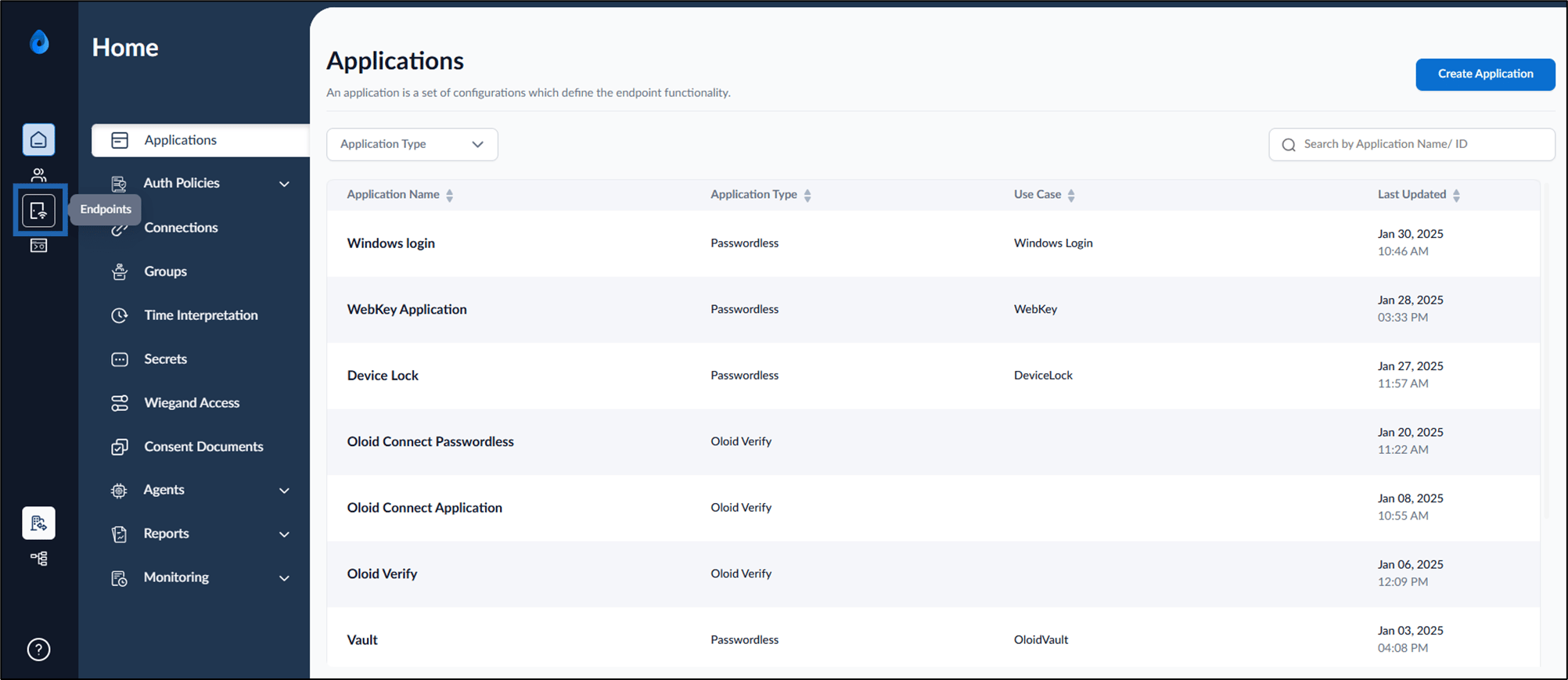
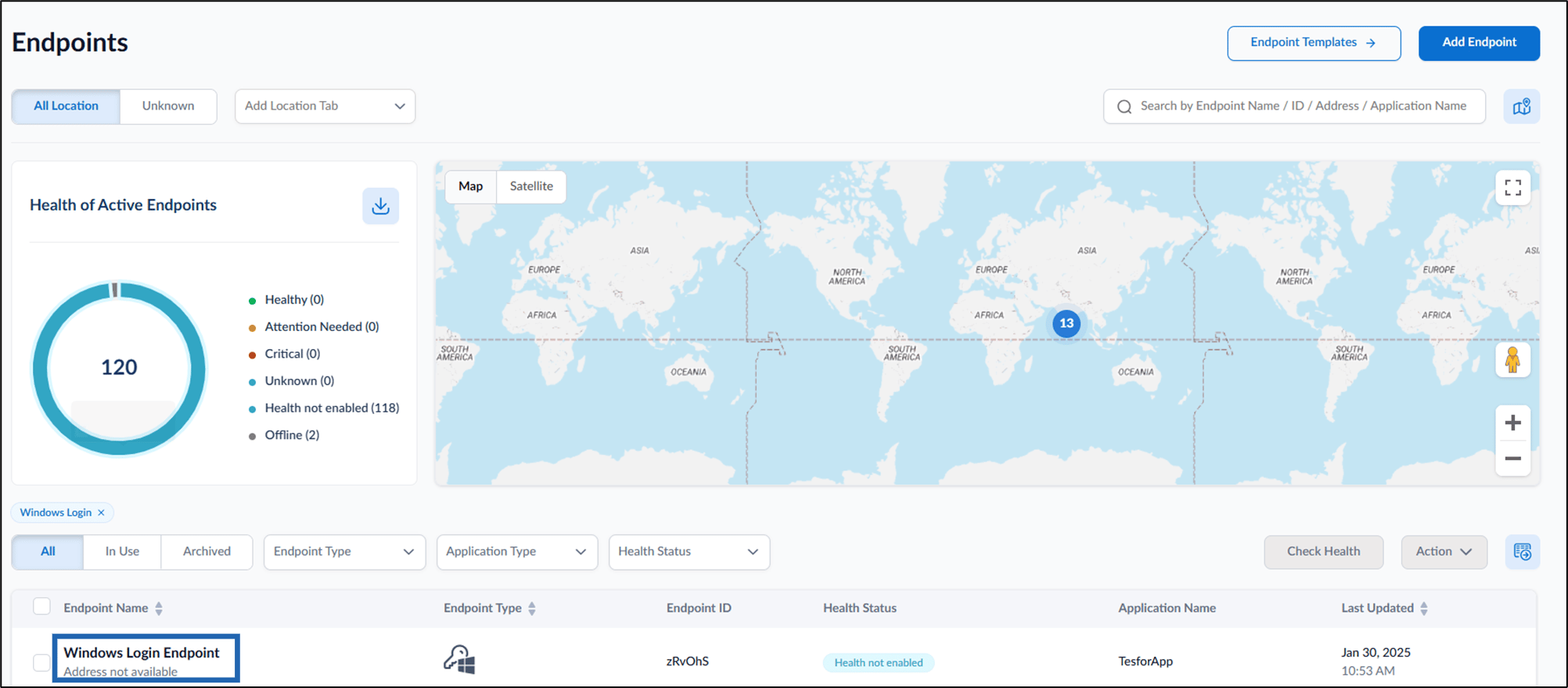
- Select an endpoint (Windows Login) to edit.
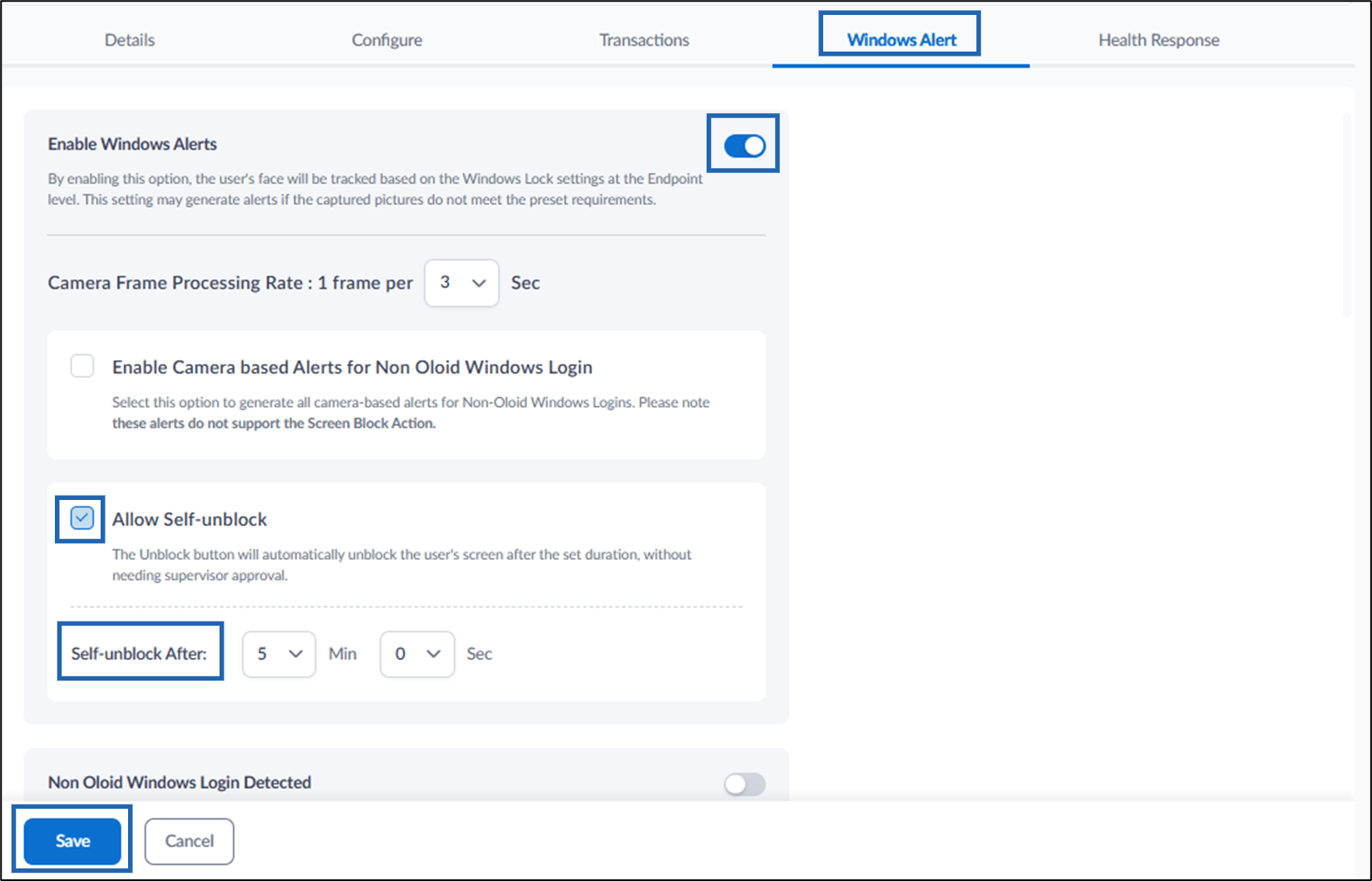
- Go to Windows Alert tab and do the following
- Turn on Enable Windows Alert.
- Select Allow Self-unblock.
- Set the duration in Self Unblock After field after which the user can automatically unblock themselves without supervisor approval.
- Click Save.
Windows Login (Presence Detection) : Platform Configuration for self unblock
The self-unblock feature in Windows Login app (Presence Detection) automatically unlocks the user’s screen after the specified duration, eliminating the need…
Introduction:
The self-unblock feature in Windows Login app (Presence Detection) automatically unlocks the user’s screen after the specified duration, eliminating the need for Supervisor approval.
Steps to configure self unblock:
⌘I