Introduction
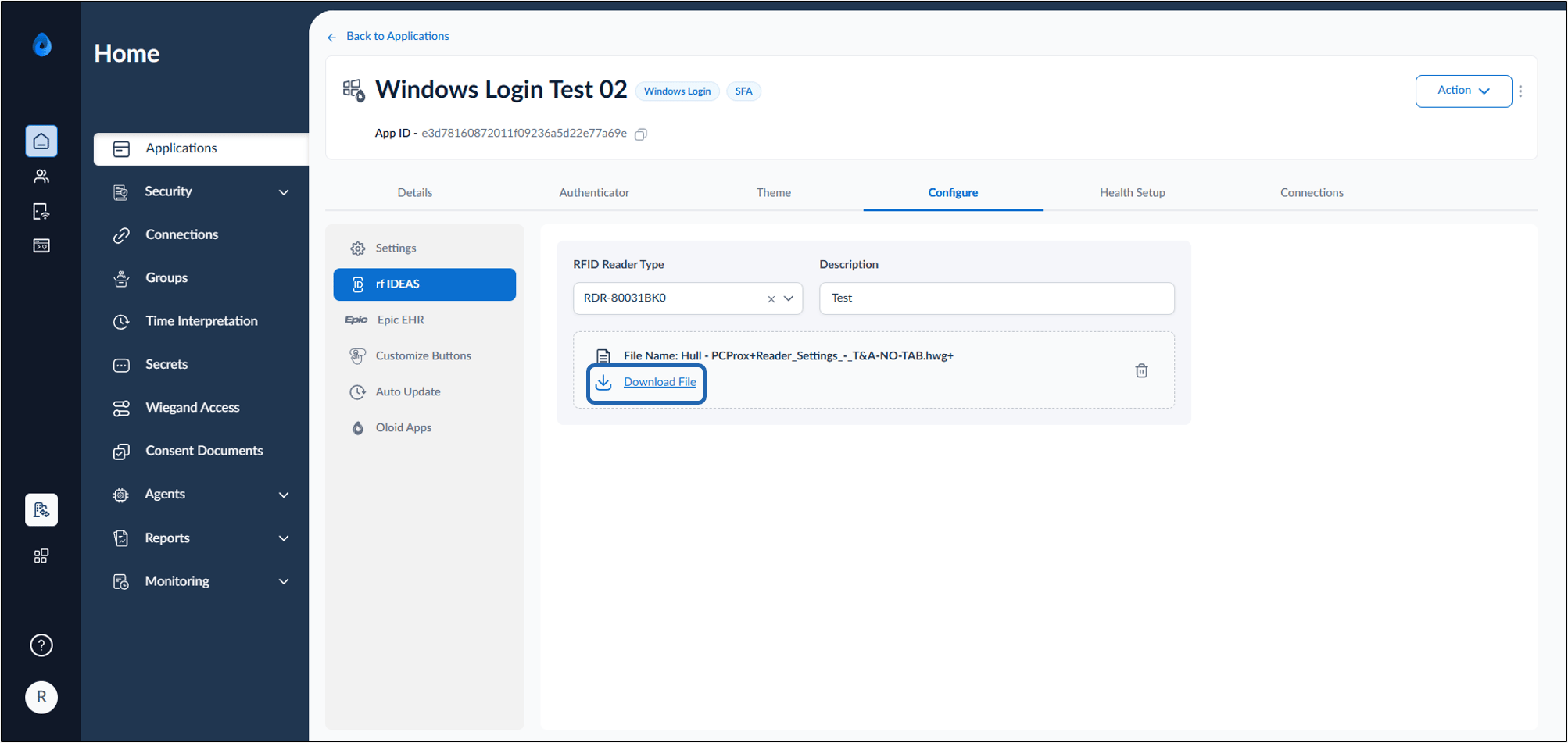
The rf IDEAS settings allows the Tenant Admin to upload and manage HWG (Hardware Configuration) files for supported RFID readers used with the Supervisor App. Uploading the correct HWG file ensures the RFID reader is configured correctly for badge enrollment and authentication. You can also download the currently configured HWG file for backup or reuse. Uploading HWG file Downloading HWG filePrerequisites
- You must have access to the Tenant Admin Portal.
- Ensure a Windows Login application is created in the Tenant Admin Portal.
- Ensure the required HWG file is available before starting the upload.
Steps to Upload HWG file
- Log in to the Tenant Admin Portal. The Application Detail page is displayed.
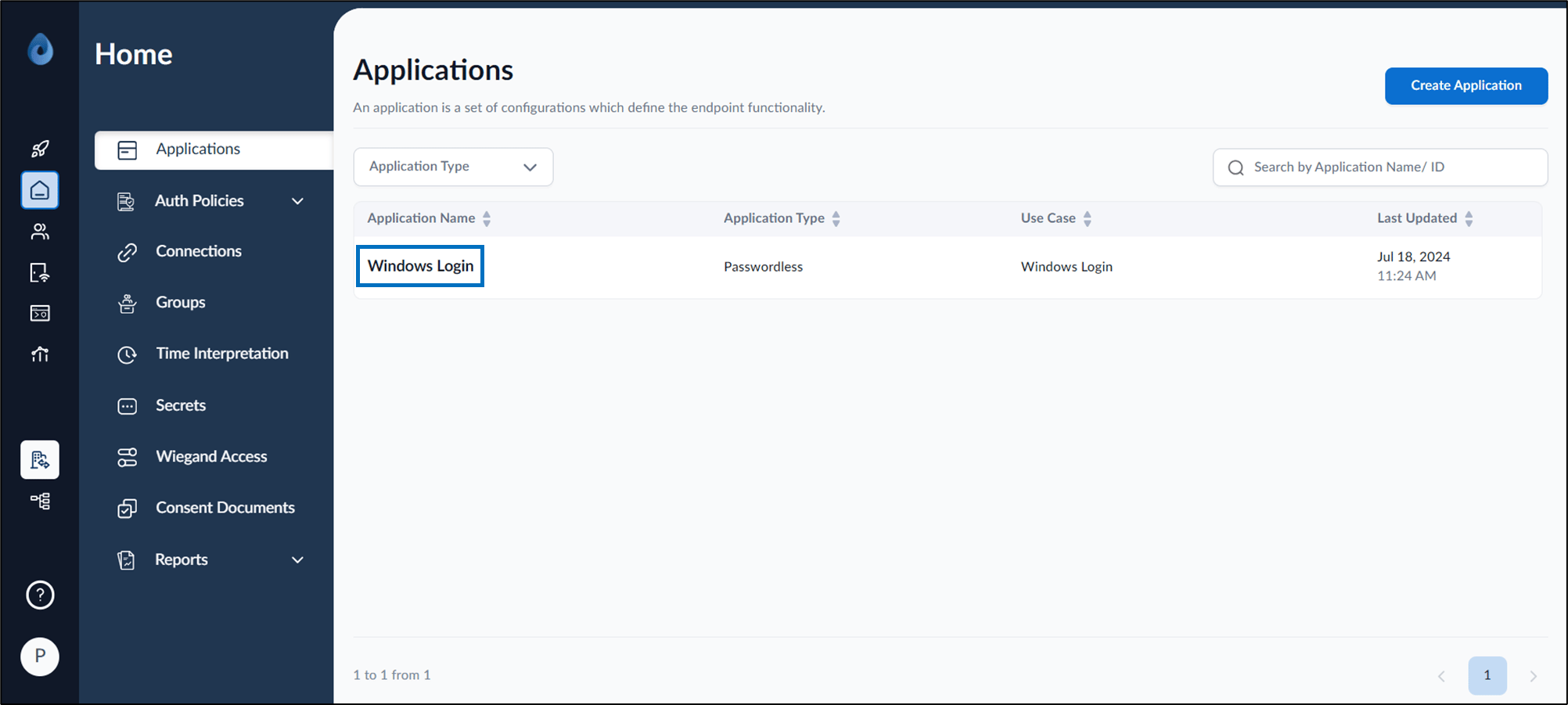
- Select the Windows Login application configured for the Supervisor App.
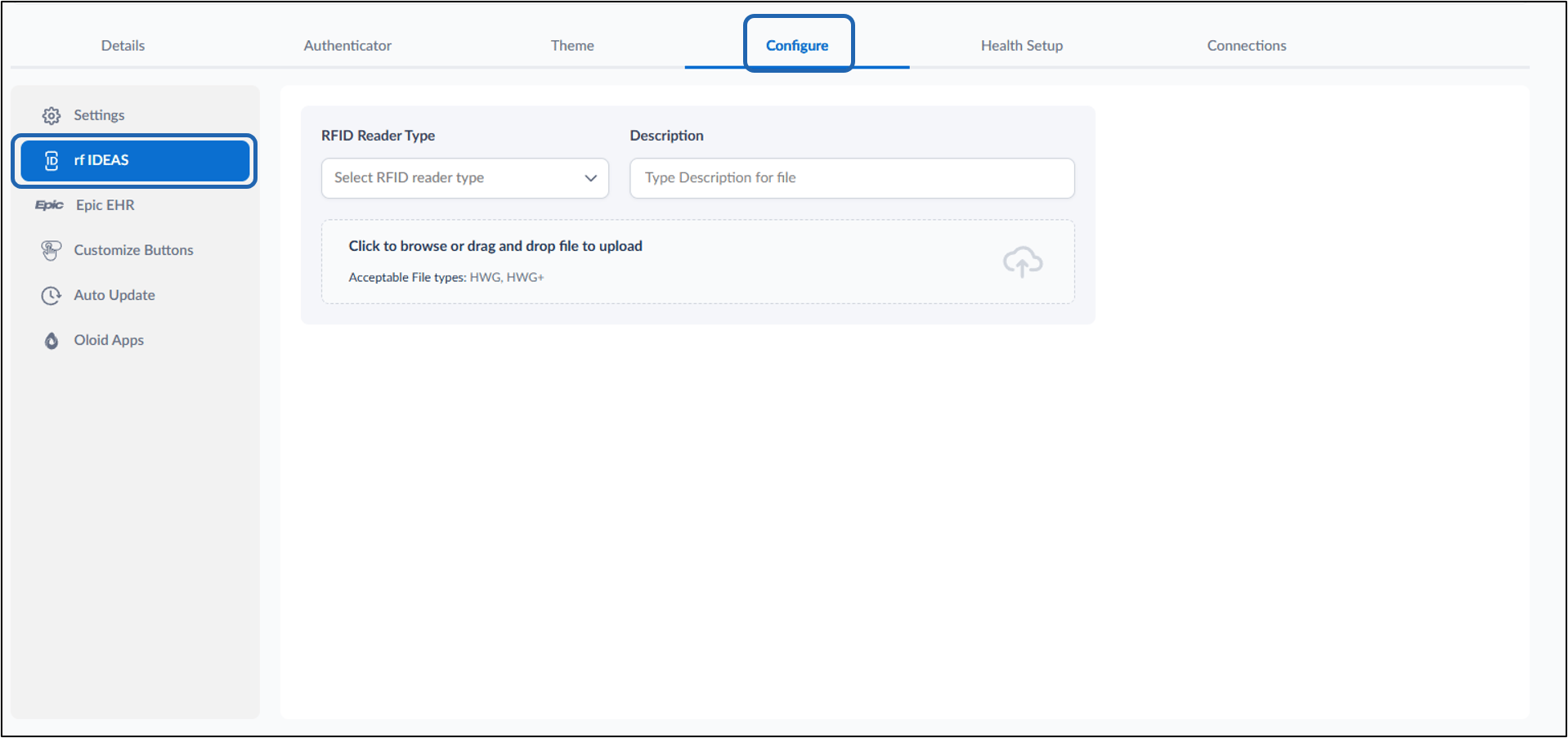
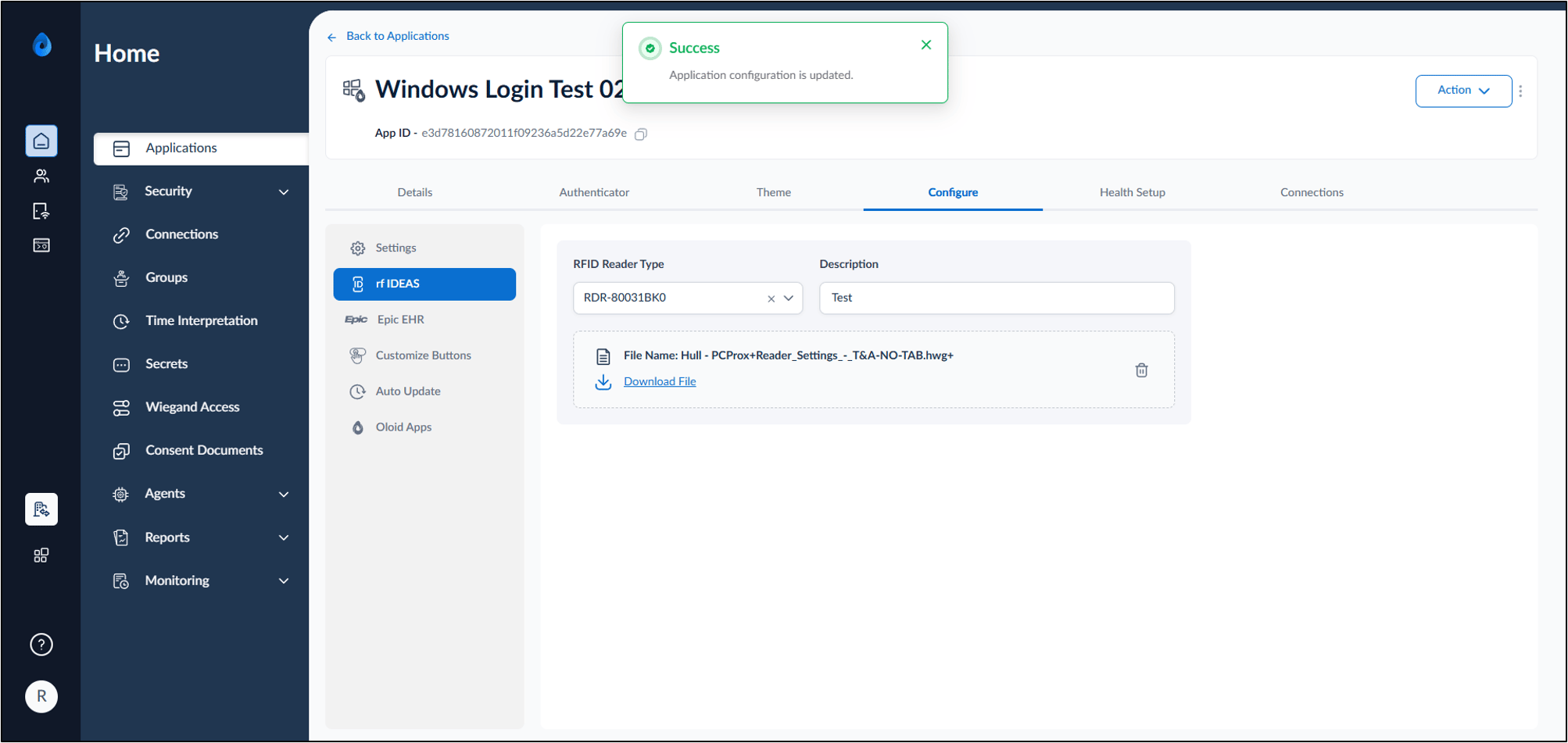
- Go to Configure tab > rf IDEAS.
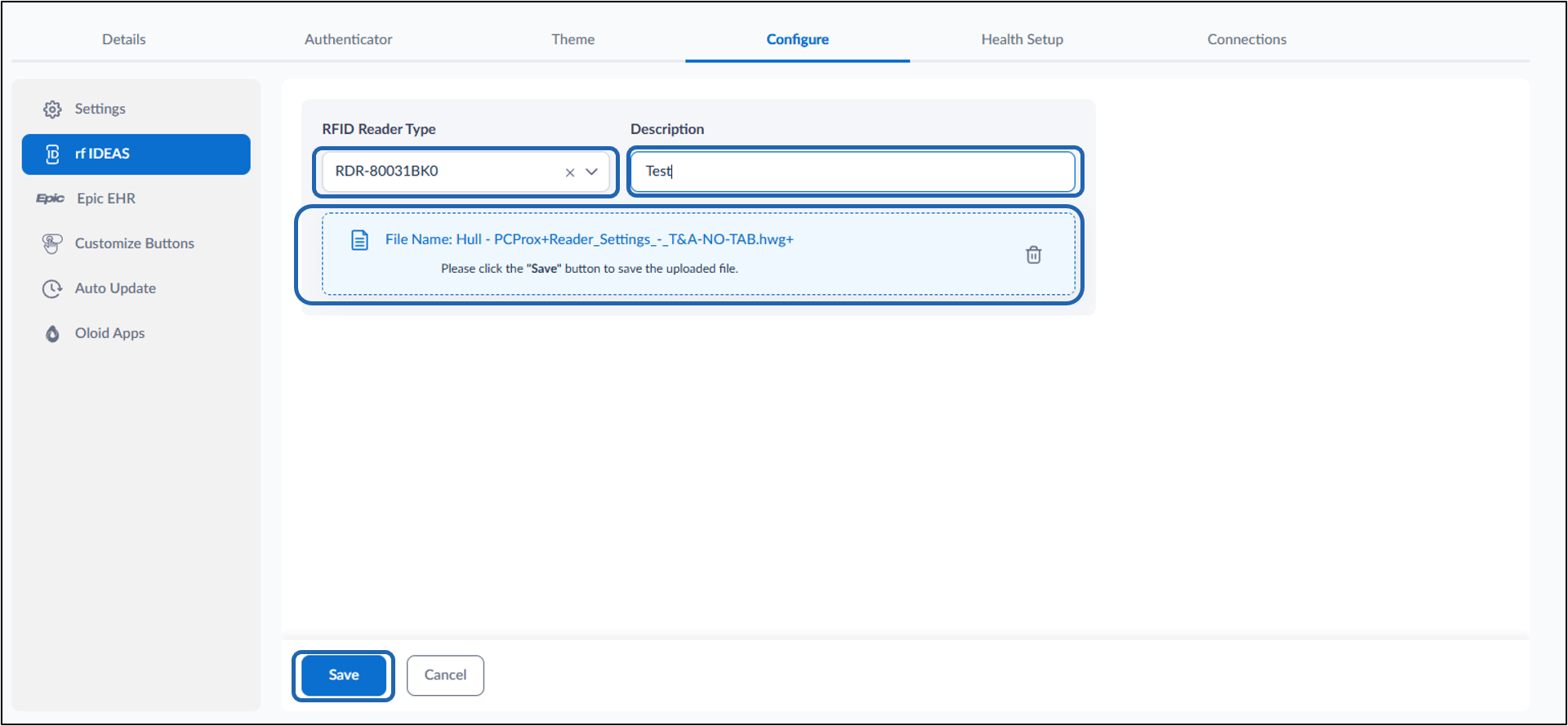
- Do the following:
- Select an RFID reader type from the RFID Reader Type drop-down list.
- Enter Description. (Optional)
- Click the upload area to browse for the HWG file, or drag and drop the file into the upload area.
- Click Save.
Steps to Download HWG file
- Log in to the Tenant Admin Portal. The Application Detail page is displayed.
- Select the Windows Login application configured for the Supervisor App.
- Go to Configure tab > click rf IDEAS.
- Click Download File to download the HWG file to your local device.