Steps to download Windows Authenticator App
- Log in to Oloid Portal.
- On the home page of the Oloid Portal, do one of the following to download the Windows Authenticator App:
- Using File Sharing tab Navigate to User Profile Menu > Tenant Setting > Oloid Apps tab > download Windows Authenticator App.For more details, see Download from File Sharing
- Using Tenant Settings tab Navigate to User Profile Menu > File Sharing. For more details, see Download from Tenant Setting
Steps to install Windows Authenticator App
-
Download Windows Authenticator App file on your system.
Note: Select the version as advised by your Oloid Rep.

- Right-click and select Extract All > OloidPasswordlessSupervisor.Setup.zip file. The extracted files will be saved in the same folder as the original zipped file.
-
Double-click on setup.exe file.
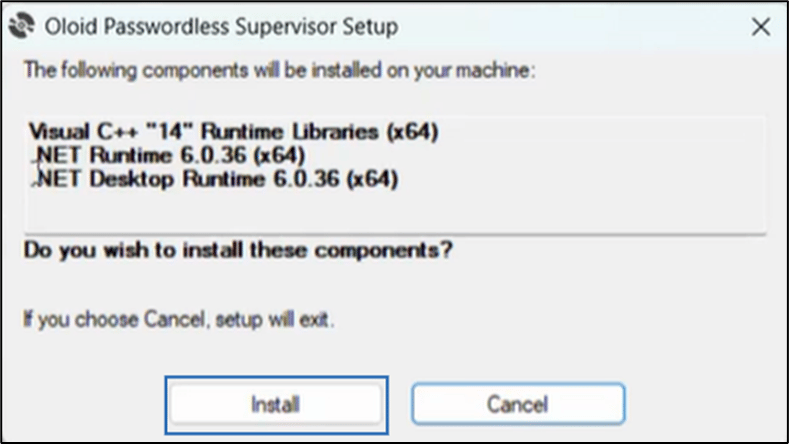
The Oloid Passwordless Supervisor Setup window is displayed.
-
Review the listed components and click Install to proceed.
Note: If any of the files are missing, the application prompts to install the missing component.
-
On the Oloid Passwordless Supervisor Setup wizard, click Next.

-
Use the default path to install the application and click Next.
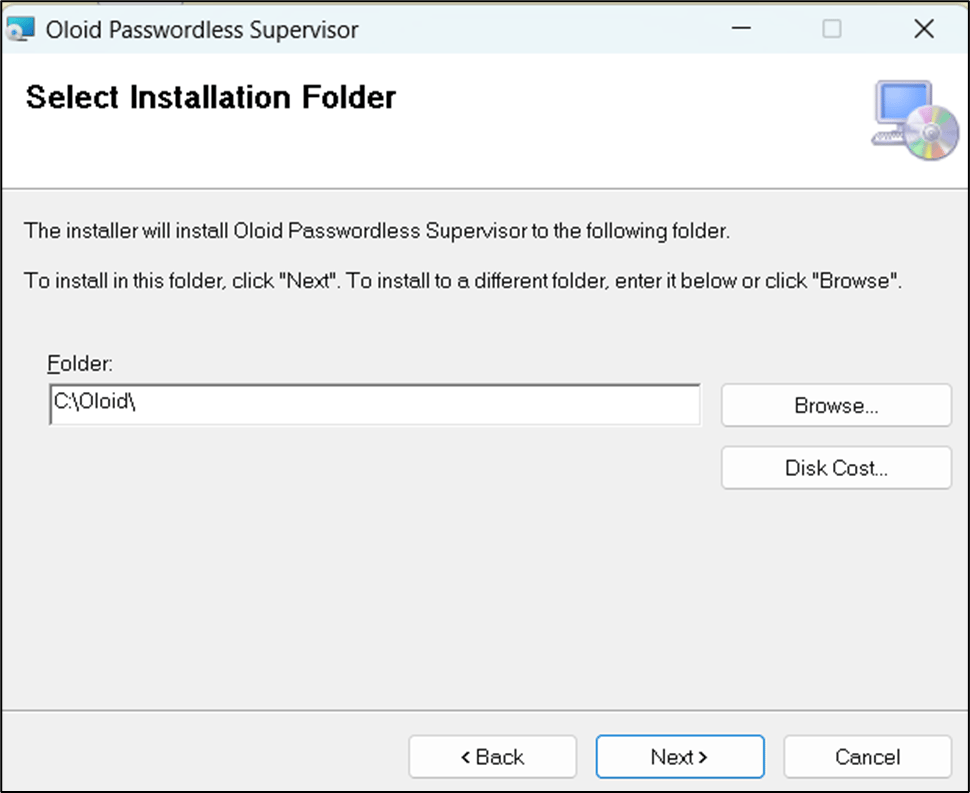
-
Click Next to confirm the installation.

-
Click Close after the installation is complete.


Steps to auto-pair the Windows Authenticator App
- On the Windows lock screen, do the following:
- Click Sign-in options.
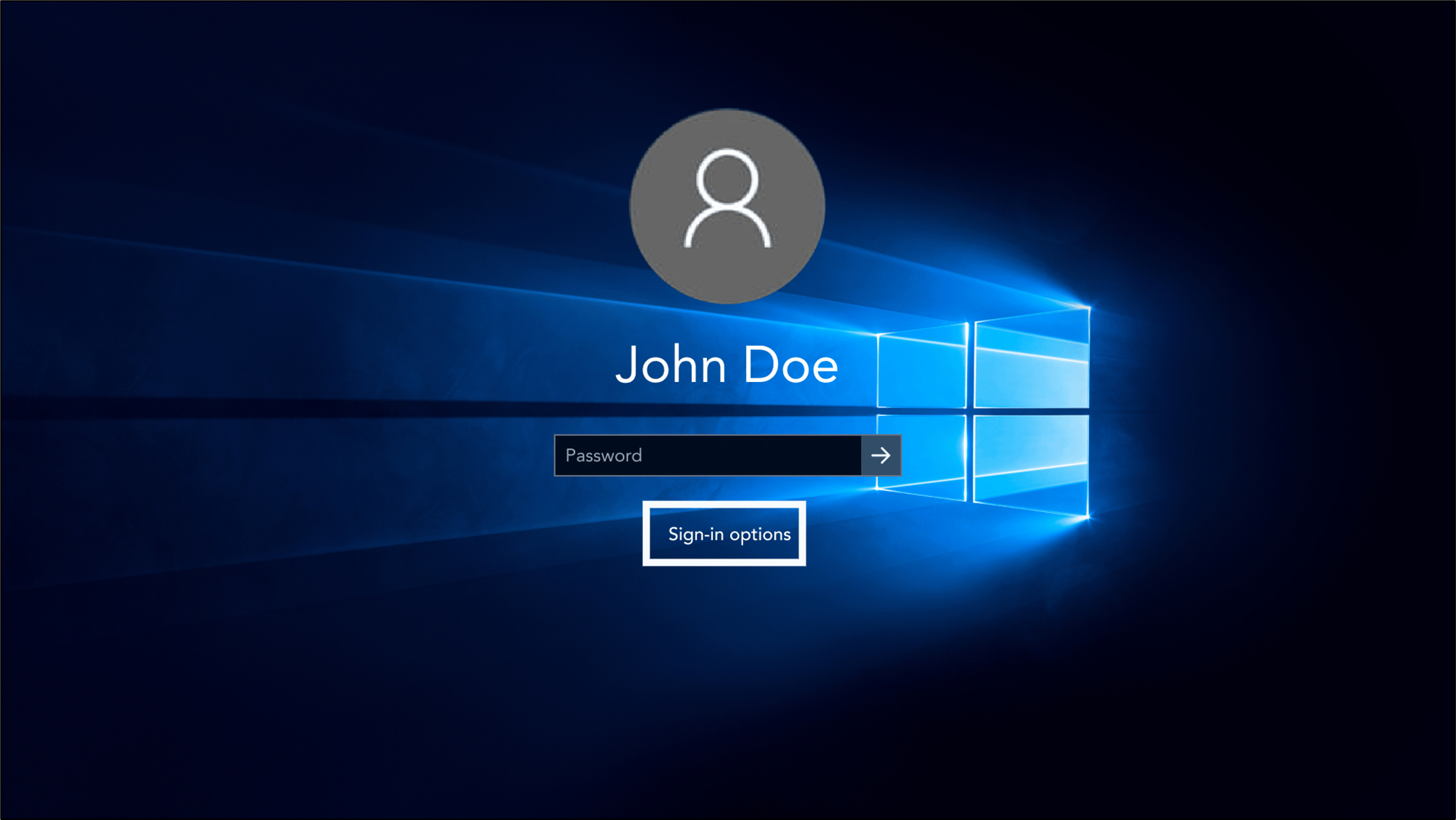
- Select Windows login app.

- Select Login with OLOID.

- Click Sign-in options.
- Select Yes, pair my device to auto-pair the device.

-
On the desktop, double-click on the Windows Authenticator App
 icon to start.
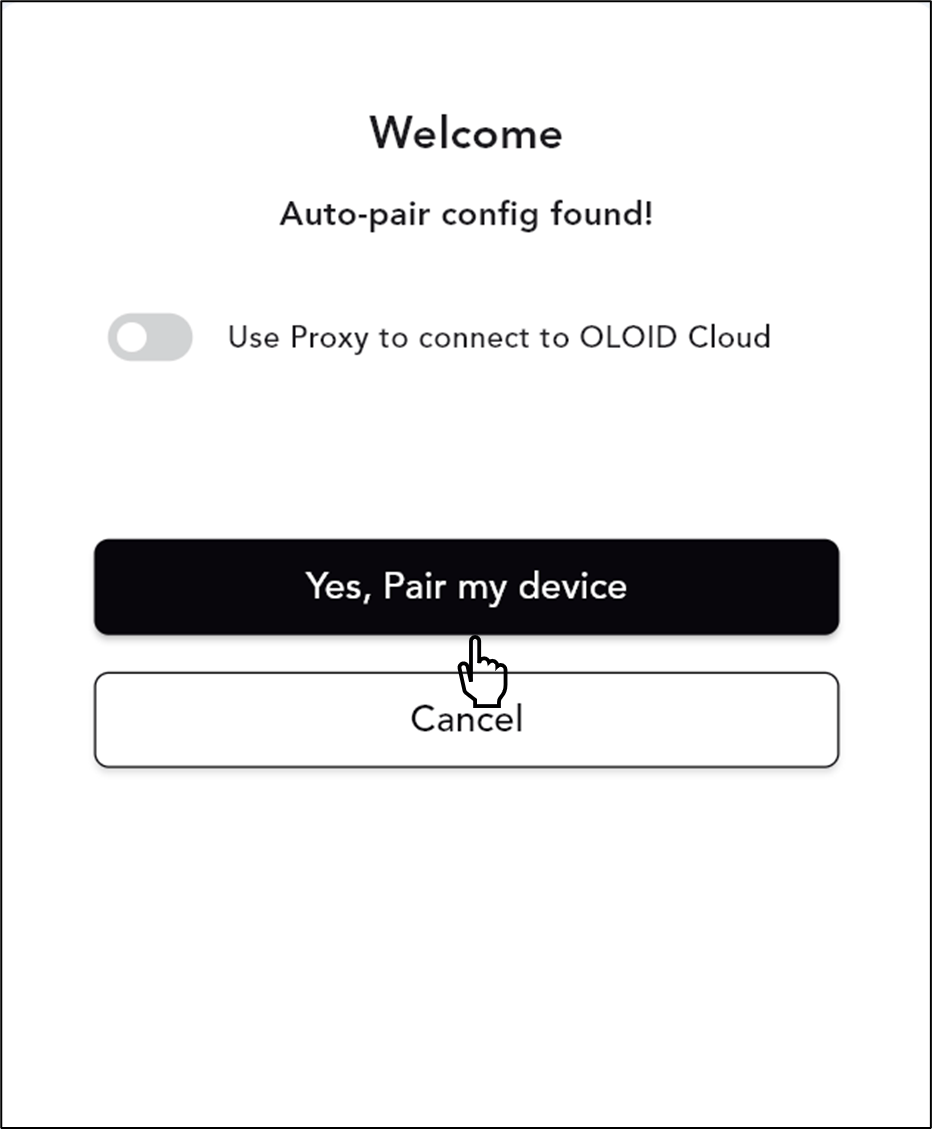
The Welcome screen is displayed. You can see the “Auto-pair config found!” message.
You can also manually pairyour Supervisor app incase auto pair fails.Note: The auto-pair config file is present in your installer file (Installer path\Oloid\Oloid\config). Reach out to Oloid Supportif you do not see auto-pair option.
icon to start.
The Welcome screen is displayed. You can see the “Auto-pair config found!” message.
You can also manually pairyour Supervisor app incase auto pair fails.Note: The auto-pair config file is present in your installer file (Installer path\Oloid\Oloid\config). Reach out to Oloid Supportif you do not see auto-pair option. -
Select Yes, Pair my device to auto-pair the device.