Introduction
This method requires the logged-in user to verify their identity again using a factors selected under the reauthentication workflow configuration.Prerequisites
- You must have access to Epic Hyperspace.
- Epic Vault Password must be created for the user. Refer: How to create Vault Password for a user
- The badge reader must be connected to the Windows system.
- Ensure the Tray application is running in the background.
- Badge must be assigned to the user. Refer: How to assign Badge ID as credential to users
- The PIN must be enabled and assigned to the user. Refer: Tenant Admin Portal - How to Configure PIN
Steps to Reauthenticate current user in Epic Hyperspace
-
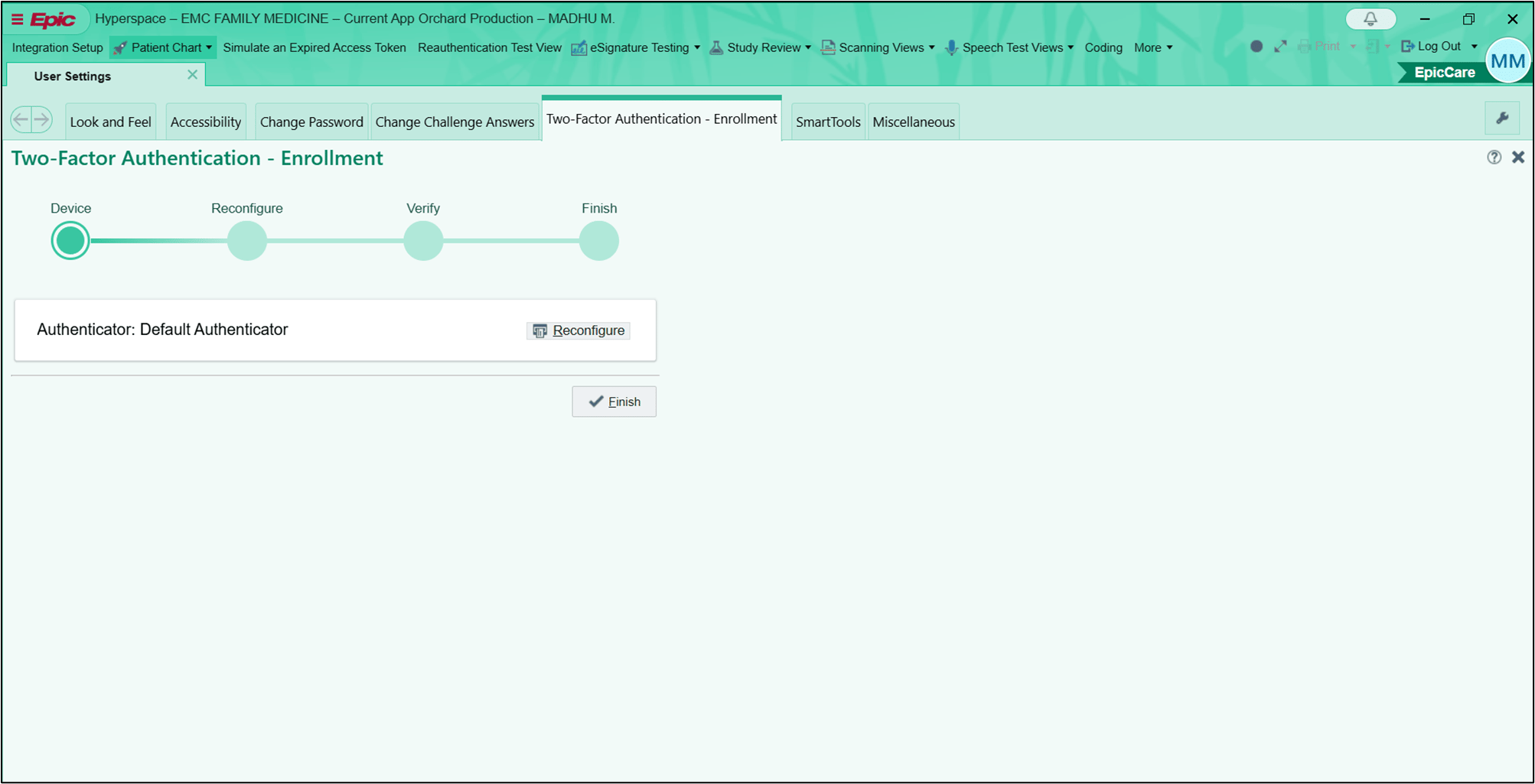
Log in to Epic Hyperspace application on your Windows Machine. refer: How to log in to Epic Hyperspace using Badge ID + PIN
The Epic Hyperspace home page is displayed.
-
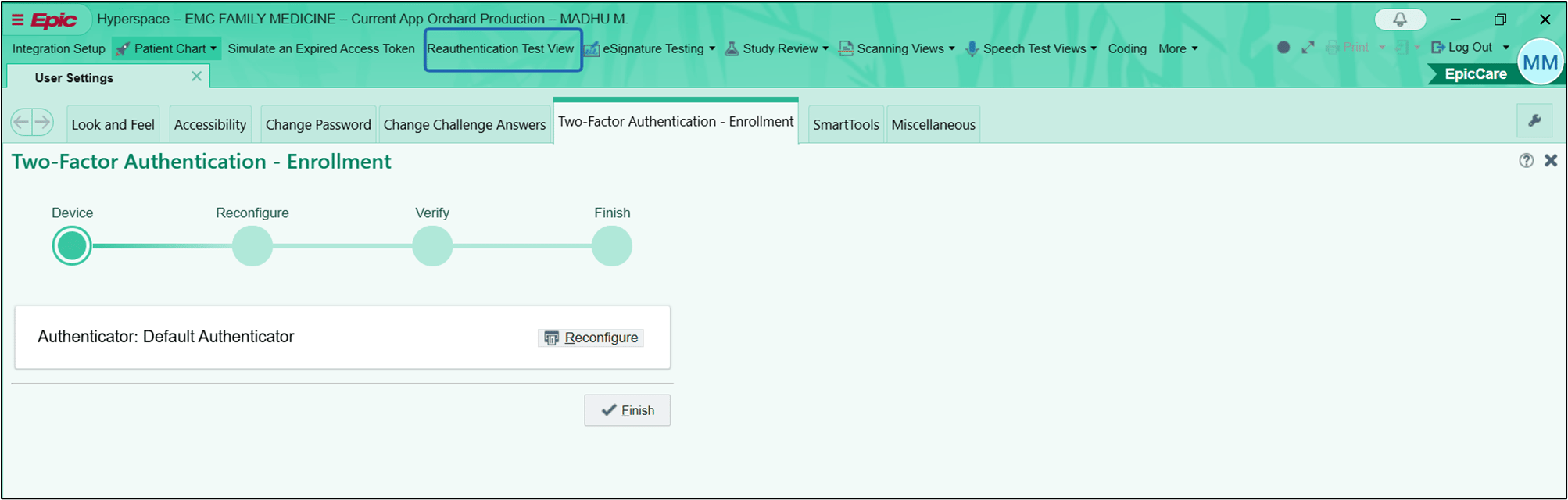
On the top menu panel of the homepage, click Reauthentication Test View.
-
Click Reauthenticate Current User - Second Factor.
 Note: Authentication is based on the factor selected in Reauthenticate Current User (Second Factor) under the reauthentication workflow. Contact Support if no authentication method appears.
 -
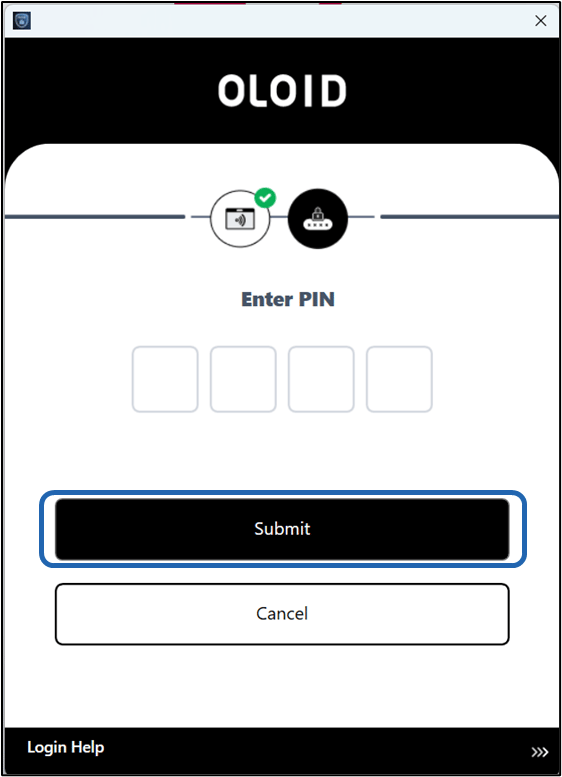
The current user must enter the PIN > click Submit.
Note: The current user (the user already logged into Epic Hyperspace) must authenticate.
-
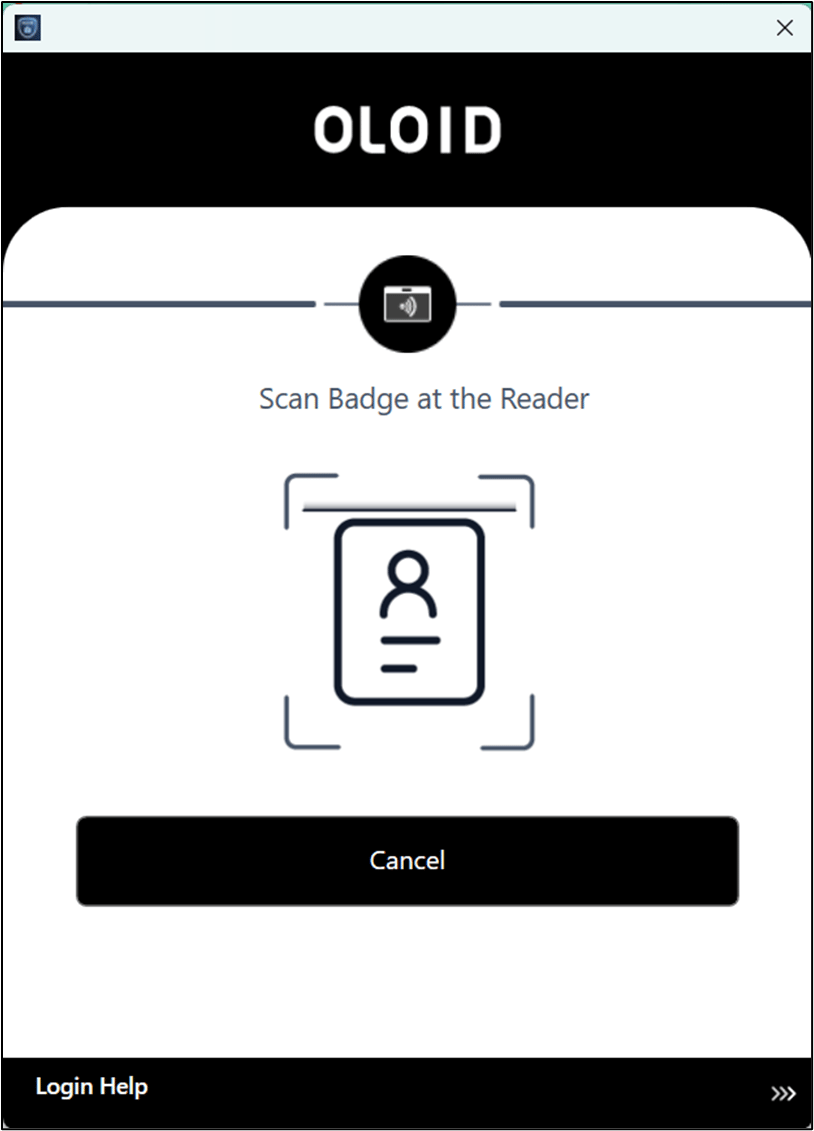
The current user must tap the Badge on the Badge Reader to scan it.
-
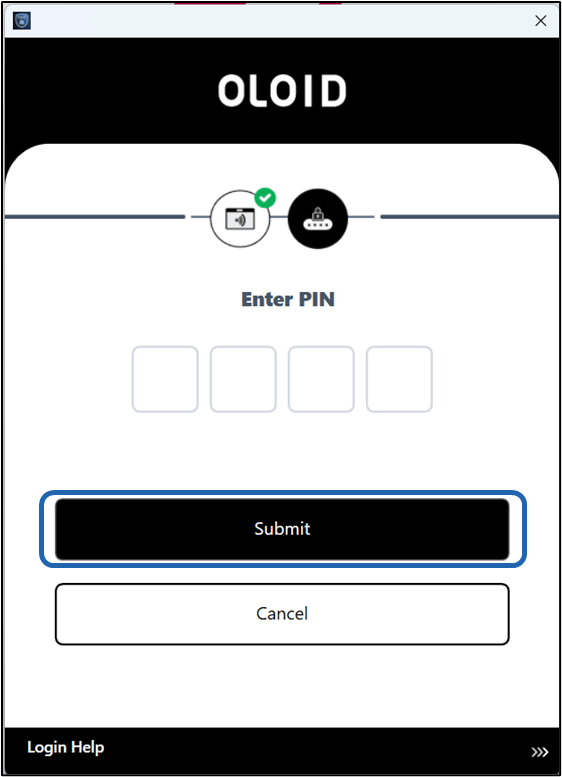
The current user must enter the PIN > click Submit.
Note: Authentication mode is based on Application factors configured for you.
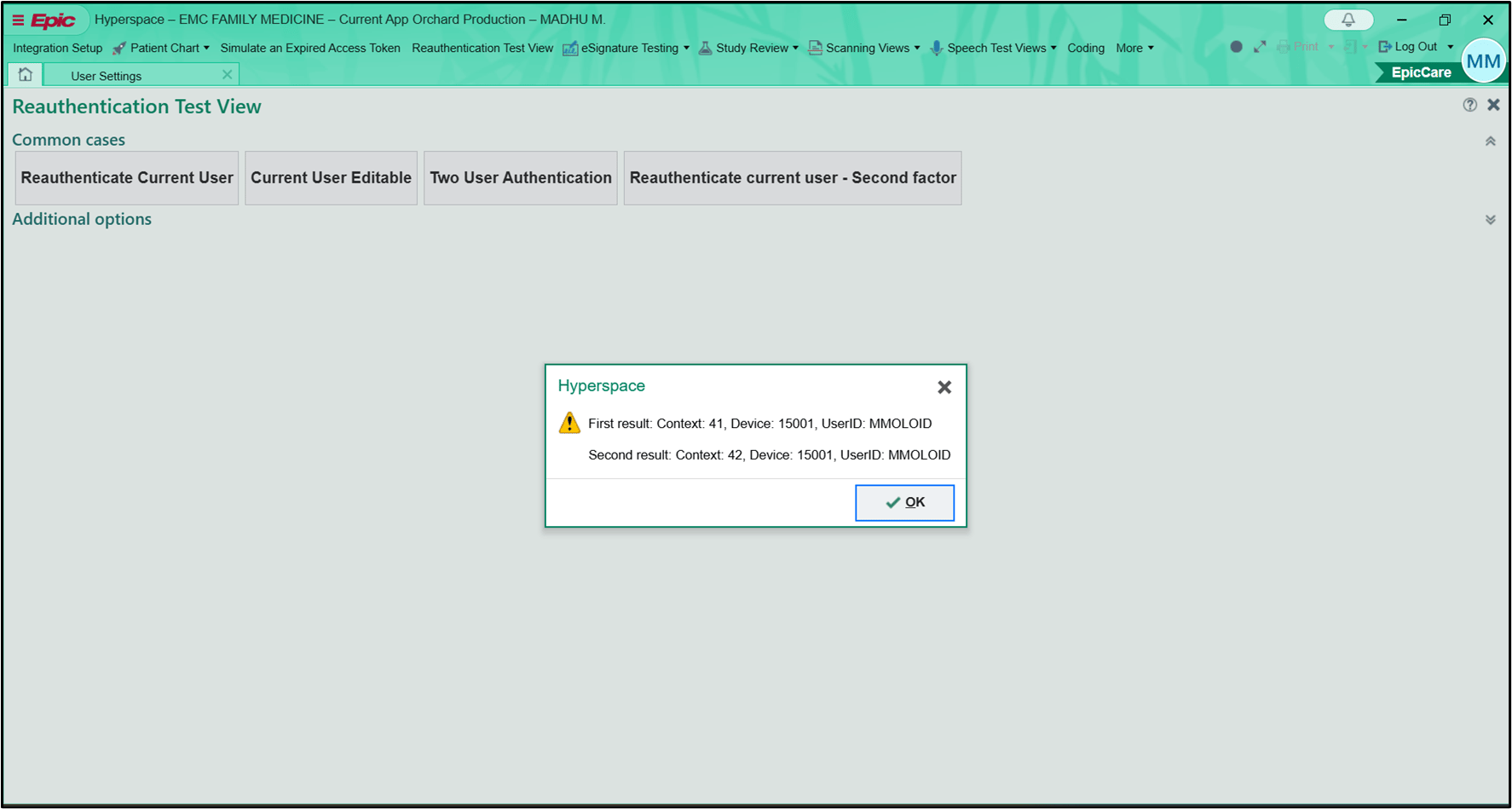
- Hyperspace pop-up box is displayed. Click Ok The current user is successfully reauthenticated.