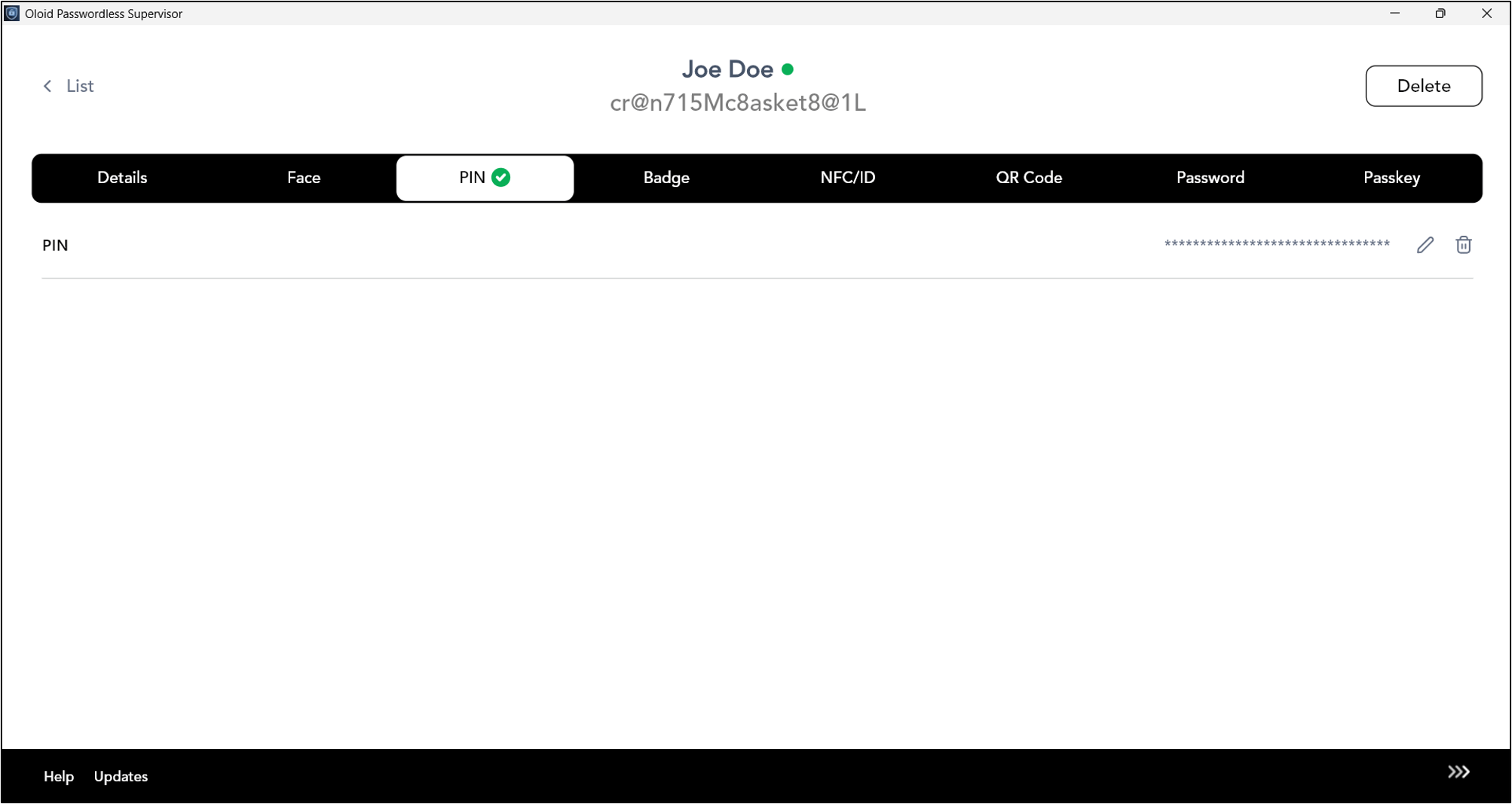
Introduction
Admin and Supervisor can create a PIN for a user through the Supervisor App and optionally share it with the user via email.Prerequisites
- Ensure the endpoint is paired with the Windows Login application.
- Log in to the Supervisor App using an Admin or Supervisor account. For more, refer How to log in to Supervisor App
- Ensure at least one connection is configured for the selected application in the Tenant Admin Portal. For more information, refer: How to Configure a Connection in the Tenant Admin Portal
- Ensure User is created. Refer: Windows Login - How to Add a User
Steps to Create PIN
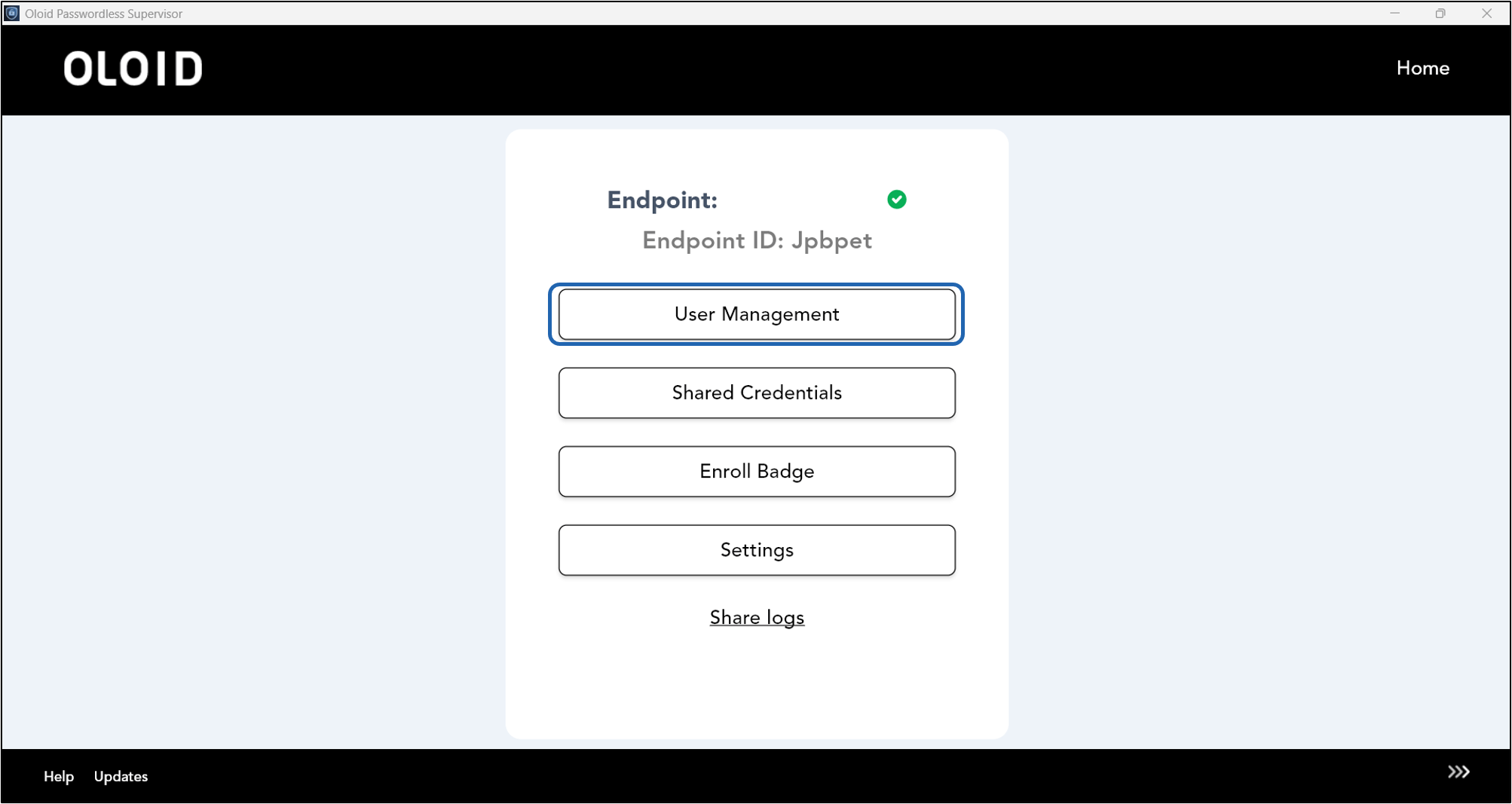
- Log in to Supervisor App. For more, refer toHow to log in to Supervisor App The Admin Home screen is displayed.
- Select User Management.
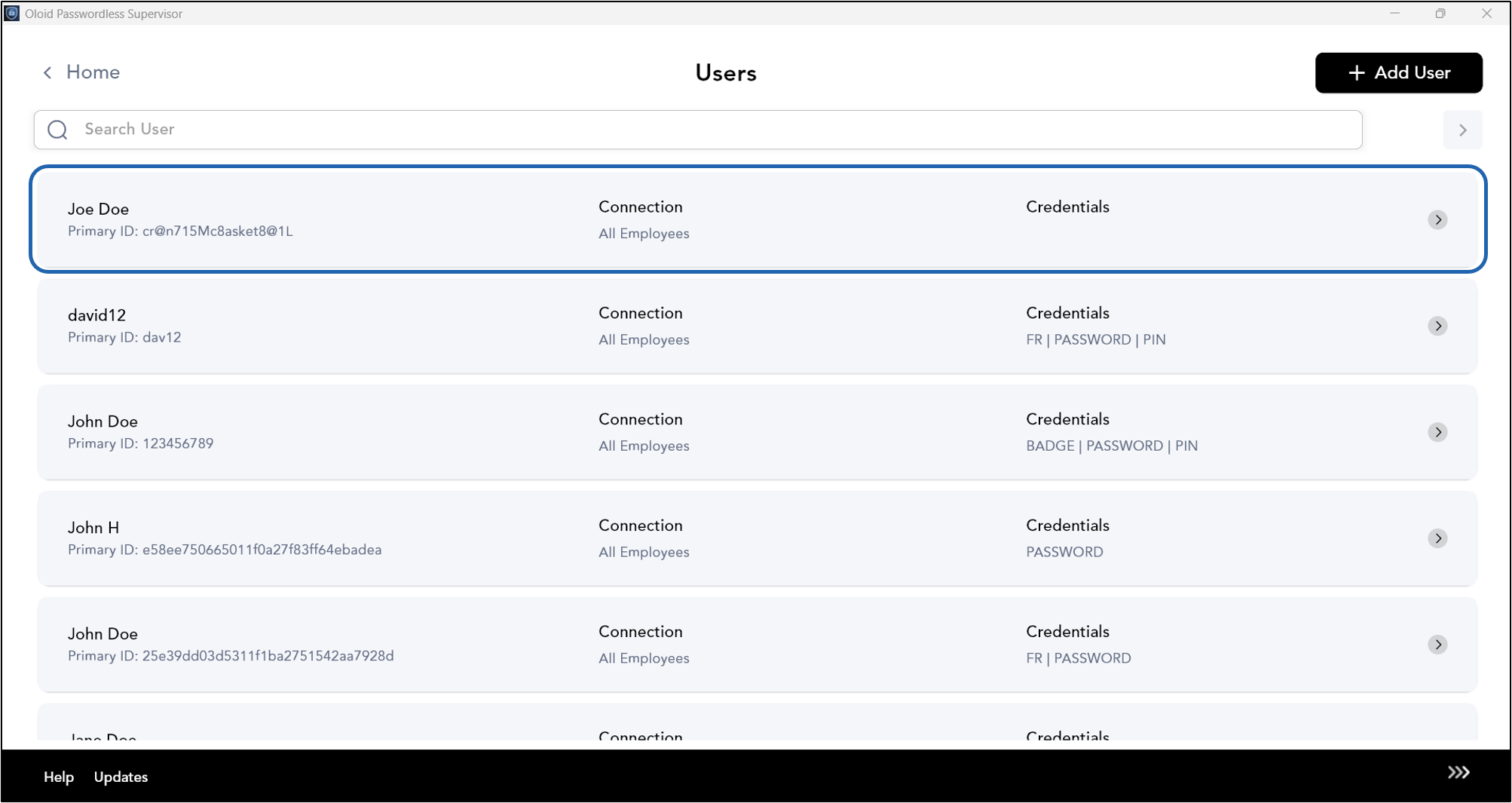
- Select the user to view details.
- Go to PIN tab > Click Add.

- Do the following:
- Enter new PIN.
- Re-enter new PIN.
- In the Share PIN with field add the email IDs of users to share this pin Via email. (Optional)
- Click Create.