Introduction
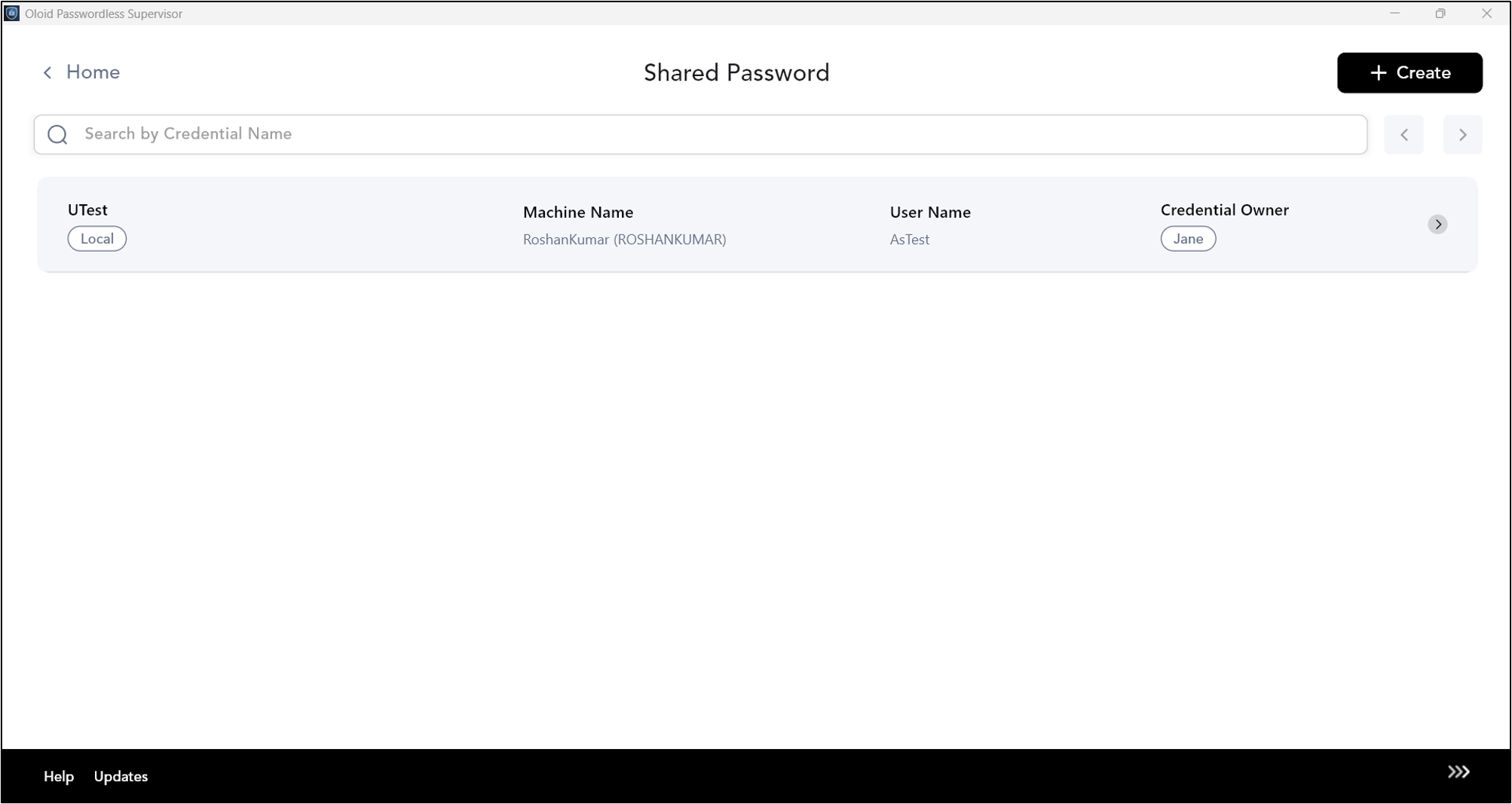
Shared Credentials are passwords that can be used to access a local Windows machine or a domain. It is shared among the users to whom they are assigned. This document comprises the following:- Create Shared Credential for Domain User
- Create Shared Credential for Local User
Prerequisites
- Ensure the endpoint is paired with the Windows Login application. For more information, refer: Windows Login - How to manually pair the Supervisor App
- Log in to the Supervisor App using an Admin or Supervisor account. Refer: How to log in to Supervisor App
Steps to Create Shared Password for Domain user
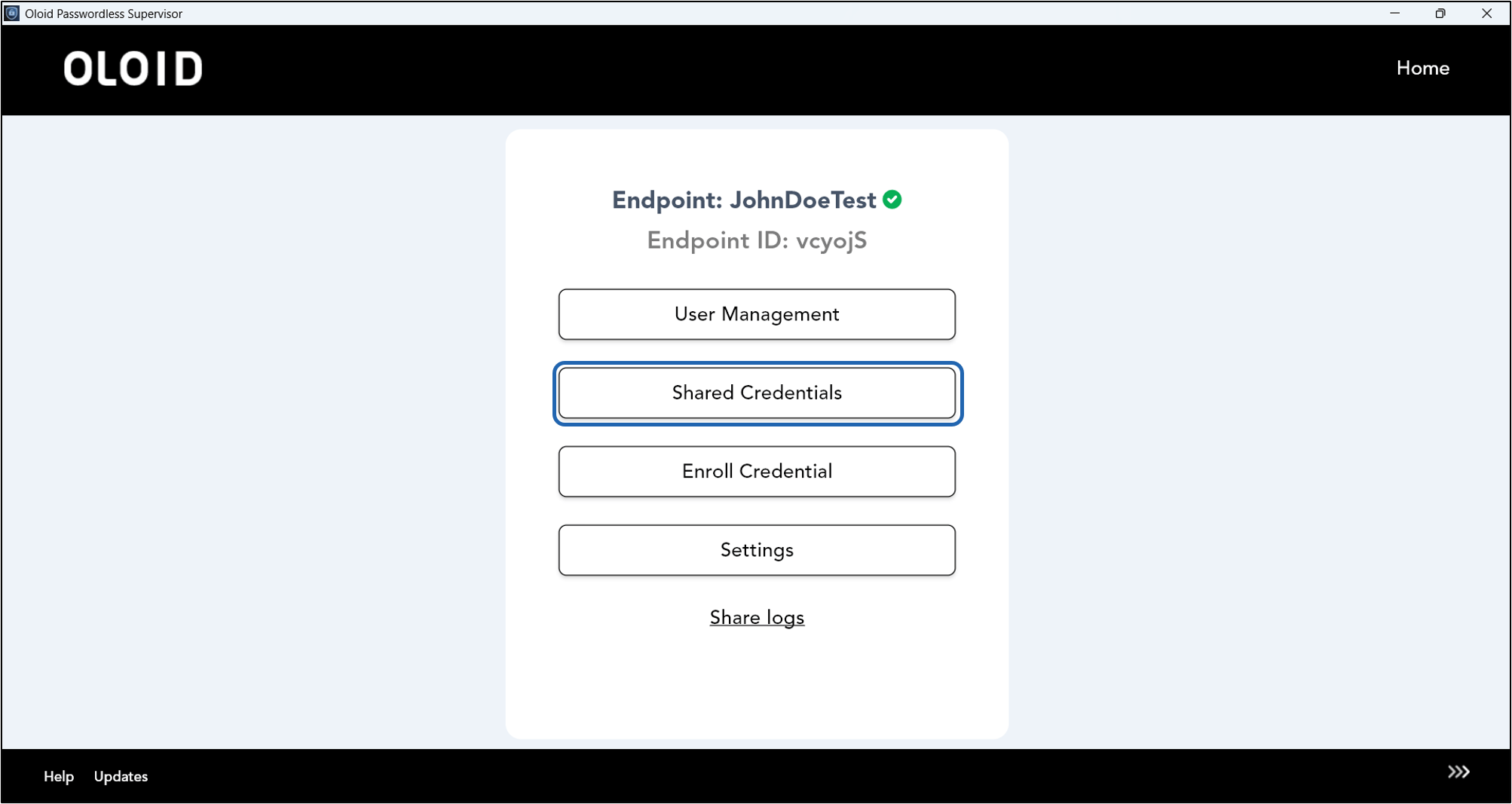
- Log in to Supervisor App. The Admin Home screen is displayed.
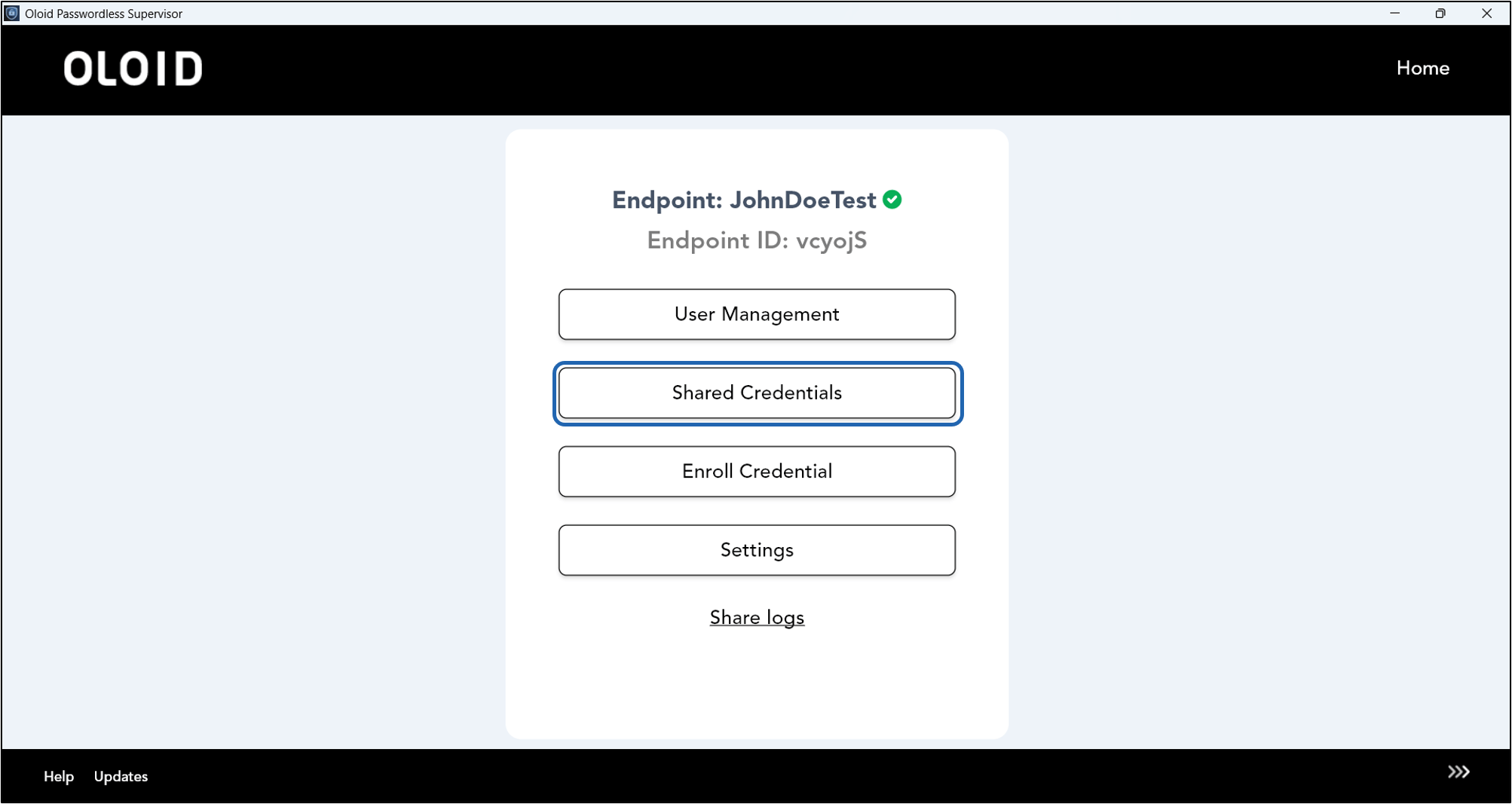
- Select Shared Credentials.
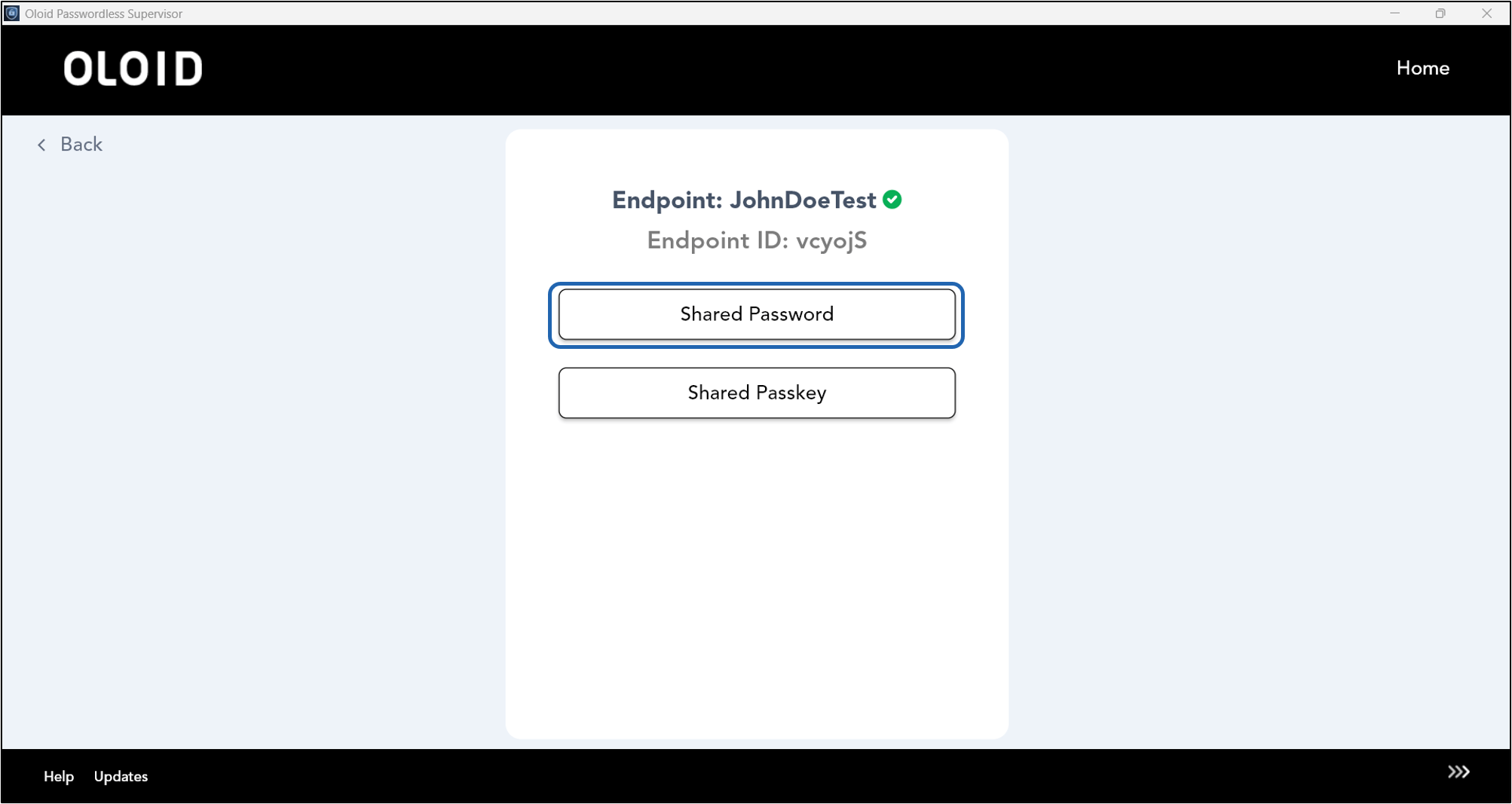
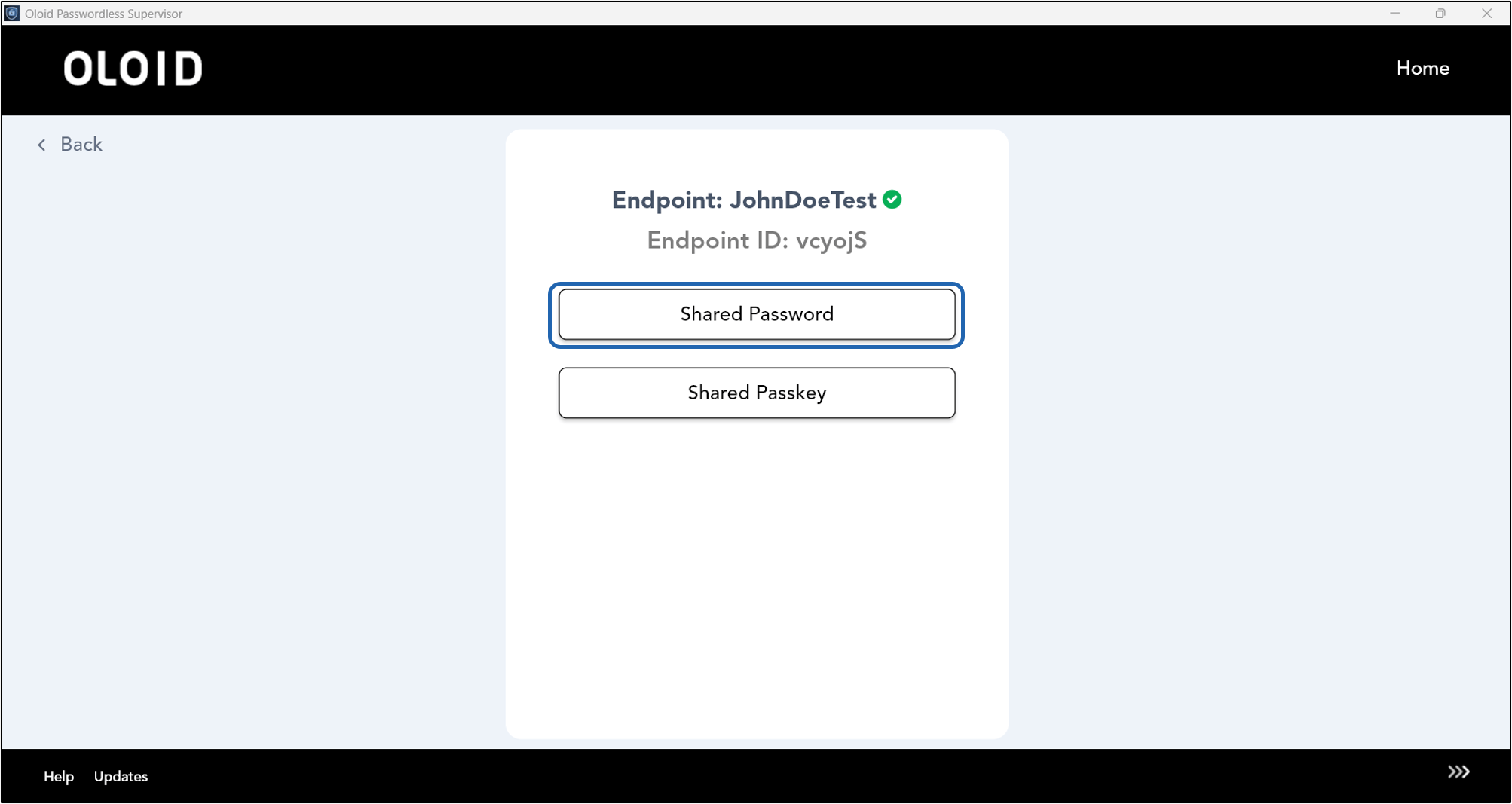
- Select Shared Password.
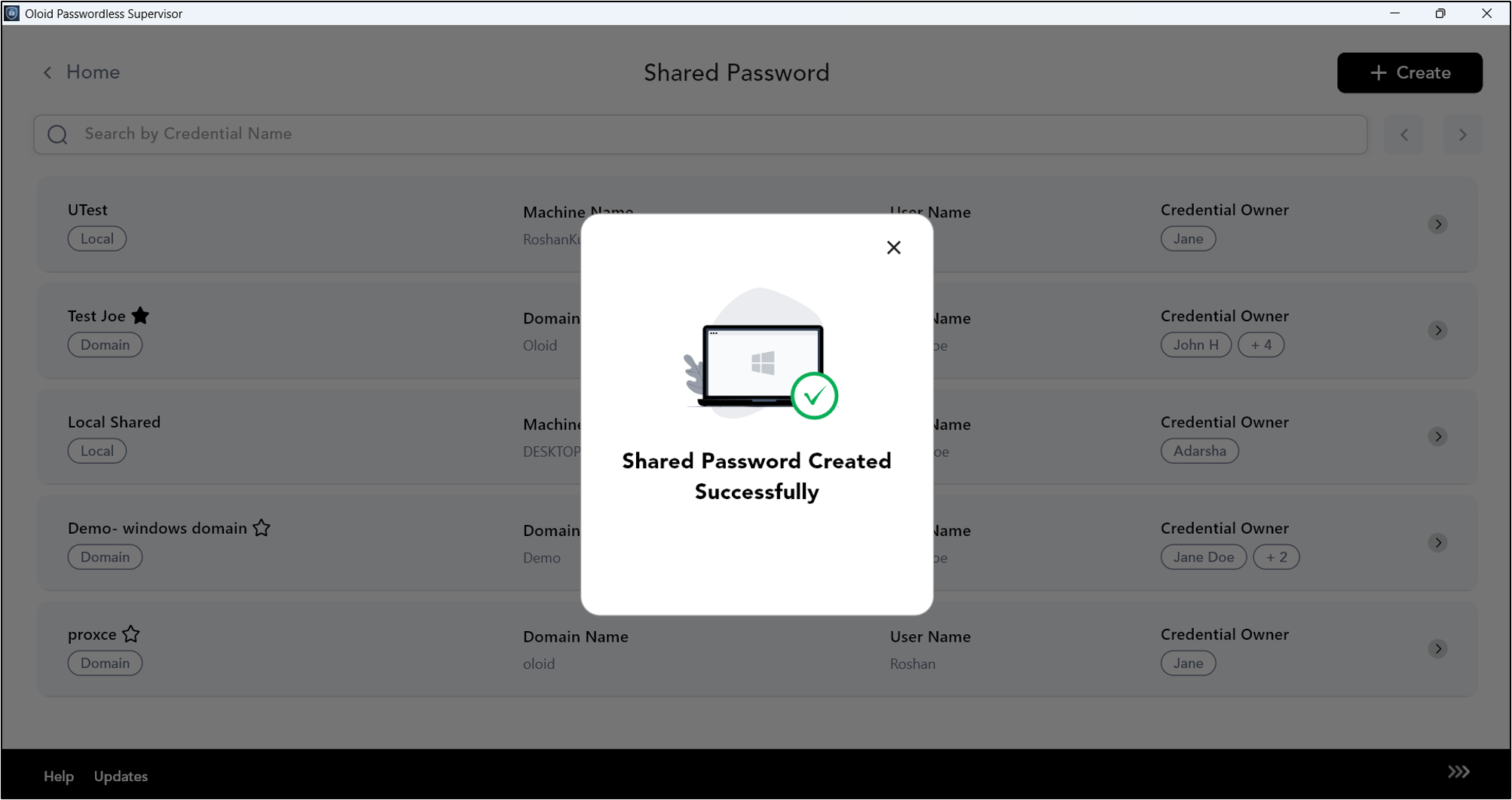
- On the top right, click + Create.

- Do the following:
- Select Credential Type as Domain User.
- Enter Display Name.
- Select Users for Credential Owner. (System Default)
- Enter Domain Name.
- Select Preferred Machine from the Preferred Machine list. (System Default paired machine name is selected)
- Enter Username.
- Enter Password.
- Enter External ID. (Optional)
- Click Create Password.


Steps to Create Shared Password for Local User
- Log in to Supervisor App. The Admin Home screen is displayed.
- Select Shared Credentials.
- Select Shared Password.
- On the top right, click + Create.
- Do the following:
- Enter Display Name.
- Select user(s) for Credential Owner. (System Default)
- Select Machine. (System Default paired machine name is selected)
- Enter User Name.
- Enter Password.
- Enter External ID. (Optional)
- Click Create Password.