Introduction
This document provides step-by-step instructions to deploy the Windows Passwordless v1.0 application to managed Windows devices using Microsoft Intune (MDM).Prerequisites
- You must have admin access to the Microsoft Intune Admin Account.
- You must download the Windows Login v1.0 installer file. For more information, refer to How to download Supervisor App
Steps to Deploy Windows Passwordless v1.0 using Microsoft Intune (MDM)
- Log in to Microsoft Intune Admin Account. The Microsoft Intune home screen is displayed.
-
Navigate to Apps > Windows.

-
Click + Create.

-
In the app type dropdown, select Line-of-business app and click Select.

-
On App Information tab, do the following:
-
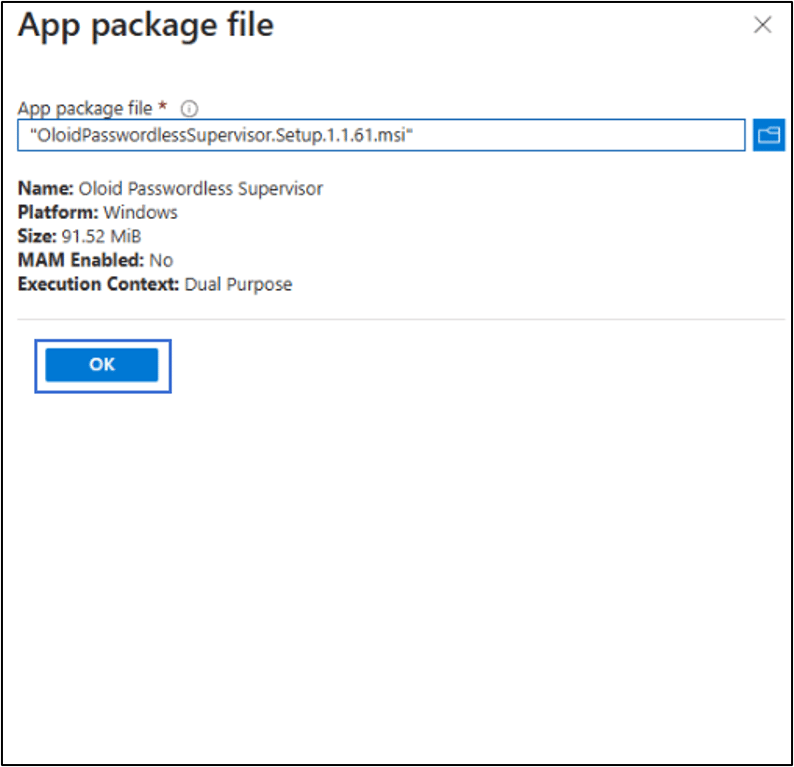
Click Select app package file.

-
Browse and upload the Windows Login v1.0 installer file.
Note: Upload the MSI file from the package.
-
Click OK.
- Enter Publisher.
-
Click Next.

-
Click Select app package file.
-
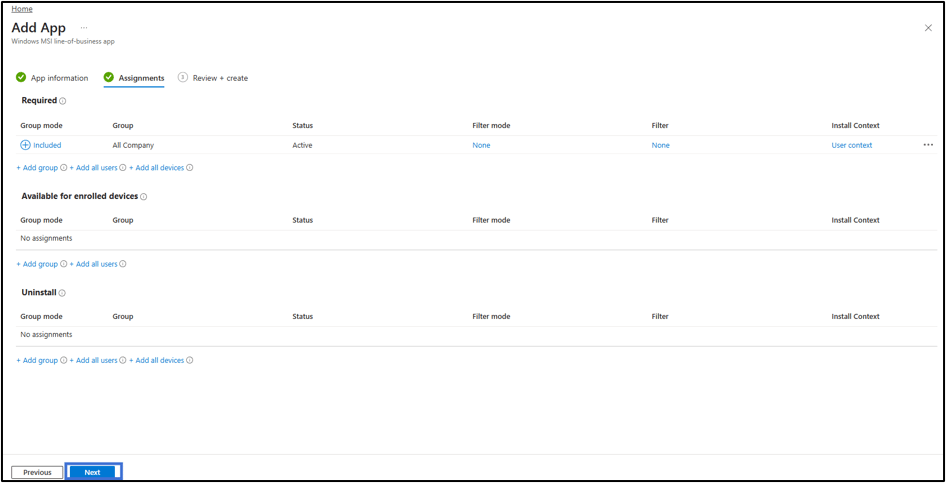
On the Assignments tab, do the following.
-
On Required section, click Add group to assign this profile to your target device groups.
-
Do the following.
-
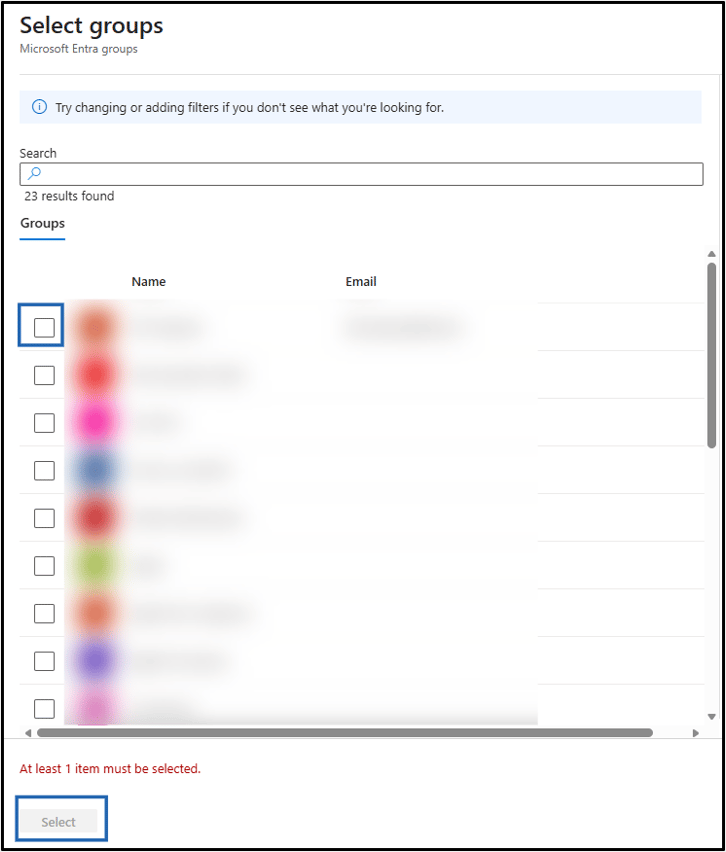
Select the group(s) from the list.
Note: You can select multiple groups (If required).
-
Click Select.
-
Select the group(s) from the list.
-
Click Next.
 Note: To assign groups under the Available for enrolled devices and Uninstall sections, repeat Steps 6a and 6b as required.
-
On Required section, click Add group to assign this profile to your target device groups.
-
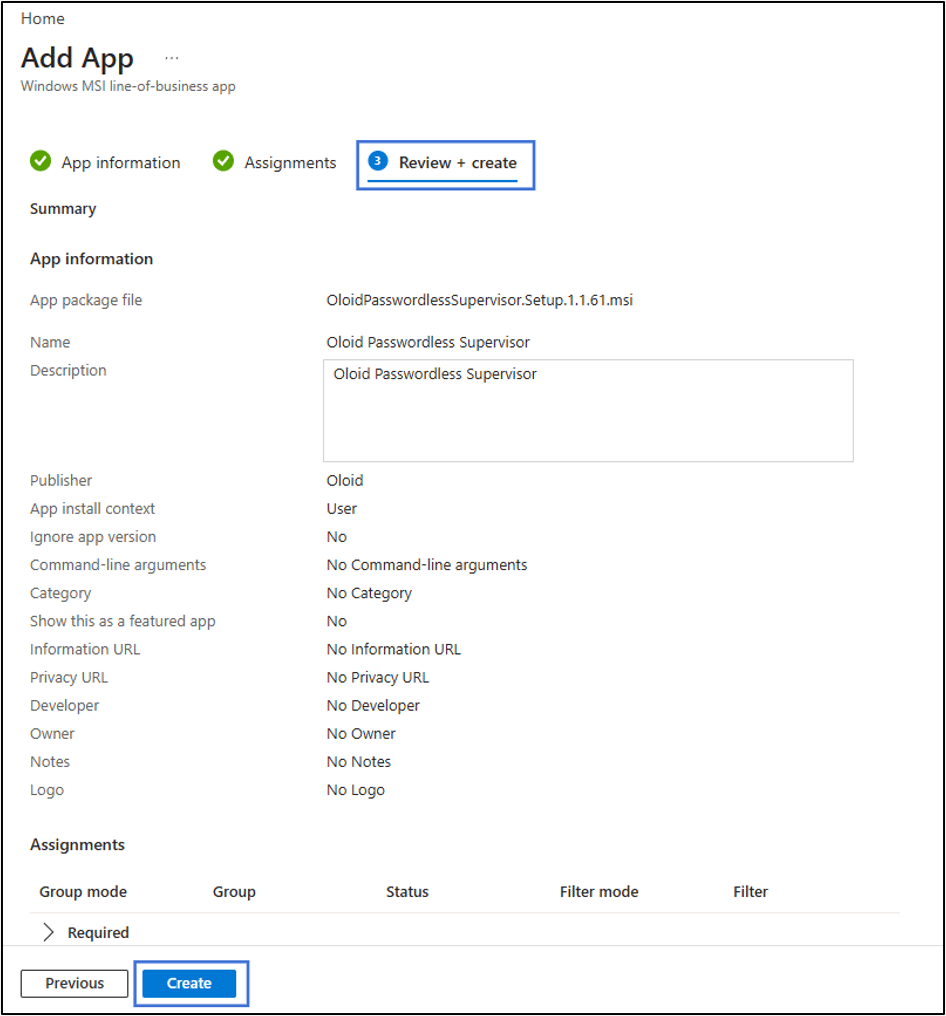
Review all settings and click Create.