Introduction
The Switch User workflow in Epic Hyperspace allows a second user to securely take over an active session on a shared Windows device. The current active session is closed and a new session is activated for the second user.Prerequisites
- You must have access to Epic Hyperspace.
- Epic Vault Password must be created for the user. Refer: How to create Vault Password for a user
- Ensure that the Supervisor app is closed.
- Ensure the Tray application is running in the background.
- Badge must be assigned to the user. Refer: How to assign Badge ID as credential to users
- The PIN must be enabled and assigned to the user. Refer: Tenant Admin Portal - How to Configure PIN
- The badge reader must be connected to the Windows system.
- Badge Out options must be configured. Refer: Windows Login - How to Configure Badge Out option
Steps to Switch User using Badge ID
-
On the Lock screen, select Login with OLOID.
 Note:
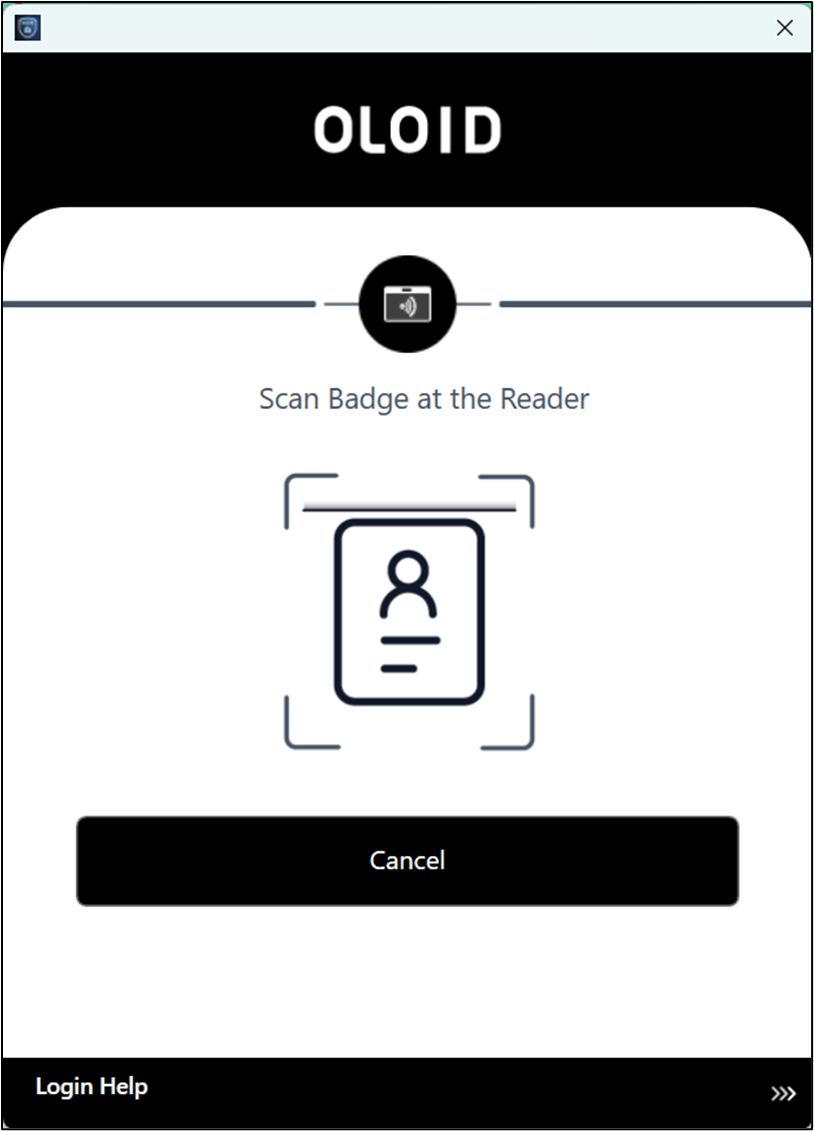
Note:- Tap the Badge on the Badge Reader to scan it.
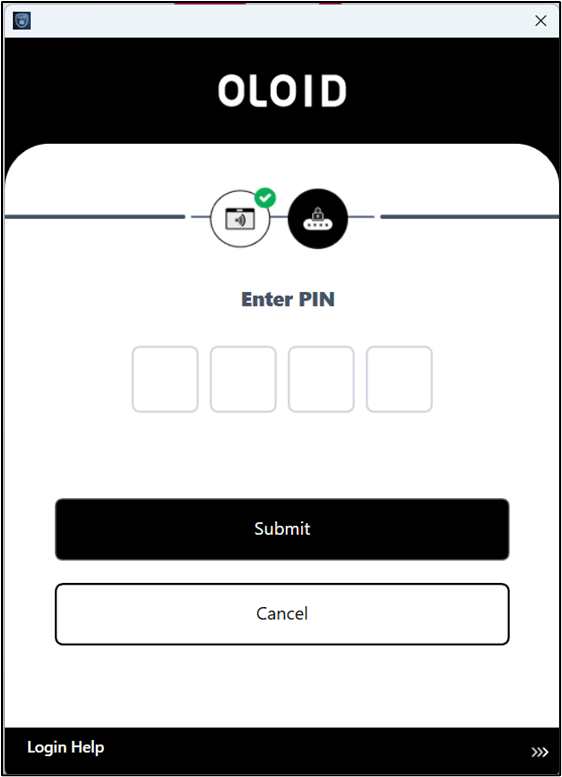
- Enter the PIN.

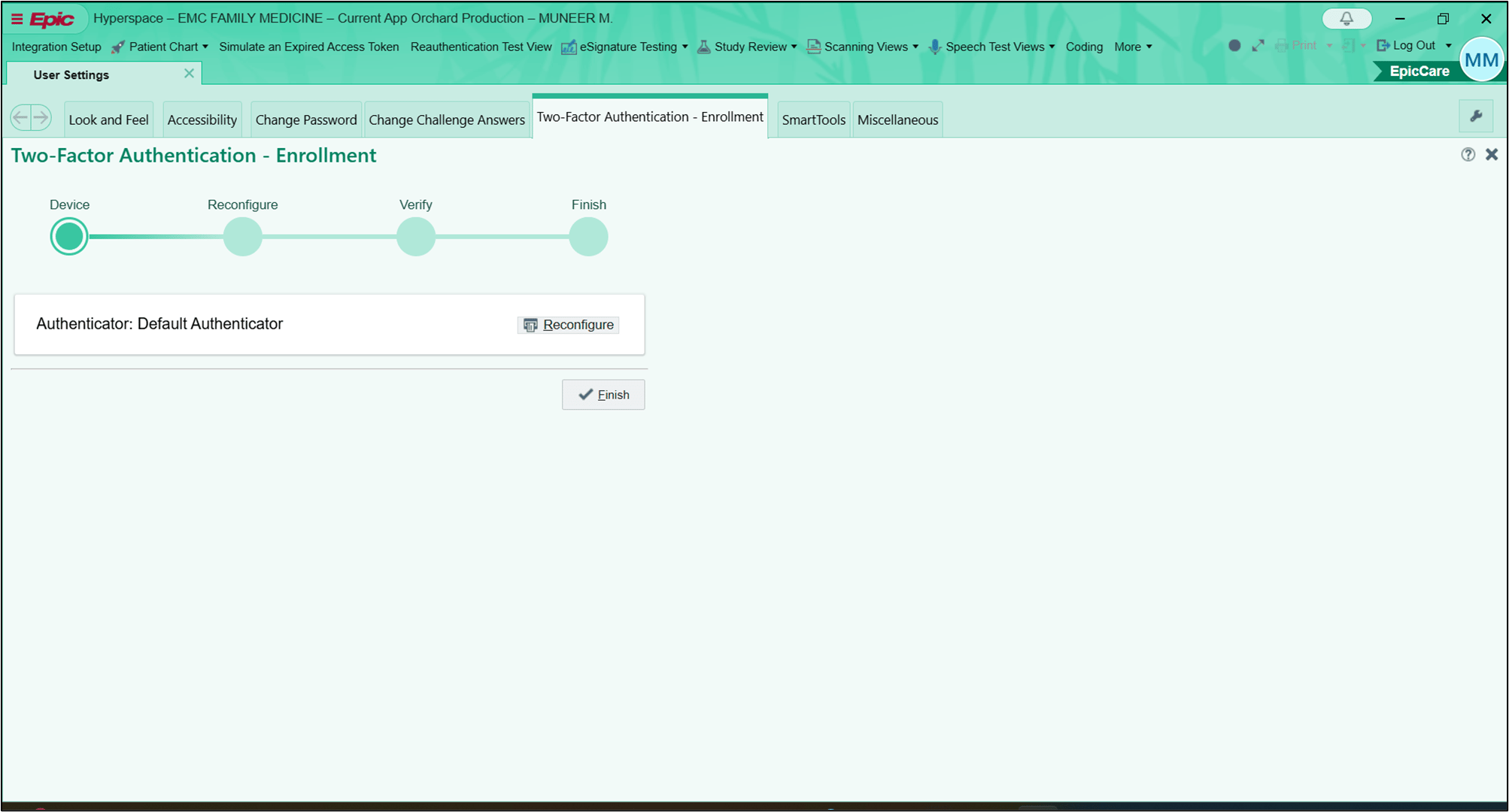
- Log in to Epic Hyperspace refer: How to log in to Epic Hyperspace using Badge ID + PIN
User is successfully logged in to Epic Hyperspace.
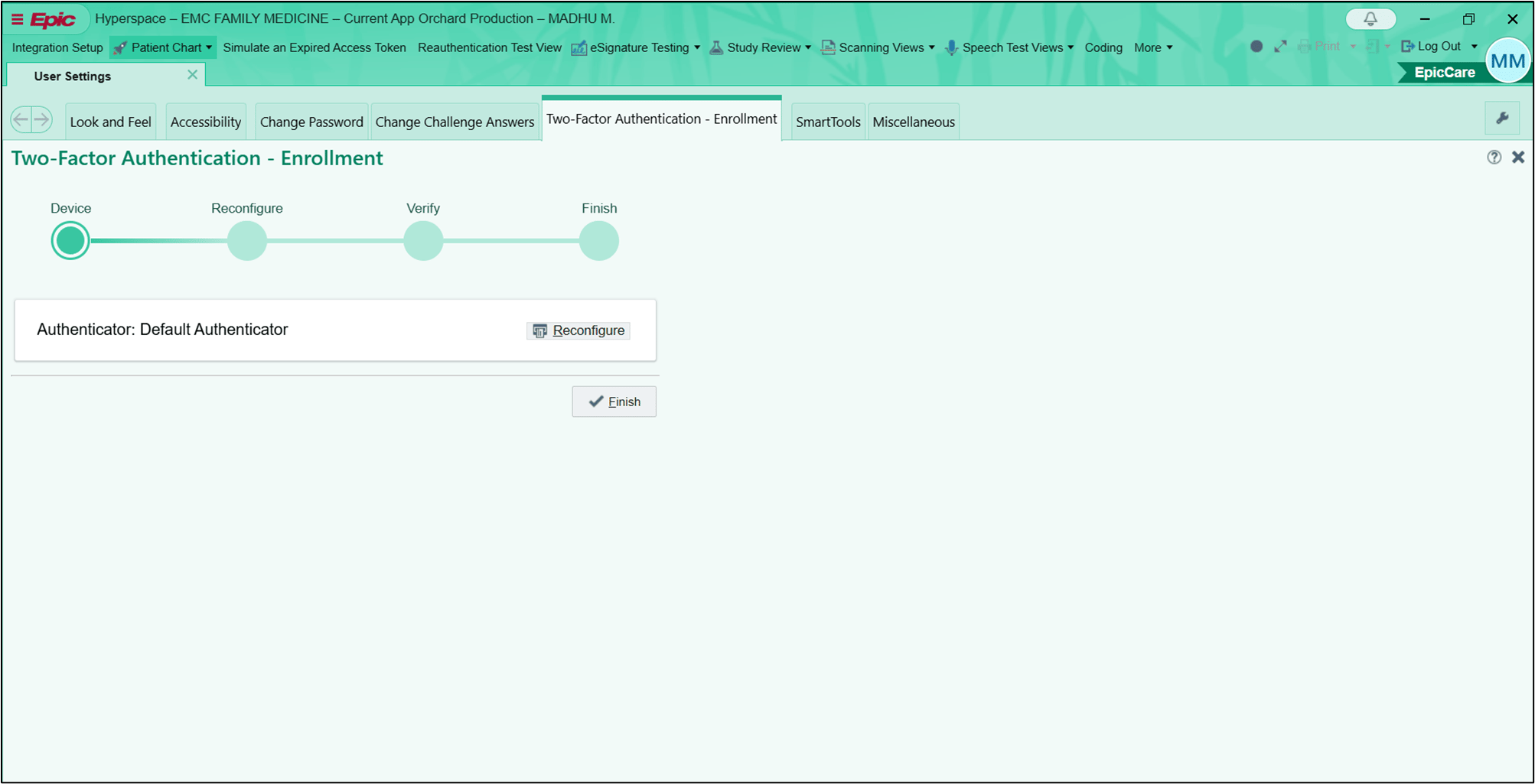
- The Second User must tap the Badge on the Badge Reader to initiate User Switch.
Note: The User will switch from User 1 to User 2.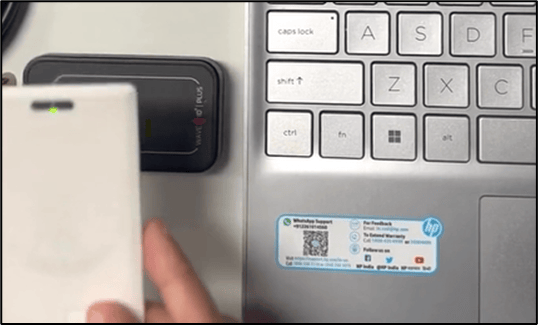
- Tap the Badge on the Badge Reader to scan it.
-
Enter the PIN.
Note: If Multi Factor Authentication (MFA) is enabled the second user must authenticate using the configured second factor, In this case PIN.

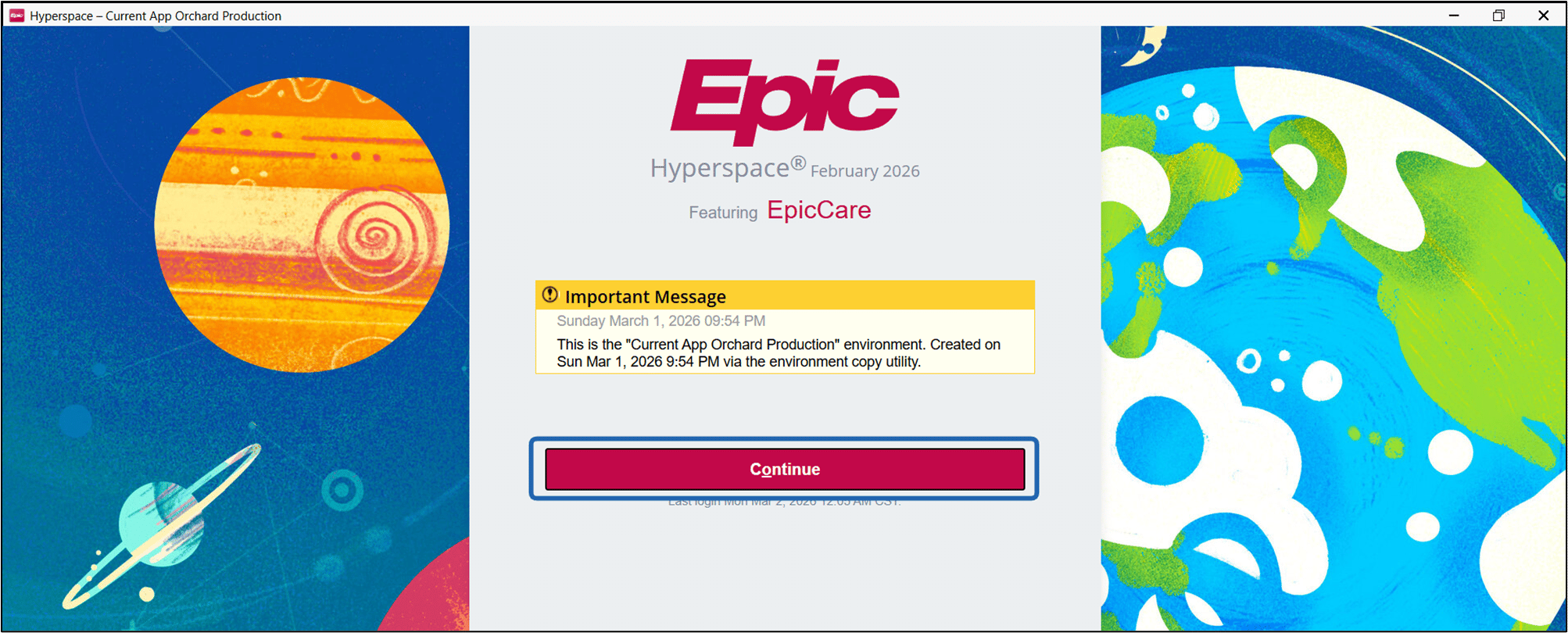
- The Login confirmation screen is displayed. Click Continue.