Introduction
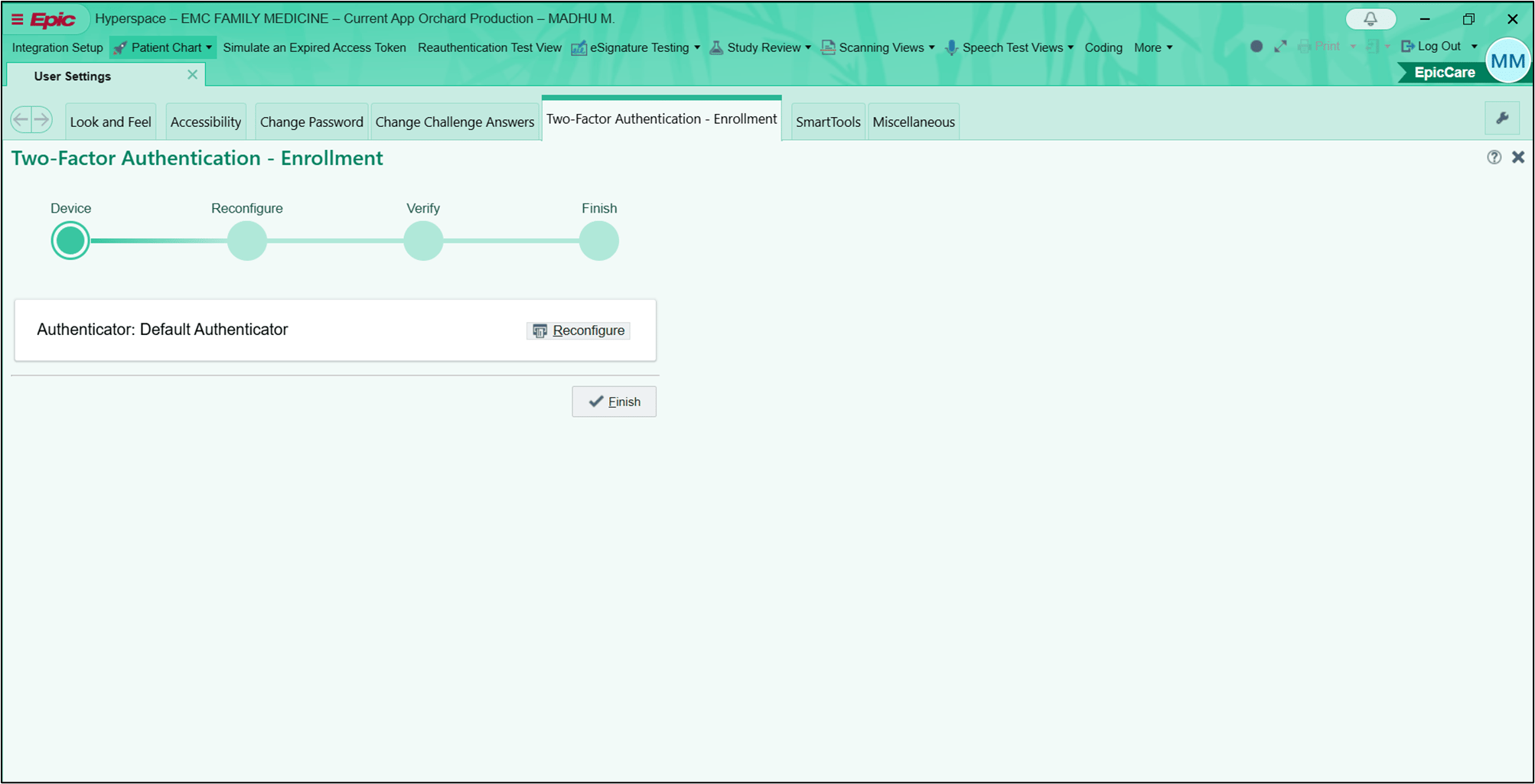
Logging into Epic Hyperspace using Badge and PIN provides a secure and efficient authentication method for accessing Epic applications on Windows devices. When SSO is enabled, users are not prompted for reauthentication upon launching Epic Hyperspace after unlocking the system using badge and PIN.Prerequisites
- The Badge must be assigned to the user. Refer: How to assign Badge ID as credential to users
- The badge reader must be connected to the Windows system.
- Ensure the Tray application is running in the background.
- Ensure the Supervisor app is closed.
- Ensure Epic SSO is enabled. Refer: How to Enable Epic SSO in the Tenant Admin Portal
- Epic Vault Password must be created for the User. Refer: How to create Vault Password for a user
- The PIN must be enabled and assigned to the user. Refer: Tenant Admin Portal - How to Configure PIN
Steps to log in using Badge
-
On the Lock screen, select Login with OLOID.
 Note:
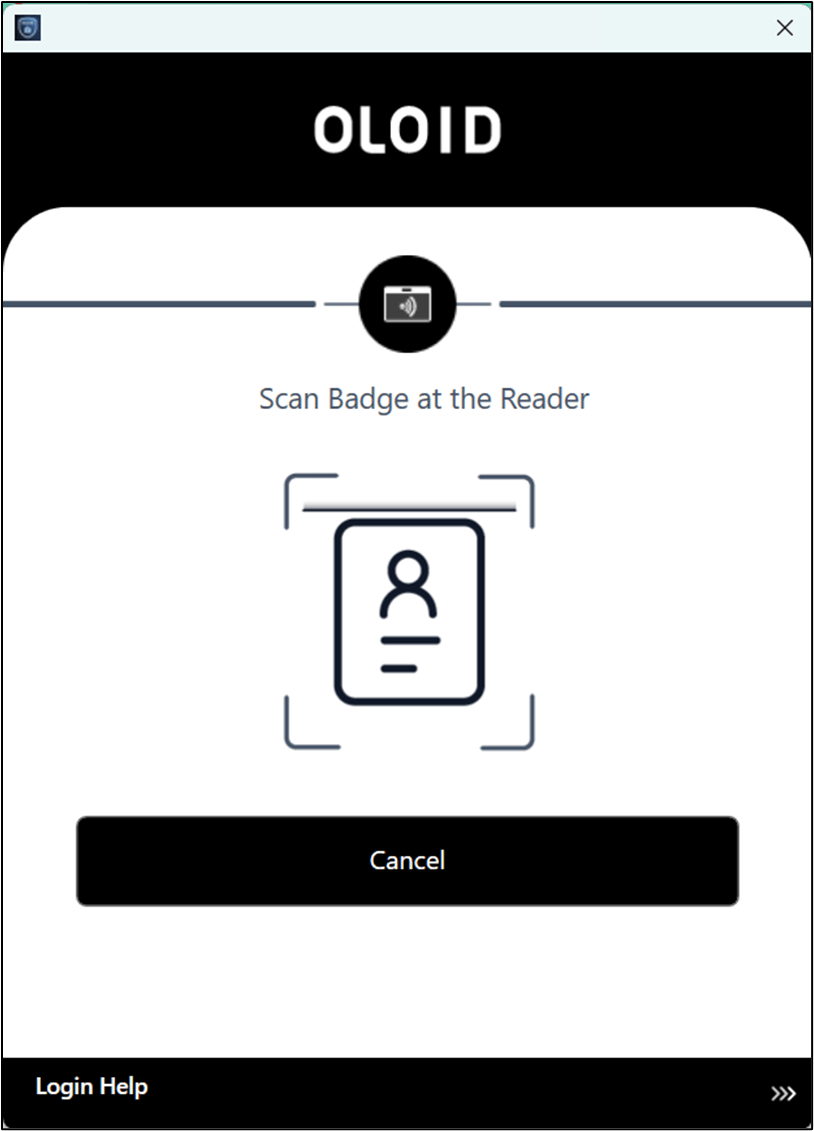
Note:- Tap the Badge on the Badge Reader to scan it.
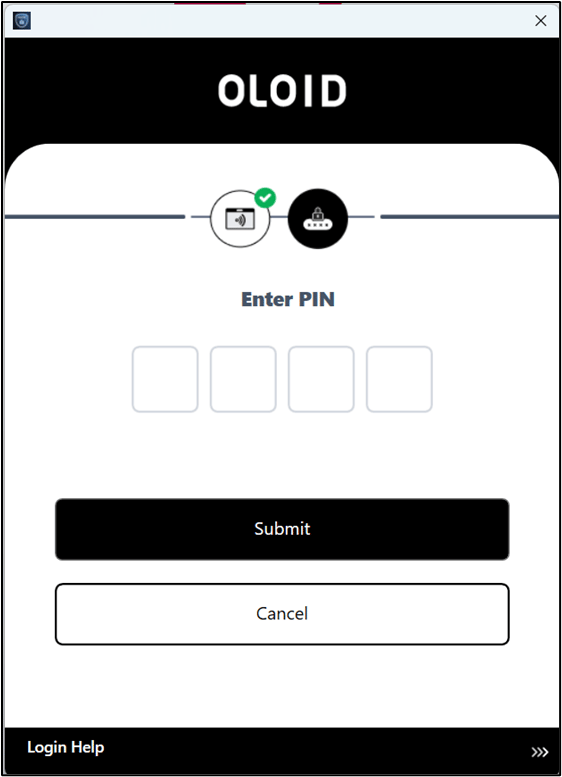
- Enter the PIN.

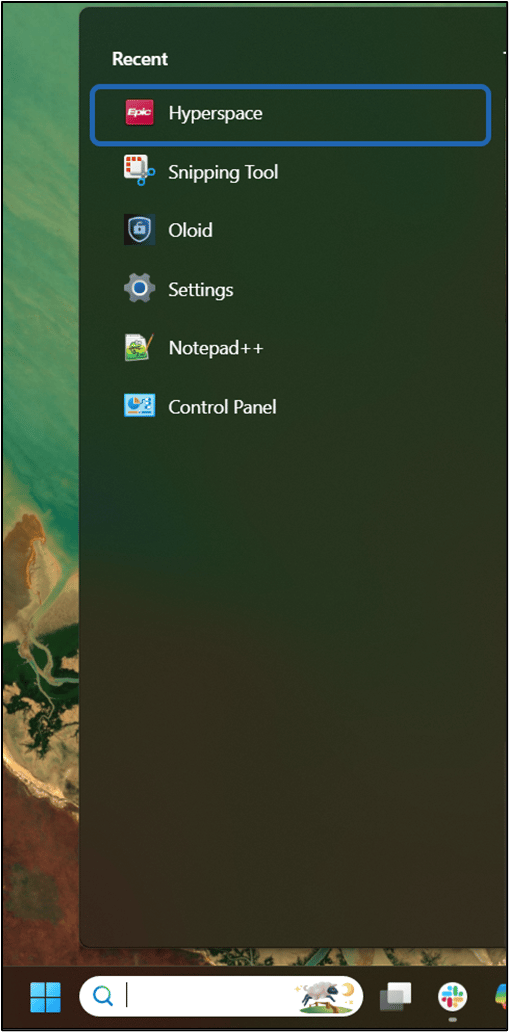
- Launch the Epic Hyperspace application on your Windows machine.
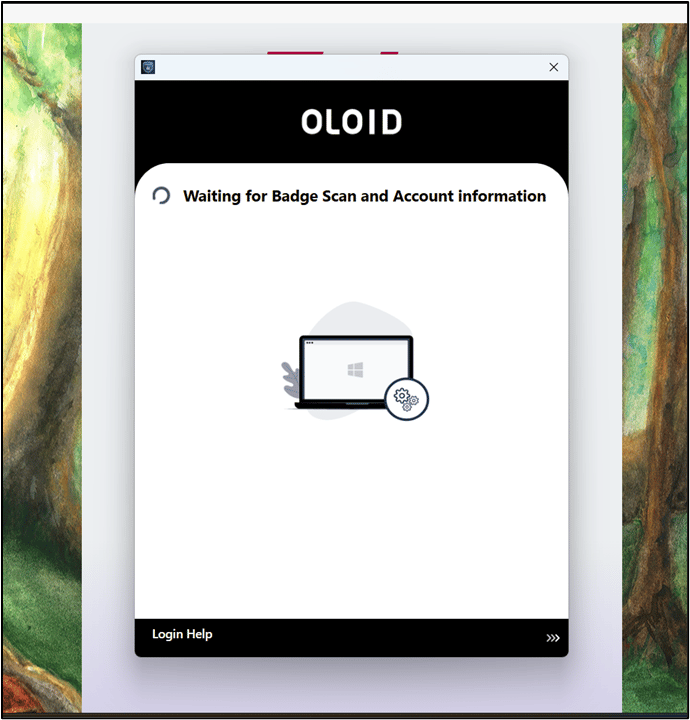
- The Login confirmation screen is displayed. Click Continue.
- Tap the Badge on the Badge Reader to scan it.