

Note: It is recommended to use Tenant Settings tab to download the installer file.
- Visual C++ “14” Runtime Libraries (x64)
- .Net Runtime 6.0.36 (x64)
- .Net Desktop Runtime 6.0.36 (x64)
-
Download Windows Authenticator App file on your system.
 Note: If you have subscribed to Presence Detection feature, then download Windows Authenticator App (Presence Detection) file on your system.
- Right-click and select Extract All > OloidPasswordlessSupervisor.Setup.zip file. The extracted files will be saved in the same folder as the original zipped file.
-
Confirm the presence of required components:
- If all required components are already installed, then double-click OloidPasswordlessSupervisor.Setup file.
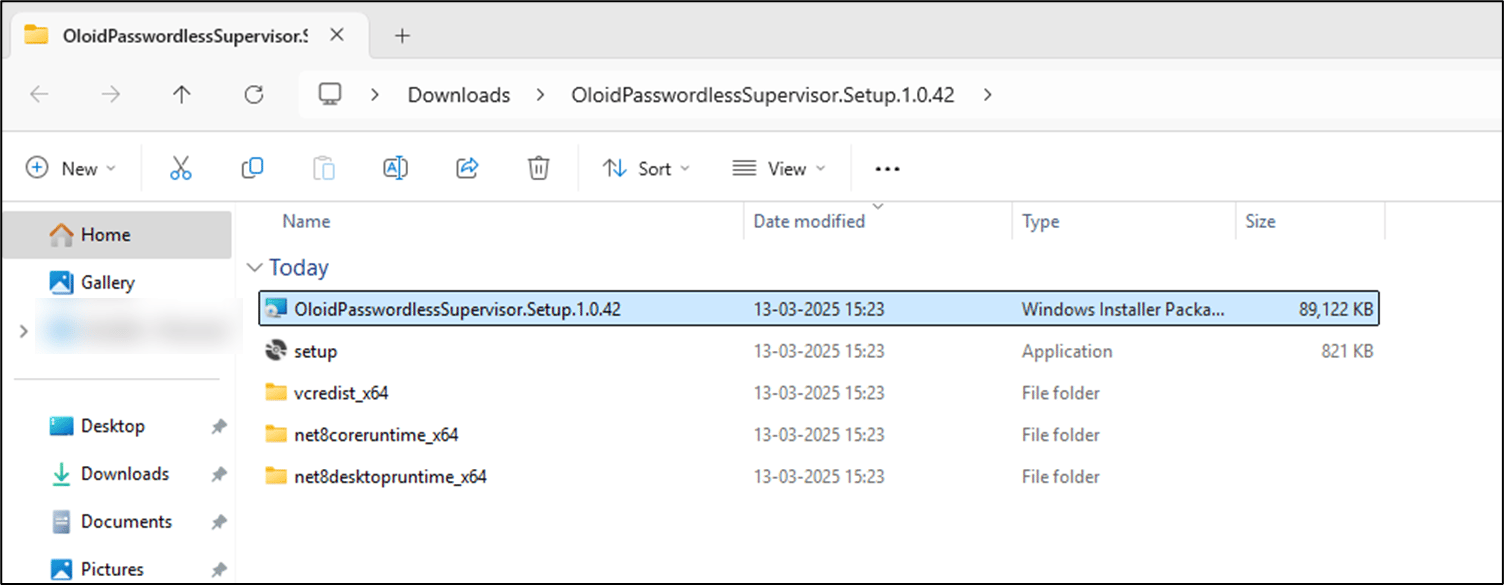
- If any component is missing, double-click setup.exe to install missing dependencies.
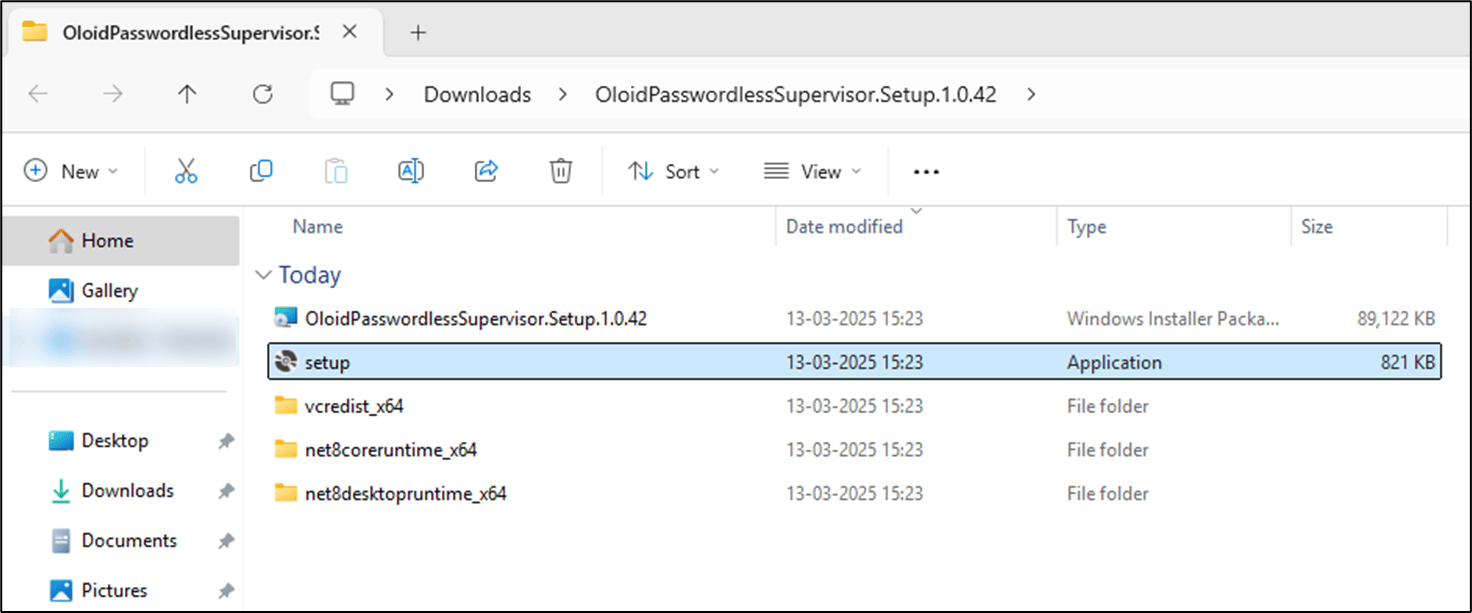
- If all required components are already installed, then double-click OloidPasswordlessSupervisor.Setup file.
-
In the Oloid Passwordless Supervisor Setup window, review the listed components, and click Install to proceed.
 Note: If components are missing, the setup prompts you to install them.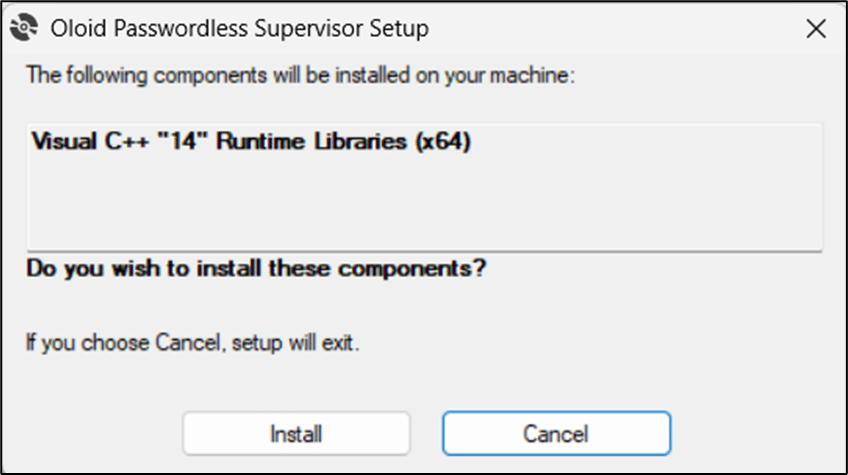
-
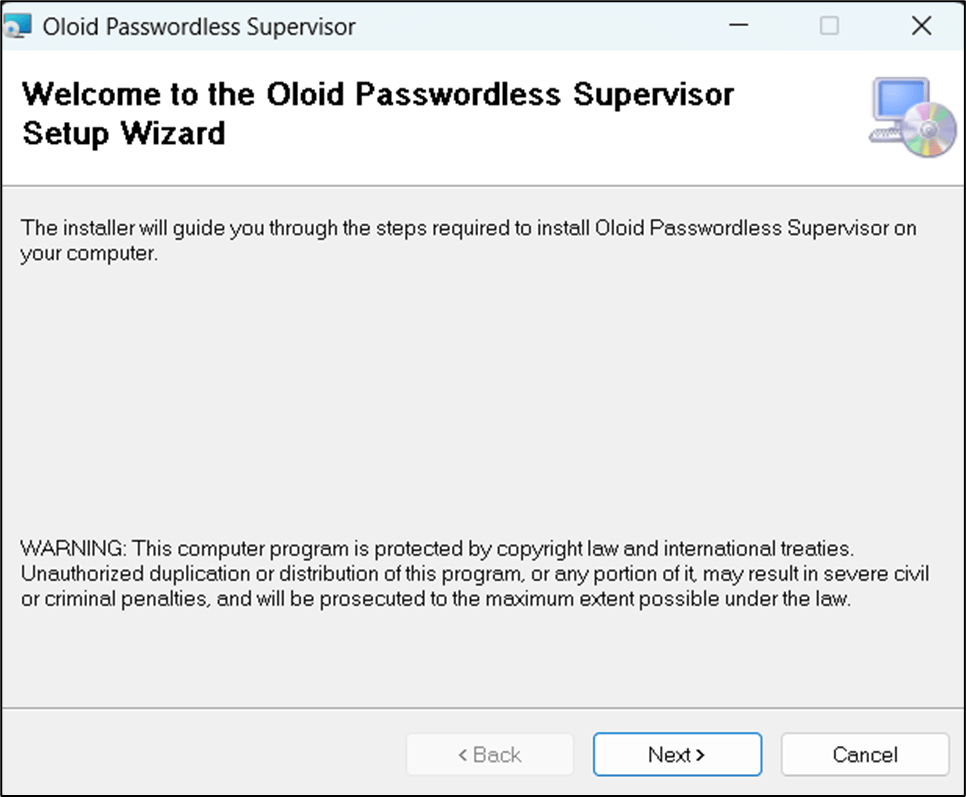
On the Oloid Passwordless Supervisor Setup wizard, click Next.
-
Use the default path to install the application and click Next.

-
Click Next to confirm the installation.
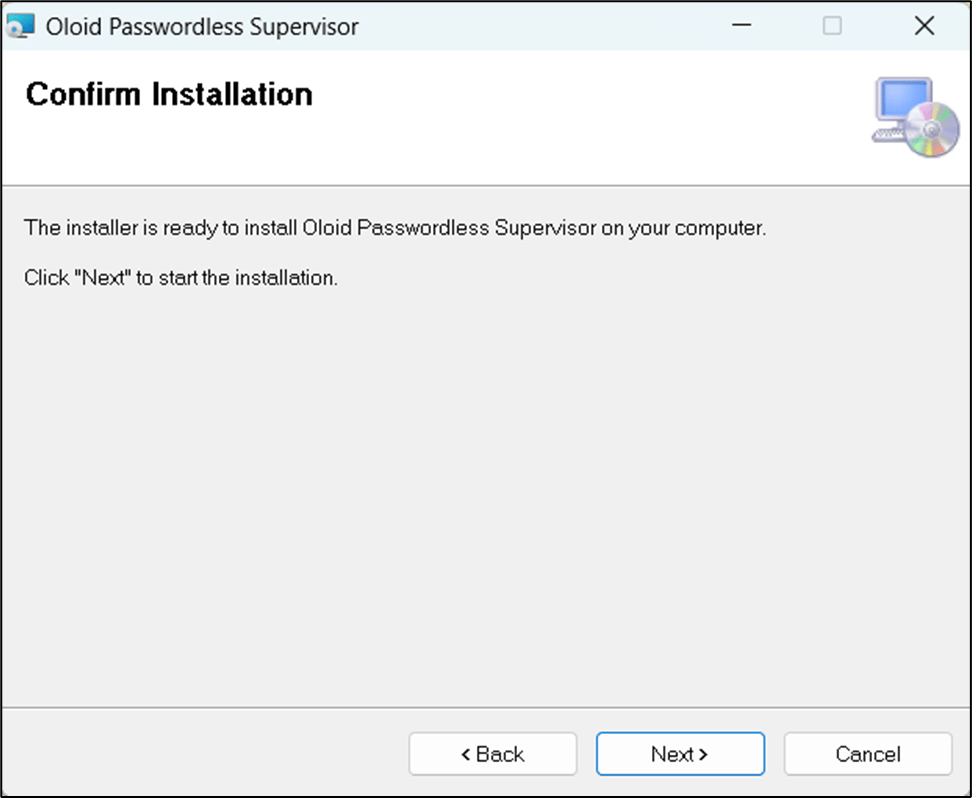
-
Click Close after the installation is complete.
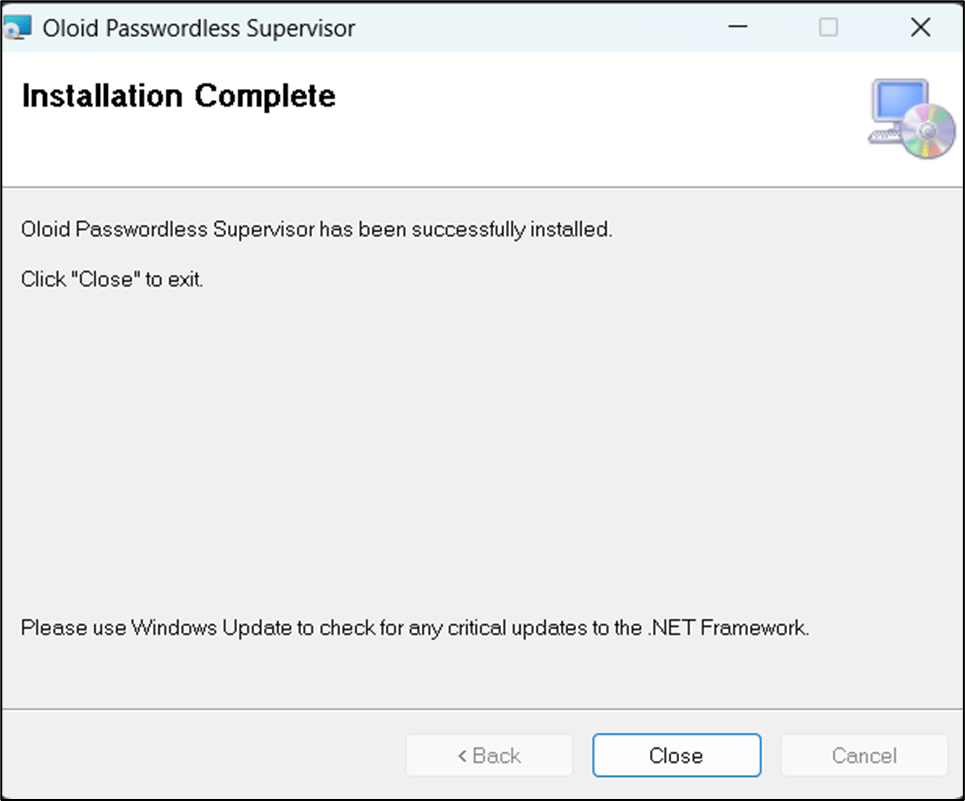
 on your desktop.
Now restart your system for the Windows Supervisor App to take effect
on your desktop.
Now restart your system for the Windows Supervisor App to take effect