

Introduction
The Supervisor App allows admins or supervisors to pair a Windows endpoint with a Windows Login application. During the pairing process, you can specify the endpoint name and select the required Windows Login application to associate with the endpoint.Prerequisites
- You must have Admin or Supervisor credentials to perform endpoint pairing.
- You must have Tenant Admin Access.
- Windows Login Application must be created in the Tenant Admin Portal. For more information, refer: How to create and configure Windows Login application in the Tenant Admin Portal
Steps to Pair as Supervisor
- Double-click on the Supervisor App to start.

- Enter Tenant Name / Customer Code.
- Click Next.
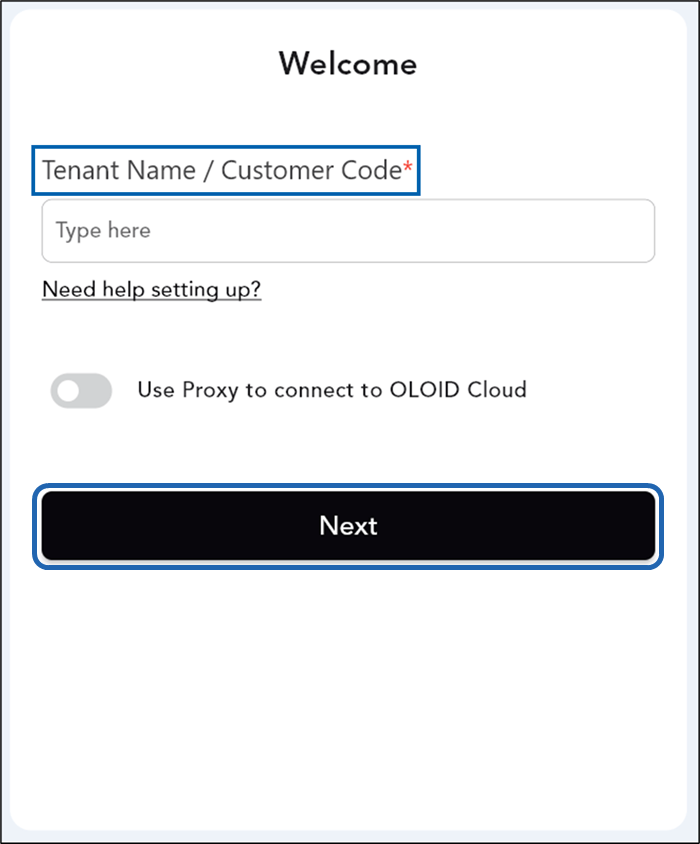
- Choose the required environment > click Next.

- Enter Supervisor Email ID and Password > Click Login.
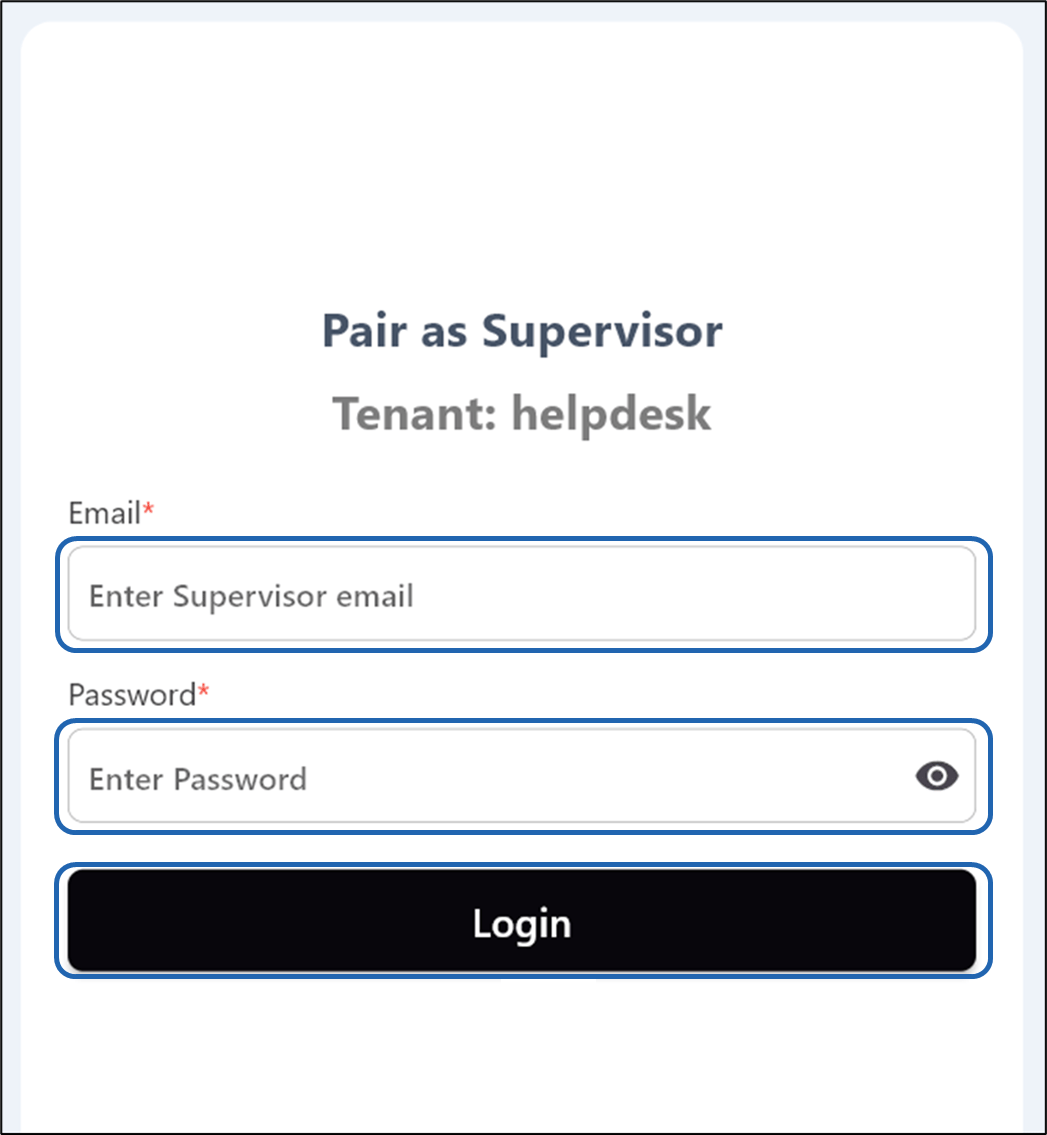
- Do the following
- Select Template (Optional).
-
Enter Endpoint Name.
Note: The endpoint name field is auto-populated with the machine name by default, though it can be manually edited as required.
-
Select Application Name.

